Creators of illustrated sewing instructions
If you’re putting patterns, text and reference photos together to create instructions, make sure the display and screen space suit your layout workflow.


For pattern drafting and instructions with reference images, your laptop should work with the programmes you use and offer enough screen space and storage for your workflow. A traditional laptop is better suited to working mainly with a keyboard and mouse; a convertible is worth considering if you want to annotate designs or images directly on the display. Adobe recommends 16 GB of RAM or more for Photoshop – this is not a general minimum requirement for every pattern-making programme.
If you’re putting patterns, text and reference photos together to create instructions, make sure the display and screen space suit your layout workflow.
If you draw or alter pattern pieces to specific measurements, check that your pattern-making software is compatible, along with your planned export and printing process.
If you want to edit designs or reference images directly on the display, check the touch and stylus features of the specific model.
A good fit if: you mainly use a keyboard and mouse to draft patterns, lay out text and compare images alongside your document.
The trade-off: the screen size and resolution of the specific model determine how much workspace you have; direct stylus input on the display is not confirmed.
A good fit if: you regularly annotate reference images on screen or edit designs there.
The trade-off: a touchscreen alone does not confirm stylus compatibility or that a stylus is included.
| Buying priority | What to look for | Who it matters most to |
|---|---|---|
| Screen space for text and images | Compare the screen size and native resolution of the specific model; consider an external monitor if needed. | If you want to keep text and reference images clearly visible at the same time, usable screen space matters. Around 33% of consumers put this priority first. |
| Pattern-making software | Check the specific programmes you plan to use, the operating systems they support, and your export and printing options. | If you draft pattern pieces to specific measurements, your software needs to work with your device and intended output method. Around 27% of consumers prioritise having the right pattern-making software. |
| Working with reference photos | For Photoshop 27.x, Adobe lists 8 GB of RAM as the minimum and recommends 16 GB or more. For storage, Adobe lists 10 GB of free space as the minimum and recommends 100 GB of free space, as well as a fast internal SSD. | If you edit photos extensively rather than simply adding them to your instructions, you’ll need to take the requirements of your image-editing software into account. Around 20% of consumers prioritise photo editing. |
| Annotating on the display | Check stylus support, the stylus standard and what’s included with the exact model. | If you want to annotate or edit designs directly on screen, the input method of the specific model matters. Around 20% of consumers prioritise stylus input. |
A touchscreen alone doesn’t confirm that a particular stylus is compatible or included. ASUS lists support for the ASUS Pen SA205H for the ProArt PX13 HN7306EA-LX070W.
Before buying, check the exact model number, compatible stylus and what’s included.
The Seamly project distinguishes arranging pattern pieces for export or printing from laying them out on fabric; its layout generator doesn’t take the grainline into account.
Check the output format, print scaling and a known measurement for checking dimensions. Plan the fabric layout separately.
Verbraucherzentrale distinguishes the statutory rights you have against the seller from a voluntary warranty with its own terms. EU consumer information states that purchases from a trader come with a minimum of two years’ legal guarantee from the date you receive the goods; purchases from private individuals are excluded.
Before buying an additional protection plan, compare its terms with the statutory rights that apply to your purchase.
MacBook Air M5: a traditional macOS laptop for writing and creating illustrated instructions.
ThinkPad E14 Gen 8: a compact traditional laptop for a workflow that relies mainly on a keyboard and mouse.
OmniBook X Flip: a convertible range for anyone who wants a touchscreen as well as a keyboard.
ProArt PX13 HN7306EA-LX070W: a more compact convertible for anyone who specifically wants a touchscreen and stylus workflow.
Here you’ll find Joybuy laptops for working with sewing patterns and illustrated instructions, including traditional laptops and a touchscreen convertible.
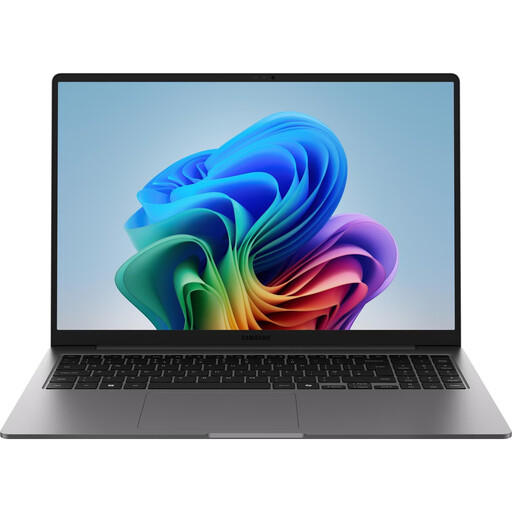 No image available
For working with text and reference images on a 16-inch display; check that the screen resolution suits your layout.
Touchscreen; Intel Core Ultra 7 355; 16 GB LPDDR5X RAM; 512 GB NVMe SSD; Windows 11 Pro.
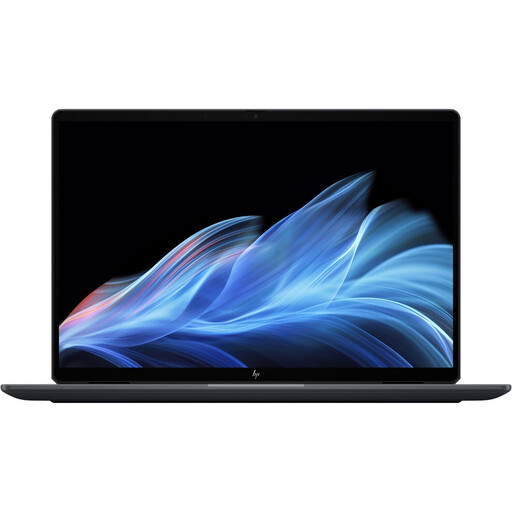 No image available
For a workflow where you edit documents on a convertible touchscreen; check separately whether it supports the stylus input you want.
14-inch 2-in-1 touchscreen; Intel Core Ultra 7 258V; 32 GB RAM; 1 TB SSD; 2.8K OLED; Windows 11 Home.
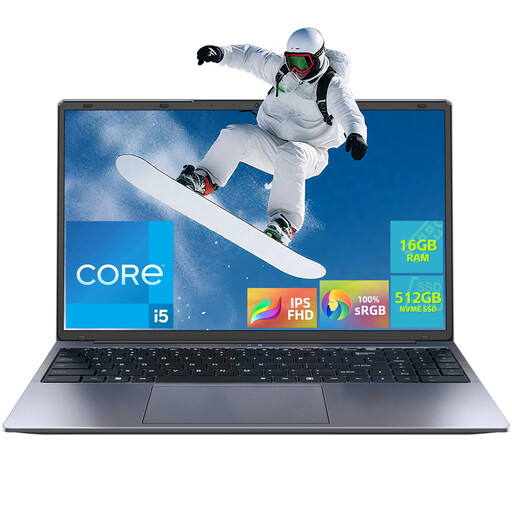 No image available
For writing and layout work on a 16-inch display; compare the resolution with the level of image detail you need.
Intel Core i5-8210Y (2 cores/4 threads, up to 3.6 GHz); 16 GB RAM; 512 GB SSD; Windows 11 Pro.
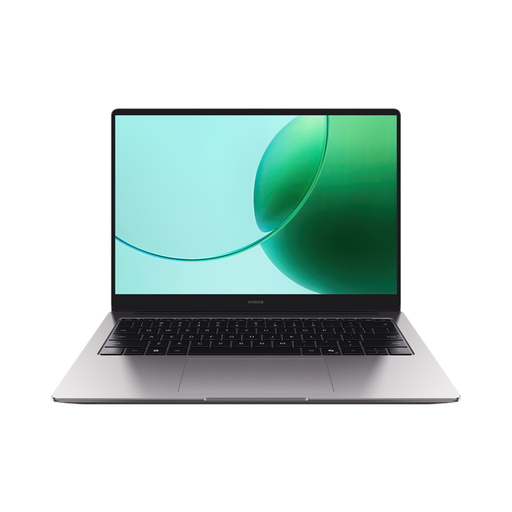 No image available
For longer writing and layout sessions with a German keyboard layout; check that the screen size and resolution suit your image workflow.
16 inches; AMD Ryzen 5 6600H; 16 GB RAM; 512 GB SSD; German keyboard.
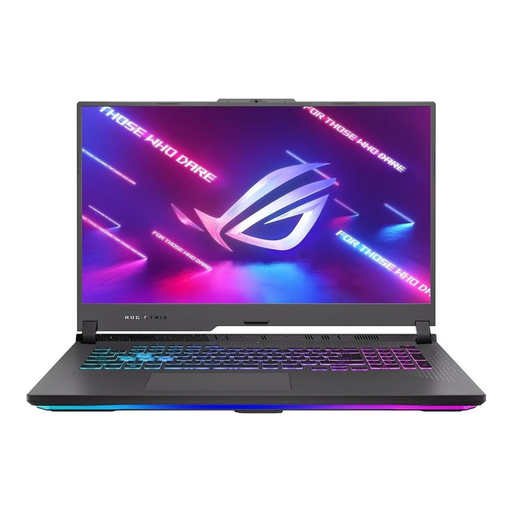 No image available
For a workflow where a large screen matters; compare the resolution with your requirements for reference images.
17.3-inch FHD display with 144 Hz; AMD Ryzen 9 7940HX; GeForce RTX 4060 (8 GB); 16 GB RAM; 1 TB SSD; Windows 11.
No. The Seamly project lists Windows 10 and later, macOS High Sierra 10.13 and later, and certain Linux distributions. Also check the requirements for any other programmes you plan to use.
Yes. According to the Seamly project documentation, you can import an image as a background for reference. Its position and size need to suit your design; importing an image alone doesn’t confirm that it’s a true-to-scale template.
No. The Seamly project distinguishes arranging pattern pieces for export or printing from laying them out on fabric; its layout generator doesn’t take the grainline into account. Plan the fabric layout separately.
Check the paper size, print margins and scaling against a known measurement. The Seamly documentation treats layout creation and printing as separate steps.
No, not as a minimum requirement for Photoshop 27.x: Adobe lists 8 GB as the minimum and recommends 16 GB or more. Before choosing your hardware, consider whether Photoshop is part of your workflow.