For longer periods of minute-taking at a shared desk, your choice should depend on whether a monitor and separate peripherals are available. If they are, make sure the laptop has the right ports; if not, the readability and typing position of its built-in screen matter more. The DGUV recommends using an external keyboard and mouse, and an external monitor where possible, for longer work sessions. Also check the ports and power adapter for the exact model variant. If your minutes contain confidential information, your organisation’s IT policies are important too. The BSI recommends locking your device whenever you leave your desk.
Who is this laptop suitable for?
Frequent typists at a shared desk
If you regularly edit lengthy minutes and can use a monitor, keyboard and mouse at your desk, check that your laptop can connect to them. The DGUV describes desk-sharing as sharing an office desk or computer workstation.
Minute-takers without a dedicated monitor
If you often read and edit notes directly on your laptop, look for a screen that’s easy to read and a comfortable typing position. The DGUV recommends taking the work involved and the conditions at each workstation into account when choosing a mobile device.
People handling confidential minutes
If you work with sensitive meeting details at shared workstations, check your organisation’s IT policies. The BSI recommends locking your device as soon as you leave your desk.
What should you look for?
First, find out what’s available at the shared desk. This will determine whether ports or the built-in screen should be a bigger factor in your choice. For longer work sessions, the DGUV recommends using external peripherals and, where possible, an external monitor.
| What matters |
What to check before you buy |
Who will find this especially important? |
| Connecting at different workstations |
Compare the monitor and dock ports available with the specifications for the exact laptop variant; check the power adapter and charging requirements. |
If I want to use a monitor, dock and power supply at different workstations, I need to know in advance whether the specific model is compatible. Around 36% of consumers put connectivity and moving between workstations first. |
| Screen readability and typing comfort |
Assess the screen at your actual workstation; check whether you can connect and position an external keyboard and mouse. |
If you read and edit lengthy minutes directly on your laptop, a clear screen and comfortable typing position are especially important. Around 29% of consumers prioritise readability and typing comfort. |
| Confidentiality |
Before use, check the operating system, device and storage rules with your IT team. |
When working with sensitive meeting details, I want to know whether the device and software meet my organisation’s requirements, and how to secure any information left open on screen. Around 21% of consumers put confidentiality first. |
| Portability and power |
Compare the total weight of the equipment you’ll carry, including the power adapter and any necessary adaptors. |
If I carry my laptop between workstations, the weight of the laptop and the accessories I need both matter. Around 14% of consumers prioritise portability. |
Which buying mistakes should you avoid?
-
Comparing just the series name instead of the full model variant
Specifications can vary between models in the same product range. A laptop with a similar name may not have the same ports, screen or items in the box.
Compare the full model or part number, and check the screen, ports and included items for the specific product on offer.
-
Overlooking the power adapter and desk accessories
The listed Dell configuration doesn’t include a power adapter. For longer work sessions, the DGUV recommends using additional peripherals. What you need will depend on what’s provided at each desk.
Check what’s included with each variant and compare it with the equipment already available.
-
Assuming business or security features mean your IT team has approved the laptop
Device features don’t replace your organisation’s requirements for handling confidential meeting details.
Check your organisation’s IT policies before using the laptop for work, and lock it whenever you leave your desk. The BSI recommends doing the same.
Key brands at a glance
Lenovo
The ThinkPad E14 Gen 7 21SX000RGE is a specific business laptop variant with a matt 14-inch display, 1,920 × 1,200 pixels, 16 GB RAM and a 512 GB SSD.
- Lenovo lists USB-A, USB-C, Thunderbolt 4 and HDMI among the ports available in this range.
- Check the ports on the exact variant: specifications for the range don’t necessarily apply to every model.
Dell
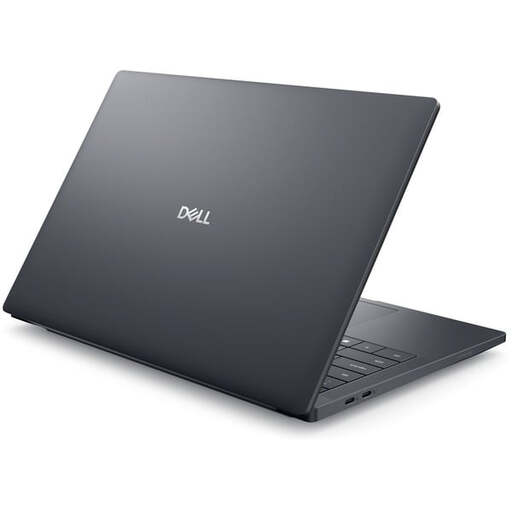
The listed Dell Pro 14 configuration PC14250 comes with Windows 11 Pro, 16 GB RAM, a 512 GB SSD and a 14-inch IPS display with 1,920 × 1,200 pixels.
- The configuration is described with specific screen and storage details.
- Dell states that no power adapter is included. Check what charging equipment you’ll need before ordering.
HP
The ProBook 4 G1a 14 AD2M8ET#ABD is listed with Windows 11 Pro, 24 GB RAM, a 512 GB SSD and a 14-inch WUXGA display.
- HP lists HDMI, USB-A, two USB-C ports and an included power adapter.
- Check the ports and their functions on the exact variant. Specifications don’t necessarily apply across the whole range.
Acer
The TravelMate P4 14 TMP414-53-G2-TCO-752E, part number NX.BC2EG.002, is a variant with a matt 14-inch display, 32 GB RAM and a 1 TB SSD.
- For this variant, Acer lists HDMI, USB-C, Thunderbolt and LTE among the features.
- LTE and port specifications can vary between variants, so compare the full part number.
Joybuy products for taking minutes
These products may suit taking minutes at a shared desk if you’re looking for a compact laptop with ports for external devices, or a model that’s easy to carry. For each device, check that its ports, operating system and included items are suitable for your workstation and meet your organisation’s requirements.
 No image available
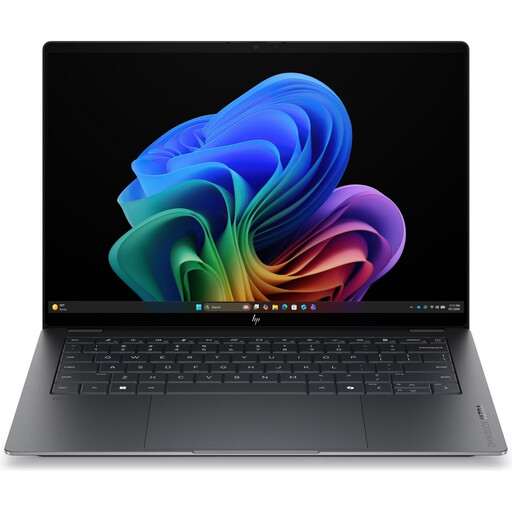
HP OmniBook Ultra 14-kd0072ngx, 14-inch, 3K
If your desk has an external monitor, the listed Thunderbolt 4 ports could be used to connect it. Check compatibility with your dock and monitor.
14-inch OLED touchscreen; Intel Core Ultra 7 356H; 16 GB RAM; 1 TB SSD; Windows 11 Home; three Thunderbolt 4 ports listed for connecting external displays; weight: 1.27 kg.
View at Joybuy
 No image available
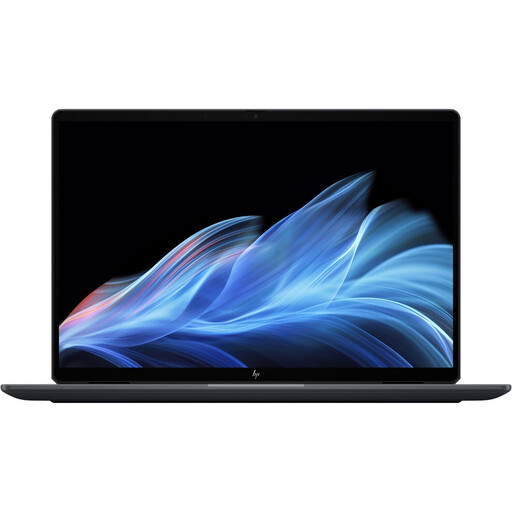
HP OmniBook Ultra Flip 14-fh0670ng, 14-inch, 2-in-1
The two listed Thunderbolt 4 ports are useful for connecting external displays. Check that they support your specific dock and monitor combination.
14-inch OLED touchscreen with 2,880 × 1,800 pixels; Intel Core Ultra 7 258V; 32 GB RAM; 1 TB SSD; Windows 11 Home; two Thunderbolt 4 ports; USB-C to HDMI adaptor listed as included; weight: 1.34 kg.
View at Joybuy
 No image available
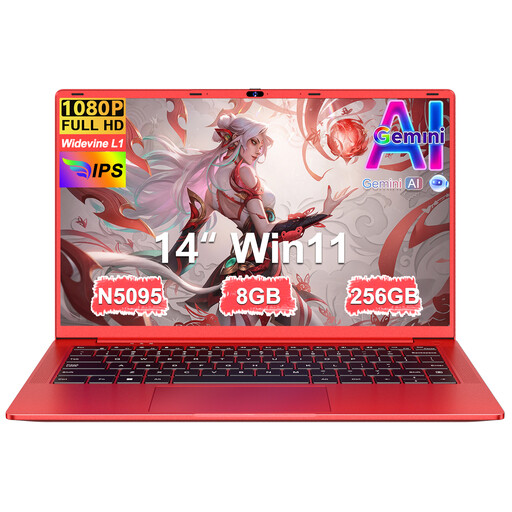
Ruzava 14-inch laptop, 8 GB RAM, 256 GB SSD, red
For a shared workstation with an external monitor, Mini HDMI is listed as the video connection. The description specifies USB-C for data transfer, not video output.
14-inch FHD IPS display; N5095 processor; 8 GB RAM; 256 GB SSD; USB 3.0, USB-C and Mini HDMI; weight: 1.39 kg.
View at Joybuy
 No image available
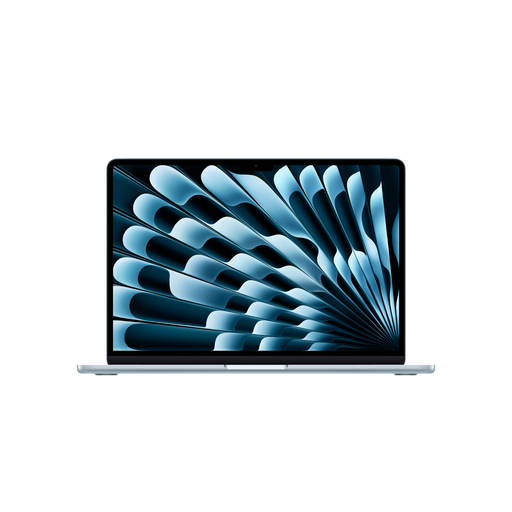
Apple 13-Inch MacBook Air (M5, 2026), 16 GB, 512 GB SSD
If you move between workstations often, the listed weight of 1.23 kg is worth considering. Two Thunderbolt 4 ports and support for up to two external displays are specified; check compatibility with the equipment you have.
German QWERTZ keyboard; 16 GB memory; 512 GB SSD. The description states that no power adapter is included.
View at Joybuy
 No image available
Dell Pro Max 14 Premium MA14250, 32 GB, 1 TB SSD
If your desk is fully equipped, the listed Thunderbolt ports with DisplayPort and Power Delivery support may be useful. Check that they work with your specific docking station.
14-inch display with 1,920 × 1,200 pixels, anti-glare panel; Intel Core Ultra 7 265H; 32 GB RAM; 1 TB SSD; Windows 11 Pro; two Thunderbolt 5 and two Thunderbolt 4 ports; weight: 1.61 kg.
View at Joybuy
Frequently asked questions
Do I need an external monitor for longer periods of minute-taking at a shared desk?
Not for every short work session. For longer periods of work, the DGUV recommends using an external keyboard and mouse, and an external monitor where possible. If there isn’t a monitor at the shared workstation, check whether the laptop screen is clear enough for your needs.
How should I set up my laptop when I move to another workstation?
Check which ports are actually available, then position the monitor and separate peripherals so they work comfortably together. If you’re using a workplace desk-sharing setup, also check workstation arrangements and any required IT approvals with your organisation. A USB-C port alone doesn’t guarantee compatibility with a particular docking station.
What should I do with my minutes when I leave my desk?
The BSI recommends locking your device even if you’ll only be away briefly. For work data, only use devices and software approved by your organisation, and check its rules on storing and sharing minutes.
What costs and rights should I check before buying?
Check whether the power adapter and any adaptors you need are included. The Verbraucherzentrale points out that your statutory rights if goods are faulty are not the same as a voluntary guarantee. If you’re buying for your organisation, check the contract terms separately.


