Desk-based lesson planners
You organise lesson plans and reference materials mainly in one fixed location and want to use your laptop screen and an external monitor side by side.


If you usually organise teaching materials at a fixed desk, a standard laptop connected to a suitable external monitor is an obvious choice. For two external monitors, you’ll need to check that the specific model supports them. Two integrated displays are worth considering if you want to work across two screens while you’re out and about, without relying on an external monitor. Also check that your school’s software runs on the operating system and find out what device and data protection policies your school has in place.
You organise lesson plans and reference materials mainly in one fixed location and want to use your laptop screen and an external monitor side by side.
You often work in different places and need two visible workspaces wherever you are, without having to rely on an available monitor.
You need to work on teaching materials using your school’s approved software and devices. Additional rules may apply to personal devices when handling personal data.
A good fit if: You usually open lesson plans and reference materials side by side at a fixed desk, and already have a monitor or want to choose one separately.
Bear in mind: The extra screen takes up space and needs a suitable connection to your laptop.
A good fit if: At a fixed workstation, you need two separate external workspaces alongside your laptop screen.
Bear in mind: Check the display support of the exact laptop model and the connection requirements of your monitors. A dock alone doesn’t guarantee support.
A good fit if: You want to view materials at the same time in different locations without setting up an external monitor.
Bear in mind: With the ASUS Zenbook DUO UX8407, the detachable keyboard and integrated stand affect how you set it up in each workspace.
| Buying criterion | What to check before buying | Who is this important to? |
|---|---|---|
| Separate screen content | Count the laptop screen and external monitors separately. Check the exact model’s supported number of independent displays, ports and resolution requirements. | If I want to open reference materials and documents on separate screens at my desk, the laptop needs to support my planned layout. That’s why around 33% of consumers prioritise independent displays. |
| Workspaces on the go | Compare two integrated displays with a laptop that you can connect to an external monitor only in suitable workspaces. | If I need two workspaces in different locations, I don’t want to have to set up a monitor each time. Around 25% of consumers prioritise mobile dual displays. |
| School software and data use | Check your software’s operating system requirements with your school’s IT team. If you’ll be processing personal data for work, ask about your school’s policies. | If I’m working on materials with approved school software and using work-related data, my device needs to meet my school’s requirements. Around 25% of consumers prioritise compatibility with school IT and permitted data use. |
| Complete workstation | Check that your monitor and laptop have the right ports, and find out which accessories are included with the specific configuration. | If I want to set up a complete workstation, I also need to consider the devices I already have and the accessories I’ll need. Around 17% of consumers pay particular attention to the full setup. |
A laptop with one external monitor, two external monitors or two integrated displays gives you a different workstation setup in each case.
First decide how many screens you want to use at the same time and where you’ll be working. Then check the documented display support for the exact model.
The video capabilities of ports can vary between models. A port alone doesn’t tell you how many independent displays are supported.
Compare the specifications for the laptop, dock and monitors you plan to use.
What you need for your workstation also depends on the monitor ports you already have and the specific laptop configuration.
Make a list of your existing devices and check what’s included with the configuration you’ve chosen before buying.
The ThinkPad E14 Gen 7 Intel is an example of a traditional Windows laptop that can be used with external monitors.
The Zenbook DUO UX8407 gives you two integrated workspaces for places where there’s no external monitor.
The MacBook Air with M5 is a traditional laptop option for buyers whose school software runs on macOS.
The ProBook 4 G1a is an example of a traditional business laptop whose specific connection options are worth checking.
The Dell Pro 14 family is another traditional laptop option that you can compare based on its specific features.
This selection includes laptops for organising teaching materials, including models whose listed ports may be relevant when planning to use an external monitor. The product specifications don’t automatically confirm support for multiple external displays.
 No image available
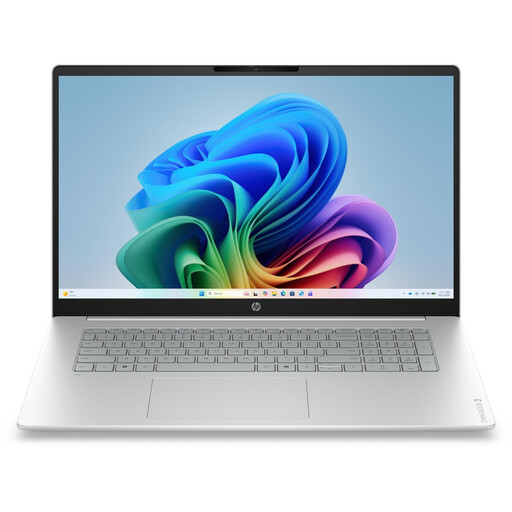
For a workstation where you’re planning to use an external monitor. The product specifications list HDMI 2.1 but don’t confirm support for two external displays.
17.3-inch FHD; Intel Core Ultra 5 225U; 8 GB RAM; 256 GB SSD; Windows 11 Home.
 No image available
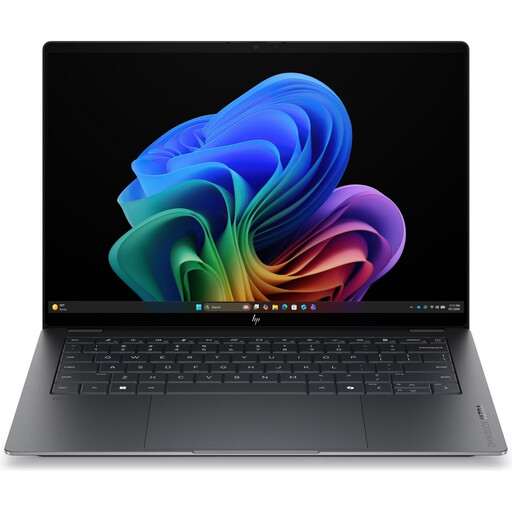
An option if you want to organise teaching materials on the laptop’s built-in screen. Check separately that it supports your external monitor setup.
14-inch 3K OLED touchscreen; Intel Core Ultra 7 356H; 16 GB RAM; 1 TB SSD; Windows 11 Home.
 No image available
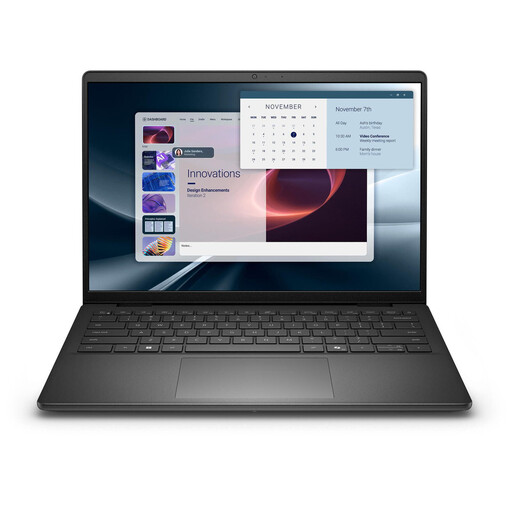
For working on teaching materials with a traditional laptop. HDMI is listed as a port, but that alone doesn’t tell you whether multiple external monitors are supported.
14-inch Full HD+; AMD Ryzen AI 7 350; 16 GB RAM; 1 TB SSD; Wi-Fi 6E; Windows 11 Pro.
 No image available
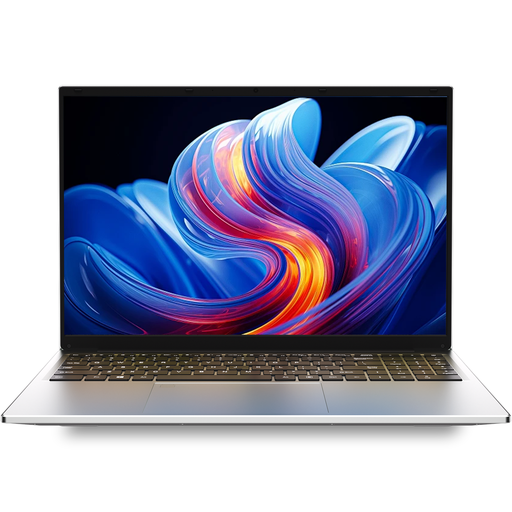
The product description lists Mini HDMI for connecting an external display. Check that the port format and cable are compatible with your monitor.
16-inch; Intel I3 1000NG4; 16 GB DDR4; 1 TB SSD.
 No image available
If you want to connect an external monitor, check the listed HDTV output format and make sure you have a suitable connection for your monitor.
15.6-inch FHD; 16 GB DDR4; 512 GB SSD; 3050E processor; fingerprint sensor; backlit keyboard.
No. What matters is the documented video output of the exact model, the number of independent displays it supports, and the connection and resolution requirements. Also check the capabilities of any dock you plan to use.
In “Settings”, open “System” and then “Display” to arrange your screens to match their physical positions. Then check that your display is extended rather than mirrored; Microsoft Support explains these steps for Windows.
There isn’t one answer that applies to every school. The Bavarian State Ministry of Education and Cultural Affairs describes how school leaders decide whether personal devices and applications can be used; check the rules that apply at your school.
Before buying, check with your school’s IT team which operating system and software you’ll need for teaching. A display setup alone doesn’t tell you whether the device is compatible with the school software you need.