Teachers with limited desk space
If you work on slides at a small desk, you need a comfortable keyboard without taking up too much room.


For working on slides at a small desk, a compact traditional laptop is an obvious place to start, as long as its keyboard, display and ports suit the way you work. A convertible is particularly useful if you want to write directly on your slides; if you move between rooms often, weight and charging options matter too. Before you buy, check the video output on the specific model and, if needed, test whether you can show your notes and presentation slides on separate screens.
If you work on slides at a small desk, you need a comfortable keyboard without taking up too much room.
When switching from editing to presenting, your display and connection need to work together, and you may also need to keep your speaker notes private.
If you often move between rooms or annotate slides directly on screen, consider the weight and design carefully.
First, check how much desk space you have. Then choose a design and ports that suit the way you work on slides and where you present.
| What matters | What to look for | Who is this especially important for? |
|---|---|---|
| Desk space and comfort | Check the laptop’s dimensions, not just its screen size. If you often have several windows open, consider whether it can connect to an external monitor. | When I work on slides at a small desk, I want to leave room for papers and input devices without compromising on the keyboard or display. Around 33% of consumers are likely to prioritise desk space above all. |
| Presentation connection | Check that the laptop’s video output matches the projector or display input. See whether you need an adapter, and test extended display mode in advance. | If I want to keep my notes private while presenting, my laptop needs to support a second display and connect to it correctly. Around 27% of consumers are likely to see presentation connections as their main concern. |
| Portability and power | Consider the weight of the laptop and any accessories you need, as well as its charging port. Only compare battery life figures when they’re based on similar test methods. | If I often carry my laptop between rooms or work without access to a socket for a while, weight and suitable charging options matter to me. Around 20% of consumers are likely to prioritise portability and power. |
| Annotating slides directly | Choose a convertible only if you genuinely need touch input. Check stylus support and what’s included with the specific version. | If I want to write notes directly on slides, I need a suitable touchscreen and stylus, not just a flexible design. Around 20% of consumers are likely to prioritise annotating slides directly. |
A USB-C port alone doesn’t tell you whether that particular device can output video through it. To keep your notes separate from your presentation slides, it also needs to support a two-screen setup.
Check the video output, projector input and any adapter you might need together. Microsoft Support recommends a supported multi-display connection for Presenter View.
Touch is most useful if you annotate slides directly on the display. A touchscreen doesn’t mean a stylus is included.
First decide whether you want to annotate by hand, then check stylus support and what’s included with the exact version.
Manufacturers’ figures may be based on different activities, such as streaming video or browsing wirelessly. They don’t necessarily reflect battery life when editing and projecting slides.
Only compare battery figures when they’re based on similar test conditions, and plan for charging breaks if needed.
The Yoga Slim 7i Gen 9 range is a compact laptop option for traditional slide work.
The 13-inch MacBook Air with M5 is a compact macOS option, provided its slide software and your school’s setup are a good fit.
The OmniBook Flip 14 range offers a convertible design for anyone who wants to work on slides using touch input.
The Pro 14 Essential PV14255 is a traditional 14-inch laptop for working on slides with a keyboard.
In a CHIP selection of 14-inch laptops updated on 3 November 2026, the ExpertBook Ultra and Zenbook Duo are featured; the Duo has two built-in displays.
This selection includes compact laptops for limited desk space, a convertible for touch input and particularly portable models. For each device, check that the operating system, ports and presentation display are right for your setup.
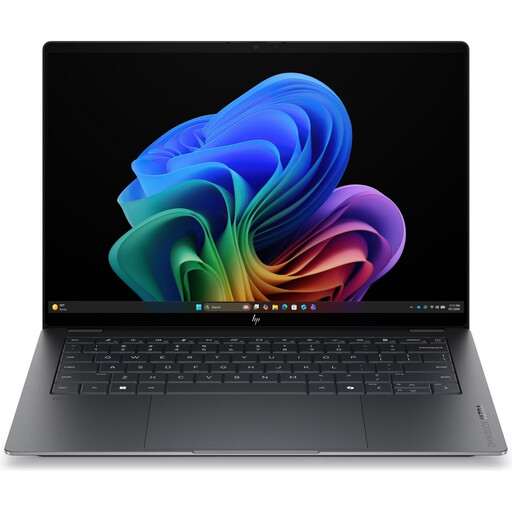 No image available
A compact option for working on slides if you’d like a touchscreen.
14-inch touchscreen; dimensions: 311.1 × 215.6 mm; weight: 1.27 kg.
16 GB RAM, 1 TB SSD and Windows 11 Home.
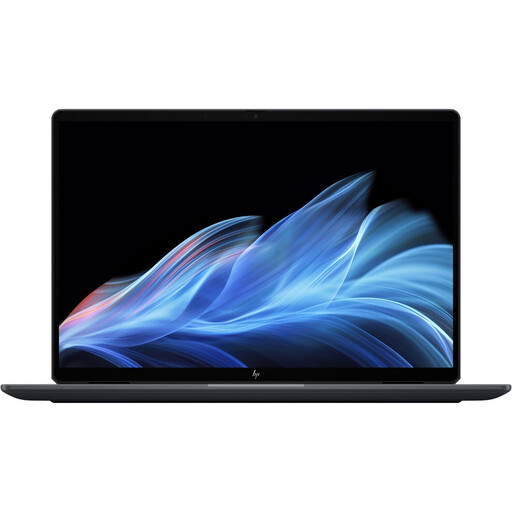 No image available
The convertible design is ideal if you want to annotate slides directly on screen.
14-inch OLED touchscreen; weight: 1.34 kg; dimensions: 313.7 × 216.2 mm.
32 GB RAM and 1 TB SSD. The product description lists a supplied stylus, a USB-C to HDMI adapter and Thunderbolt 4 ports.
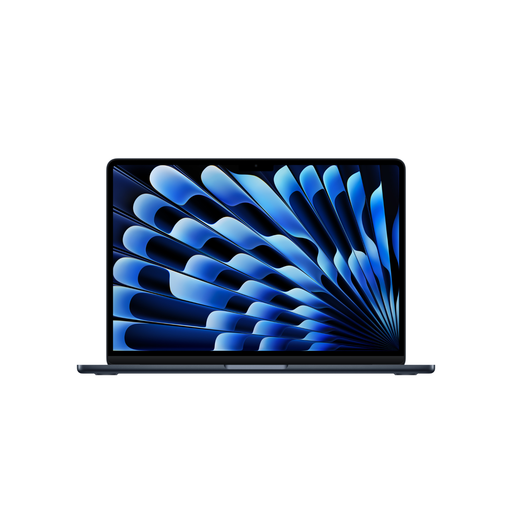 No image available
This compact model is suited to moving between rooms often, if macOS and the connection to your classroom display work with your setup.
13.6-inch display; weight: 1.23 kg; two Thunderbolt 4 ports and support for external displays.
16 GB of memory and a 512 GB SSD. The product description states that no power adapter is included.
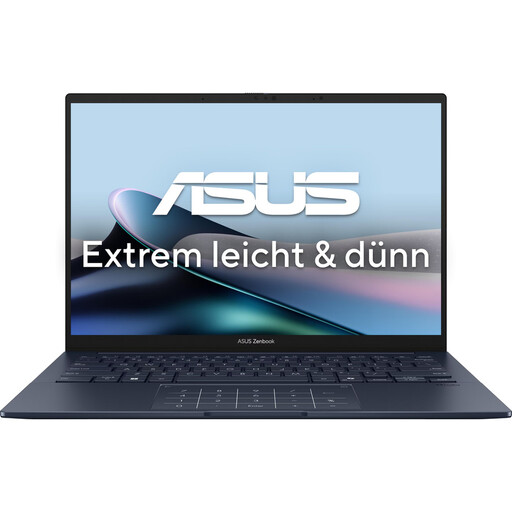 No image available
A compact laptop option if you’d like a touchscreen and the listed HDMI port.
14-inch OLED touchscreen; HDMI 2.1; dimensions: 31.24 × 22.01 cm; weight: 1.22 kg.
16 GB RAM, 1 TB SSD and Windows 11.
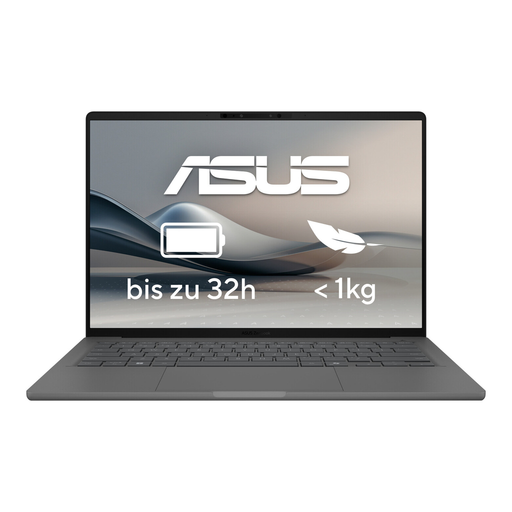 No image available
This compact laptop is an option if you move between rooms and want a touchscreen.
14-inch OLED touchscreen; HDMI 2.1 and Thunderbolt 4; 16 GB RAM and 512 GB SSD.
Weight: 1.20 kg; dimensions: 310 × 220 mm.
Yes. Presenter View in supported versions of PowerPoint lets you show your notes on one screen and your slides on a second. Your device needs to support multiple displays and be connected to the second display; this setup uses extended display mode.
No, it depends on the video output of the specific laptop and the projector’s connection. Check the device specifications and test the cable or adapter before using it in a lesson for the first time.
Keep the vents clear and follow the manufacturer’s instructions for your specific device. These may vary from one model to another.
No. Your statutory rights apply to defects and are against the seller; a warranty is an additional voluntary service with its own terms. According to the Verbraucherzentrale, when remedying a defect, the seller is responsible for the transport, labour and material costs specified there.
For a consumer distance sale, you generally have 14 days from receiving the goods to withdraw from the contract. You must notify the seller; simply returning the goods isn’t enough. Exceptions and the terms of the specific contract apply, as explained by the Verbraucherzentrale.