For teaching videos with separately recorded audio, your laptop configuration should suit your editing software, recording format and work location. Synchronisation is handled by the software, not a specialist processor. For Premiere 26.x on Windows, Adobe recommends 16 GB of RAM for HD footage and at least 32 GB for 4K and higher resolutions; other programmes and operating systems may have different requirements. So check the exact configuration and its ports rather than choosing on the model name alone.
What matters most to different users
Editing teaching videos with separate audio
If you import camera footage and audio recordings separately, you’ll need a suitable synchronisation feature in your editing software and the right ports for your devices. Adobe explains how to synchronise separately recorded video and audio clips in Premiere.
Regular 4K video editing
If you regularly work on 4K projects, compare the exact laptop configuration with your software’s requirements. For Premiere 26.x on Windows, Adobe recommends at least 32 GB of RAM for 4K and higher resolutions.
Editing teaching videos on the move
If you work in different locations, you can weigh up a more portable device against screen space, local storage and the ports you need. PC-WELT also lists the screen and ports as factors to consider when choosing a laptop for video editing.
What to prioritise when buying for editing with separate audio
First, check that your editing software can synchronise separate clips. Then make sure the laptop’s ports suit your storage media and audio equipment. For Premiere 26.x on Windows, Adobe recommends 16 GB of RAM for HD and at least 32 GB for 4K and higher resolutions.
| Priority |
What to check before buying |
Who will find this particularly important |
| Adding separate audio |
Check the editing programme’s synchronisation feature, as well as its ports for storage media, an audio interface and headphones. |
If I’m combining camera footage and audio tracks, I want to be able to match them up reliably and check them in the programme. Around 36% of consumers put support for separate audio first. |
| Editing in the recording format |
Note the resolution, codec and software version, then compare them with the RAM, graphics and operating system of the exact configuration. |
For regular HD or 4K editing, I need enough headroom for my footage and software. Around 29% of consumers say editing performance is their top priority. |
| Storing project files |
Allow space for original videos, audio files, working copies and exports, as well as your chosen backup method. |
If I want to keep originals and additional working files locally, available storage matters. Around 21% of consumers prioritise space for their project files. |
| Working in different locations |
Compare the size, display, ports and what’s included with the exact laptop configuration against your planned workspace. |
If I edit in different places, I want to be able to take my device with me without compromising on the workspace and ports I need. Around 14% of consumers put portability first. |
Common misconceptions when buying a laptop
-
Separate audio automatically requires especially powerful hardware
Combining separately recorded clips is a software feature. The performance you need depends mainly on your footage and the programme you use.
Start by checking your editing software’s synchronisation options and the requirements for your recording format.
-
The SSD only needs enough space for finished videos
Importing footage and using proxy workflows can create additional media files alongside the originals. Adobe describes proxy files as lighter copies for editing high-resolution video.
Allow for originals, separate audio tracks, working files and backups together.
-
A model range’s name guarantees the specification you’ve seen tested
Different configurations can vary in memory, SSD, ports and what’s included.
Before buying, compare the full model number and specification of the exact configuration.
Key brands to consider
Lenovo
The ThinkPad T1g Gen 8 range is a larger Windows option for performance-focused workflows. Lenovo lists the range as a 16-inch laptop.
- Notebookcheck includes a specific configuration, 21TD003GE, in its German list of laptops for photo and video work.
- Lenovo currently marks the range as unavailable on its German website; this doesn’t indicate what other retailers have in stock.
Apple
The MacBook Pro with M5 Pro is worth considering if your editing software and required extensions run on macOS.
- Apple lists a media engine for H.264, HEVC and ProRes.
- Memory and SSD capacity vary by configuration. The media engine specification doesn’t guarantee a particular editing time for teaching videos.
ASUS
ProArt P16 is a Windows creator range for a larger video-editing workspace.
- For the H7606WP-RJ084X configuration, ASUS lists a 16-inch display, 64 GB of RAM, a 4 TB SSD and an SD Express card reader.
- These specifications apply to the configuration listed and can’t be assumed for every ProArt P16 model.
Acer
Swift X 14 AI is a more compact Windows creator option for working in different locations.
- For NX.JA8EG.00F, Acer lists a 14.5-inch display, 32 GB of RAM, a 1 TB SSD and an RTX 5060 with 8 GB.
- These details apply to this specific configuration; check the specification and availability for the listing you’re considering.
HP
ZBook X G2i is a 16-inch Windows workstation for professional workflows that may go beyond straightforward teaching videos.
- For DP7A3ET#ABD, HP lists 32 GB of RAM, a 1 TB SSD and an RTX PRO 2000 Blackwell with 8 GB.
- The workstation design alone doesn’t mean these specifications are necessary for simple teaching video projects.
Joybuy products for video editing
This selection includes larger Windows laptops and MacBook Pro configurations for video editing. The right option for you depends on your editing software, recording format, work location and local storage needs.
 No image available
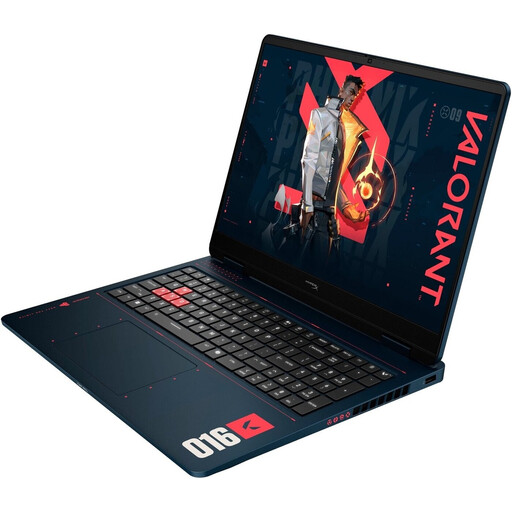
HP OMEN 16-ap1099ng, Ryzen 9 8940HX, RTX 5070, 24 GB, 1 TB SSD
A larger Windows configuration for regular projects, if a 16-inch format suits your workspace.
16-inch, QHD, Ryzen 9 8940HX, GeForce RTX 5070, 24 GB RAM, 1 TB SSD and Windows 11 Home. Headphone and microphone ports are listed.
At 16 inches and 2.43 kg, this configuration is less portable than a smaller device.
View at Joybuy
 No image available
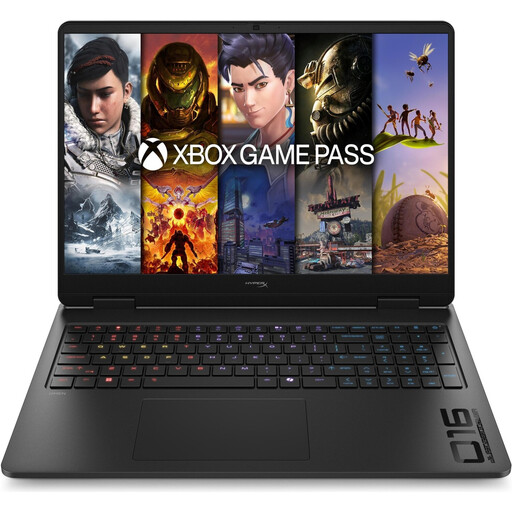
HP OMEN 16-ap1071ng, Ryzen 7 8745HX, RTX 5060, 16 GB, 1 TB SSD
A Windows configuration for HD projects, if its specification suits your editing software and workflow.
16-inch, QHD, Ryzen 7 8745HX, GeForce RTX 5060, 16 GB RAM, 1 TB SSD and Windows 11 Home. HDMI, headphone and microphone ports are listed.
For Premiere 26.x on Windows, Adobe recommends 16 GB of RAM for HD media and at least 32 GB for 4K.
View at Joybuy
 No image available
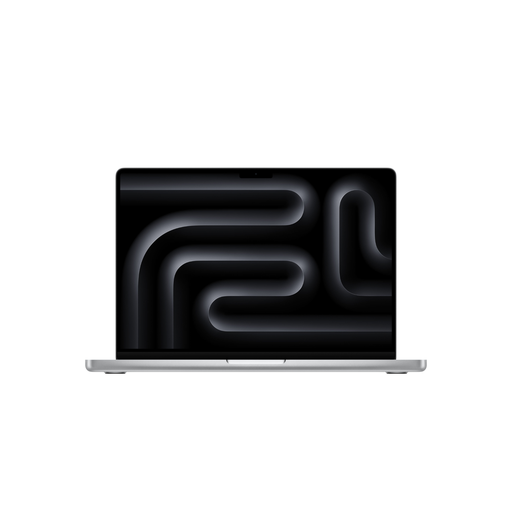
Apple MacBook Pro 16-inch, M5 Pro, 18-core CPU, 20-core GPU, 24 GB, 1 TB SSD
A macOS option if your editing software and extensions run on this operating system and you prefer a larger display.
This configuration is listed in silver with a German QWERTZ keyboard layout. Apple lists a media engine for H.264, HEVC and ProRes on M5 Pro.
View at Joybuy
 No image available
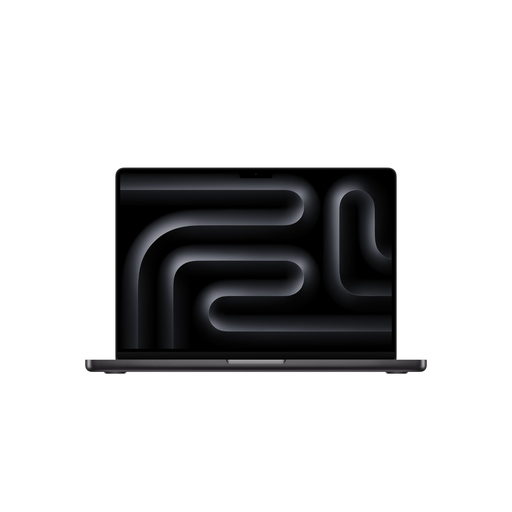
Apple MacBook Pro 14-inch, M5 Pro, 15-core CPU, 16-core GPU, 24 GB, 1 TB SSD
A more compact macOS configuration for working in different locations, if your programmes and extensions are compatible with macOS.
14.2-inch display, 24 GB RAM and 1 TB SSD. The description lists a weight of 1.60 kg, plus SDXC, HDMI and headphone ports. This configuration is listed in Space Black with a German QWERTZ keyboard layout.
According to the product description, a power adapter isn’t included; check whether you need one and will have to buy it separately.
View at Joybuy
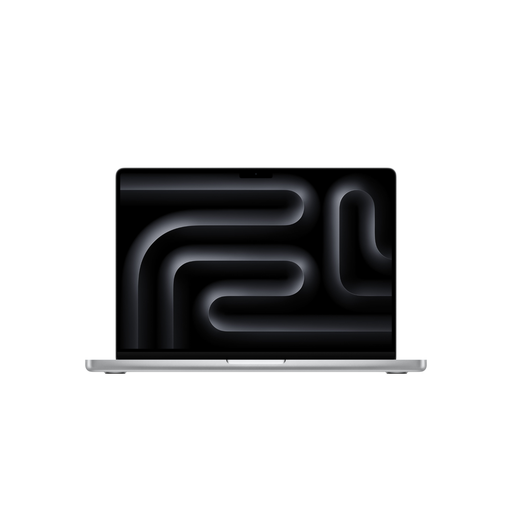 No image available
Apple MacBook Pro 14-inch, M5 Pro, 15-core CPU, 16-core GPU, 24 GB, 2 TB SSD
A more compact macOS option if you want more local space for project files and working copies.
14.2-inch display, 24 GB RAM and 2 TB SSD. The description lists SDXC, HDMI and headphone ports. This configuration is listed in silver with a German QWERTZ keyboard layout.
According to the product description, a power adapter isn’t included; check whether you need one and will have to buy it separately.
View at Joybuy
Frequently asked questions
Do I need a special laptop to synchronise camera audio with audio from a recorder?
No, not just for synchronisation. Adobe describes both manual alignment and a synchronisation feature for separately recorded video and audio clips in Premiere. Check that your own editing programme offers these options, then review the result in your project.
Do I definitely need to buy 32 GB of RAM for teaching videos?
No, not as a rule. For Premiere 26.x on Windows, Adobe recommends 16 GB of RAM for HD media and at least 32 GB for 4K and higher resolutions. Other software and operating systems have their own requirements.
What can I do if the preview stutters with high-resolution footage?
If your editing programme supports them, try using proxy files. Adobe describes these as lighter copies for editing high-resolution originals. Keep the original files for your intended export workflow and allow storage space for the additional files.
What rights do I have when buying a laptop from a business seller?
For consumer purchases in the EU, there is generally a legal guarantee of at least two years from the date you receive the goods. This is a claim against the seller and is separate from any additional manufacturer’s warranty. Online consumer purchases generally come with a 14-day right to cancel, although legal exceptions may apply.
Can I use pupils’ voices or images in teaching videos?
Buying a laptop won’t answer this question. The Rheinland-Pfalz Education Server notes that recordings of pupils require careful legal consideration; for intended publication, it describes the need for consent and advance notice. This source relates to Rheinland-Pfalz. Check the rules for your specific use, federal state and planned distribution with the relevant school or data protection office. Guidance on recordings of pupils doesn’t automatically apply to recordings of your own voice.


