What should you look for when buying?
Start by choosing your editing software and recording format. Then check synchronisation and storage requirements, and finish by comparing the display, ports and weight with your working environment.
| What to consider |
What to check |
Who is it important to? |
| Editing performance |
Check your editing software and operating system, resolution, and the RAM and graphics in the specific configuration. For Premiere on Windows, Adobe recommends 16 GB of RAM for HD and at least 32 GB for 4K and higher resolutions, plus 8 GB of graphics memory. These recommendations apply to this workflow; they aren’t universal requirements for every editing task. |
If you edit regularly, the specifications should suit your software and footage. You don’t automatically need to meet the 4K recommendation for an HD project. Around 31% of consumers mainly look for editing performance that suits their needs. |
| Synchronising separate audio |
Check whether the software supports waveform, timecode or manual synchronisation, and how to import files from your recording devices. DaVinci Resolve documents these synchronisation methods, while Adobe explains how to merge separately recorded video and audio clips in Premiere. |
If you record speech separately, you’ll want to be able to match it to the video in your chosen software. You may still need to check the result. Around 31% of consumers prioritise audio synchronisation. |
| Storage and drives |
Compare SSD capacity and the ports available for external drives. Allow for original footage, project files, cache, proxies and backups. Adobe describes proxy workflows and recommends fast drives for media and cache. |
If video, audio and working files build up, you’ll need a practical way to store them as part of your project workflow, including backups. Around 25% of consumers prioritise space for media and project files. |
| Portability and workspace |
Check the weight, screen size and ports of the exact version you’re ordering. Weigh the space you need for the preview and timeline against how often you’ll carry it. |
If you regularly take your laptop between your training and work locations, portability and a practical editing workspace both matter. Around 13% of consumers prioritise portability. |
Laptops for video editing at Joybuy
This selection includes Windows laptops with different specifications and portability features for training and video editing projects.
 No image available
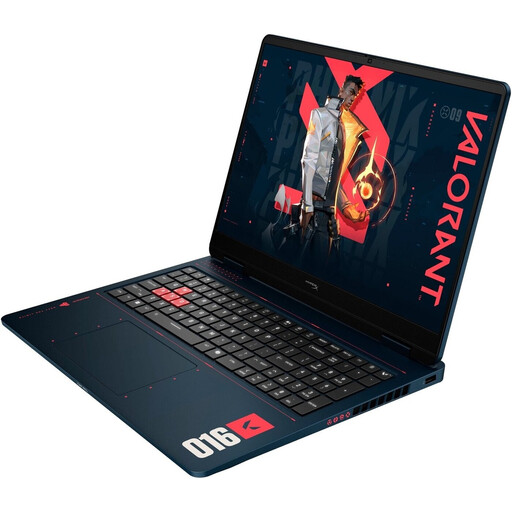
HP OMEN 16-ap1099ng
For a Windows editing workflow where the listed graphics and memory are part of your configuration checks.
16-inch, QHD, AMD Ryzen 9 8940HX, 24 GB RAM, 1 TB SSD, GeForce RTX 5070, Windows 11 Home.
View at Joybuy
 No image available
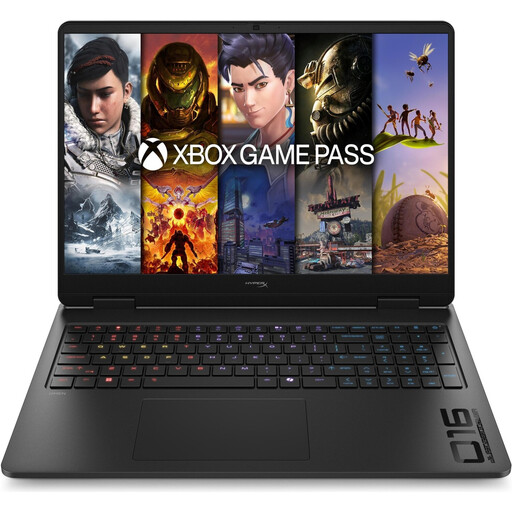
HP OMEN 16-ap1071ng
For a Windows editing workflow where you want to match the specific RAM and graphics configuration to your software and recording format.
16-inch, QHD, AMD Ryzen 7 8745HX, 16 GB RAM, 1 TB SSD, GeForce RTX 5060, Windows 11 Home.
View at Joybuy
 No image available
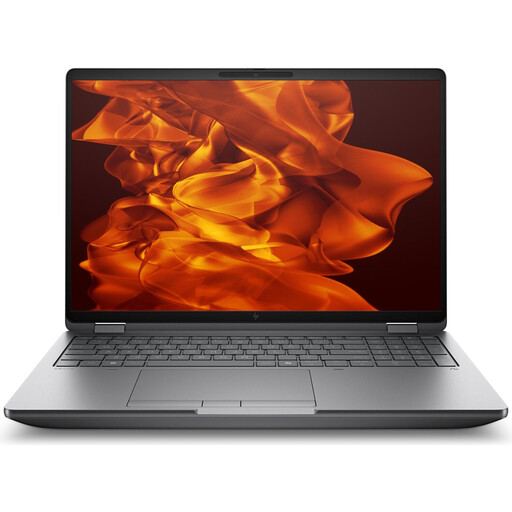
HP ZBook Fury 16 G1i Mobile Workstation
For demanding Windows editing projects where the listed workstation graphics and specific memory configuration need to suit your footage.
Intel Core Ultra 9 285HX, Windows 11 Pro, RTX Pro 4000 Blackwell with 16 GB of graphics memory, 64 GB RAM, 2 TB NVMe SSD, 16-inch IPS display with 3840 × 2400 pixels.
View at Joybuy
 No image available
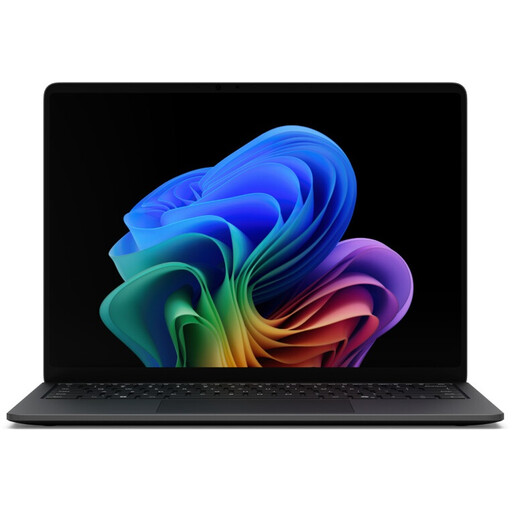
Microsoft Surface Laptop 8 Core Ultra 5
For editing on the move, if the listed weight and specifications suit your planned project.
13.8-inch touchscreen, 1.3 kg, Intel Graphics with shared memory, 16 GB RAM, 512 GB SSD, Windows 11 Pro.
View at Joybuy
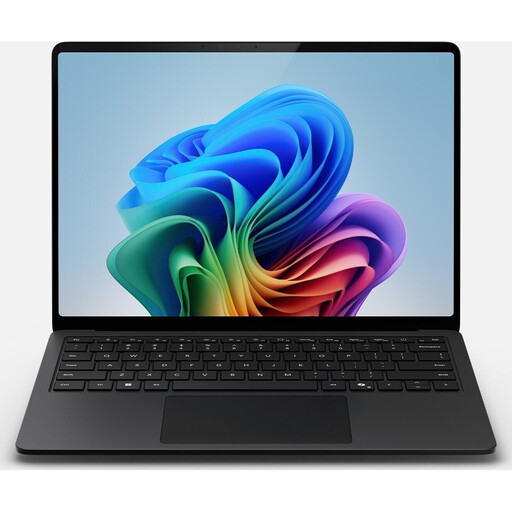 No image available
Microsoft Surface Laptop 7 Snapdragon X Plus
For editing on the move, if the weight and compatibility with your specific software and files suit your workflow.
13.8-inch touchscreen, 1.34 kg, Qualcomm Adreno X Plus with shared memory, 16 GB RAM, 512 GB SSD, Windows 11 Pro.
View at Joybuy
Frequently asked questions
Can I synchronise separately recorded audio without a special port on my laptop?
Synchronisation takes place in your editing software. DaVinci Resolve lists waveform, timecode and manual alignment, while Premiere explains how to merge separately recorded video and audio clips. Also check how to import files from your recording devices.
How should I plan storage for large recordings and proxy files?
Plan for your original files, working files and backups together. Adobe describes proxies as files used in a particular editing workflow and recommends fast drives. You can use the original media again for the final export.
What are the rules on returns and faults when buying online as a private customer in Germany?
For qualifying distance purchases, consumers generally have a 14-day right to cancel. You must notify the other party to the contract that you wish to cancel. This is separate from statutory rights relating to faulty goods, for which Your Europe specifies a minimum of two years. Check the terms of your specific contract, especially if you’re buying for a business rather than as a private customer.
Can I film identifiable people during training demonstrations and edit the footage?
If your video or audio recordings contain personal data, you need an appropriate legal basis for processing it. Consent is one possible basis, but it isn’t the only one. Additional requirements may apply in an employment context. Buying a laptop doesn’t give you permission to record or publish footage: before using it, clarify the purpose, legal basis and workplace rules that apply to your specific situation.


