What should you look for when buying?
First, decide whether you want to count the laptop display. This will determine whether one external screen is enough or whether the laptop must explicitly support two external monitors.
Windows laptop with HDMI and USB-C video output
A good fit if: you switch between your desk and presentation rooms and want to use HDMI or USB-C for display output. Lenovo documents support for up to three external monitors, in addition to the built-in display, on the ThinkPad E14 Gen 6 AMD.
Trade-off: Support across a model range doesn’t replace checking the exact version you’re buying; one documented E14 configuration has an English EU keyboard.
Windows laptop with HDMI and Thunderbolt
A good fit if: you want to use a Thunderbolt workstation and connect an HDMI screen directly as well. ASUS lists these connections for the ExpertBook B5 B5402CVA.
Trade-off: The list of connections doesn’t automatically confirm compatibility with every dock or every resolution and refresh rate combination you might need.
MacBook Air with USB-C or Thunderbolt connection
A good fit if: you prefer macOS and have the right display cables or adapters. Apple documents support for up to two external displays, in addition to the built-in display, on the 13-inch MacBook Air with M5.
Trade-off: HDMI isn’t listed among the connections for the M5 model. These details don’t apply to every older model; for the M3, Apple specifies conditions such as keeping the lid closed when using two external displays.
| Buying priority |
What to check |
Who is this particularly important for? |
| Extended displays |
Check support for internal and external displays, as well as the number of external displays that can be used at the same time with the specific model. |
If I edit slides on one screen and keep source material open on the second, I want separate rather than mirrored content. Around 33% of consumers put extended display support first. |
| Workspace and presentation software |
Match the display size and resolution to your workflow, and check that the software you use has the Presenter View you need. |
If I edit slides and later present with private notes, I want the screen layout and software to suit the way I work. Around 27% of consumers prioritise workspace and presentation software. |
| Different places of use |
Check the laptop connections against the monitor, cable and any adapter you need at each location. |
If I move between work and presentation locations, I want to be able to bring the right connections with me. Around 20% of consumers prioritise using their laptop in different places. |
| Total costs and consumer rights |
Consider the required accessories alongside what’s included; check voluntary warranties and statutory consumer rights separately. |
If I’m planning a setup with all the connections I need, I want to keep the total cost in mind. Around 20% of consumers put total costs and after-sales rights first. |
Joybuy products for working on slides with external screens
Here are laptop options for working on slides and giving presentations with an external screen. Depending on the model, check whether the built-in display counts or whether two external monitors are supported.
 No image available
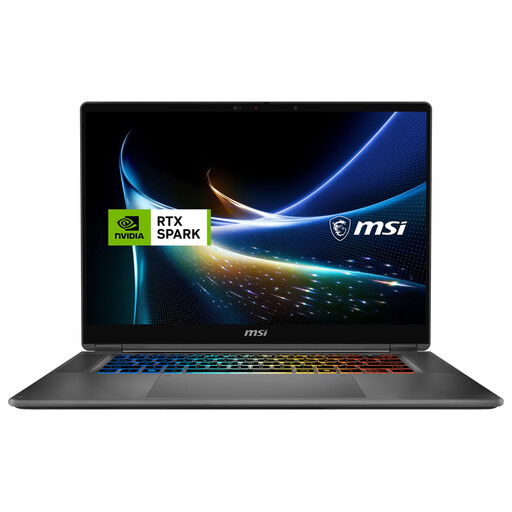
MSI Prestige N16 Flip AI+ C1XMT-029Y, 16-inch, 2-in-1
The 2-in-1 design could suit you if you want to work on slides on the laptop and an external screen; check the right connection for your specific configuration.
32 GB DDR5; 1 TB SSD; Windows 11 Pro.
View at Joybuy
 No image available
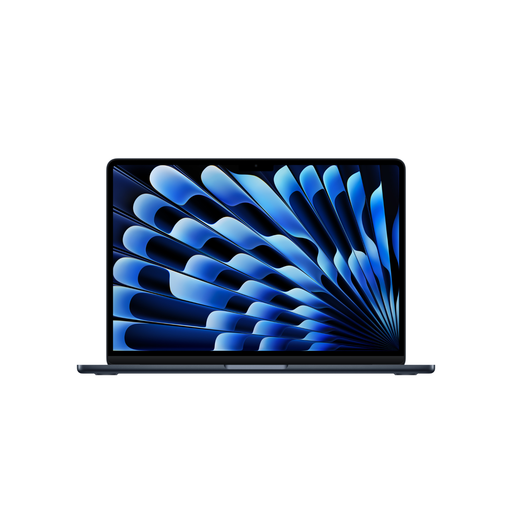
Apple 13-inch MacBook Air M5, 8-core GPU, 512 GB SSD, Midnight
For a compact macOS setup with external screens: Apple lists support for up to two external displays, in addition to the built-in display, on the 13-inch MacBook Air with M5. HDMI isn’t listed among its connections.
10-core CPU; 16 GB RAM; 512 GB SSD; German QWERTZ keyboard. According to the product details, a power adapter isn’t included.
View at Joybuy
No image available
Apple 13-inch MacBook Air M5, 10-core GPU, 1 TB SSD, Midnight
For a compact macOS setup with external screens: Apple lists support for up to two external displays, in addition to the built-in display, on the 13-inch MacBook Air with M5. HDMI isn’t listed among its connections.
10-core CPU; 16 GB RAM; 1 TB SSD; German QWERTZ keyboard. According to the product details, a power adapter isn’t included.
View at Joybuy
 No image available
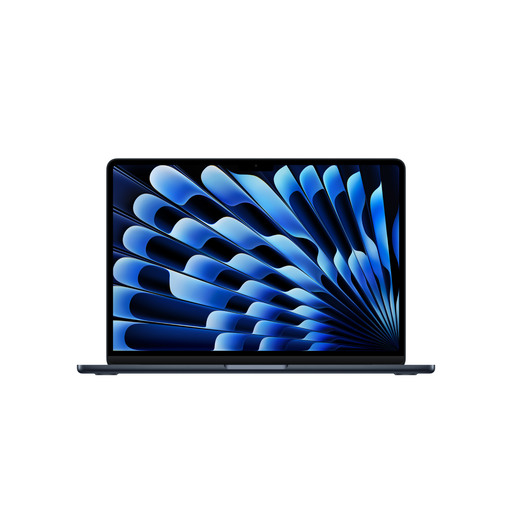
Apple 15-inch MacBook Air M5, 10-core GPU, 512 GB SSD, Midnight
The 15-inch model is an option if you’d like to edit slides on a larger laptop display. Check that the number of displays and connection options for this specific configuration suit your external setup.
10-core CPU; 16 GB RAM; 512 GB SSD; German QWERTZ keyboard. According to the product details, a power adapter isn’t included.
View at Joybuy
 No image available
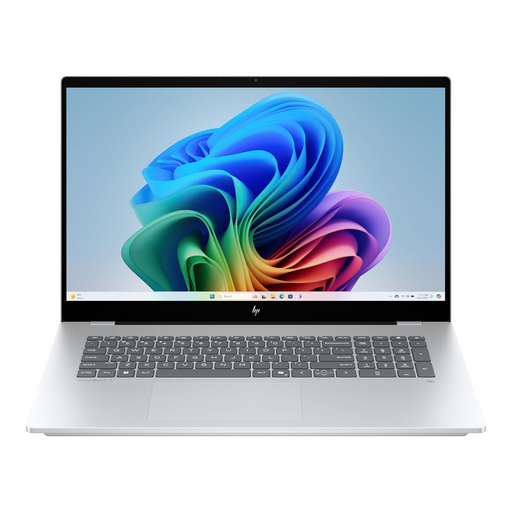
HP OmniBook X Flip 16, WUXGA touchscreen
The convertible design could suit you if you’d like to use the laptop in presentation mode as well as for editing slides.
Intel Core Ultra; 16 GB RAM; 512 GB SSD; Windows 11; USB-C Power Delivery.
View at Joybuy
Frequently asked questions
Is an HDMI connection enough to keep private notes on my laptop and show slides on a projector?
Not by itself: the specific device and connection need to support two separate displays. Then set the screens to extended display and enable Presenter View in a compatible version of PowerPoint. Microsoft Support explains how to show notes and audience slides separately.
Can “two screens” mean two external monitors?
It depends on the model. Lenovo PSREF documents support for up to three external monitors, in addition to the built-in display, on the ThinkPad E14 Gen 6 AMD; Apple lists support for up to two on the 13-inch MacBook Air with M5. Also check that the connections and monitors you plan to use are supported by your exact configuration.
How do I set up Presenter View for a presentation?
Connect the second screen, choose an extended display and enable Presenter View in PowerPoint. Before your presentation, check which screen shows your notes and which shows your slides.
Who is responsible if a laptop bought by a consumer in Germany is faulty?
Your statutory rights apply against the seller; Your Europe states that goods in the EU have a minimum two-year guarantee from the date you receive them. Any additional manufacturer’s warranty is separate. This doesn’t apply in the same way if you bought from a private individual.
Can I return a laptop bought online if it doesn’t suit my setup?
In Germany, consumers who buy online generally have a 14-day right to cancel, starting from the day of delivery. Tell the retailer that you’re cancelling and check the terms of your specific purchase; simply sending the laptop back doesn’t count as notifying them.


