The key question is whether you want to use two screens in total, or two external monitors in addition to your laptop display. To use two external monitors, the specific configuration must support three displays at the same time. You should also check the monitor connections, cables and, if necessary, the dock. If you’re considering a Windows on Arm device, check that your essential software and printer drivers are compatible.
Which setup is right for you?
Newsletter editor at a permanent desk
If you want to see your draft and research at the same time, decide whether the laptop display plus one monitor will be enough, or whether you need two external monitors. Lenovo and Apple’s display specifications can help you check the capabilities of each configuration.
Editor who writes on the go
If you also write while travelling, the built-in display and the options for connecting a monitor at home both matter. Apple and ASUS provide details of the display and connection options available on their respective models.
Editorial team with existing software and a printer
If you need to keep using your newsletter software, printer and existing workflows, check compatibility with the specific operating system. Microsoft particularly highlights the need for native Arm64 printer drivers on Windows on Arm.
What to look for when buying
First, work out how many external monitors you want to connect. Then check the operating system, the devices you already own and whether you’ll need any extra accessories.
Windows laptop with HDMI and Thunderbolt
A good fit if: you want to use existing HDMI monitors or set up a dedicated Windows workspace. Lenovo lists HDMI 2.1 and two Thunderbolt 4 ports for the ThinkPad E14 Gen 8 Intel, model 21Y6006BGE.
Things to consider: Lenovo’s maximum display support for the relevant Panther Lake variant doesn’t remove the need to check the specific configuration, monitor resolution, cables and dock.
13-inch MacBook Air with M5
A good fit if: your newsletter software runs on macOS and you want to use the built-in display alongside up to two external displays. Apple documents support for using all three at the same time.
Things to consider: Apple’s list of ports doesn’t include HDMI. Check how best to connect your existing monitors.
Windows on Arm laptop
A good fit if: your software and connected devices work with the specific Arm configuration. ASUS lists HDMI and two USB-C ports with video output for the Vivobook 14 X1407QA.
Things to consider: The list of ports alone doesn’t confirm how many external monitors you can use at the same time. Microsoft says printer drivers for Windows on Arm need to be native Arm64 versions.
| What matters |
What to check before buying |
Who is this especially important for? |
| Using two screens |
Check whether you mean the laptop display plus one monitor, or two external monitors. Check display support, ports, cables and dock for the specific configuration. |
If I want to see my draft and research at the same time while writing, the laptop must support the number of monitors I need. Around 36% of consumers put display connectivity first. |
| Keeping existing software and devices |
Check that your newsletter software and printer drivers are compatible with the operating system and processor architecture. Make sure any essential Windows on Arm drivers support Arm64. |
If I need to keep using my existing software and printer as part of my workflow, compatibility comes first. Around 29% of consumers say software and device compatibility is their top priority. |
| Writing on the go |
Compare the screen format, anti-glare finish and keyboard layout of the exact variant. Try the keyboard for yourself if you can. |
If I write longer pieces without an external monitor, the built-in display and keyboard are essential. Around 21% of consumers prioritise comfort when writing on the go. |
| Setting up a complete workspace |
Check whether your existing cables will fit and whether you’ll need an adapter or dock for your setup. Make sure the accessories and ports are compatible with your monitors. |
If I need to plan the laptop and all the necessary screen connections together, I want to keep track of the cost of a complete setup. Around 14% of consumers put the total cost of their workspace first. |
Common buying misconceptions
-
Two video ports automatically mean support for two external monitors
The number of ports alone doesn’t tell you how many displays the specific configuration can run at the same time, or at the resolution you want.
Be clear about what you need: the laptop display plus one monitor, or the laptop display plus two external monitors. Then check the display specifications, resolution, cables and dock together.
If an existing device doesn’t work with the configuration, you may need a different peripheral.
-
Confusing a manufacturer’s warranty with your statutory rights
A voluntary warranty and your statutory rights if a product is faulty are based on different rules.
Keep your proof of purchase and the model details. If there’s a fault, check whether you’re making a statutory claim against the seller or claiming under a warranty they offer.
Key brands at a glance
Lenovo
The ThinkPad E14 Gen 8 Intel is a documented Windows option for a dedicated newsletter workspace.
- For model 21Y6006BGE, Lenovo lists HDMI, two Thunderbolt 4 ports and a German keyboard.
- The series’ maximum display support applies to the relevant variant; it doesn’t confirm that any dock or monitor will work.
Apple
The 13-inch MacBook Air with M5 is worth considering if your newsletter workflow runs on macOS.
- Apple says you can use the built-in display with up to two external displays at the same time.
- HDMI isn’t listed among the documented ports, so you’ll need a suitable way to connect existing HDMI monitors.
ASUS
The Vivobook 14 X1407QA is a Windows on Arm option with an anti-glare display.
- ASUS lists HDMI and two USB-C ports with display support.
- These port details don’t confirm how many external monitors you can use at the same time. Check that any essential drivers have native Arm64 support.
Laptops to consider on Joybuy
This selection includes laptops for writing on the go and connecting to an external display.
 No image available
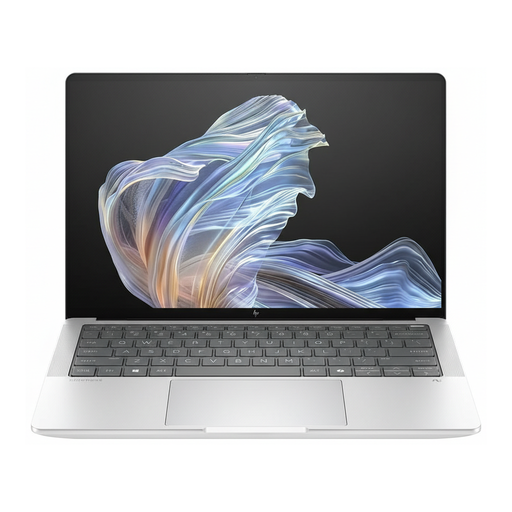
HP EliteBook Ultra G1a 14-inch (B66PTES)
This 14-inch Windows laptop could suit writing on the go and a workspace with an external display. The number of external displays it can run at the same time isn’t specified here.
The product name lists a 2.2K display, a Snapdragon X Elite, 16 GB RAM, a 512 GB SSD and Windows 11 Pro.
HDMI and USB-C are listed as ports. If you rely on printer or other drivers, check that native Arm64 versions are available.
Joybuy
Frequently asked questions
Do I need two external monitors to use two screens?
No, not if you mean the laptop’s built-in display and one external monitor. To use two external monitors as well as the laptop display, the specific configuration must support three displays at the same time.
How do I set up a second screen in Windows?
Connect the monitor or dock using the appropriate cables, then adjust the detected displays in Windows display settings. If you have connection problems, Microsoft also recommends checking the ports and Windows updates.
Can I keep using my existing printer with a Windows on Arm laptop?
It depends on the specific printer and its driver. Microsoft explains that printer drivers for Windows on Arm need to be native Arm64 versions, so check your printer’s exact model number.
What are my rights if a product is faulty or I buy online in Germany?
For a standard consumer purchase of goods, the relevant claims for defects are generally subject to a two-year limitation period from delivery. Consumers buying at a distance generally have a 14-day right to cancel, although statutory exceptions and the start of the cancellation period need to be considered in each case. The Federal Ministry of Justice and the Federal Office of Justice explain these rules in the German Civil Code. Statutory rights for faulty goods are not the same as a voluntary warranty.
Which product details should I check for a device sold in Germany?
For market surveillance, the Federal Network Agency lists the CE marking, clear product and manufacturer details, and any required German instructions and warnings among the points to check. A model’s specification sheet is no substitute for checking the actual item being sold.


