Filmmakers shooting 4K walking videos
If you’re reviewing and editing longer or high-resolution footage, check the requirements for your specific software and format. For Premiere 26.x, Adobe recommends 32 GB of RAM or more for 4K.


Start by choosing based on your editing software, recording format and the bottleneck in your workflow. For Premiere 26.x, Adobe recommends 32 GB of RAM or more for 4K; this is not a general minimum requirement for all editing software. With separately recorded audio, you’ll also need a suitable syncing workflow and ports for your monitoring equipment. Proxies can make it easier to preview footage on the go, but they require extra preparation.
If you’re reviewing and editing longer or high-resolution footage, check the requirements for your specific software and format. For Premiere 26.x, Adobe recommends 32 GB of RAM or more for 4K.
If you’re combining video with a separate audio file, you’ll need a practical workflow for syncing and monitoring it. Adobe explains how to merge clips in Premiere, as well as how to sync them manually or automatically.
If you move between the filming location and your desk, weight, screen space and data transfer all matter. Adobe describes proxies as working copies that can make high-resolution footage easier to edit on less powerful hardware.
Choose your editing software and recording format first. Then compare the specifications of the exact laptop configuration with your syncing, storage and portability needs. Adobe’s memory recommendation applies to the specified Premiere versions and 4K, not automatically to other software.
| Consideration | What to check | Who should pay particular attention? |
|---|---|---|
| Editing and previewing | Check that the editing software and version, source format, RAM and graphics specifications match those of the exact configuration. For Premiere 26.x, Adobe recommends 32 GB of RAM or more for 4K. | If I want to review and edit longer 4K recordings smoothly, I’ll consider the software, footage and proxy workflow together. Around 27% of consumers are likely to prioritise editing and previewing above all else. |
| Separate audio track | Check whether the editing software can sync separate audio files and whether your existing headphones or audio equipment are compatible with the ports on the exact configuration. | If I need to combine video with a separate audio file and monitor the result, I’ll check the software and ports. For around 27% of consumers, audio synchronisation is likely to be the top priority. |
| Files and ports | Compare SSD capacity, card format and ports with those of the camera, memory cards and drives you’ll actually use. | I’ll plan for enough storage and the right connections for large video, audio and working files. Around 20% of consumers are likely to place the greatest importance on file management and ports. |
| Viewing your footage | Compare the screen size and resolution of the exact configuration. If you’ll be using it at a desk, check that it can connect to an external monitor too. | If I want to keep both the preview and timeline in view, I’ll compare the screen configuration carefully. Around 13% of consumers are likely to see viewing their footage as their top priority. |
| Portability | Consider the weight and connection options of the exact configuration. The manufacturer’s battery-life figures don’t automatically reflect how long it will last when editing video. | If I often change editing locations, I’ll factor in the weight and the extra work involved in a proxy workflow. Around 13% of consumers are likely to prioritise portability first. |
Adobe’s system requirements vary between software versions and workflows. The recommendation of 32 GB of RAM or more applies to 4K and the listed Premiere 26.x versions, not to all editing software.
Choose your software, version and recording format before comparing specifications. Also check whether your software supports a proxy workflow.
Syncing and monitoring video and audio is a separate step in the workflow. Graphics performance alone won’t sync the files or let you monitor the audio.
Test your planned syncing workflow with a short original recording, and check that the ports on the exact configuration work with your monitoring equipment.
Setting up and checking synchronisation adds an extra step to your workflow. Depending on your existing audio equipment, you may also need an adapter.
Specifications and ports can vary between configurations. Don’t assume that the card format you need or any required accessories are included based on the range name alone.
Check the card format, ports and items included against the specifications for the exact configuration.
If the card format or port isn’t compatible, you may need an external card reader or adapter.
MacBook Pro configurations for a macOS editing workflow. Compare the chip, memory, SSD and screen size of the exact configuration.
The ThinkPad T1g Gen 8 is a performance-focused 16-inch range. The Yoga Pro 9i is another creator-focused range, with specifications that vary by configuration.
The ProArt P16 range is aimed at creators and includes configurations with different graphics, memory and display specifications.
The Swift X 14 AI is a more compact Windows range for when a laptop you can carry around easily matters more than an integrated 16-inch screen.
The Pro Max 16 Plus range offers configurable Windows workstations for buyers who want to tailor their specifications.
The selection below features Joybuy laptops with 16- or 18-inch screen sizes in their product names. Check the exact configuration against your editing software, recording format and portability needs.
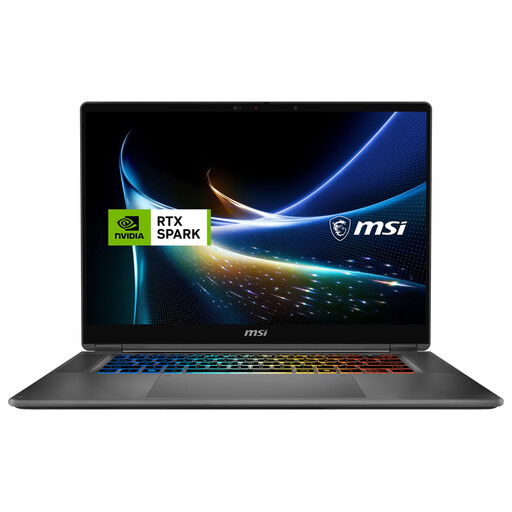 No image available
If you’re planning on plenty of memory and internal storage for large editing projects, these are the specifications listed for this configuration.
16-inch 2-in-1 laptop, 128 GB DDR5 RAM, 2 TB SSD, Windows 11 Pro.
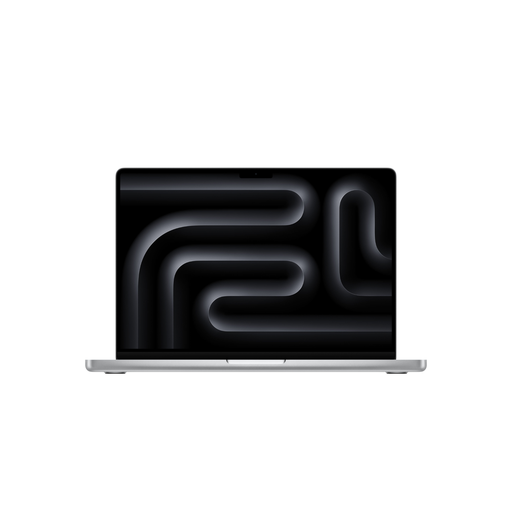 No image available
For 4K editing in Premiere 26.x, the listed 36 GB of RAM exceeds Adobe’s recommendation of 32 GB or more. This comparison applies to the workflow specified.
M5 Max, 18-core CPU, 32-core GPU, 36 GB RAM, 2 TB SSD, German QWERTZ keyboard layout. Keep the ventilation openings clear during extended workloads and don’t place the device on soft surfaces.
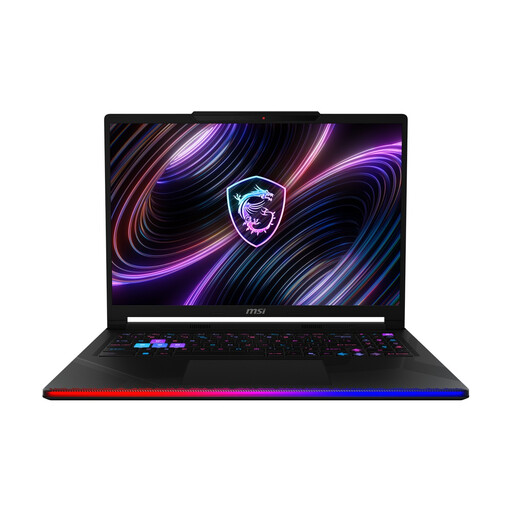 No image available
For 4K editing in Premiere 26.x, the listed 32 GB of RAM meets Adobe’s recommendation of 32 GB or more.
16-inch OLED display with WQXGA resolution, Intel Core Ultra 9 290HX, NVIDIA GeForce RTX 5090, 32 GB DDR5 RAM, 2 TB SSD, Windows 11 Home.
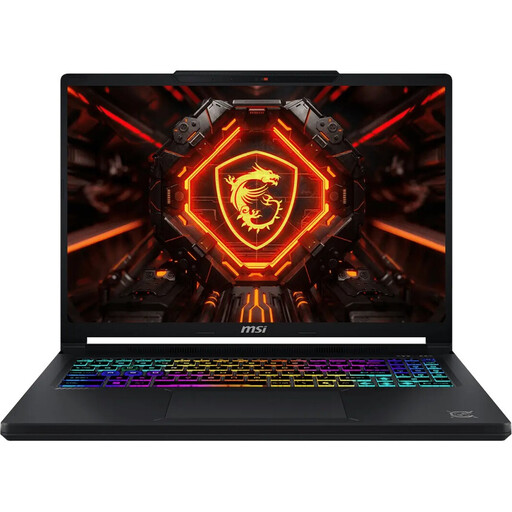 No image available
If you’re planning to use Premiere 26.x for 4K, check the RAM: Adobe recommends 32 GB or more for this workflow, while this configuration lists 16 GB.
Intel Core Ultra 9 275HX, NVIDIA GeForce RTX 5070 with 12 GB of graphics memory, 16 GB DDR5 RAM, 1 TB SSD, 16-inch QHD+ OLED display with 165 Hz, Windows 11 Home.
 No image available
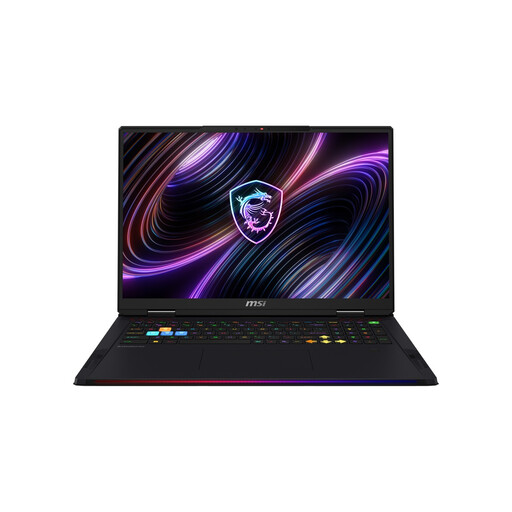
If you prefer a larger screen for editing, the product name indicates an 18-inch display. Bear the listed weight in mind if you’ll be carrying it around often.
18-inch Mini LED display with WQUXGA resolution, Intel Core Ultra 9 290HX, NVIDIA GeForce RTX 5080, 32 GB DDR5 RAM, 2 TB SSD, Windows 11 Home. Listed weight: 3.6 kg.
For Premiere, Adobe describes using “Merge Clips”. You can also sync clips manually or automatically in the timeline. Check that your chosen software supports this workflow with your files, then listen back to the result.
No. For 4K and higher resolutions, Adobe recommends 32 GB of RAM or more for the listed Premiere 26.x versions. This doesn’t make it a general requirement for other software or projects. Adobe also describes a proxy workflow for editing high-resolution footage on less powerful hardware.
It depends on how and why you film them. The Berlin Commissioner for Data Protection and Freedom of Information notes that identifiable people are personal data, and that processing them—including recording and subsequent use—requires an applicable legal basis. Check the specific circumstances and intended use before publishing.
Not without authorisation: Section 201 of the German Criminal Code covers the unauthorised recording of another person’s non-publicly spoken words, as well as certain uses of such recordings. Whether the provision applies depends on the circumstances of the recording; ordinary ambient sounds shouldn’t automatically be treated in the same way.