What should you look for when buying?
First, work out which software and footage you use. Then you can decide whether the laptop will handle the main editing or mainly help you review and prepare footage on the move.
| What matters |
What to check before buying |
Who is this important to? |
| Project handover and shared storage |
Access to the same media, project versions and storage paths; plan the transfer and backup process too. |
If I need to hand projects over at a shared workstation, the media and files should be accessible there. Around 31% of consumers put handover and shared storage first. |
| Editing performance and working files |
Compare the editing software and version, footage resolution, RAM, graphics and storage space for originals, cache and, where relevant, proxies. |
If I want to edit 4K footage directly on my laptop, I’ll check the specific configuration against the software recommendations. Around 31% of consumers prioritise editing performance on a laptop. |
| Checking your footage |
Check the screen size and resolution of the specific model; treat published colour gamut figures as manufacturer specifications. |
If I want to assess framing and colour on the move, the device’s screen matters to me; a monitor at the shared workstation is another option. Around 23% of consumers put checking footage on a laptop first. |
| Portability and transferring footage |
Check the weight, your camera’s card format and the ports you need against those available at the workstation. |
If I move between the filming location and the workstation, I want to transfer my footage without unnecessary detours. Around 15% of consumers prioritise portability and footage transfer. |
Brands worth considering
The specifications below apply to the product ranges and configurations mentioned, not necessarily to every model from each brand.
Apple
The 14-inch MacBook Pro with M5 may suit an editing workflow that’s compatible with macOS. Apple lists video media engines, SDXC and HDMI among the model’s features.
- The specifications for codecs and ports can help you check compatibility with your camera and workstation.
- Manufacturer specifications are no substitute for checking compatibility with your own footage. Check your software, media paths, RAM and storage configuration.
ASUS
For the specific German-market ProArt P16 H7606WP-RJ084X configuration, ASUS lists an RTX 5070 with 8 GB of graphics memory, 64 GB of RAM and a 4 TB SSD.
- ASUS also lists SD Express, USB4 and HDMI ports for this configuration.
- These specifications apply to the stated configuration only. They don’t apply to every ProArt P16 model and aren’t the result of an independent editing test.
Lenovo
The ThinkPad T1g Gen 8 is another Windows option. Depending on the configuration, Lenovo lists an RTX 5060 or RTX 5070, each with 8 GB of graphics memory, as well as SD Express and Thunderbolt.
- The range specifications give you a starting point for comparing possible graphics and port configurations.
- Check the processor, RAM, SSD and ports against the full model number of the specific device.
HP
The ZBook Studio G11 range is aimed at people who need a Windows workstation with configurable hardware.
- Depending on the configuration, HP lists up to 64 GB of upgradeable RAM and a choice of discrete graphics options for the range.
- These are product range specifications and maximum figures, not a guarantee for every configuration or the result of an independent editing test.
Laptops available at Joybuy
The Joybuy laptops below include models for reviewing footage on the move and storing working files locally, as well as 15.6-inch devices with a range of specifications. Before buying, check that the specific configuration suits your software and footage.
 No image available
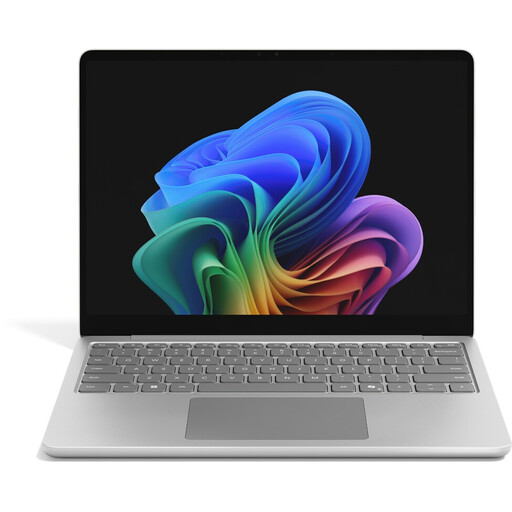
Microsoft Surface Laptop 8, Core Ultra 5, 24 GB RAM, 512 GB SSD
For reviewing and preparing footage on the move, if a 13-inch touchscreen suits your workflow; check that your editing software is compatible.
Intel Core Ultra 5 335, 24 GB RAM, integrated Intel graphics and a 512 GB SSD.
13-inch WUXGA+ touchscreen with 1,920 × 1,280 pixels; stated weight: 1.24 kg.
View at Joybuy
 No image available
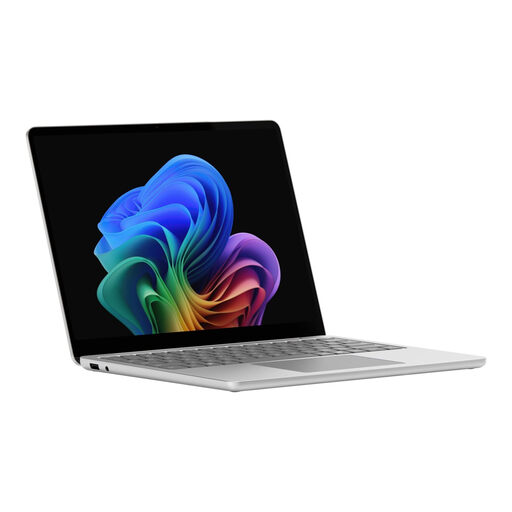
Microsoft Surface Laptop 8, Core Ultra 5, 24 GB RAM, 1 TB SSD
For reviewing footage on the move and storing working files locally, if the 13-inch touchscreen model suits your workflow; check the specifications against your software requirements.
Intel Core Ultra 5, 24 GB RAM, integrated Intel graphics and a 1 TB SSD.
13-inch touchscreen with 1,920 × 1,280 pixels.
View at Joybuy
 No image available
Auusda T156A laptop, 16 GB DDR4 RAM, 512 GB SSD
For reviewing footage on a larger laptop screen; check in advance that the processor and specifications suit your editing software.
AMD 3050e processor, 16 GB DDR4 RAM and a 512 GB SSD.
15.6-inch FHD IPS display; USB and USB-C ports are listed.
View at Joybuy
 No image available
Acer Aspire 5, 15.6-inch, Core i5-13420H, 32 GB RAM, 1 TB SSD, RTX 2050
For local project files and reviewing footage on a 15.6-inch screen; check the specific configuration against your editing software and footage.
Intel Core i5-13420H, RTX 2050 with 4 GB GDDR6, 32 GB RAM and a 1 TB SSD.
15.6-inch IPS FHD display; Thunderbolt 4, HDMI and RJ-45 are listed. Stated weight: 1.78 kg.
View at Joybuy
Frequently asked questions
How do I set up handover to a shared workstation?
First, decide whether you’ll simply hand over files or whether several people will work together on Premiere projects. For Premiere Productions involving several editors, Adobe recommends shared storage that everyone can access along with the associated media. If several people use the same device, Germany’s Federal Office for Information Security recommends separate, password-protected user accounts. You should also back up important files regularly.
Does the laptop have to be able to edit all the original footage directly?
Not necessarily, if proxy files work for your workflow. Adobe describes proxies as lower-resolution copies used to edit large video files. For the process described, the original media must be accessible, and there are restrictions on which video clips are suitable: they must not have subtitles. For direct editing and export, check the requirements for your software and footage.
What extra costs should I budget for before buying?
Check whether you’ll need editing software, extra storage for media or backups, and suitable adapters as well as the laptop. Adobe notes that Premiere may involve additional fees or membership costs; the exact cost depends on the option you choose.
What rights apply when buying a laptop in Germany?
When consumers buy new goods, they generally have statutory rights against the seller for defects for two years; this is separate from a manufacturer’s warranty. For online distance sales, consumers generally have the right to cancel, usually within 14 days of receiving the goods. Whether these consumer rules apply to your purchase also depends on whether you’re buying privately or for business or self-employed use.


