Running several VMs at once
If you run several guest operating systems at the same time, you’ll need to plan for the combined memory requirements of the host and VMs. Microsoft Learn sets out the hardware requirements for Hyper-V.


Start by choosing based on your guest operating system and hypervisor. For Hyper-V on Windows, Microsoft Learn specifies Windows 11 Pro or Enterprise, along with suitable hardware. Then make sure there’s enough memory for the host and the VMs you’ll be running at the same time. A Mac with Apple silicon may suit compatible Arm guests, but Parallels notes limitations with existing x86 VMs and nested virtualisation. Finally, check that the specific laptop supports the number of external screens you need, at your chosen resolution.
If you run several guest operating systems at the same time, you’ll need to plan for the combined memory requirements of the host and VMs. Microsoft Learn sets out the hardware requirements for Hyper-V.
If you want to use a VM, documentation and host applications on separate screens, check whether “two screens” means the laptop display plus one monitor, or two external monitors. Lenovo PSREF and Apple document the display capabilities of their respective models.
If you want to keep using existing x86 images, Hyper-V features or specific guest systems, check the processor architecture and hypervisor before switching. Parallels lists requirements for Arm installation images and limitations with nested virtualisation on Apple silicon.
First, consider your guest operating system and the load from VMs running at the same time. Then work out your monitor setup, and finally check that the laptop and connection options suit your mobile workspace.
| Consideration | What to check when buying | Who should pay particular attention? |
|---|---|---|
| Resources for VMs running at the same time | Check there’s enough memory for the host and active guests, as well as SSD space for local VM files. | If you run several guests at once, there needs to be enough memory for the host and VMs combined. That’s why around 36% of consumers put resources for simultaneous VMs first. |
| Two usable screens | Check the number of external monitors and the supported resolution and refresh rate for the exact model and, if applicable, the dock. | If I want to use a VM, documentation and host applications on separate screens, my specific setup needs to work. Around 29% of consumers prioritise having two screens they can actually use. |
| Guest and hypervisor compatibility | Check the architecture and version of your guests, as well as any required features such as Hyper-V in a guest or WSL2. | If you want to keep using existing x86 images or Hyper-V features, check the architecture and virtualisation software before you buy. Around 21% of consumers put compatibility first. |
| Mobile workspace and ports | Check that the laptop, power adapter and dock you need are suitable for mobile use and your preferred monitor setup. | If I regularly carry my laptop and monitor setup around, a practical configuration and suitable ports matter. Around 14% of consumers prioritise portability and connectivity. |
Using the laptop display plus one external monitor is different from connecting two external displays. The number of ports alone doesn’t confirm which combinations will work at the same time.
Decide on the number of screens, resolution and refresh rate, then check the documentation for the exact laptop and dock models.
Switching may mean setting up Arm VMs from scratch and checking your software again.
When several VMs are active, the host and guests all need enough memory. Configurations can also vary within the same product range.
Compare the RAM, SSD capacity and documented upgrade options for the exact configuration.
Making changes to the memory or configuration later can take extra time and effort.
The ThinkPad P14s Gen 6 AMD is a specific example of a Windows Pro configuration with documented support for several external displays.
The ZBook 8 G1a is a Windows Pro workstation option. You can check its specific configuration and your preferred monitor setup separately.
A MacBook Pro with M5 Pro may suit macOS users whose guests and applications are compatible with an Arm-based VM workflow.
The Windows laptops below have different RAM and SSD configurations, with video ports listed depending on the model. Before buying, check that the exact device supports your preferred monitor setup when all screens are connected at the same time.
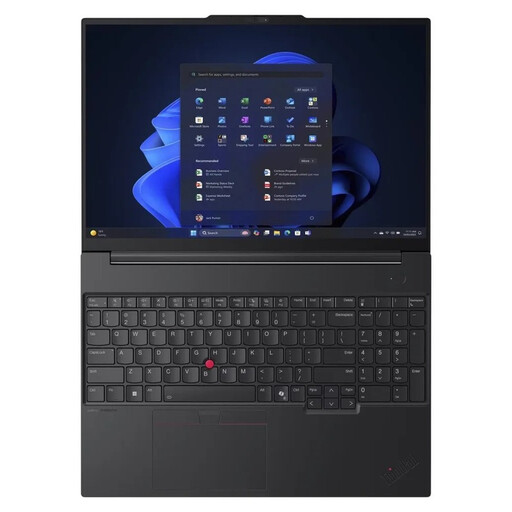 Image unavailable
An option for a Windows VM workspace if you’re looking for a specific configuration with Windows 11 Pro and 32 GB RAM.
Listed specifications include Windows 11 Pro, 32 GB RAM, 1 TB SSD, HDMI 2.1 and USB4-C. Check that the exact model supports your preferred combination of external monitors.
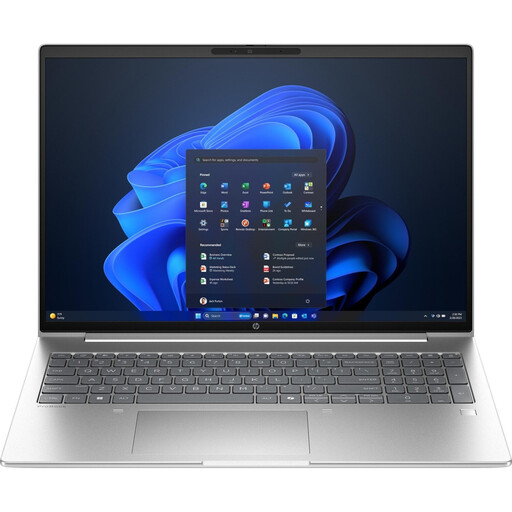 Image unavailable
A Windows laptop option if 32 GB RAM and a listed HDMI output suit your VM and monitor setup.
Listed specifications include Windows 11 Pro, 32 GB RAM, 1 TB SSD and HDMI. Check whether the specific model supports two external monitors.
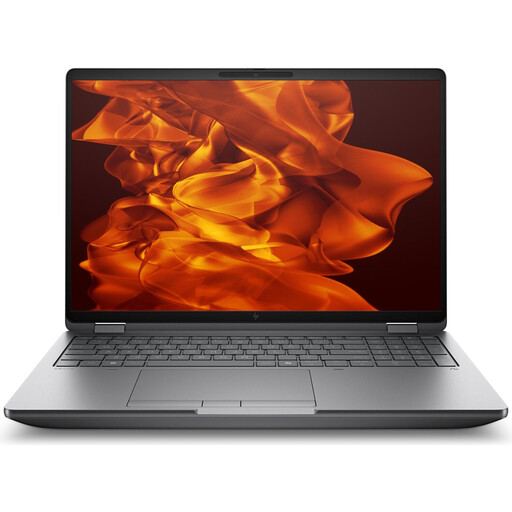 Image unavailable
This configuration may suit you if you’re planning for 64 GB RAM and a 2 TB SSD for your VM workload.
Listed specifications include Windows 11 Pro, 64 GB RAM, 2 TB SSD and Thunderbolt 4. Check which external display setup the specific model supports.
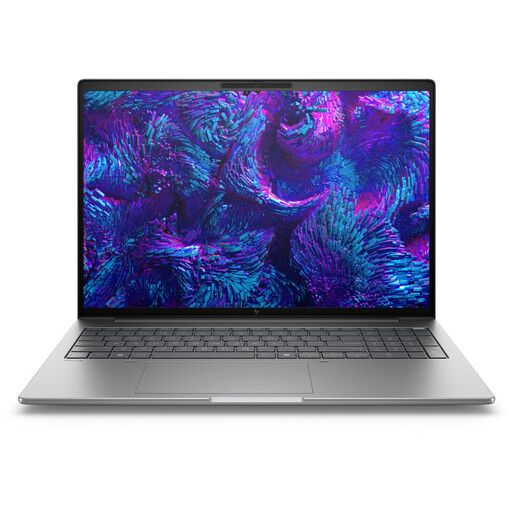 Image unavailable
Another configuration to consider if you’re looking for a Windows laptop with 64 GB RAM and a 2 TB SSD for local VMs.
Windows 11 Pro, HDMI and Thunderbolt 4 are listed for this model. The ports alone don’t confirm support for your preferred screen resolution when multiple monitors are connected.
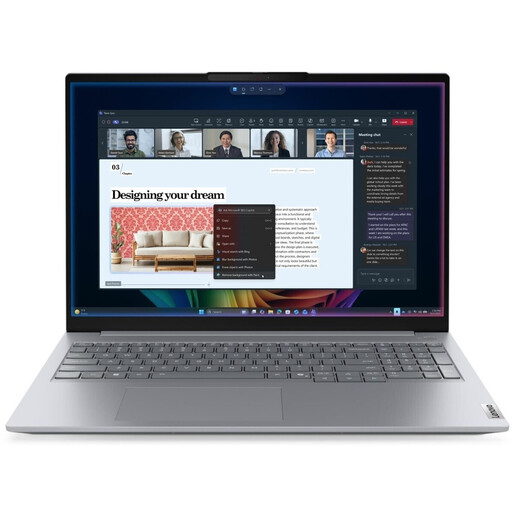 Image unavailable
A Windows laptop option if 32 GB RAM and a 512 GB SSD suit the number and size of your local VM files.
Listed specifications include Windows 11 Pro, 32 GB DDR5, 512 GB SSD, HDMI 2.1 and Thunderbolt 4. Check that the model supports your preferred monitor setup.
No, not if you want to use Microsoft Hyper-V directly in Windows. Microsoft specifies Windows 11 Professional or Enterprise, suitable hardware and virtualisation enabled. Other hypervisors have their own requirements.
Don’t assume support based on the number of ports alone. Check the number of displays supported at the same time, along with the resolution and refresh rate for the specific model. Lenovo documents these details for the ThinkPad P14s Gen 6 AMD, while Apple’s specifications for MacBook Pro vary by chip.
In Windows, press the Windows key and P to switch display modes, then choose “Extend”. Lenovo Support describes this keyboard shortcut. Also check that your laptop and cables support your monitor setup.
Check that the dock’s outputs, charging power and host compatibility suit your laptop. Dell lists different power ratings for Dell and non-Dell systems with the Pro Thunderbolt 4 Smart Dock SD25TB4. This doesn’t automatically mean it supports every monitor setup you might want.
For goods bought from a trader in the EU, Your Europe specifies a minimum two-year legal guarantee for consumers, starting from the date they receive the goods. A voluntary manufacturer’s warranty does not replace this statutory right.