What should you look for when buying?
Start by deciding whether you mainly need to view sources side by side, process and store files locally, or work flexibly in different places. The right specification also depends on the software and files you actually use.
| Priority |
What to check when buying |
Who it matters most to |
| Check duplicates against the source |
Check the scan, OCR text and index entry together as part of your workflow; keep the original scan and its source reference traceable. |
When I merge similar adverts, I want to check differences in the scan and metadata, rather than rely on an OCR match alone. Around 33% of consumers put checking for duplicates first. |
| Read scans and metadata side by side |
Check the display size, resolution and anti-glare finish of the specific configuration; if needed, confirm that it can connect to an external monitor. |
When comparing small print and multi-column pages, I need enough room to keep the source and record in view at the same time. Around 27% of consumers prioritise a screen that’s easy to work with. |
| Organise local files and processing |
Compare the software you use with the RAM and SSD in the specific configuration; plan for separate backups and data recovery. |
If scans and working copies are processed locally, I need to consider software requirements and file sizes, and be able to restore my data. Around 20% of consumers put this priority first. |
| Move between work locations |
Check the weight and ports of the specific configuration; consider whether a monitor and the necessary peripherals will be available at your workspace. |
If I move between an archive, library and desk, I need a device that’s practical on the go and can be complemented with the right equipment at a fixed workspace. Around 20% of consumers prioritise portability between locations. |
Joybuy products for working with scans
The Joybuy products below are 16-inch laptop options for a workspace where you want to compare scans, OCR text and index entries on the built-in screen. Still, check that the specific configuration suits your software and workflow.
 No image available
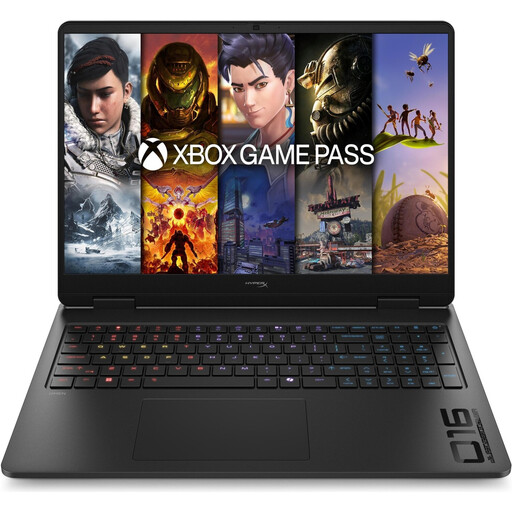
HP OMEN 16-ap1071ng, 16-inch, QHD, Ryzen 7 8745HX, 16 GB, 1 TB SSD, RTX 5060
The 16-inch format could suit you if you want to compare scans, OCR text and index entries on a larger built-in screen.
Specifications listed include QHD, AMD Ryzen 7 8745HX, 16 GB RAM, 1 TB SSD, GeForce RTX 5060 and Windows 11 Home.
The product description says that a power supply isn’t included, so check whether you need one.
View at Joybuy
 No image available
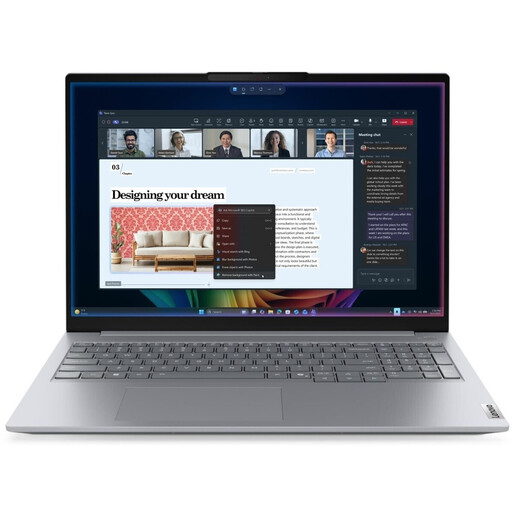
Lenovo ThinkBook 16 Gen 9, 16-inch, Core Ultra 5 325
The 16-inch version is an option if you want to use several windows on the built-in screen. Check that the processor meets your software’s requirements.
Specifications listed include Intel Core Ultra 5 325, 32 GB DDR5 RAM, a 512 GB PCIe SSD and Windows 11 Pro.
The description lists HDMI 2.1, Thunderbolt 4 and a weight of 1.7 kg.
View at Joybuy
 No image available
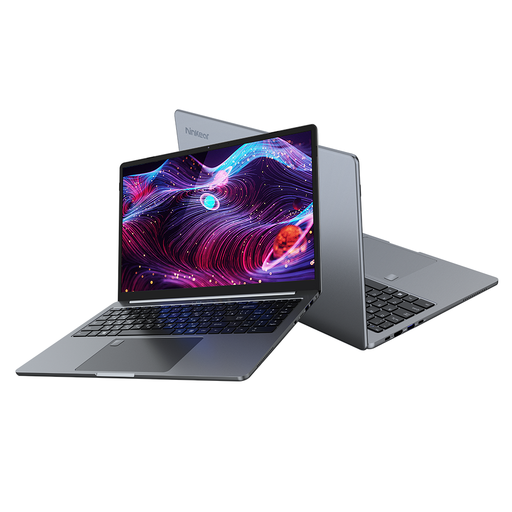
Ninkear A15 Pro, 16-inch, 16 GB DDR4, 1 TB SSD
The 16-inch display could be useful for comparing sources and index entries on the built-in screen.
The product name lists an FHD IPS display, 16 GB DDR4, a 1 TB SSD and Windows 11.
Its listed weight is 1.8 kg. Check that it suits the journeys you make.
View at Joybuy
 No image available
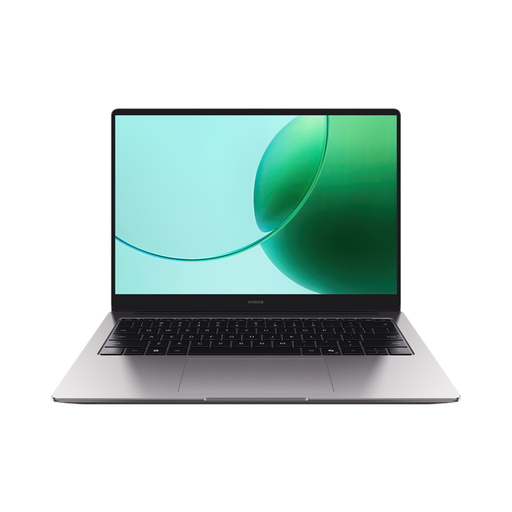
HONOR MagicBook X16 AMD 2025, Ryzen 5 6600H, 16 GB, 512 GB SSD
The 16-inch version could be a good choice if you want to check adverts and index data side by side on the built-in display.
Specifications listed include AMD Ryzen 5 6600H, 16 GB memory, a 512 GB SSD, Cloud Grey and a German keyboard.
View at Joybuy
 No image available
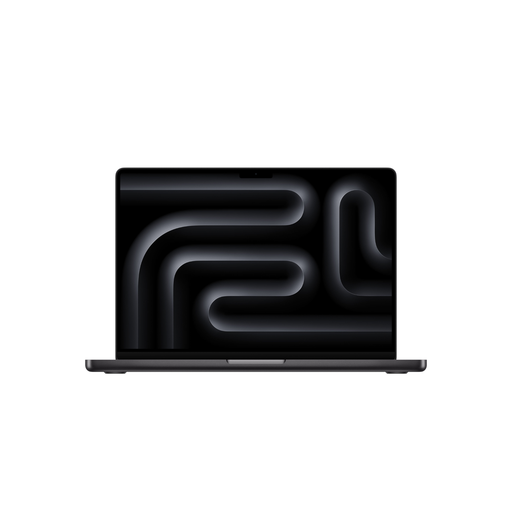
Apple 16-Inch MacBook Pro with M5 Pro, 24 GB, 1 TB SSD
The 16-inch format could be useful for checking a scan, OCR text and index entry side by side. First, make sure your cataloguing software works with macOS.
Specifications listed include an M5 Pro chip with an 18-core CPU and 20-core GPU, 24 GB, a 1 TB SSD, Space Black and a German QWERTZ keyboard.
View at Joybuy
Frequently asked questions
Is an OCR match enough to merge two historical adverts?
No, not without checking the source. The Library of Congress points out that OCR of historical newspapers can contain errors. Compare the scan and relevant metadata: recognised text is a useful search aid, not proof that two adverts are identical.
How should I back up scans and index data?
Back up your working data separately from your laptop, and test that you can restore it. The Federal Office for Information Security lists external storage media as one possible backup method and advises checking that data can be recovered.
Is a manufacturer’s warranty the same as your statutory guarantee?
No. Under EU consumer law, when a consumer buys from a business seller in Germany, the goods are generally covered by a statutory guarantee for at least two years from receipt. A voluntary manufacturer’s warranty may offer additional cover, but it doesn’t replace your rights against the seller. Your Europe explains the EU-wide minimum period.
Can I publish historical adverts and scans online without checking anything else?
A newspaper’s age alone doesn’t mean that it is automatically free to publish. The German Digital Library points out that making copyright-protected works available online requires permission or a relevant legal exception. Check the rights for the specific collection before publishing.
Does data protection matter for historical adverts?
You can’t determine that from the word ‘historical’ alone. The European Commission explains that personal data relates to identified or identifiable living people. So, for each specific cataloguing or publishing project, check whether it involves such data.


