What to look for when buying
First, check that the connections and footprint suit your shared workspace. Then choose according to your main focus: checking movement, or working with colour and detail.
The proportions below represent different primary buying priorities when designing and testing a platform game level at a shared desk.
| Priority |
What to check when buying |
Who is this particularly important to? |
| Connections and switching between devices |
Check the video output, data connection, charging power and, where relevant, KVM support for both computers. |
When several people switch computers and input devices at the same desk, I want to avoid unnecessary cable swapping. Around 36 % of consumers prioritise switching between devices. |
| Editor space and adjustability |
Check the space needed, including the stand, viewing distance and adjustment options. |
If the editor and preview need to be visible at the same time, the layout must work in the available space and adjust to suit different seating positions. Around 29 % of consumers prioritise editor space and adjustability. |
| Game preview in motion |
Check the refresh rate at your chosen resolution and connection against the computer’s actual output. |
When I frequently check movement and transitions in the prototype, a smooth preview matters more to me than extra colour modes. Around 21 % of consumers prioritise checking movement. |
| Colour and detail |
Compare the resolution and specified colour modes with your particular workflow. |
For visually focused design, I want to be able to assess colours and details using suitable modes. Around 14 % of consumers prioritise colour work and detail. |
The BenQ PD2705Q is listed with USB-C supporting DisplayPort Alt Mode, data transfer, 65 W Power Delivery and KVM. Dell lists QHD, 100 Hz and height adjustment up to 150 mm for the P2725DE. These model specifications don’t replace checking compatibility with your own computers and desk.
Joybuy monitors for level prototyping
The following models cover QHD, UWQHD and 4K options, with a range of refresh rates. Before choosing, pay particular attention to the space available and the connections at your shared desk.
 No image available
Z-Edge AGEX, 27 inches, QHD, 144 Hz, white
An option if you’re looking for a high-refresh-rate QHD preview; check that the stand and connections suit your shared workspace.
Joybuy’s product information lists 2,560 × 1,440 pixels and 144 Hz. According to the product information, a DisplayPort connection and compatible graphics card are required for QHD at 144 Hz.
Joybuy
 No image available
Gawfolk GF340C-H, 34 inches, UWQHD, 165 Hz
The wide format may suit you if you want space for the editor and preview side by side; check that your desk is large enough.
Joybuy’s product information lists 3,440 × 1,440 pixels, a 1500R curved display, a VA panel, DisplayPort and HDMI. The product description says the stand can be tilted.
Joybuy
 No image available
CRUA CR320QB, 32 inches, curved, 4K
A 4K option if you want to assess details in the editor; check that the resolution and screen size suit your computer and available space.
Joybuy’s product information lists 3,840 × 2,160 pixels, 3000R curvature, HDR10, Adaptive Sync and 100 % sRGB.
Joybuy
 No image available
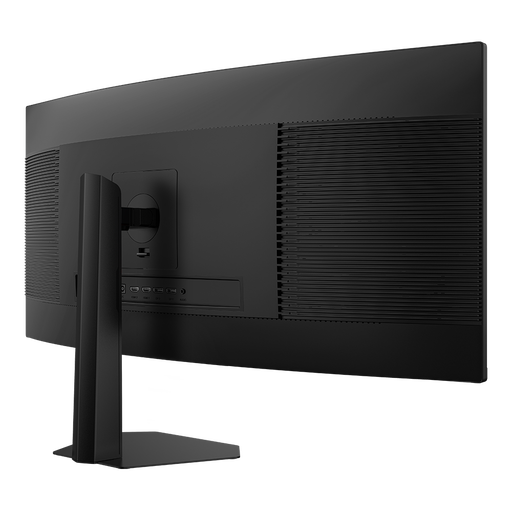
INNOCN E34A1R, 34 inches, UWQHD, 200 Hz
The 21:9 format may suit you if you want a wide area for the editor and preview; check that the monitor will fit on your shared desk.
Joybuy’s product information lists 3,440 × 1,440 pixels, a VA panel, 1500R curvature, FreeSync and PIP and PBP modes.
Joybuy
 No image available
INNOCN 2751S PLUS, 27 inches, Mini LED, QHD, 275 Hz
An option if you’re looking for a high specified refresh rate for checking movement; make sure the output you want is supported by your computer and connection.
Joybuy’s product information lists QHD, 275 Hz, an IPS display, HDMI and DisplayPort. No built-in KVM function is specified for switching a keyboard and mouse between computers.
Joybuy
Frequently asked questions
Does the monitor need to match the game’s target resolution?
No. The monitor’s resolution doesn’t automatically determine the target view. If you use Unity, explicitly select the intended view in Game View or Simulator, and also test the prototype under the planned target conditions. Unity Technologies describes Game View as a view of the application.
How should I set up a monitor at a shared desk?
Before buying, check the available space and viewing conditions, and adjust the settings when someone else takes over. The BAuA’s ASR A6 applies to the use of screen equipment at fixed workstations; it isn’t a general rule for every personal or mobile use.
What should I consider about power consumption and consumer rights?
Compare the EU energy label and product information for the specific displays. Your personal electricity costs also depend on how long you use them and your electricity tariff. The Verbraucherzentrale distinguishes the statutory right to have faulty goods put right from a voluntary guarantee, and says online purchases generally come with a 14-day right to cancel.
Do I need special approval for a monitor used for level design?
The EU rules for electronic displays described on EUR-Lex cover areas including ecodesign and energy labelling, not a special permit for level design. If you work with screens in a workplace, you must also follow the workplace rules that apply there.


