A desktop USB-C docking monitor can combine video, data and laptop charging over a single connection when used with a compatible laptop, but it still needs mains power itself. If you want to avoid using an extra socket for your monitor, consider a portable second screen powered by your laptop. You’ll need to check that your laptop’s power budget and connection are suitable, and the smaller screen may limit your level design work. First, check your laptop’s video output, power supply and cables, then consider screen size and colour requirements.
Who are the different monitor options suitable for?
Level designers short on socket space
If you use your laptop in one place, a monitor with docking features can neatly connect your screen and peripherals, and may also charge your laptop. The monitor still needs mains power itself. Dell and BenQ list these features for their respective models.
Designers working with lots of editor windows
For your scene view, properties and references, compare screen size, resolution and how clearly content displays at your chosen scaling. Dell lists the U2724DE as a 27-inch monitor with a resolution of 2560 × 1440 pixels; BenQ lists the PD2705U as a 27-inch monitor with a resolution of 3840 × 2160 pixels.
Designers who work in different locations
A small portable second screen can be useful for references or extra editor windows if another monitor socket isn’t practical. ASUS says the ZenScreen MB16AC receives power and video from its host device via USB. This uses some of your laptop’s power budget.
What should you consider when choosing?
If sockets are limited, first decide whether you need to avoid an extra mains connection altogether or simply want to combine the connections to your laptop.
Desktop USB-C docking monitor
A good fit if: you regularly work at the same desk and your laptop supports video and charging over the right connection.
Things to weigh up: The monitor still needs mains power, and its charging output must be suitable for your laptop.
Portable second monitor powered by your laptop
A good fit if: you want to avoid using an extra socket for a monitor and a smaller secondary view will do.
Things to weigh up: The monitor draws power from your laptop. ASUS says the ZenScreen MB16AC requires a driver when connected via USB-A.
Portable USB-C monitor with touchscreen
A good fit if: you want to work on sketches or controls directly on the second screen and your computer and software support touch.
Things to weigh up: Lenovo’s claim of up to 65 W for the ThinkVision M14t Gen 2 refers to Power Pass-Through. This charging feature requires a suitable external power source.
| Priority |
What to check before buying |
Who is it important to? |
| Power and connections |
Does your laptop’s connection support video and the charging output you need? Does the monitor itself need to be connected to mains power? |
If I want to use as few power sockets as possible at my permanent workspace, my monitor and laptop need to suit my connection set-up. Around 36% of shoppers put power and connections first. |
| Workspace for the editor and playtesting |
Match the screen size and resolution to your preferred window layout and make sure everything remains easy to read at your chosen scaling. |
If I want to use the scene view, tools and test window at the same time, having the right amount of screen space is essential. Around 29% of shoppers prioritise arranging several work windows. |
| Colour reproduction |
Match the colour mode and colour space to your output target, and take your own colour management workflow into account. |
If I need to assess textures, lighting or user interfaces, I pay particular attention to colour reproduction. Around 21% of shoppers make this their top priority when choosing. |
| Portable set-up |
Check that the host device provides video and enough power, and whether Power Pass-Through requires an external power source. |
If I need an extra view at different workspaces without planning for another monitor socket, a practical portable set-up matters to me. Around 14% of shoppers prioritise portability. |
Which buying mistakes should you avoid?
-
Assuming one cable means no mains power
A USB-C docking monitor can combine connections and charge a compatible laptop, but a desktop monitor still needs mains power. A portable screen powered by its host device draws its power from the laptop instead.
Before choosing, decide whether you want to avoid having a separate laptop charger on your desk or whether you want to avoid using an extra socket for the monitor itself.
-
Assuming every USB-C port supports video and charging
The shape of the socket alone doesn’t confirm that it supports a video signal or the charging output you need. For the PD2705U, BenQ lists USB-C with DisplayPort Alt Mode, data and 65 W; Lenovo’s Power Pass-Through refers to a different feature.
Check the features of your specific laptop and monitor ports, the charging requirements and the cable you plan to use.
-
Expecting a small second screen to replace a large main monitor
ASUS lists the ZenScreen MB16AC as a 15.6-inch Full HD model; the desktop Dell and BenQ models mentioned here are both 27 inches and have higher native resolutions.
Check how your level editor’s windows actually look at the intended screen size, and treat a portable screen as a targeted extra view rather than a full-size replacement.
Which brands and product ranges are worth considering?
Dell
The UltraSharp U2724DE is a desktop QHD option with a Thunderbolt hub for a compatible laptop workstation.
- Dell lists this model as 27 inches, with a resolution of 2560 × 1440 pixels, a 120 Hz refresh rate and 90 W power delivery.
- Combining connections doesn’t make the monitor independent of mains power, and these specifications don’t automatically apply to other UltraSharp models.
BenQ
The DesignVue PD2705U is a desktop 4K option with USB-C for digital design work.
- BenQ lists USB-C with DisplayPort Alt Mode, data and 65 W for the PD2705U, along with 99% sRGB and 99% Rec. 709 coverage.
- Whether 65 W is enough for your laptop and whether its port supports video depend on the device. Manufacturer specifications aren’t an independent measurement of your particular unit.
Lenovo
The ThinkVision M14t Gen 2 is a compact portable second screen to consider if you need touch for sketches or input.
- Lenovo lists a 14-inch screen, 2240 × 1400 pixels, touch and two USB-C ports.
- The claim of up to 65 W refers to Power Pass-Through, which requires a suitable external power source for charging. The smaller format won’t necessarily replace a large main monitor.
ASUS
The ZenScreen MB16AC is an example of a portable screen powered by its host device; the ProArt PA279CDV is a desktop model with different colour and docking features.
- ASUS says the MB16AC receives power and video from its host device via USB. For the PA279CDV, the manufacturer lists a 4K QD-OLED display and USB-C with up to 96 W.
- ASUS says the MB16AC requires a driver when connected via USB-A. The PA279CDV specifications don’t apply to the portable model.
Philips
The Business Monitor 27B1U3900/00 is another desktop 4K option with USB-C docking.
- For this variant, Philips lists a 27-inch screen, 3840 × 2160 pixels and USB-C power delivery to a compatible device.
- Before comparing products, treat the /00 and /01 variants separately.
Joybuy monitors for a level design workstation
This Joybuy selection includes portable second screens and desktop USB-C monitors for laptop workstations where you need more screen space.
 No image available
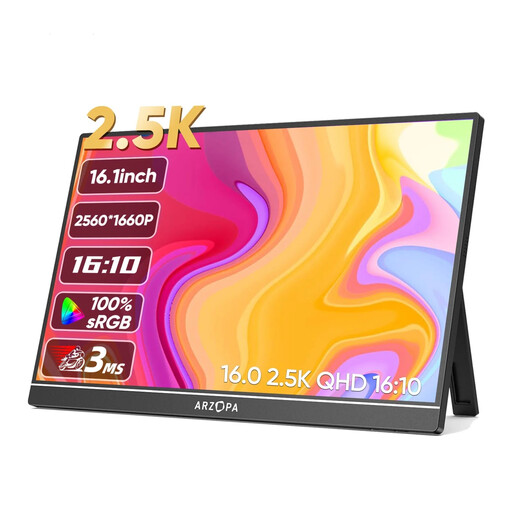
Arzopa Z1RC 2.5K, portable 16-inch monitor
This model could work as a portable second screen, giving you an extra view for editor windows or references. Check that your laptop can provide the right video connection and power before you buy.
16 inches, 2560 × 1600 pixels, 16:10, HDR 500 nits, 8 bit, USB-C and HDMI.
Joybuy
 No image available
INNOCN CB27U1, 27-inch 4K monitor
For a permanent multi-window workstation, this model combines a larger 4K view with USB-C laptop charging. According to the product information, the monitor still needs its own power adapter.
27 inches, 3840 × 2160 pixels, IPS, 120 Hz and USB-C with 90 W Power Delivery.
Joybuy
 No image available
MSI MPG 322URXDE QD-OLED, 32 inches
This desktop model could suit a large 4K workstation with USB-C laptop charging. The monitor will still need its own power cable.
32 inches, 3840 × 2160 pixels, 240 Hz and USB-C with 98 W Power Delivery.
Joybuy
 No image available
ASUS ROG Swift OLED PG32UCDMR, 32 inches
According to the product information, this model combines a large 4K view with USB-C charging for a compatible laptop, making it an option for a permanent workstation. The monitor still needs its own power supply.
32 inches, 3840 × 2160 pixels, 240 Hz and USB-C with 90 W.
Joybuy
 No image available
MSI PRO MP275QPDGDE, 27-inch WQHD
As a desktop docking monitor, this model can combine connections at a permanent laptop workstation. The monitor itself will still need its own power supply.
IPS, 100 Hz, USB-C with 98 W Power Delivery, daisy-chain, KVM and integrated webcam. The stated colour gamut coverage is 84% sRGB and 79% DCI-P3.
Joybuy
Frequently asked questions
Does a USB-C docking monitor automatically save you a socket?
No. A desktop monitor still needs mains power. But if your laptop is compatible and the Power Delivery output is sufficient, the monitor may replace your separate laptop charger at your desk. BenQ lists 65 W for the PD2705U and Dell lists 90 W for the U2724DE; check your laptop’s charging requirements.
Can I power a portable monitor using only my laptop?
You can, if the model is designed for it and the host connection is suitable. ASUS says the ZenScreen MB16AC receives video and power from its host device via USB; ASUS also says a driver is required for USB-A. Check the connection and power budget of your particular laptop.
How can I compare a monitor’s power consumption?
Check the EU energy label and, if you’ve identified the exact model, look up its details in the European Product Registry for Energy Labelling (EPREL) as well. The European Commission includes computer monitors within the scope of the labelling rules; a claim of “one cable” doesn’t tell you how much power a monitor uses.
What are my rights if I buy a faulty monitor online?
For consumer purchases in the EU, you’re generally entitled to a minimum two-year legal guarantee from the seller; a voluntary manufacturer’s warranty doesn’t replace it. For online purchases by consumers in Germany, there is usually a 14-day right to cancel, subject to legal exceptions. Your Europe explains the EU legal guarantee, while Verbraucherzentrale provides information about cancellation rights in Germany.


