What should you consider when choosing?
Check your software and existing devices first, then compare screen size, portability and the complete workstation set-up.
| What you need |
What to check before buying |
Who should pay particular attention? |
| Software and existing devices |
Check the supported operating systems and browsers, and make sure the ports work with the specific scanner, printer and monitor models. |
If you want to keep using your existing management software and peripherals, compatibility should come first. Around 25% of consumers rank this as their top priority. |
| Protecting members’ data |
Speak to your IT team about how sign-in, access rights, encryption and secure set-up will be handled. |
If the laptop processes members’ data, safeguards need to suit how it will be used. Around 25% of consumers prioritise data protection. |
| Screen and peripherals |
Check how the windows you need will fit on screen at your workstation, and whether the specific configuration has enough ports. |
If you work with member accounts and other windows side by side, or connect devices at the service desk, display and ports matter. Around 20% of consumers put these workstation needs first. |
| Working in different locations |
Compare the size, weight, charger and ports you need for the specific model. |
If you carry the device between the service desk, office and meeting room, portability and power supply are key. Around 15% of consumers prioritise using their device in different locations. |
| Complete workstation set-up |
Consider what’s included, the operating system, service terms and any software or accessories you need. |
If you need the laptop to be ready to use as a complete management workstation, there’s more to consider than the device alone. Around 15% of consumers put the total cost and support first. |
Laptops at Joybuy
This selection includes larger laptops for a fixed workstation and more compact devices that may suit teams working in different locations.
 No image available
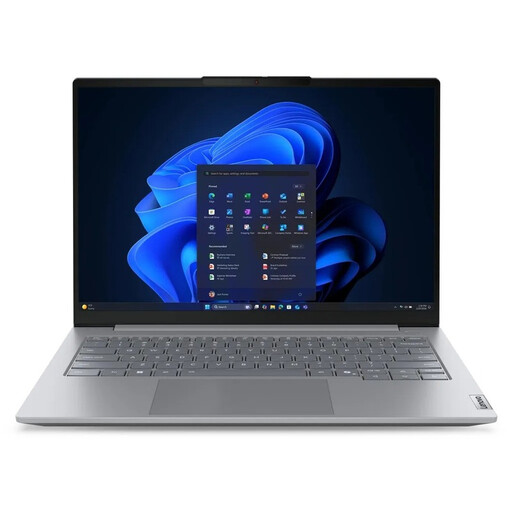
Lenovo ThinkBook 16 G9 AHP 21UT
The built-in 16-inch display may be useful for a fixed workstation; check that the ports work with your existing peripherals.
16-inch WUXGA display; AMD Ryzen 5 220; Windows 11 Pro; 32 GB RAM; 1 TB NVMe SSD; Radeon 740M; USB-A, USB4-C and HDMI.
Joybuy
 No image available
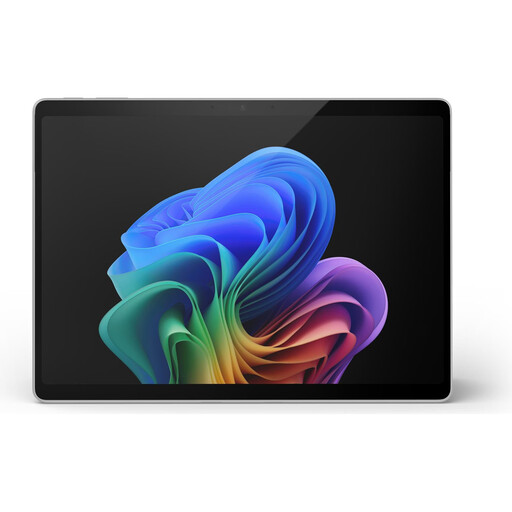
Microsoft Surface Pro 11 13-inch Snapdragon X Plus, 16 GB/512 GB
If you work in different locations, its compact size may be an important consideration. Before buying, check that your management software and peripherals work with this specific configuration.
13-inch display; Windows 11 Pro; 16 GB RAM; 512 GB SSD; two USB-C 4 ports; stated weight: 0.90 kg.
Joybuy
 No image available
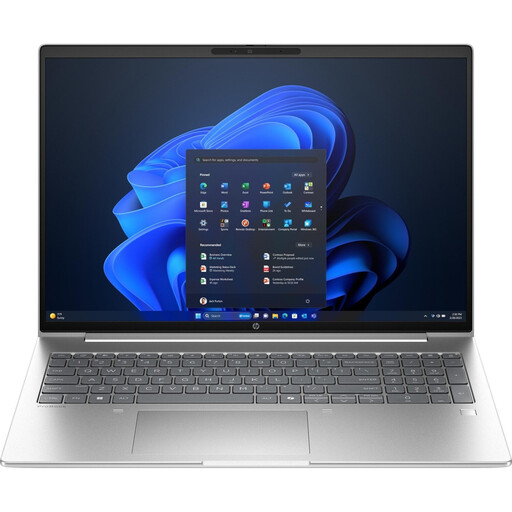
HP ProBook 4 16 G1i AI laptop
A larger display may work well for a fixed workstation if you use management windows side by side; check the ports against your peripherals.
16-inch WUXGA IPS display, 1920 × 1200; Intel Core Ultra 7 255U; Windows 11 Pro; 32 GB RAM; 1 TB NVMe SSD; HDMI and USB ports.
Joybuy
 No image available
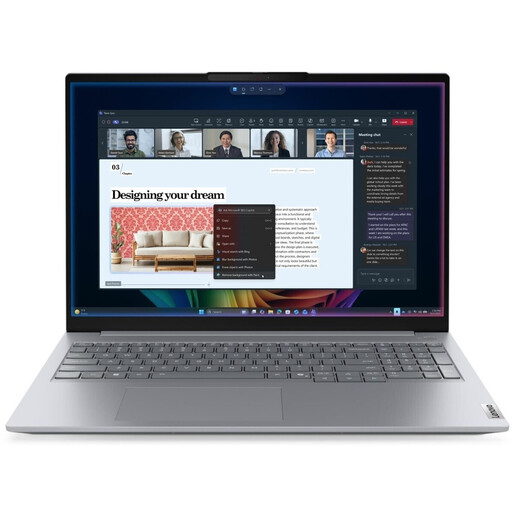
Lenovo ThinkBook 16 Gen 9, Intel Core Ultra 5 325
If you need a larger screen and ports for existing devices at a fixed workstation, check the specific specification against your requirements.
16-inch WUXGA display; Windows 11 Pro; 32 GB DDR5 RAM; 512 GB PCIe SSD; HDMI, Thunderbolt 4 and Gigabit Ethernet.
Joybuy
 No image available
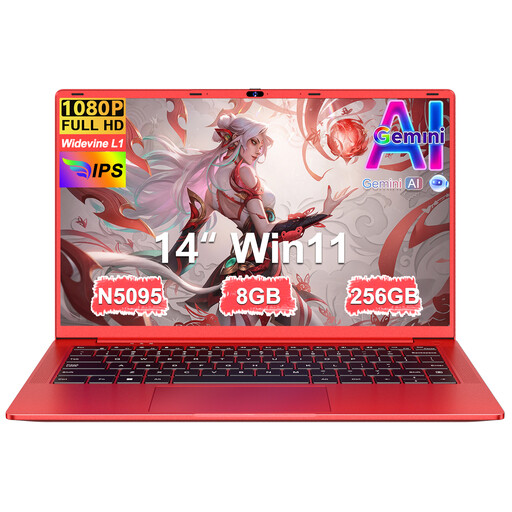
Ruzava 14-inch laptop N5095
If you’re looking for a more compact device to use in different locations, check before buying that its operating system and ports meet the requirements of your library software and devices.
14-inch FHD display; N5095 processor, up to 2.9 GHz; 8 GB RAM; 256 GB SSD, expandable to 1 TB; USB 3.0 and Type-C; stated weight: 1.39 kg.
Joybuy
Frequently asked questions
Does a laptop used for members’ data need a specific security feature?
Not necessarily. Data protection requirements call for appropriate technical and organisational measures that reflect the risks involved in processing the data. The Federal Commissioner for Data Protection and Freedom of Information doesn’t prescribe one laptop model or individual hardware feature for every situation; the library needs to assess how it will use the device.
Are a TPM chip or fingerprint sensor enough to protect members’ data?
No. These features don’t replace appropriate set-up and organisation of data processing. If members’ data is stored locally, the library should check with its IT team that suitable encryption is actually in place.
How should a library back up its members’ data?
First, find out whether the data is stored locally or in the library system, and who is responsible for backups and recovery. The Federal Office for Information Security recommends making regular backups and checking that they can be read and restored; a second SSD in the laptop isn’t an independent backup on its own.
Will browser-based library software run on any laptop?
No, you can’t assume that. Check the software provider’s requirements for operating systems and browsers, as well as compatibility with your existing scanners and other devices.
What ongoing costs should a library consider when buying a laptop?
Compare what you need for a ready-to-use workstation, including software, ports, accessories and service terms. One configuration of the Dell Pro 14 PC14250 documented by Dell doesn’t include a power adapter; this doesn’t apply to other configurations or laptop models.


