Who needs to choose a tablet?

Teams tied to existing software

If you already use a library application, make sure the staff view, forms and required input methods all work on the tablet you choose. For example, the Koha manual describes ways to search for members, but you should still test your own installation.

Teams sharing devices

If several members of staff use the same tablet, separate access, secure sign-in and sign-out, and a suitable device configuration are all important to consider when choosing and setting it up. The Federal Commissioner for Data Protection and Freedom of Information outlines safeguards for handling personal data.

Mobile service teams

If you regularly access member records in different locations, a manageable size and a reliable connection where you’ll be working are important. Also check that the view you need is easy to read on the screen size you choose.

What to consider when buying

iPadOS for workflows confirmed to work on iPad

A good fit if: your library software and the forms you need have been tested on iPadOS, and you’d benefit from a larger touchscreen.

The trade-off: Apple lists an 11-inch display for the iPad (A16). According to Apple Germany, the stated box contents include the iPad and a USB-C cable, but no Pencil.

Compact Android for mobile tasks

A good fit if: your application runs on Android and you often access member records away from a fixed workstation.

The trade-off: Samsung Germany lists an 8-inch display for the Galaxy Tab Active5 5G Enterprise Edition. Longer forms may be harder to navigate on the smaller screen.

Larger Android for forms

A good fit if: your specialist application works on Android and you need more room for forms or additional input accessories.

The trade-off: Lenovo Germany lists an 11-inch display, LTE and a pen for this version of the Lenovo Tab M11 ZADB0034SE. Check the accessories and specification against the full model number.

Windows for workflows that require Windows

A good fit if: your existing management software requires Windows or your IT team specifies this workflow.

The trade-off: Microsoft’s documentation for the 13-inch Surface Pro for Business with Intel lists Windows 11, TPM 2.0 and BitLocker support. You’ll still need to agree on the setup and permissions.

Criterion What to look for when buying Who it matters most to
Compatibility with membership management software Use your actual specialist application to create, search for and edit a test record; try any required barcode input on the operating system you plan to use. If I need to make sure staff can really use the existing application, I test the entire process in advance. Around 34% of consumers put compatibility with membership management software first.
Protecting member data Agree with your IT team how sign-in, permissions, updates, local storage, lost devices and changes between user sessions will be handled. If several members of staff use a device, or process personal data on it, I need clear access rules and a suitable configuration. Around 33% of consumers prioritise protecting member data and supporting shared device use.
Ease of use for mobile services Open a typical form on the screen size you’re considering and check the connection at the locations where you’ll actually work. If I access records while out and about, I want a tablet that’s easy to carry but still lets me read the member view. Around 20% of consumers put mobile usability first.
Total costs for input and day-to-day use Consider the box contents for the exact version alongside any need for a keyboard, stylus, case, charging accessories, device management and support. If I’m putting together a device that’s ready to use, I want to factor in the accessories I need and the ongoing management involved. Around 13% of consumers prioritise the total cost of input and day-to-day use.

Common mistakes to avoid

  • Confusing screen size with software compatibility

    A clear, easy-to-read display won’t help if the staff view, permissions or features you need in your library software don’t work on the device.

    Before buying, run through the entire member-record process on the platform you plan to use, with test data.

    An unsuitable device could mean you need additional workstations or changes to your workflow.

  • Assuming security features are a complete solution

    A supported feature or available device management won’t protect data on its own. Access and settings need to be configured to suit how the device will actually be used.

    Involve your IT and data protection teams, and agree on sign-in, user roles, updates and what to do if a device is lost or a shift changes. The Federal Commissioner for Data Protection and Freedom of Information explains why suitable safeguards matter. The Federal Office for Information Security describes central mobile device management as one way to support this.

    Setup, management and ongoing maintenance can add to the organisational workload.

  • Overlooking accessories and differences between versions

    Details about a stylus, mobile connectivity and box contents don’t necessarily apply to every version of a tablet.

    Check the full model number, box contents and accessories you need against the exact version you’re considering.

    Depending on the version, you may need to budget separately for input devices or charging accessories.

Key brands to consider

Apple

An iPadOS option for libraries whose management interface has been tested on iPad. Apple Germany lists an 11-inch display for the iPad (A16).

  • Apple lists Wi-Fi and Cellular versions, as well as Pencil compatibility.
  • The stated tablet box contents include the iPad and a USB-C cable, but no Pencil. This doesn’t confirm that your library software will work with it.

Samsung

An Android option for mobile work. The Galaxy Tab Active range includes the documented 8-inch Active5 5G Enterprise Edition.

  • Samsung describes the Active5 5G as having IP68 protection and wireless connectivity options.
  • Samsung Knox documents a configurable mode for shared Android devices. You’ll need to set up how it’s used and who has access.

Microsoft

A Windows option if your membership management software requires a compatible Windows workflow.

  • Microsoft documents Windows 11, TPM 2.0 and BitLocker support for the 13-inch Surface Pro for Business, 12th Edition with Intel.
  • The 13-inch model is larger than the 8- and 11-inch devices considered here. This support doesn’t replace security setup or testing your specialist software.

Lenovo

An Android alternative with an 11-inch display for tested mobile or browser-based specialist applications.

  • Lenovo Germany lists LTE and a pen for the documented Tab M11 ZADB0034SE version.
  • Check the display, input accessories and warranty against the exact product number.

Joybuy products for working with forms

The Joybuy products below are Android tablets with larger form views; some versions mention a keyboard or stylus in the product title. Before using one, check that it works with your specific membership management software, supports the input methods you need and is configured appropriately for personal data.
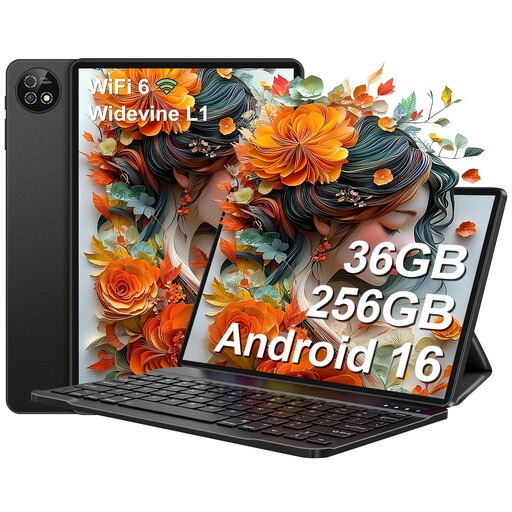
Android 16 tablet with 10.1-inch display and keyboard set

Android 16 tablet, 10.1-inch, keyboard set

The keyboard set and display size mentioned in the title may be useful for working with forms. Test your library software on the device first.

The product title lists Unisoc T310, 36 GB RAM, 256 GB ROM, 1 TB TF, 6000 mAh, Wi-Fi 6 and GPS.

View at Joybuy
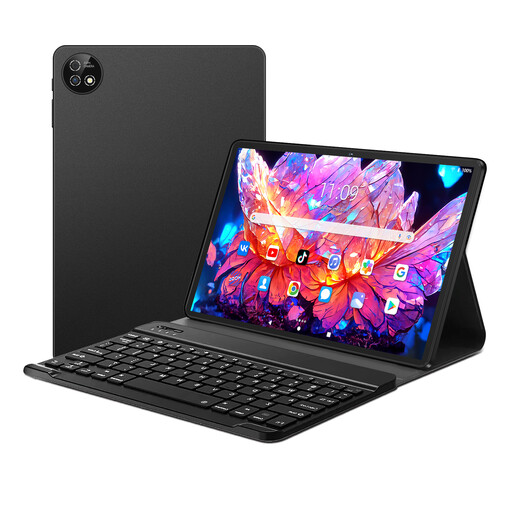
10.1-inch Android tablet with keyboard and stylus

10.1-inch tablet with keyboard and stylus

A keyboard and stylus can be useful for writing and taking notes on the move. Check that the member view you actually need works on the device.

The product title lists Android 16, 36 GB RAM, 256 GB ROM, 1 TB TF, 6000 mAh, 5G Wi-Fi, Bluetooth 5.0 and GPS.

View at Joybuy
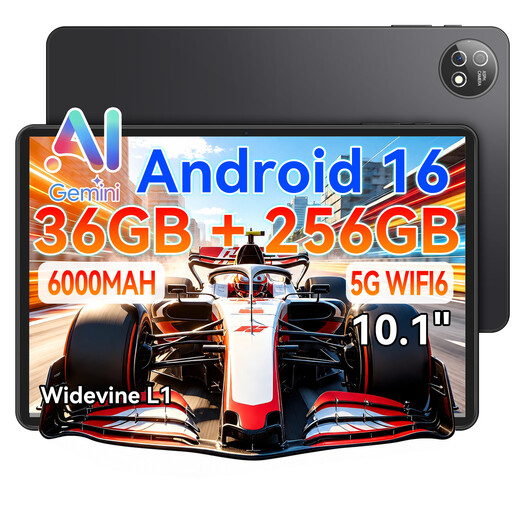
10.1-inch Android tablet with keyboard and stylus

Android 16 tablet, 10.1-inch, keyboard and stylus

The keyboard mentioned in the title gives you an option for entering information in forms. Test the library software features you need in advance.

The product title lists Quad-Core Unisoc T310, 36 GB RAM, 256 GB ROM, 1 TB Storage Expansion, 6000 mAh and Wi-Fi 6.

View at Joybuy

Teclast ArtPad Pro 2025 with 13.4-inch display and T-Pen

Teclast ArtPad Pro 2025, 13.4-inch, 2K

The larger display may be useful for viewing extensive forms. Check readability, ease of use and software compatibility in the workflow you plan to use.

The product title lists a T-Pen with 4096 pressure levels, Helio G99, 20 GB RAM (8+12 virtual), 256 GB, Dual SIM 4G LTE, 10,000 mAh and Android 15.

View at Joybuy
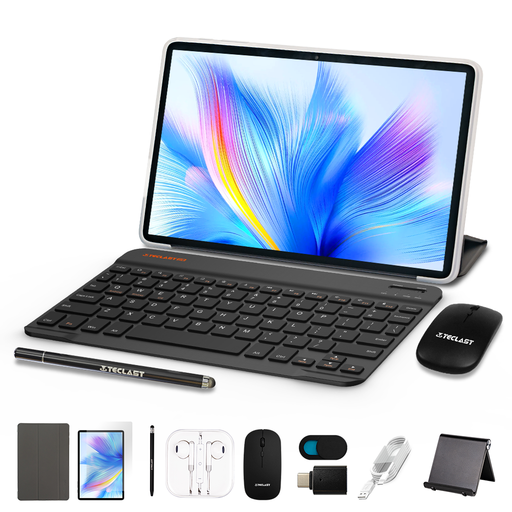
TECLAST P50TCase Android 16 tablet kit with 11-inch display

TECLAST P50TCase, 11-inch, Android 16 tablet kit

The 11-inch display may be useful for viewing larger forms. Check that the application and input methods you need work as expected.

The product title lists a 90 Hz IPS display, T7250, 16 GB RAM (3 GB+13 GB virtual), 128 GB ROM, 8000 mAh, 5 GHz Wi-Fi and GPS.

View at Joybuy

Frequently asked questions

Should I test the membership management software before buying a tablet?

Yes. Using approved test data, try the staff functions you need, such as searching, editing, signing in and, where applicable, entering barcode data. The Koha manual describes different ways to search for members, but it doesn’t confirm that a particular library installation is compatible with a specific tablet.

How should I set up a shared tablet?

Agree user roles, sign-in and how to handle the end of a session and a lost device with your IT team. The Federal Office for Information Security describes Mobile Device Management as a way to manage devices centrally; Samsung Knox documents a configurable Shared Device mode. Both require the right setup and aren’t automatic features of every tablet.

Which accessories and ongoing costs should I check?

For the exact version, check whether you’ll need a keyboard, stylus, case or charging accessories, and clarify any device management and support costs. Apple doesn’t include a Pencil in the stated box contents for the iPad (A16); for the documented Lenovo Tab M11 version, LTE and the pen depend on the specific model number.

Can a library simply store member data on a new tablet?

Buying a tablet alone doesn’t establish that the requirements for processing data have been met. According to information from the Federal Commissioner for Data Protection and Freedom of Information, the organisation responsible needs a valid legal basis under Article 6 of the GDPR. It must also consider data minimisation and suitable safeguards proportionate to the risk. The responsible organisation should check which requirements apply in its specific operating and data-processing context.

Do members have to consent every time a tablet is used?

No. Consent isn’t automatically required for every instance of data processing. The responsible organisation must identify an appropriate legal basis for each activity. Consent is one possible legal basis, but it isn’t automatically the right one for every library task.