What should you look for when buying?
First, decide whether you want to get started with Linux straight away or use the installation process as a learning experience. Then make sure the ports, footprint and actual specification suit your workspace and plans.
| What matters |
What to check before buying |
Who will particularly value this? |
| Linux support |
Check the exact model name, distribution and version; test networking, graphics and peripherals in a live environment if possible. |
If I want to learn using my chosen distribution straight away, I need details for the exact device variant. Around 33% of consumers put support for Linux on the specific device first. |
| Space and ports |
Check the monitor connections, the USB ports you need and how the cables will be routed. MSI lists two HDMI ports and VESA 100 × 100 mm for the Cubi NUC 1M. |
If I want to connect my monitor and peripherals neatly at a shared desk, the right ports and practical mounting options matter. Around 27% of consumers prioritise a tidy workspace. |
| Testing before installation |
Back up the contents of your USB stick first, then use the live system to test the display, input devices and network at your intended workspace. Ubuntu/Canonical explains how to test using a live USB. |
If I want to try Linux before installing it permanently, a test run is a useful step. Around 20% of consumers prioritise this reversible way to get started. |
| Specification and upgrades |
Check the installed RAM and SSD, available slots and what’s included in the box. TUXEDO says that the Nano Pro Gen14 has replaceable RAM and SSD modules. |
If I want to take on more learning projects later, I need to know what’s actually installed and what can be upgraded. For around 20% of consumers, future upgrade options are the most important consideration. |
Mini PCs at Joybuy
This range includes mini PCs with different operating system and specification details. Before buying, check that the exact configuration suits your distribution and learning plans.
 No image available
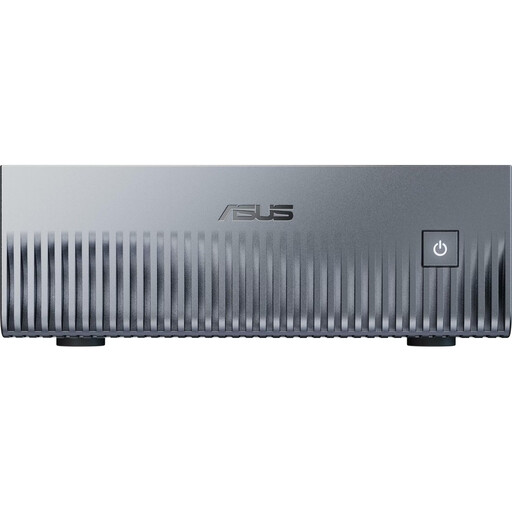
ASUS Ascent GX10 Mini AI Supercomputer, 128 GB, 1 TB SSD
A relevant option if NVIDIA DGX OS fits your Linux learning goals; this doesn’t guarantee support for other distributions.
Joybuy’s product details list pre-installed NVIDIA DGX OS (Linux Ubuntu), 128 GB Unified Memory, a 1 TB SSD, HDMI and four USB-C ports.
View at Joybuy
 No image available
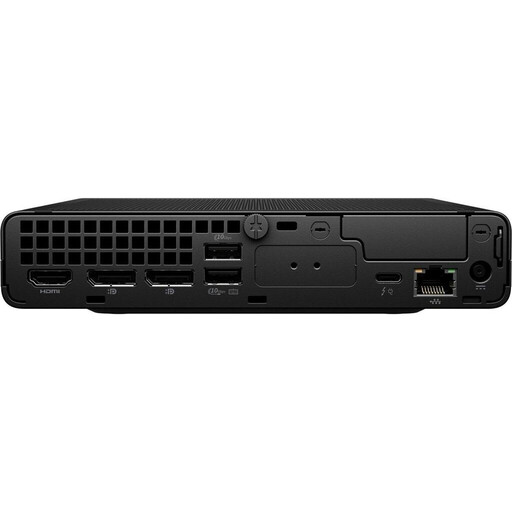
HP EliteDesk AI Mini 8 G1i 623K2ET, Ultra 9 285T, 64 GB, 1 TB SSD
VESA mounting could help keep a shared workspace tidy, provided you factor in the optional mounting bracket.
Joybuy’s product details list 64 GB DDR5 RAM, a 1 TB SSD, HDMI, DisplayPort and Thunderbolt 4. Windows 11 Pro is pre-installed; the VESA mounting bracket is optional.
View at Joybuy
 No image available
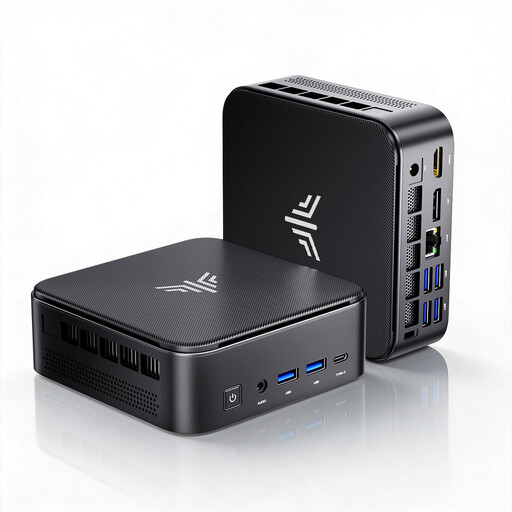
ACEMAGIC E3B Mini Desktop Computer, Ryzen 7 7735HS, 24 GB, 512 GB SSD
The listed display outputs and included VESA mounting bracket are worth considering if you’re using several monitors.
Joybuy’s product details list 24 GB LPDDR5, a 512 GB NVMe SSD, two M.2-2280 slots supporting up to 4 TB, three display outputs and Windows 11 Pro as the pre-installed operating system.
View at Joybuy
 No image available
FIREBAT F1 Mini PC, Ryzen 5 7640HS, 24 GB, 512 GB SSD
If you’re using several monitors at a shared desk, the stated triple-display output and listed ports are worth considering.
The product details list 24 GB LPDDR5 RAM, a 512 GB PCIe 4.0 SSD, HDMI 2.1, DisplayPort 1.4, USB 4.0 and 2.5 Gbit Ethernet.
View at Joybuy
 No image available
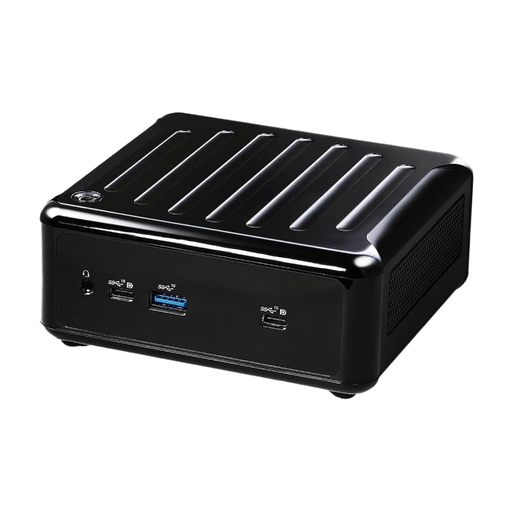
ASRock 4x4 BOX-5600U/EU/AI, AMD Ryzen 5600U
This model could suit future learning projects if you want to complete the specification yourself.
Joybuy’s product details list support for up to 64 GB DDR4 RAM, M.2 and SATA3 storage connections, HDMI, DisplayPort, USB and two LAN ports. The description says that no operating system is included.
View at Joybuy
Frequently asked questions
How can I check whether Ubuntu will start on the mini PC before installing it?
First, boot an Ubuntu live system from a bootable USB stick. Ubuntu/Canonical recommends a stick of at least 8 GB for the media described; creating it will overwrite any existing data on the stick. Test the display, input devices and network at your intended workspace.
How can I protect my data if the desk or mini PC is shared?
Set up separate user accounts and back up your data before changing an existing system. Ubuntu/Canonical describes full-disk encryption as a way to protect data at rest if the device is lost or accessed without permission. Make sure the setup and passphrase fit the way you plan to use it.
Do mini PCs always include RAM, an SSD and an operating system?
No, what’s included depends on the specific configuration. GMKtec also offers the NucBox M6 Ultra as a barebone model without RAM, an SSD or an operating system. Check the details for the version you’re choosing rather than relying on the model name alone.
Who should I contact in Germany if my mini PC is faulty?
Your statutory rights for faulty goods are generally claims against the seller. The Baden-Württemberg Consumer Portal explains that, for new goods, these claims usually become time-barred two years after receipt. This is separate from any additional manufacturer’s warranty.
What should I check regarding the safety of a mini PC sold in Germany?
As part of its market surveillance, the Federal Network Agency lists checks including correct CE marking, an identifiable product, manufacturer details, instructions and safety warnings in German, and a declaration of conformity. A CE reference alone doesn’t prove that the specific configuration complies.


