If you want to start practising with Linux straight away, choose a specific configuration that’s listed as supporting Linux. If you’d also like to learn how to install it, a Windows PC or barebone could be a good fit. Compare the actual hardware, the connections available for both monitors and the storage requirements of your chosen distribution. Canonical recommends at least 6 GB of RAM and 25 GB of free storage for comfortable use of Ubuntu Desktop 26.04 LTS. A barebone such as the NucBox M6 Ultra variant offered by GMKtec comes without RAM, an SSD or an operating system.
Who buys a PC for learning Linux?
Linux beginners who don’t want to install it themselves
If you want to get started with Linux as easily as possible and use your second screen for guides or notes, a configuration specifically listed as suitable for Linux is a good place to start. TUXEDO Computers describes the Nano Pro Gen14 as Linux-compatible. Even so, check the specific configuration and the distribution you want to use.
Self-installers using two monitors
If learning to install Linux is part of your goal, or you want to try it alongside an existing system, check the exact hardware and the connections available for both monitors. GNOME explains how to set up connected or mirrored displays, while Canonical recommends backing up your data before installing on a PC you already use.
Learners planning to use virtual machines or upgrade their hardware
If you want to use virtual machines or choose your own RAM and SSD later, compare the specifications of the specific variant and factor in any additional parts you’ll need for a barebone. Lenovo describes tool-free access to the memory components in the ThinkCentre M75q Gen 5. Canonical’s guide to virtual machines can also help you work out what you’ll need for your planned use.
What should you look for when buying?
Linux configuration for getting started straight away
A good fit if: You want to practise with Linux without first installing an operating system yourself.
Consider: A manufacturer’s statement on Linux compatibility doesn’t replace checking your distribution and the specific hardware.
Ready-to-use PC for installing Linux yourself
A good fit if: You want to learn how to install Linux or keep an existing Windows system.
Consider: Back up your data before making changes and check that the Linux information applies to the hardware on offer.
Barebone for hands-on hardware and installation practice
A good fit if: You want to choose and set up the RAM, SSD and operating system yourself.
Consider: You’ll also need to account for any missing components and check that they’re compatible.
| What matters |
What to check |
Who it matters most to |
| Linux support |
Check that the installed operating system and exact hardware configuration work with your chosen distribution. |
If I want to start using Linux without extra installation steps, support for the specific configuration matters most. Around 36% of consumers say Linux support is their main buying priority. |
| Two monitors |
Check that the PC has a suitable output for each monitor, that each monitor has a matching input, and that you have the cables you need. |
If I want to view guides and exercises side by side on separate screens, both connections need to work. Around 29% of consumers put support for two monitors first. |
| RAM and SSD |
Check the RAM and storage requirements of your chosen distribution, and factor in any additional virtual machines. |
If I want to try other systems or tools later, I’ll need enough storage and memory for them. Around 21% of consumers prioritise upgrade options for this kind of use. |
| Space and upgrades |
Check the case and any mounting options; if you’re buying a barebone, make a note of the components it doesn’t include. |
If my desk is short on space or I want to choose the hardware myself, the form factor and what’s included are key. Around 14% of consumers say space or building their own system is their main priority. |
Common buying and installation mistakes
-
Assuming “multiple displays” means the connections will suit your monitors
The number of displays supported doesn’t tell you whether both monitors can connect using the ports available.
Before ordering, compare the PC’s outputs with the inputs on both monitors, and allow for any cables or adapters you need.
-
Assuming a Linux claim for an entire model range applies to your specific variant
The hardware listed in a certification may differ from the specific configuration on sale.
Compare the operating system and components in the variant you’re buying with the Linux support information. Allow time for your own installation, and back up your data first.
-
Treating a barebone as a ready-to-use PC
The barebone version of the GMKtec NucBox M6 Ultra comes without RAM, an SSD or an operating system.
Check what’s included and factor in the missing components and setup before comparing variants.
-
Erasing a drive you use without backing it up first
An installation option that erases the drive replaces the existing system and can delete your saved data.
Back up important files and check the installation option you’ve selected before continuing.
Brands to consider
TUXEDO Computers
The Nano Pro Gen14 is a compact option for buyers who want to get to grips with Linux and using two screens.
- TUXEDO lists two HDMI and two DisplayPort connections for the Nano Pro Gen14, along with accessible RAM and SSD modules and a VESA mount.
- The manufacturer’s Linux compatibility statement doesn’t confirm support for every distribution or every configuration you choose yourself.
Lenovo
The ThinkCentre M75q Gen 5 may suit buyers who want to install Linux themselves on a compact ready-to-use PC and access its memory components.
- For the German 12RQ003QEZ variant, Lenovo lists Windows 11 Pro, 16 GB of RAM and a 512-GB SSD, as well as tool-free access to the memory components.
- Canonical’s certification of a ThinkCentre M75q Gen 5 applies to a different processor configuration and doesn’t automatically confirm support for the 12RQ003QEZ version on sale.
GEEKOM
The A5 Pro 2026 with Ryzen 5 7530U is a mini PC option for buyers who want to try Linux themselves.
- For the version on offer, GEEKOM lists 16 GB of RAM, a 1-TB SSD and support for up to four displays.
- According to GEEKOM, the version comes with Windows 11 Pro. A Linux Mint video doesn’t confirm that Linux is pre-installed or that every hardware feature has been tested.
MSI
The Cubi NUC 1M may suit buyers whose two monitors connect via HDMI.
- MSI’s specifications list two HDMI outputs and two RAM slots.
- No Linux pre-installation or specific Linux certification is listed for this model, so check that your chosen configuration is supported.
GMKtec
The NucBox M6 Ultra is available as a barebone for buyers who want to plan and build their own setup.
- GMKtec lists HDMI and DisplayPort connections; the barebone version is sold without RAM, an SSD or an operating system.
- The manufacturer’s website lists Windows support but doesn’t promise support for any particular Linux distribution.
Joybuy products for Linux and two monitors
Mini PCs whose product names mention Ubuntu compatibility. Check that the connections on the specific version suit both your monitors.
 No image available
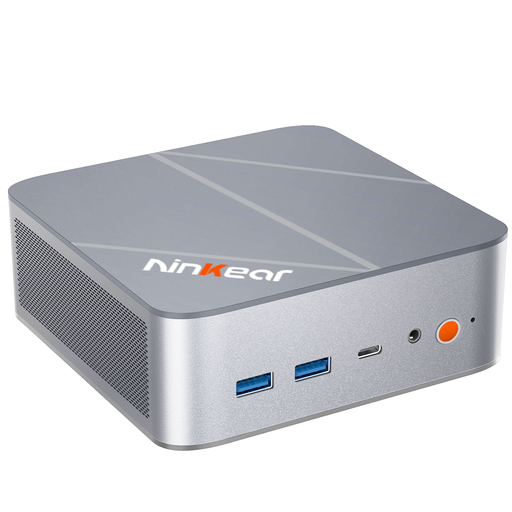
Ninkear L12 Pro – mini PC, Intel i9-12900HK, 16 GB DDR4, 1 TB SSD
The product name mentions Ubuntu compatibility. Before buying, check that the specific configuration and its connections work with your distribution and both monitors.
The product name also lists Windows 10/11 and compatibility with Windows and Ubuntu.
View at Joybuy
 No image available
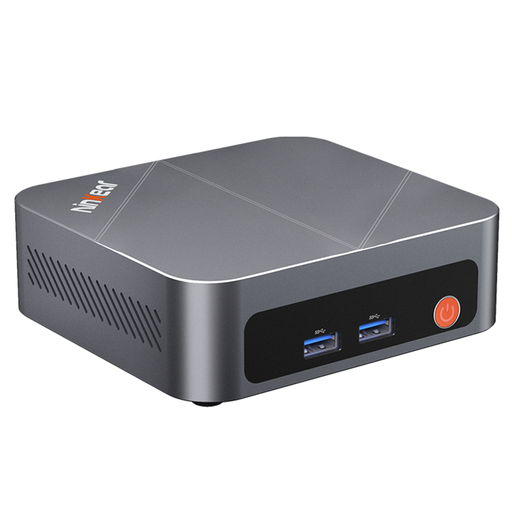
Ninkear M7 – mini PC, Intel Core i7-1185G7, 16 GB DDR4, 512 GB SSD
The product name mentions Ubuntu compatibility and support for three displays. Check the connections on the specific configuration and make sure they’ll work with your two monitors.
The product name also lists Windows 10/11, Wi-Fi 6 and Bluetooth 5.2.
View at Joybuy
Frequently asked questions
How do I show different content on two monitors?
In GNOME’s display settings, choose “Join Displays” rather than “Mirror”. GNOME offers these two modes and lets you arrange your screens.
What should I check for Ubuntu Desktop 26.04 LTS?
Canonical recommends at least a 2 GHz dual-core processor, 6 GB of RAM and 25 GB of free storage for comfortable use. Also take into account the requirements of any exercises or virtual machines you’re planning to run.
What should I do before installing Linux myself?
First, back up the data on a PC you already use, then decide whether you want to replace the existing system or install Linux alongside it. Check the installation option you’ve selected before confirming any changes to the drive.
Is a manufacturer’s warranty the same as your statutory consumer rights?
No. The Verbraucherzentrale distinguishes your statutory consumer rights against the seller from a voluntary warranty. Check the terms of the specific offer for any additional warranty or service promises.


