Editing films on a laptop
If you regularly edit local history films directly on a laptop, its software and specifications should suit the resolution and format of your footage. Adobe sets out different requirements for HD and 4K media in Premiere.


Choose a laptop based on your editing software, media formats and how it will be used in your shared workspace. For regular editing of high-resolution films, the right specifications matter; for reviewing footage and handing projects over, ports and shared access to files are important too. Adobe notes that everyone involved in Team Projects needs access to the media. A powerful laptop alone won’t organise shared media or create backups. So first establish whether several people will use the same device or work on the project on separate devices.
If you regularly edit local history films directly on a laptop, its software and specifications should suit the resolution and format of your footage. Adobe sets out different requirements for HD and 4K media in Premiere.
If several people use the same device or different devices to work on a film, it’s important to agree how everyone will access the project and media. Adobe describes shared access to media as part of collaboration, while Microsoft explains how separate Windows user accounts let people keep their own files and settings.
If you’re reviewing, organising and handing irreplaceable footage over to the editing suite, you should plan how it will be stored and backed up. The German Federal Office for Information Security warns that data can be lost if it isn’t backed up.
For this type of purchase, the key considerations are your actual editing needs, collaboration in a shared workspace, how you handle archive material and whether you’ll work on the move. The right specifications will depend, among other things, on your editing software and source files.
| Consideration | What to check before buying | Who this matters most to |
|---|---|---|
| Editing to suit your footage | Check that your software version, resolution and source files are compatible. For Premiere 26.x on Windows, Adobe recommends 16 GB RAM for HD and at least 32 GB for 4K. Check the graphics memory of the specific configuration too. | If I’m going to edit footage regularly on the laptop, I want its specifications to suit my files and software. Around 36% of consumers would make editing performance with their own footage a priority. |
| Sharing projects with the team | Decide where project files and original media will be stored, and how everyone involved will access them. For shared Windows devices, consider separate user accounts. Adobe describes access to media as essential for collaboration on Team Projects. | If several people are working on a film, I want to agree how handovers and access to the same media will work, rather than considering only the performance of one device. Around 29% of consumers would put working on a project together first. |
| Archiving and backing up data | Work out how much storage you need for original footage and current projects. For irreplaceable recordings, plan a backup separate from the laptop and a recovery process you can test. The German Federal Office for Information Security explains the risk of losing data without backups. | If historical footage is to be preserved, I want to be able to recover it even if a device fails. Around 21% of consumers would make archiving and backups their top priority. |
| Reviewing footage on the move | Check where you’ll be working, the display on the specific model and the ports you’ll need for an existing external monitor. If colour accuracy matters, check the display specifications for the exact model. | If I want to review footage while I’m out and about, portability and a screen I can use to assess my recordings matter to me. Around 14% of consumers would prioritise portability and reviewing footage. |
Adobe gives different recommendations for HD and 4K in Premiere. A configuration that suits HD may not be suitable for 4K footage.
Before buying, check the resolution, software version and full specification, particularly the RAM and graphics memory.
For Adobe Team Projects, everyone involved needs access to the same media. For Productions, Adobe describes the need for shared storage. Sharing a project file alone doesn’t provide that access.
Agree where project files and original media will be stored, and how each device involved will access them.
Extra coordination around file storage and transferring media can make it harder to work together.
An internal SSD isn’t a separate copy. The German Federal Office for Information Security warns of the risk of data loss if you don’t have a backup.
Set up a backup separate from the laptop, and check that you can restore files from it.
You’ll need to plan for a separate backup drive and regular maintenance of your backups.
RAM, graphics and display specifications can vary within the same range. Manufacturer specifications for one configuration don’t necessarily apply to every device in the range.
Check the exact model or configuration code against its RAM, graphics, display, ports and stated support.
The ThinkPad P16v Gen 3 is a Windows workstation range designed for a managed shared workspace.
The ProArt P16 is a Windows creator range available in different configurations.
The MacBook Pro is a macOS option if its editing software and project handover process suit your existing workspace.
The ZBook Studio G11 is a mobile Windows workstation range with a choice of specifications.
The Pro Max Plus 16 is a configurable workstation option for a Windows workspace.
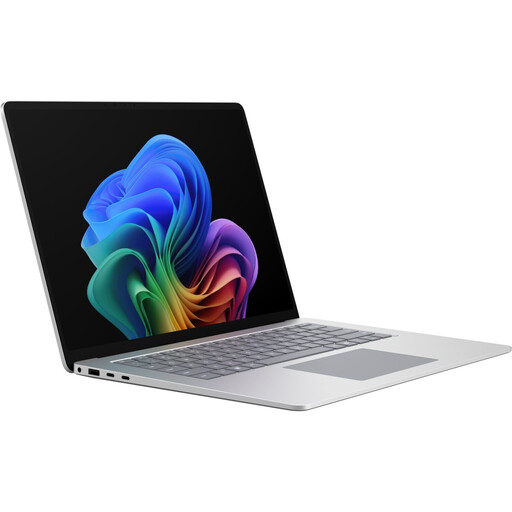
This selection includes a Windows laptop for working on the move and in a shared editing suite. Before buying, check that the RAM and ports suit your editing software, media format and workflow.
 No image available
The listed 16 GB RAM matches Adobe’s recommendation for HD media in Premiere on Windows; for 4K, Adobe recommends at least 32 GB RAM. For 4K projects, check that this specific configuration suits your editing software and footage.
The product name also lists a 512-GB SSD, a microSDXC reader, USB 4 and Thunderbolt 4. If several people share a Windows device, separate user accounts can keep their files and settings separate.
No, not as a blanket rule. For Premiere 26.x on Windows, Adobe recommends 16 GB RAM for HD media and at least 32 GB for 4K and higher resolutions. If you use different software or only review footage, check its requirements and consider the files you’ll actually be using.
If several people use the same Windows device, separate user accounts can give them their own files and settings, as Microsoft Support explains. If people are working on a Premiere project on different devices, they’ll also need access to the media they need. Adobe describes this access as part of a shared workflow.
No. The German Federal Office for Information Security warns that data can be lost if it isn’t backed up. For irreplaceable footage, make a backup separate from the laptop and check that you can restore the files from it.
For a consumer purchase, the seller’s statutory liability for faulty goods is separate from any voluntary manufacturer’s warranty. The Verbraucherzentrale says that new goods are generally covered by a two-year statutory warranty. If a club or another organisation makes the purchase, check the buyer’s status and the contract separately.