Instrument-focused pilots
If you want to read small displays such as altitude and speed from your seat, compare resolution, screen size and adjustability. The right combination also depends on the game’s scaling and your viewing distance.


For a seated lunar landing simulation, a 16:9 monitor is an obvious choice if you want instruments and the landing area to be easy to read. A 21:9 or 32:9 model may suit you if you’d like more width on screen and the game displays that format well. Your viewing distance, desk space and the frame rate your game and output device can actually achieve at your chosen resolution are also key considerations. With OLED, bear in mind any on-screen elements that remain visible for long periods, as well as the warranty terms for the specific model.
If you want to read small displays such as altitude and speed from your seat, compare resolution, screen size and adjustability. The right combination also depends on the game’s scaling and your viewing distance.
A wider screen may be appealing if you want a more expansive view. Check whether your simulation supports the format and whether you can comfortably see the whole screen from your seat.
If you play for long periods or also use your monitor for content with elements that stay on screen, think about how it’s positioned. With OLED, also consider how you’ll manage static images and check the warranty terms for the specific model.
A good fit if: you want to see instruments and the landing area in a familiar widescreen format, but have limited desk space.
The trade-off: QHD and 4K have different pixel counts, and the game’s interface needs to remain easy to read at your viewing distance.
A good fit if: you want more width on a single screen and the game displays 21:9 well.
The trade-off: Whether you’ll see more of your surroundings and where the instruments appear depends on the simulation.
A good fit if: the game supports 32:9, you can see the whole screen from your seat and you have enough space for it.
The trade-off: 49-inch models with 5,120 × 1,440 pixels offer plenty of width, but not the vertical pixel count of a 4K image with 3,840 × 2,160 pixels.
| What matters | What to look for when buying | Who is this important to? |
|---|---|---|
| Seeing the instruments and landing area clearly | Consider screen size and native resolution together; check how the game scales its displays from your intended viewing distance. | If I want to keep an eye on altitude, speed and small displays, readability from my seat matters most. Around 33% of consumers put easy-to-read instruments first. |
| Seeing more of your surroundings | Check whether the game supports 21:9 or 32:9; consider the screen width and how easily you can see the whole display from your seat. | If you want to see more of your surroundings to the sides during your approach, first check how your own game displays the image. Around 27% of consumers prioritise a wider field of view. |
| Displaying movement | Compare resolution and refresh rate for the connection you plan to use; check that adaptive sync is compatible with your output device. | If smooth visuals during my approach matter to me, I look at the frame rate I can actually achieve and whether the sync technology is compatible. Around 20% of consumers prioritise motion handling. |
| Positioning and extended use | Check the stand, space needed and view from your seat; with OLED, read about the model’s protection features and warranty terms. | If you use your monitor for long periods or display static content, consider its positioning and, with OLED, how you’ll manage elements that remain on screen. Around 20% of consumers prioritise positioning and long-term use. |
The resolution of a 32:9 monitor doesn’t tell you how a particular simulation displays its image and instruments.
Before choosing a wider format, check the aspect ratio, field of view and position of the displays in the game you play.
The 360 Hz refresh rate quoted by MSI for the MPG 271QRXDE is a monitor specification, not a measurement of the frame rate your simulation can achieve.
Match the resolution, connection and monitor refresh rate to your output device and the performance you actually get in the game.
LG notes that the risk of burn-in cannot be completely ruled out, even with proper use.
Use the protection features as instructed and read the current warranty terms for the specific model.
The EU energy label for electronic displays provides comparable consumption figures, including for HDR.
Compare figures on the same labelling basis and take into account how you expect to use the monitor.
The Odyssey models featured here range from a 27-inch 4K format to a 49-inch model with 5,120 × 1,440 pixels.
The UltraGear 34GX90SA-W is a 34-inch OLED model with 3,440 × 1,440 pixels.
The TUF Gaming VG27AQ3A is a 27-inch QHD model with a Fast IPS panel.
The AW2725Q is a 27-inch monitor with 4K QD-OLED technology.
The examples range from the 27-inch QHD Rapid IPS MAG 274QRFDE QD E2 to the WQHD QD-OLED MPG 271QRXDE.
This selection includes 16:9 monitors as well as wider 21:9 and 32:9 models. Check in your game whether it displays the format you choose well.
 No image available
A 27-inch option for a compact widescreen setup, with UHD in detail mode or a higher refresh rate at FHD.
Mini-LED, Rapid IPS; UHD at 160 Hz or FHD at 320 Hz, according to the product name.
 No image available
A wide single-screen option if your simulation makes good use of 32:9 and you have room for the monitor at your seat.
5,120 × 1,440 pixels, 165 Hz, 32:9 and 1500R curvature, according to the product name; the stand is listed as height-adjustable.
 No image available
A compact 16:9 QHD option for viewing instruments and the landing area.
Mini-LED, QHD, IPS, 275 Hz and 1 ms, according to the product name.
 No image available
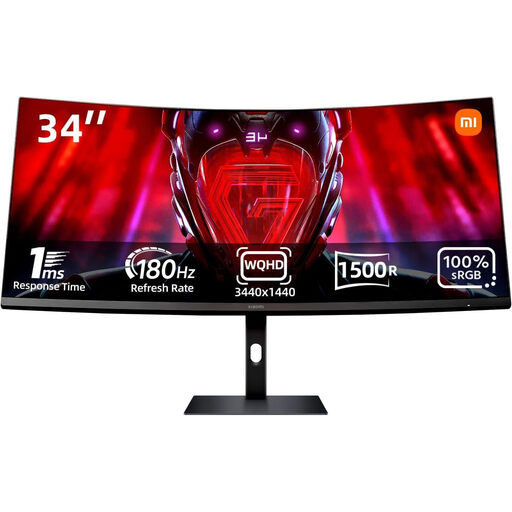
An ultrawide option if you want more width on a single screen and the game displays the format well.
WQHD and 180 Hz, according to the product name. Whether this lets you see more of your surroundings depends on the simulation.
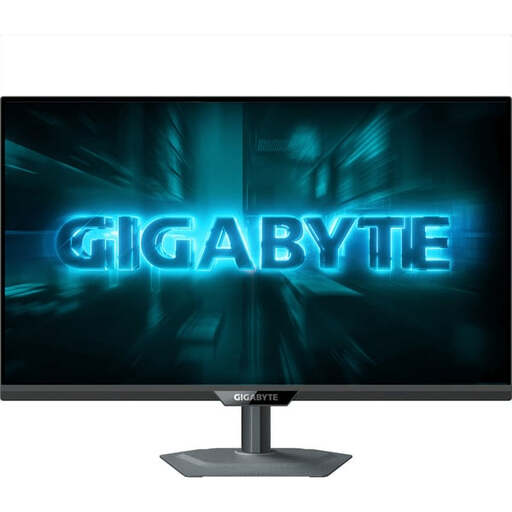 No image available
A 27-inch QHD option for a compact widescreen setup, letting you view instruments and the landing area on one screen.
SS-IPS and 200 Hz, with 210 Hz listed as the overclocked figure; height-adjustable stand, according to the product name.
Check the resolution, aspect ratio, field of view and interface settings in the game you play. A 21:9 or 32:9 monitor gives you more screen space, but the monitor specifications alone won’t tell you whether the game shows more of your surroundings or places its displays awkwardly.
Measure the available width and depth, including the stand, and check that you can see the displays clearly from your usual position. The German Social Accident Insurance (DGUV) provides guidance on screen-based workstations. Its recommendations may help with your setup, but they aren’t blanket legal requirements for gaming at home.
LG notes that burn-in cannot be completely ruled out, even with proper use. Use the protection features as instructed and check the warranty terms for the specific model you choose; this doesn’t imply a general OLED warranty.
Compare the monitor’s refresh rate with the resolution, connection and frame rate your output device can actually achieve in the game you play. A high refresh rate quoted for a monitor doesn’t in itself prove that the game will run at the same frame rate.
Compare the consumption figures on the same labelling basis. The EU energy label for electronic displays also gives figures for HDR, so you can compare the relevant information side by side.