
Lieferung heute & morgen

Qualitätsgarantie

Willkommens-Angebote freischalten: KOSTENLOSE Lieferung | Bis zu 80 % RABATT | Kostenlose 30-Tage-JoyPlus-Testphase
App herunterladen
An M.2 NVMe SSD can significantly speed up system start-ups, game installations and large file transfers. However, a high MB/s figure doesn’t automatically mean it’s the right upgrade for you. The key factors are the slot, PCIe generation, cooling and how you plan to use it.
Gaming PCs, laptops and workstations are particularly prone to three common buying mistakes that can lead to unnecessary costs:
An NVMe SSD communicates over PCI Express. A PCIe 4.0 SSD theoretically has up to four data lanes available, while a PCIe 5.0 SSD offers greater bandwidth. However, the SSD can only run as fast as your motherboard, laptop or console allows.
Before buying, check the manual for the following:
A PCIe 5.0 SSD is often backwards compatible, but it won’t reach its advertised peak speeds in a PCIe 4.0 slot. For an older system, a suitable PCIe 4.0 SSD may therefore offer better value for money.
The widely used M.2 2280 SSD is 22 millimetres wide and 80 millimetres long. This format fits many desktop PCs, laptops and mini PCs. Even so, check the installation length and available space.
Use these practical guidelines when choosing capacity:
The usable capacity will be lower than the manufacturer’s stated figure because of formatting and system reserves. If you’re choosing an SSD for gaming, bear in mind that modern games often take up a lot of space.
M.2 SSDs generally run quietly during short bursts of activity. However, extended writes, video editing, 3D rendering and large game installations generate more heat. A motherboard heatsink, an SSD with an integrated heatsink or a well-ventilated case can help keep operating temperatures within the recommended range.
Also look out for:
For the PlayStation 5, the SSD must meet the console’s requirements. A suitable heatsink is also needed in many cases. Check compatibility against the latest device requirements before buying.
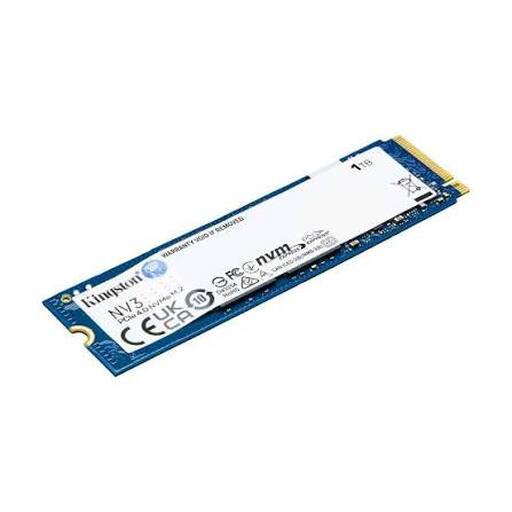
Why this product suits this profile: This 1TB SSD is for anyone looking to upgrade a compatible PC, laptop or mini PC with NVMe storage, without immediately opting for a larger capacity. According to the product specifications, it supports PCIe 4.0 and delivers read speeds of up to 6,000 MB/s.
The M.2 2280 format and PCIe 4.0 NVMe interface make it easier to check compatibility with modern motherboards. You’ll still need to check the specific slot before buying.
1 TB capacity, M.2 2280, PCIe 4.0 and read speeds of up to 6,000 MB/s, according to the product specifications.
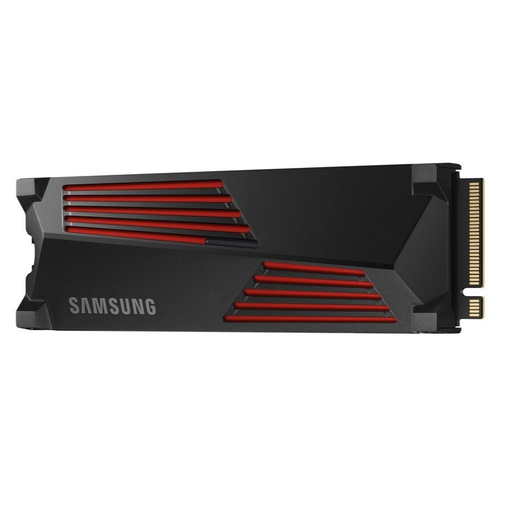
Why this product suits this profile: The 2TB version is a good fit for PC and console gamers, as well as anyone working with large video files and projects. Its integrated heatsink is useful in systems where a separate M.2 cooler can’t be used.
The pre-installed heatsink helps manage heat during extended periods of use. For the PS5, check that the heatsink’s dimensions fit in the expansion bay.
2 TB, PCIe 4.0 x4, read speeds of up to 7,450 MB/s and write speeds of up to 6,900 MB/s, according to the product specifications; integrated heatsink.
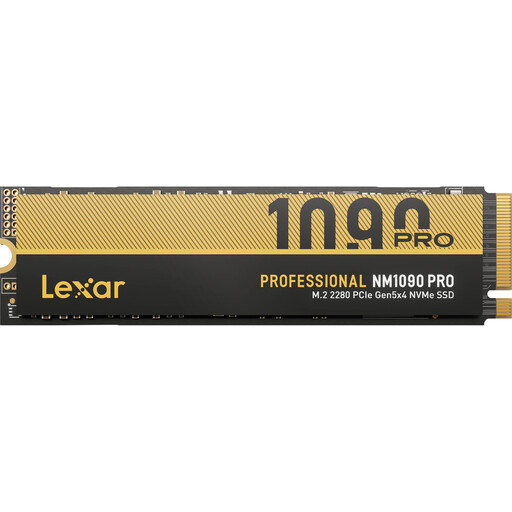
Why this product suits this profile: This PCIe 5.0 SSD is for users with a compatible platform who need to transfer large files, manage extensive games libraries or work on demanding editing projects. Make sure your case has adequate ventilation.
The product specifications explicitly mention PCIe 5.0 x4, a heatsink or heat spreader, and active temperature control. Without a PCIe 5.0 slot, the benefits will be limited.
2 TB, read speeds of up to 14,000 MB/s and write speeds of up to 13,000 MB/s, according to the product specifications, plus 1.4 PB TBW.
We’ve put together a comprehensive, regularly updated list of products that meet these strict selection criteria and fully comply with the safety regulations in force in the EU.
Before installation, shut down your computer completely and disconnect it from the mains. If possible, disconnect the battery in a laptop. Don’t touch the SSD’s contacts, and take care to avoid electrostatic discharge. The SSD is usually inserted into the M.2 slot at an angle, pressed down and secured with the supplied screw or mounting clip.
After installation, a new drive may need to be initialised and formatted in Windows, macOS or Linux. Back up important data before migrating or formatting. Manufacturer firmware and monitoring software can also provide information about temperature, drive health and updates.
No. M.2 describes the form factor only. A slot may support PCIe NVMe, SATA or different drive lengths. Check the interface, keying, length and available height in your device’s manual.
Lifespan depends on the NAND technology, amount of data written and usage. The TBW rating is a useful technical guide, but it can’t predict exactly when an individual drive will fail. Regular backups are still essential, even with a high TBW rating.
Power consumption depends on the PCIe generation, controller, workload and power-saving states. PCIe 5.0 models can generate more heat under heavy load. For a laptop, power management and cooling, as well as speed, are important considerations. Check the manufacturer’s specifications too.