Family archive keepers
If you’re editing irreplaceable footage, plan for separate working and backup storage. Germany’s Federal Office for Information Security explains how data can be lost, including through accidental deletion.


For a shared editing workstation, start by considering your editing software, recording format, and storage and backup plan – not just the processor name. A compact Mac mini could be a good fit if the software you need runs on macOS and you can connect a screen and drives. A Windows tower is an option if you need Windows or want the flexibility to upgrade internal components. Whichever you choose, plan for separate user accounts and a separate, tested backup destination.
If you’re editing irreplaceable footage, plan for separate working and backup storage. Germany’s Federal Office for Information Security explains how data can be lost, including through accidental deletion.
For longer or high-resolution clips, your editing software and the footage you work with both matter. Adobe gives different RAM recommendations for HD and 4K media in Premiere on Windows.
Each person can have their own user account, with a separate plan for storing shared project files. Microsoft Support and Apple Support explain how to set up accounts on shared computers.
When choosing a shared editing workstation, start with protecting your archive, choosing the right specification and planning for shared use. Check the connections and footprint too, to make sure your existing equipment will work with the computer you choose.
| What you need | What to check before buying | Who it matters most to |
|---|---|---|
| Back up original footage and projects | Allow enough capacity for your archive and current projects, and make sure you can connect a separate backup destination. Test that you can restore files. | If I don’t want to lose family footage due to a fault or accidental deletion, having a separate backup is especially important. Around 29% of consumers put protecting their archive first. |
| Editing software and footage | Check the operating system, software, resolution and format of your clips against the relevant requirements. For Premiere on Windows, Adobe recommends 16 GB RAM for HD media and 32 GB or more for 4K and above. | If you regularly edit longer or high-resolution clips, focus on choosing a specification that suits your software and footage. Around 29% of consumers prioritise video editing requirements. |
| Sharing the computer | Set up a separate user account for each person and agree where shared projects will be stored. Accounts don’t replace clear agreements or backups. | If several family members use the same computer, separate logins and a clearly organised project folder make it easier to work together. Around 24% of consumers put shared use first. |
| Connecting and setting up your devices | Check the ports on the exact configuration against your screen and drives. Allow for the space you have and any adaptors you might need. | If you want to keep using your existing screens and archive drives, or need to save space, check the case and connections together. Around 18% of consumers prioritise space and device connections. |
A working drive is not a separate backup. A fault or accidental deletion could affect your original footage and project files too.
Plan for a separate backup destination and check that you can restore files from it.
You’ll also need to budget for a separate backup drive and the time it takes to set it up.
RAM and SSD capacity can vary between configurations in the same range.
Before buying, check the full model number and the components included in the specific configuration.
A compact computer will only suit your workspace if you can connect a screen, input devices and drives.
Make a list of the devices and connections you already have, then check what peripherals or external drives you’ll need.
Missing peripherals, adaptors and external drives may mean extra setup work.
The Mac mini is a compact macOS option for an editing workstation, with the screen and external storage to be checked separately.
The Z1 and Z2 tower ranges are Windows options if internal upgradeability matters more than having the smallest possible case.
The ThinkStation P3 Tower Gen 2 is another tower range to consider for a dedicated Windows editing workstation.
This selection includes Windows towers and a compact Mac mini as options for a shared editing workstation. This doesn’t mean they offer the same software compatibility or performance. Check each configuration against your software, footage and devices.
 No image available
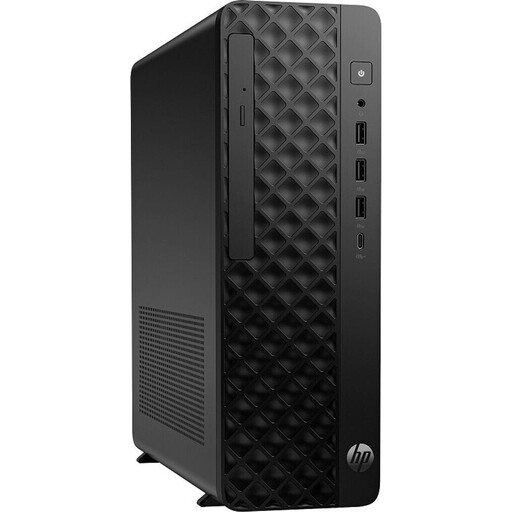
A Windows tower option in an SFF format, if its footprint and the specification of this particular configuration suit your editing workstation.
Core Ultra 7 265K, 32 GB DDR5 at 5,600 MHz, 1 TB M.2 SSD and RTX A400 with 4 GB; Windows 11 Pro.
 No image available
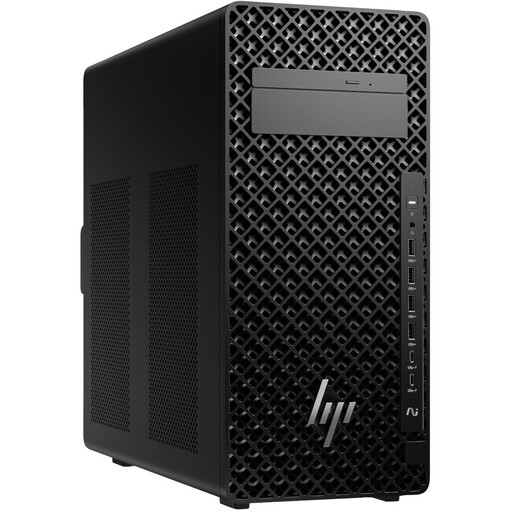
A Windows tower for a dedicated editing workstation, if the tower format fits your available space and its specific specification meets your needs.
Core Ultra 7 265, 32 GB DDR5 at 5,600 MHz and Windows 11 Pro. Before buying, check the full SSD specification for the configuration on offer.
 No image available
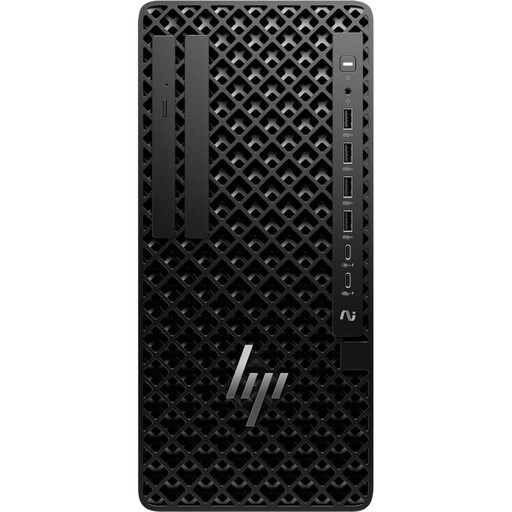
A tower configuration for a dedicated workstation, if its stated specification suits your editing software and video footage.
Core Ultra 9 285, 64 GB DDR5 at 5,600 MHz and 1 TB M.2 SSD; Windows 11 Pro.
No image available
A Windows tower configuration for a dedicated shared workstation, as long as its specification suits the software and footage you use.
Core Ultra 7 265 vPro, 32 GB DDR5 at 5,600 MHz and 1 TB M.2 SSD; Windows 11 Pro.
 No image available
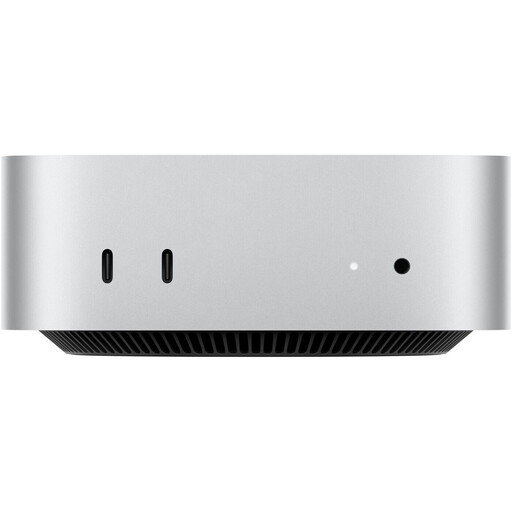
A compact macOS option if your editing software runs on macOS and you can connect a screen and external drives.
Apple M6 with 12-core CPU and 12-core GPU, 16 GB Unified Memory, 256 GB SSD, Thunderbolt 4 and HDMI. Check that the storage and connections suit your projects and devices.
No, not for every project. For Premiere on Windows, Adobe recommends 16 GB RAM for HD media and 32 GB or more for 4K and higher resolutions. Also check the requirements of the editing software you actually use and the files you work with.
Set up separate user accounts on Windows or macOS, and agree where shared project files will be stored. Accounts keep personal logins separate, but they don’t automatically organise how you work together.
Use a backup destination that’s separate from your working drive, and check that it includes your original footage and project folders. Apple describes using Time Machine with external backup drives; Microsoft explains File History and how to add more folders to a library.
Keeping a private copy and making something publicly available are legally different uses. Section 53 of the German Copyright Act permits private copies only under the conditions set out there; Section 19a concerns the right to make works available to the public. Check the rights to any third-party material before publishing, as owning a file doesn’t prove that you have those rights.