
Lieferung heute & morgen

Qualitätsgarantie

Willkommens-Angebote freischalten: KOSTENLOSE Lieferung | Bis zu 80 % RABATT | Kostenlose 30-Tage-JoyPlus-Testphase
App herunterladen
As a MacBook Pro or Air owner, you appreciate its performance and design. But for a truly productive workspace, especially in a home office, the built-in ports are often insufficient. The desire to connect a MacBook to 2 external monitors quickly leads to the search for a suitable docking station.
However, the market is flooded with products featuring confusing technical specs. Before making a purchase, it's crucial to understand the common pitfalls that can lead to frustration and a wasted investment.
To avoid these issues, it is crucial to examine the technical specifications closely.
To find the right MacBook docking station for 2 monitors, you should check three core parameters. These will ensure the dock meets your requirements for productivity and performance.
This is the most critical point. Apple's standard chips (M1, M2, M3) natively support only a single external monitor. To run two displays in extended mode (where each shows different content), you need a MacBook with an M Pro, M Max, M Ultra chip, or an older Intel processor. The solutions presented here are designed for these more powerful models. Therefore, before you buy, it is essential to check which chip model is in your MacBook.
For a smooth and sharp image across two monitors, the right video ports are crucial.
A good docking station is more than just a video adapter. It is the central hub of your workspace.
Based on the criteria above, we have identified several products suitable for different user profiles and their specific needs.
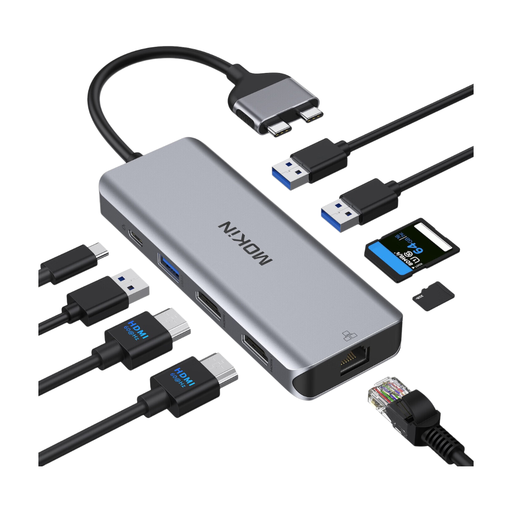
Why it's a great fit: This docking station is specifically designed for MacBook Pro/Air models and offers a well-balanced mix of essential ports for a productive workspace. It's a plug-and-play solution that works out of the box without any driver installation and integrates seamlessly into your setup.
The product description explicitly states that it is suitable for MacBooks with M Pro/M Max chips (and not for base-level M chips). The resolutions for single (4K/60Hz) and dual-monitor operation (4K/30Hz) are clearly declared.
Offers all the necessary ports—including dual HDMI, Gigabit Ethernet, USB 3.0, and 100W PD charging—in a compact form factor that connects directly to the side of the MacBook.
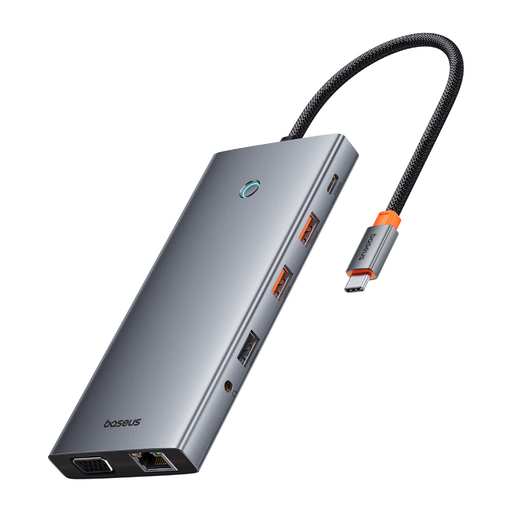
Why it's a great fit: For users who need more than just two monitors or are looking for a future-proof solution. With 13 ports, including DisplayPort for 8K resolution and fast USB 3.1 Gen 2 ports, this hub is equipped for the most demanding workstations.
By offering multiple highly specialised video outputs (2x HDMI, 1x DP, 1x VGA), it provides maximum flexibility and bypasses the limitation of a single 4K port. The specifications for each connection type are clearly defined.
Exceptional port variety with support for up to four monitors and 8K resolution via DisplayPort. The USB 3.1 Gen 2 ports enable data transfer rates of up to 10 Gbps.
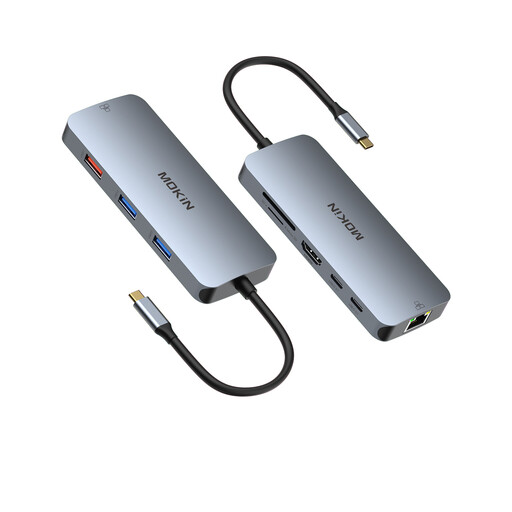
Why it's a great fit: This hub provides the core functionality for a dual-display setup at an accessible price point. It's a solid choice for users looking to expand their workspace without investing in high-end features they may not need.
The specifications (4K at 30Hz) are clearly stated, allowing users to make an informed decision. Its broad compatibility with DP Alt Mode devices is also highlighted.
Excellent value for money. It offers all the essential ports, including Gigabit Ethernet, 100W PD charging, and an SD/TF card reader, in a universal design.
We have compiled a complete, up-to-date list of products that fully meet these strict selection criteria and local safety regulations.
No, the base-level M-series chips from Apple natively support only one external display. Some third-party docking stations use a technology called "DisplayLink" to bypass this limitation. However, this requires installing special drivers and can lead to performance degradation or compatibility issues. The docks recommended in this guide are designed for MacBooks that natively support two or more external monitors (models with Intel, M Pro, M Max, or M Ultra chips).
Yes, the difference is clearly noticeable. A refresh rate of 60 Hz provides a much smoother and more pleasant viewing experience. Mouse cursor movements, scrolling through web pages, and video playback all appear fluid. In contrast, a rate of 30 Hz can feel choppy or laggy. For productive work, a 60 Hz frequency is highly recommended.
Not necessarily. While a Thunderbolt Dock for MacBook offers higher total bandwidth—which is useful for very demanding setups (e.g., multiple 5K/6K monitors) or extremely fast data transfers—it isn't always required. For most setups with two 4K monitors, a high-quality USB C Hub Dual HDMI is perfectly adequate and often provides better value for money.