
Lieferung heute & morgen

Qualitätsgarantie

Willkommens-Angebote freischalten: KOSTENLOSE Lieferung | Bis zu 80 % RABATT | Kostenlose 30-Tage-JoyPlus-Testphase
App herunterladen
Expanding a MacBook Pro or Air to a workstation with two external monitors significantly boosts productivity. However, the path to get there is often fraught with technical hurdles and misleading product claims. Many users invest in a MacBook Pro dual monitor docking station setup, only to find it doesn't work as expected. This guide will help you avoid the most common pitfalls and make an informed decision.
Before you make a choice, you should be aware of the typical issues that lead to purchase mistakes.
To avoid these problems, you should carefully check three technical specifications.
This is the most critical factor. To connect two external monitors to a MacBook and use them independently as extended desktops, your hardware must support it.
For a smooth and comfortable viewing experience, a refresh rate of 60 Hz at 4K resolution is essential. Many cheaper hubs only offer 4K at 30 Hz, which results in noticeably jerky mouse movement and reduced viewing comfort. Make sure the docking station explicitly supports 4K@60Hz for at least one, but ideally for both, monitor outputs. Often, the frequency is reduced when two monitors are connected simultaneously.
A good docking station is more than just a MacBook Air adapter for 2 HDMI ports. It is the central hub of your workspace.
Here are some recommendations tailored to specific user needs that meet the criteria mentioned above.
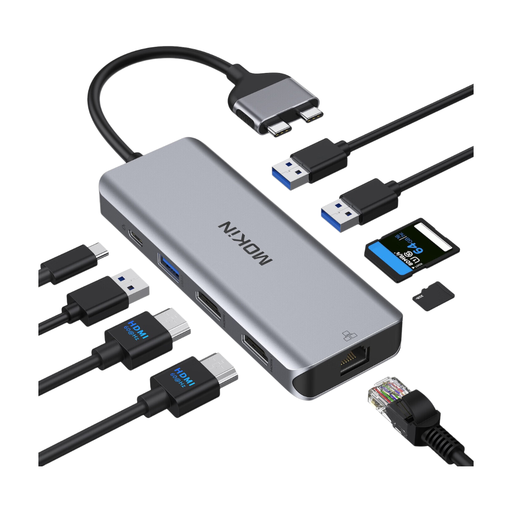
Why it's a good fit: This dock is specifically designed for MacBook Pro/Air models with Intel or M Pro/Max chips. It leverages the native capabilities of these devices to drive two extended 4K displays (A-B+C) without any additional software. With Gigabit Ethernet, 100W PD, and fast USB ports, it's a complete workstation solution.
The product description explicitly states that it is not compatible with base M1/M2/M3 chips. This prevents the most common purchase mistake and ensures that only users with compatible hardware buy it.
True dual 4K monitor extension without software drivers. Stable Gigabit Ethernet connection and high-power charging.
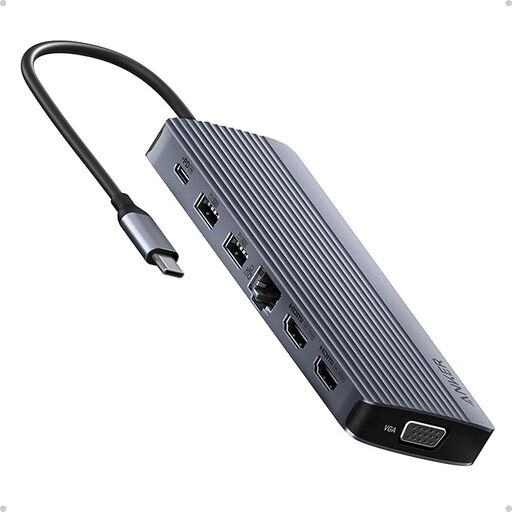
Why it's a good fit: For users who need maximum flexibility. With 14 ports, including two 4K HDMI ports and even a VGA port, this docking station from a well-known brand covers every conceivable scenario. It's a future-proof investment for any desk.
The docking station delivers a stable 80-watt pass-through charging power. This is a realistic figure that ensures the MacBook is reliably powered even when using multiple peripherals.
Extreme port variety with 14 ports for maximum flexibility. Supports up to three monitors simultaneously (2x HDMI, 1x VGA).
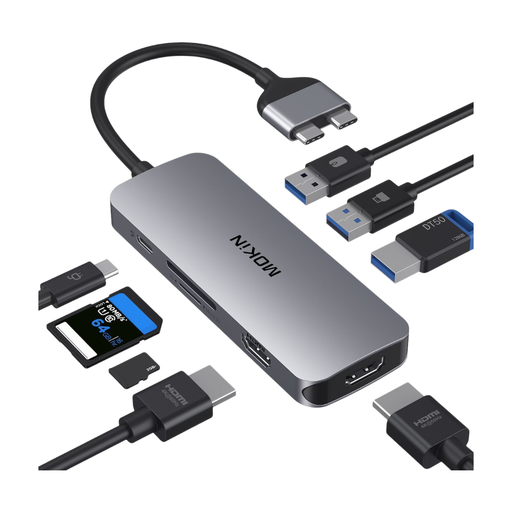
Why it's a good fit: This compact dock connects directly to the two side Thunderbolt ports of the MacBook Pro/Air. It's ideal for users looking for a portable, cable-free solution. It provides the essential ports for a dual-monitor setup on the go or at a minimalist workstation.
Here too, it is clearly communicated that the docking station is not suitable for MacBooks with a base M1/M2/M3 chip. It is specifically aimed at owners of models with two Thunderbolt ports on one side that are dual-display capable.
Very compact, direct-connect design. Offers two HDMI ports and 100W Power Delivery in a portable form factor.
We have compiled a complete, up-to-date list of products that fully meet these strict selection criteria and safety regulations.
Will any "Dual Monitor" docking station work with my MacBook? No. The ability to run two external monitors in extended mode depends on your MacBook's chip. Models with an Intel processor or M-series Pro/Max/Ultra chips support this natively via Thunderbolt. Models with a base M1, M2, or M3 chip natively support only one external monitor. For these devices, you need a special docking station with DisplayLink technology and the corresponding drivers.
Why does my docking station get hot and the connection drop? Overheating is often a sign of a low-quality design that cannot efficiently dissipate heat under high load. When multiple monitors, charging, and high-speed data transfers occur simultaneously, a lot of heat is generated. This can lead to unstable connections. Look for models with a metal casing that dissipates heat better, and avoid operating the docking station in unventilated areas.
Do I need a separate power adapter for the docking station? Most USB-C docking stations use your MacBook's power adapter via "pass-through charging." The power adapter is connected to the docking station, which then passes the power to the MacBook. Since the docking station itself consumes power, the power arriving at the MacBook is always less than the input power of the adapter. It is advisable to use a power adapter with a higher wattage than recommended by the MacBook manufacturer to have a buffer for the docking station.