
Lieferung heute & morgen

Qualitätsgarantie

Willkommens-Angebote freischalten: KOSTENLOSE Lieferung | Bis zu 80 % RABATT | Kostenlose 30-Tage-JoyPlus-Testphase
App herunterladen
Expanding a MacBook Pro to a dual-monitor workstation significantly boosts productivity. However, finding the right docking station is often fraught with technical hurdles and misleading product claims. Many users invest in a solution only to find it doesn't work as expected. This guide will help you understand the crucial criteria and avoid common purchasing mistakes.
Before you make a purchase, you should be aware of the most common issues that can lead to frustration and unnecessary expenses.
To avoid these pitfalls, focus on the following technical specifications. These will determine whether a docking station is suitable for your needs.
For a productive dual-screen workspace, extended mode is essential. This is the only way to display different content on each monitor (e.g., research on one, a document on the other). Ensure the product description explicitly confirms support for extended mode on macOS. The question of how to connect a MacBook Pro to two external monitors directly depends on the docking station's ability to do this in combination with the Mac model. A high-quality docking station for a MacBook Pro with an M Pro chip will clearly state this feature.
A good docking station is more than just a video adapter. Check the specifications of the available ports:
The charging power is specified in watts (W). To reliably charge a 15- or 16-inch MacBook Pro, the docking station should support a power delivery of at least 87W to 100W. For a MacBook Air or a 13-inch MacBook Pro, 65W is often sufficient. Check the specifications of the "PD Port" (Power Delivery Port) carefully.
Here are some options tailored to specific user profiles that meet the criteria mentioned above.
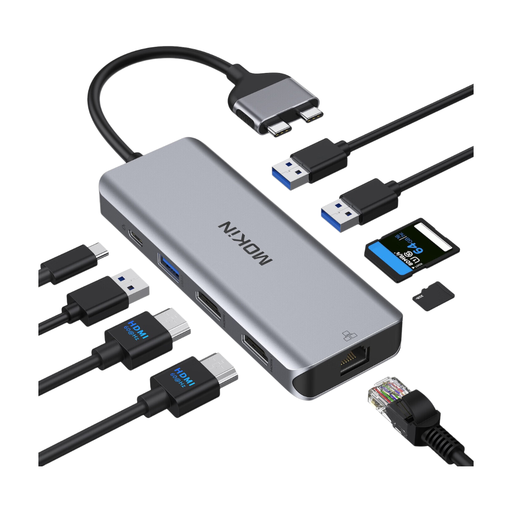
Why it's a great fit: This docking station is specifically designed for users of MacBook Pro/Air models with Intel, M Pro, or M Max chips who need a true dual-monitor workstation. It offers two HDMI ports that support extended mode (A-B+C), as well as a comprehensive range of ports for professional use.
The product clearly states its incompatibility with base M1/M2/M3 chips, thus avoiding the compatibility trap. It specifies its performance in dual-monitor mode (4K@30Hz) and provides sufficient power with 100W PD.
Comprehensive 9-in-1 connectivity, including Gigabit Ethernet and SD/TF card readers. Plug-and-play functionality without driver installation on compatible devices.
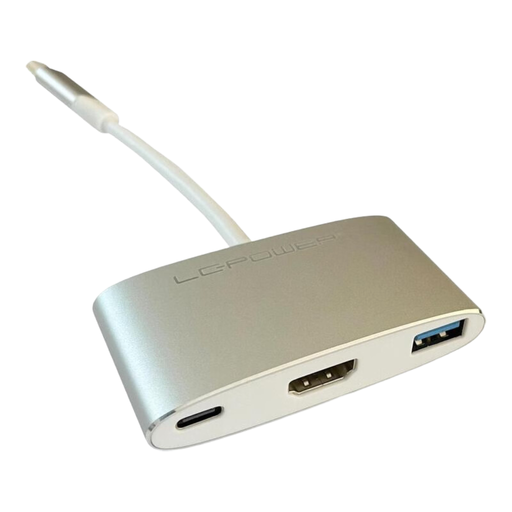
Why it's a great fit: This hub is a compact solution for users needing a MacBook Air docking station or for those who want to quickly connect a single external monitor, a USB device, and a charger on the go. The long integrated cable (0.85 m) offers placement flexibility.
The hub makes no misleading promises about dual-monitor setups. It focuses on three clearly defined functions and offers very high charging power with up to 100W PD, avoiding the insufficient power supply trap.
Powerful charging of up to 100W. Its compact, lightweight design and long cable make it a practical travel companion.
We have compiled a complete, up-to-date list of products that fully meet these strict selection criteria and safety regulations.
This is a hardware-level limitation of Apple's base-level chips. These processors can natively drive only a single external display. The docking station cannot bypass this limitation. To use two or more external monitors in extended mode, you need a MacBook with an M1/M2/M3 Pro, Max, or Ultra chip.
Not necessarily. A high-quality USB-C docking station that explicitly supports extended mode for two monitors on compatible MacBooks is sufficient for most use cases. A Thunderbolt dock offers higher total bandwidth (40 Gbps), which can be advantageous if you want to run two 4K monitors at 60 Hz and other data-intensive devices simultaneously. For many setups, however, a USB-C hub for MacBook Pro with 2 HDMI ports is a functional and more cost-effective choice.
Check the product description for phrases like "Extended Mode," "Extended Display," or for specifications that explicitly list resolutions for dual-monitor operation (e.g., "2x 4K@30Hz"). A clear indicator is also a compatibility note that distinguishes between the base M-series chips and the M Pro/Max chips, as is the case with the recommended Mokin hub above.