People who create worksheets
If you work with formulae, diagrams and page previews, consider how much you need to see at once and whether details remain easy to read at your preferred scaling.


If you often work with formulae and page previews side by side, start by comparing the usable screen space, how easy the text is to read at your preferred scaling, and how much room you have on your desk. A 27-inch QHD or 4K monitor offers different options, while a 23.8-inch Full HD model may be a better fit if space is limited. If you use a laptop, also check the video output and charging power of the specific USB-C port.
If you work with formulae, diagrams and page previews, consider how much you need to see at once and whether details remain easy to read at your preferred scaling.
If you use your monitor for long periods, check whether its height and position can be adjusted to suit your desk. Requirements for a properly equipped home-working setup may differ from those for personal use.
If you connect your laptop at your desk, check that video output and USB-C features are compatible, and that the charging power meets your device’s requirements where applicable.
First decide what matters most to you: readability and seeing the whole page, monitor positioning, a suitable laptop connection or the space available on your desk.
| Priority | What to check when buying | Who is this important to? |
|---|---|---|
| Read formulae clearly and see the preview | Compare screen size, native resolution and readability at your preferred scaling. | If I work on formulae and a page preview at the same time, I want to see the details clearly without making the text too small to read. For around 37% of consumers, being able to read formulae and layout details comes first. |
| Position the screen comfortably | Check height, tilt and swivel adjustment, as well as the desk space and where you plan to set it up. | If I work at a desk for long periods, I want to position the screen to suit my workspace. For around 27% of consumers, screen positioning and workspace layout take priority. |
| Connect and charge a laptop | Check the video output, cable and Power Delivery wattage of the specific monitor port against your laptop’s requirements. | If I use my laptop with a monitor, the connection needs to transmit video and, where needed, provide enough power to charge it. For around 18% of consumers, a video and charging connection that works with their laptop is the main priority. |
| Balance space and features | Measure the space required, including the stand, and compare the features you need with what the model offers. | If my desk is short on space or I want to keep things simple, I want a monitor that suits my actual needs. For around 18% of consumers, available space and the features they want are the deciding factors. |
How much content you can view clearly at once also depends on scaling and how you arrange your windows.
Compare your formula editor and page preview at a text size you find comfortable to read, rather than focusing on resolution alone.
The stated Power Delivery wattage varies by model. A USB-C port alone doesn’t guarantee video compatibility or suitable charging power.
Check your laptop’s requirements, video output, monitor port and cable against the exact model variant.
Depending on the combination, you may still need a separate power adapter or a different connection setup.
A monitor and its stand or arm take up desk space. If you’re mounting it on an arm, your desk also needs to be suitable.
Measure the available width and depth, and check whether the desk can take the mount before choosing a model.
If your desk isn’t suitable for the mount you’ve chosen, you may need a different setup or additional equipment.
A 27-inch 4K model to consider if you want to compare layout details and an adjustable stand.
A 27-inch QHD model as an example for working on drafts and page previews.
A 27-inch QHD model with USB-C, useful as an example of why it’s worth checking ports and the stand separately.
A 23.8-inch Full HD model to consider if you’re looking for a more compact screen.
A 31.5-inch 4K model with an arm, as an example of a large screen where desk space and mounting requirements need to be checked.
The models below include 27-inch 4K and QHD options, as well as more compact Full HD and larger 4K choices for your desk.
 No image available
An option if you want to compare how formulae and page layouts look at 4K resolution on a 27-inch screen.
27 inches; 3840 × 2160 pixels; IPS; HDMI and DisplayPort connections.
The description lists Flicker-Free and Eye Saver Mode.
 No image available
An option if you want to assess worksheet details and page previews on a 27-inch screen.
3840 × 2160 pixels; IPS; 120 Hz; HDR500.
The description lists USB-C with 90 W Power Delivery, plus height adjustment and pivot. Check that the charging power suits your laptop.
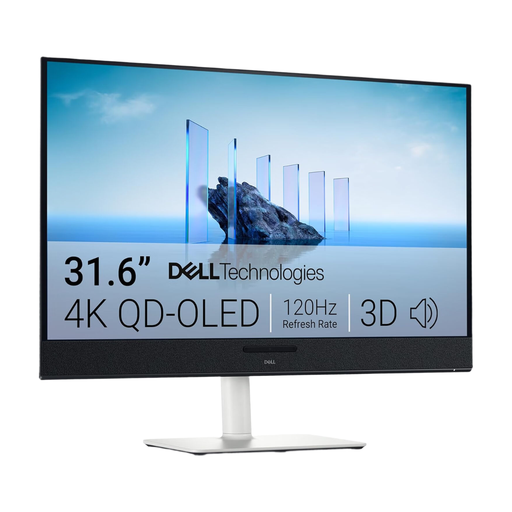 No image available
A larger-screen option if you want to arrange several documents across a wider area; check that you have enough desk space.
31.6 inches; 3840 × 2160 pixels; QD-OLED.
The description lists USB-C with 90 W Power Delivery, as well as height, tilt, rotation and swivel adjustments.
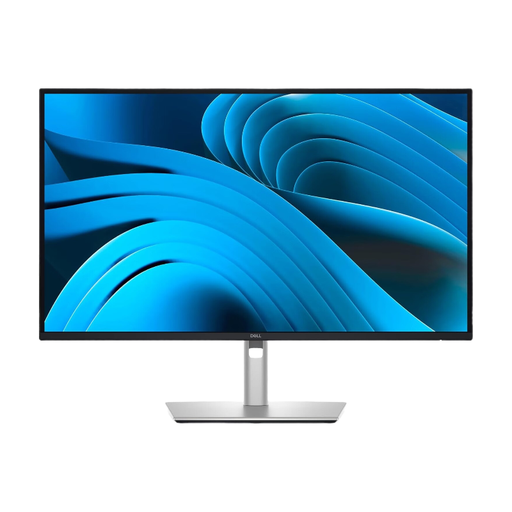 No image available
A QHD option for working on drafts and page previews on a 27-inch screen.
2560 × 1440 pixels; LCD.
The description lists USB-C with DisplayPort video transmission and up to 90 W Power Delivery, as well as a USB hub, height adjustment, pivot and tilt. Check that the charging power suits your laptop.
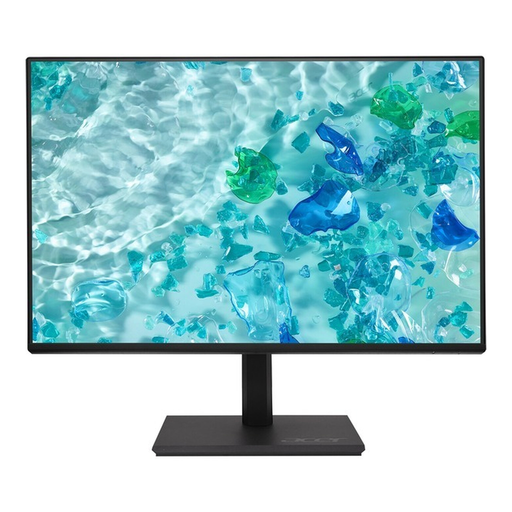 No image available
A more compact option if desk space is limited and you mainly work on one worksheet or programme window at a time.
IPS; 1920 × 1080 pixels; VGA, HDMI and DisplayPort connections.
The description lists up to 165 mm of height adjustment, plus pivot, swivel and tilt. Full HD offers fewer pixels for viewing content side by side than the QHD and 4K models listed here.
No, 4K isn’t essential. Compare QHD and 4K at the screen size you’re considering, taking into account your viewing distance and a scaling setting that’s comfortable to read. This doesn’t tell you anything about the quality of printed formulae.
No. USB-C alone doesn’t guarantee compatible video transmission or enough charging power. LG lists 15 W for the 27U631A-B, EIZO lists up to 70 W for the specified port on the EV2490, and ASUS lists 96 W Power Delivery for the PA279CRV. Check video compatibility, power requirements and cable compatibility against your laptop’s specifications.
Position the screen and lighting so you can read comfortably, and check the model’s actual adjustment options. Also measure the space available, including the stand or arm.
That depends on how the workspace is set up and used. The German Federal Institute for Occupational Safety and Health describes the scope of ASR A6 as covering display screen equipment in workplaces and equipped teleworking setups. According to that scope, the rules don’t automatically apply to personal screen use outside such teleworking setups. So the term ‘working from home’ alone doesn’t mean there’s a single legal minimum monitor size or resolution.
The EU energy label for electronic displays shows an efficiency rating on a scale from A to G, along with other information for comparison. Your usage and electricity tariff also affect potential running costs.