What should you look for when choosing?
First, find out whether you can extend your existing router’s network. Then plan how the mesh units will connect across floors: by network cable, over a sufficiently strong Wi-Fi connection or—after checking your sockets—using Powerline.
| What you need |
What to check before buying |
Who is this particularly important to? |
| Connection where lessons take place |
Check your internet connection and Wi-Fi in the room where lessons take place separately; don’t place a mesh node in the dead spot itself. |
If I need a stable connection for video and audio in the room where lessons take place, that exact spot matters. Around 36% of consumers are likely to make reception there their top priority. |
| Backhaul between floors |
Check cable routes, Wi-Fi locations and sockets; make sure the system supports Ethernet backhaul or another suitable option. |
If I need to connect several floors, it’s important that the connection back to the router works too. Around 29% of consumers are likely to make this their top priority. |
| Keeping your existing router |
Check your router model, mesh compatibility, software version and operating mode. |
If I want to keep my existing router, I’ll first check whether an additional access point can be integrated properly. Around 21% of consumers are likely to put this first. |
| Kit contents and extra features |
Check how many units are included and which ports you need; distinguish optional subscriptions from the basic mesh connection. |
If I don’t want to set up more units or services than I need, I’ll check what’s in the box and which features are optional. Around 14% of consumers are likely to focus on this. |
Joybuy products
The Joybuy products below are mesh systems with two or three units for homes where you want to set up Wi-Fi in several locations. The number of units in the box alone doesn’t tell you whether the backhaul will reach the room where lessons take place.
 No image available
TP-Link Deco BE22, 2-pack
This 2-pack is worth considering if you’re planning to set up mesh in two locations. Check the connection between the units across floors.
Wi-Fi 7, dual-band, Gigabit Ethernet.
Joybuy
 No image available
TP-Link Deco M4 AC1200, 3-pack
You can plan to use the three-unit kit in several locations, but you’ll still need to check the connection where lessons take place.
Wi-Fi 5, AC1200, dual-band, Gigabit ports.
Joybuy
 No image available
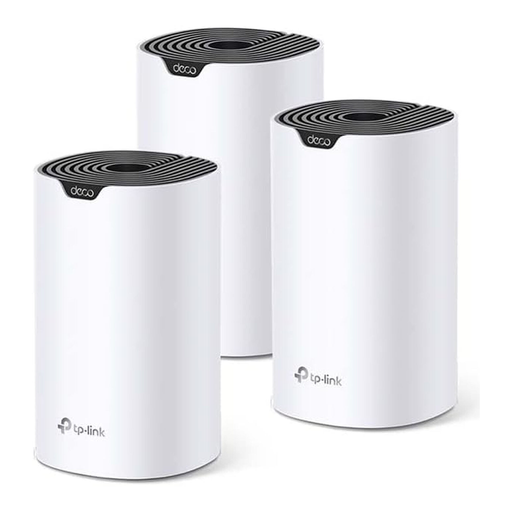
TP-Link Deco S4 AC1200, 3-pack
The three units give you several options for where to place them. Whether they can cover all three floors depends on their locations and the connection between them.
AC1200, dual-band, Gigabit ports.
Joybuy
 No image available
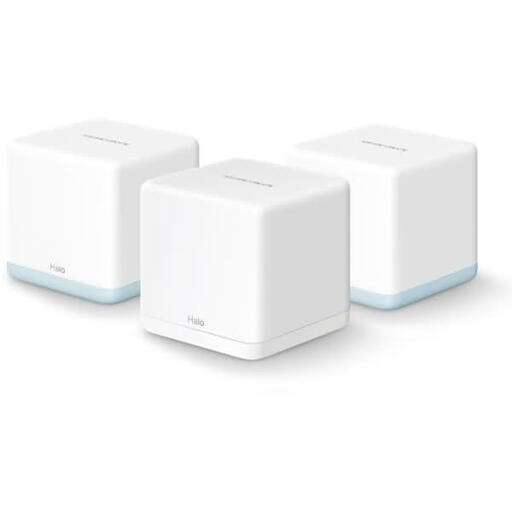
MERCUSYS Halo H1200G AC1200, 3-pack
This 3-pack is an option if you’re planning to set up mesh in several locations. Test the backhaul and reception in the room where lessons take place.
AC1200.
Joybuy
 No image available
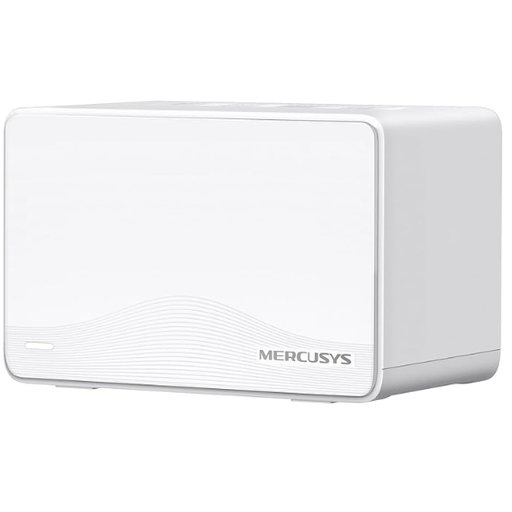
MERCUSYS Halo H25BE, 2-pack
This two-unit kit is worth considering if you’re planning to set up mesh in two locations. Check the wireless connection between them before using it for lessons.
Wi-Fi 7, BE3600, dual-band, 3 × Gigabit ports per unit.
Joybuy
Frequently asked questions about mesh Wi-Fi
How many Mbit/s do I need for online lessons?
It depends on the platform you use, picture quality and whether other people are online at the same time. Zoom Support recommends 2.6 Mbit/s upload and 1.8 Mbit/s download for 720p group video in its web app. These figures aren’t general requirements for online lessons or minimum speeds for a mesh product. Check your internet connection and the room where lessons take place separately.
Where should I place a mesh unit connected wirelessly?
Choose a location where the unit still has a sufficiently strong connection to the previous one, while also covering the area you want. Don’t simply put it in a dead spot: check the backhaul first, then test reception in the room where lessons take place.
Do I need to replace my existing router?
Not necessarily. For a compatible FRITZ!Box, the manufacturer describes extending the mesh with a repeater over LAN; in the documented case, the FRITZ!Box needs to run FRITZ!OS 7 or later. With a standalone mesh system, the connection and operating mode must suit your existing internet service. (FRITZ!; FRITZ! Knowledge Base)
Does a 3-pack guarantee Wi-Fi on all three floors?
No. The number of units alone doesn’t guarantee a strong connection through floors. Their locations and the backhaul to the rest of your network are what matter, so check reception both where lessons take place and at every planned node location.
Do I need radio equipment approval for a private Wi-Fi network in Germany?
The relevant general frequency allocations from the Federal Network Agency apply to Wi-Fi frequencies. For the 5945–6425 MHz band, Order 76/2025 applies; it expressly repeals Order 12/2025. This isn’t blanket approval for any device or settings: you must comply with the conditions for the relevant frequency band and ensure the product conforms. (Federal Network Agency)


