Homes with LAN cabling between floors
If you can use network cables, look for mesh nodes with Ethernet backhaul and check that they can be integrated with your existing router.


A mesh Wi-Fi system can improve photo uploads across multiple floors if your home network is the bottleneck; it won’t speed up a slow internet connection. So compare upload speeds near the router, or connected to it by cable, with those in the problem area. If you already have network cabling, Ethernet backhaul is worth considering. Without cables, the location of each node and a strong enough wireless connection between them are key.
If you can use network cables, look for mesh nodes with Ethernet backhaul and check that they can be integrated with your existing router.
If there’s no LAN connection between floors, you’ll need to find a spot where the extra node still has a strong enough connection to the next one. Walls and ceilings can affect reception, as 1&1 also points out in its guide to planning a home network.
If you want to keep using your existing network, first check the router’s location, settings and compatibility with an extension, rather than automatically replacing your entire home network.
A good fit if: You have usable network cables between floors and want to connect the nodes using them.
Bear in mind: The cabling, ports you need and router integration must all suit your planned network setup.
A good fit if: You can’t run cables between floors and the nodes have a reliable wireless connection to each other at the locations you have in mind.
Bear in mind: Ceilings, walls and placement can limit the connection; Tri-Band alone doesn’t guarantee good reception through a particular ceiling.
A good fit if: Your router is poorly positioned or you already have a suitable mesh system and want to check your current setup first.
Bear in mind: Mesh features and management options vary between router combinations, so check that the specific system is compatible.
| What you need | What to look for | Who is it important for? |
|---|---|---|
| Reception across multiple floors | Plan node locations around the places where you actually upload photos. Without LAN cabling between floors, the node’s location should still allow for a reliable connection to the next node. | If you want to upload photos from different places in your home, the connection in those spots matters. Around 36% of consumers put reception on the floors they need first. |
| A reliable upload route | Compare upload speeds near the router, or connected to it by cable, with those in the problem area. Then check the connection between the nodes and the available LAN ports. | If you want to upload a photo album to the cloud, the connection from your device through your home network to your internet connection all needs to work. Around 29% of consumers prioritise a reliable upload route. |
| Integration with your existing router | Make a note of your router model and the ports available. Check the intended router or access point mode, as well as documented mesh compatibility. | If you want to keep using your existing router, the key question is whether an extension will work with your network. Around 21% of consumers first consider how well a new system will integrate with their existing network. |
| Set-up and ongoing costs | Check the pack size you need, whether any cabling work may be required and whether the management or security features you want need a separate subscription. | If you want to avoid extra set-up, cabling or ongoing services, check the overall cost and effort in advance. Around 14% of consumers focus on set-up and possible ongoing costs. |
A manufacturer’s combined speed rating for wireless bands isn’t a measure of your internet connection’s upload speed. The Bundesnetzagentur provides a broadband speed test to check your connection’s data rate; it won’t tell you how your Wi-Fi performs in different parts of your home.
Before using Wi-Fi speed ratings to help you decide, compare upload speeds near the router, or connected to it by cable, with those in the problem area.
A mesh node needs a strong enough connection to the previous node. Floors and walls can weaken that connection.
Check reception at the planned intermediate location. If a reliable wireless connection isn’t possible there and you have LAN cabling, consider a wired connection.
Depending on your set-up, an extra node or adding cabling later could mean more installation and set-up work.
As documented by FRITZ!, using a FRITZ!Repeater as a LAN bridge in a FRITZ!Mesh set-up requires a FRITZ!Box running FRITZ!OS 7 or later. Other systems may need a different connection method.
Before choosing an extension, check your router model, software version and the instructions for the specific mesh system.
An incompatible combination could mean avoidable set-up work or an unnecessary change of system.
According to the provider, advanced security and network management features for the eero 6+ are available separately by subscription.
Before buying, compare the features included with the optional services you actually want to use.
The extra features you want may require a separate subscription.
Deco systems are available as standalone mesh solutions. For the Deco BE25 documented in Germany, TP-Link lists dual-band Wi-Fi 7 with Ethernet backhaul.
The FRITZ!Mesh Set 4200 is described by the manufacturer as a two-pack containing two FRITZ!Repeater 3000 AX units. FRITZ! also documents mesh integration via a LAN bridge with a compatible router set-up.
ASUS offers the ZenWiFi XT9, a mesh system with three wireless bands and router and access point modes.
The eero 6+ listed for Germany is described by the provider as a dual-band Wi-Fi 6 system, also available as a three-pack.
This selection includes mesh systems, extension nodes and individual access points for different areas of your home. If you’re uploading photos across floors, pay particular attention to how many access points you need and whether they should connect via LAN or wirelessly.
 No image available
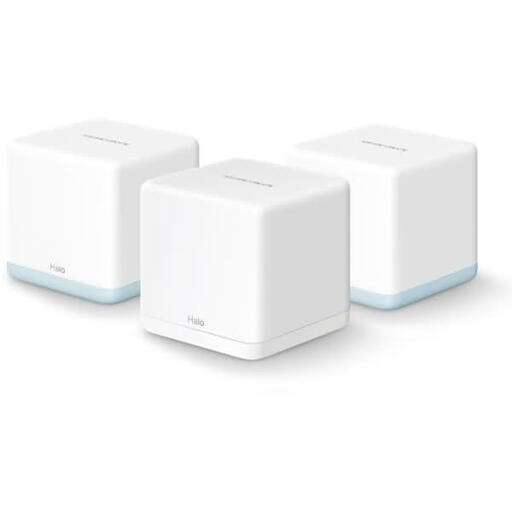
Three mesh units provide access points for different areas of your home. For uploads across floors, the connection between the units is still key.
Each unit has two Gigabit Ethernet ports and router and access point modes. The product description also mentions seamless roaming.
 No image available
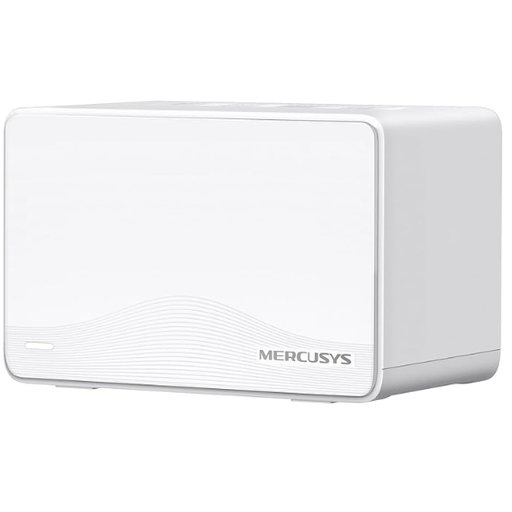
Three units are designed to provide multiple access points. Check that they can maintain a wireless connection to each other at the locations you have in mind.
Specifications include dual-band AC1200, two Ethernet ports per unit and app-based set-up. The product description also mentions automatic roaming.
 No image available
This two-pack contains two mesh units. Check that their planned locations will work for connections across the floors in question.
The product specifications list dual-band Wi-Fi 7 and three Gigabit ports per unit. WPA3 is also listed.
 No image available
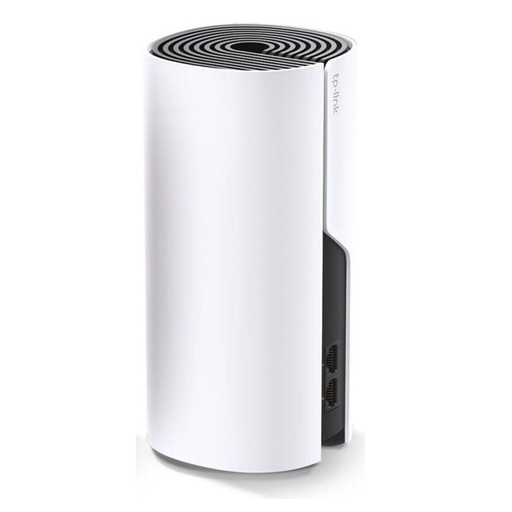
According to the product description, this single unit is designed to extend an existing Deco network. You’ll need additional units to provide multiple access points across floors.
Specifications include Ethernet backhaul, two Gigabit Ethernet ports, and router and access point modes.
 No image available
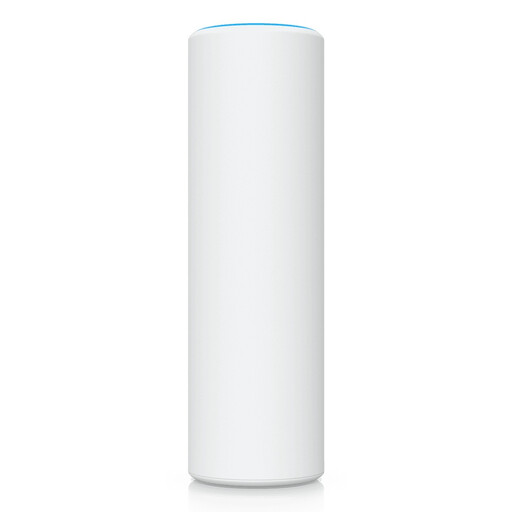
This is a single access point, not a multi-unit system. Before planning your set-up, check whether you already have a compatible UniFi network and a suitable power supply.
The product specifications list dual-band Wi-Fi 7, one 2.5 Gigabit Ethernet port and the need for PoE power.
Compare upload speeds in the problem area with a test near the router, or connected to it by cable. The Bundesnetzagentur offers a broadband speed test to check your connection’s data rate; it doesn’t replace comparing Wi-Fi in different parts of your home.
Don’t put it where the connection to the previous node has already dropped out. With wireless backhaul, the node itself needs a strong enough connection back to the previous one; walls and ceilings can affect reception.
It depends on the specific router and mesh system. For the documented set-up using a FRITZ!Repeater as a LAN bridge, FRITZ! specifies a FRITZ!Box running FRITZ!OS 7 or later. Check the instructions and compatibility for your own system.
The Federal Office for Information Security recommends, among other things, changing default passwords, keeping the firmware up to date, choosing a long Wi-Fi password and checking your Wi-Fi encryption. This doesn’t replace checking the settings on your specific system.
Not necessarily, but check the features included with the specific product. Advanced security and network management features for the eero 6+ are available separately by subscription.