First, check whether the connection is already weak at your internet connection or only on the way to your study area. If you can run a cable, a Wi-Fi node connected via LAN can bypass the difficult wireless route. Without a cable, wireless mesh is only an option if the node still has a good signal where you place it, while Powerline performance depends on the electrical wiring in your home. There’s no need to replace a working router automatically, provided the extender and operating mode are compatible.
Who needs to make this decision?
Students behind thick walls
If your router’s Wi-Fi struggles to reach your study area and there’s no LAN cable running to it, a strong wireless link to the mesh node is especially important. FRITZ! and TP-Link recommend choosing a location where the node can still get a usable connection to the router.
Homes with a LAN socket in the study area
If you have a usable network cable, you can connect a Wi-Fi node on the other side of the thick walls instead of relying on a wireless connection between the nodes. TP-Link and ASUS describe Ethernet backhaul for compatible models.
Homes with a working router
If only your study area has poor coverage, a compatible extender could be an alternative to replacing your router. FRITZ! documents a LAN connection between the Repeater 1200 AX and a FRITZ!Box; with other combinations, the model and operating mode are key.
What should you look for when buying?
Choose based on the connection options available: first look for LAN, then a wireless midway point with good reception, or a Powerline connection that you can test in your home.
| Consideration |
What to check before buying |
Who should consider this? |
| Wireless link through thick walls |
Check possible midway locations and the signal strength there; don’t assume advertised coverage will suit your home’s layout. |
If you can’t run LAN, the node should still get a good signal from the router. Around 36% of consumers in this situation put finding a suitable location for the wireless node first. |
| LAN backhaul to your study area |
Check that there’s a continuous LAN route, that the connections are compatible and that the cabling will work in the intended operating mode. |
If you can connect the node using a network cable, you can bypass the difficult wireless link between the nodes. Around 29% of consumers prioritise this wired connection. |
| Router compatibility |
Check the exact router model, supported mesh integration and, where applicable, access point mode. |
If you want to keep your router, make sure the extender is compatible with the model and your preferred network setup. Around 21% of consumers specifically want to keep their existing router. |
| Powerline without a LAN cable |
Check that the adapters use the same standard and that you have suitable sockets; test the connection where you plan to use it. |
If neither a cable route nor a good location for a wireless node is possible, your electrical wiring could offer an alternative. Around 14% of consumers consider this type of connection. |
Common buying mistakes
-
Putting the wireless node directly in a dead zone
The extra node still needs a usable connection to the rest of your network. If you put it behind a wall that blocks a lot of the signal, its own wireless link could be too weak.
Check possible midway locations before choosing wireless backhaul. If none has a good signal, consider LAN backhaul or a Powerline solution that you’ve tested at home.
-
Treating coverage figures or maximum speeds as guarantees
Manufacturer specifications don’t show how well the signal will travel through your particular walls to reach your study area.
Compare backhaul types and connections, then test the signal in your study area. Don’t base your choice on a quoted maximum speed alone.
-
Assuming Powerline adapters from different product ranges are compatible
TP-Link specifies the G.hn standard for Deco PX50 and HomePlugAV for P7/P9; these Powerline backhauls aren’t compatible with each other. devolo states that Magic 2 WiFi next does not support the older dLAN range.
Compare the full model names and check that the adapters use the same standard. You may need to buy additional compatible adapters.
A guide to suitable brands
FRITZ!
For homes looking to extend a compatible FRITZ!Box or explore a mesh set.
- FRITZ! documents a LAN connection between the Repeater 1200 AX and a FRITZ!Box.
- For the Mesh Set 2700, connect lists LAN or Wi-Fi backhaul, but no 6-GHz band. These details apply to the models mentioned.
TP-Link
Deco models may suit homes looking for wireless or Ethernet backhaul, or a Powerline solution that’s explicitly supported.
- TP-Link describes Ethernet backhaul for compatible Deco systems.
- PX50 and P7/P9 use different Powerline standards that aren’t compatible with each other. The older Deco P7 V1 (3-pack) is marked as “End of Life” on the German product page.
devolo
Magic 2 WiFi next connects Wi-Fi access points via Powerline; the WiFi 7 Mesh BE6500 is a separate mesh set.
- devolo specifies two Gigabit LAN ports for Magic 2 WiFi next.
- According to the manufacturer, Magic 2 WiFi next doesn’t support adapters from the older dLAN range. Actual Powerline performance depends on where you use it.
ASUS
ZenWiFi XD5 is an option for homes that can use Ethernet connections between the nodes.
- ASUS describes Ethernet backhaul and connection to AiMesh-compatible routers for this model.
- Quoted coverage or Wi-Fi speed figures don’t prove what the connection will be like in your own study area behind the walls.
eero
The eero 6+ is an app-led mesh system that you can consider as a standalone set.
- Gigabit Ethernet and app-based setup are listed for the eero 6+.
- Additional security and management features are available through a separate subscription. Claims of fewer interruptions don’t prove that it will work well behind thick internal walls.
Joybuy products for mesh Wi-Fi
The following Joybuy listings include TP-Link Deco mesh systems. Before buying, check the exact model’s connection options between nodes and operating mode to make sure they’ll suit your router and study area.
 No image available
TP-Link Deco BE22 (2-Pack)
An option if you’re looking for a mesh set with two units; check that the connection between the nodes suits your home’s layout.
Wi-Fi 7, dual-band and Gigabit Ethernet, according to the product name.
Joybuy
 No image available
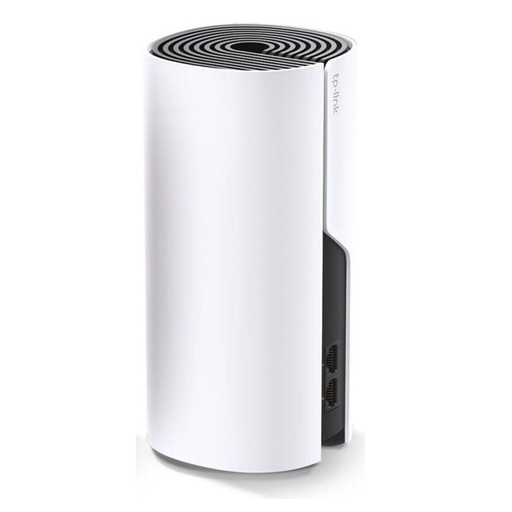
TP-Link Deco M4 AC1200 (1-Pack)
A single Deco mesh system to consider if you’re looking for a compatible way to extend your existing network.
AC1200, dual-band and Gigabit ports, according to the product name.
Joybuy
 No image available
TP-Link Deco M4 AC1200 (3-Pack)
The three-unit set is an option if you want to include several rooms in your mesh setup.
AC1200, dual-band and Gigabit ports, according to the product name.
Joybuy
 No image available
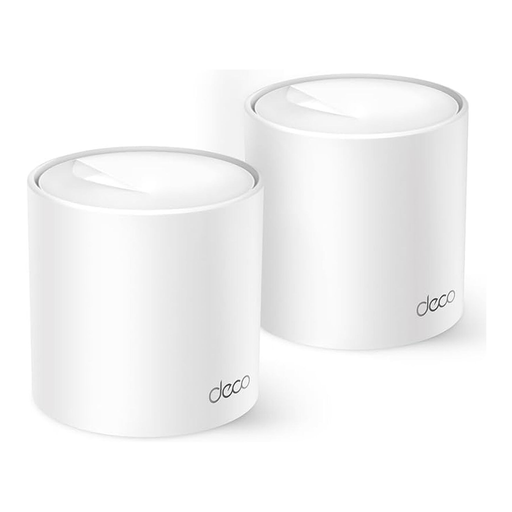
TP-Link Deco X1500 AX1500 (2-Pack)
A set with two mesh units that you can compare based on the connection you need and your router’s compatibility.
Wi-Fi 6, AX1500, dual-band and Gigabit ports, according to the product name.
Joybuy
 No image available
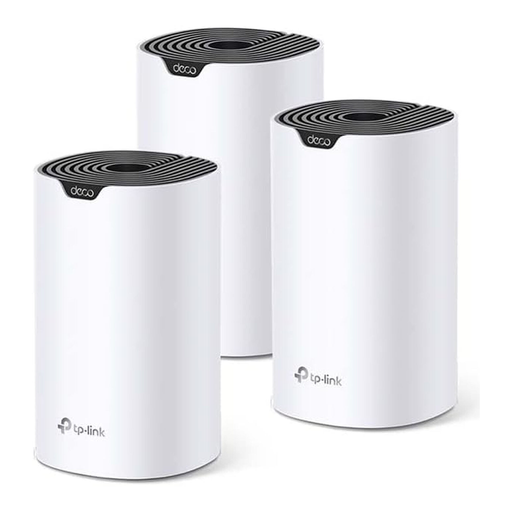
TP-Link Deco S4 AC1200 (3-Pack)
The three-unit set may suit you if you want to cover several rooms; check the connection in your study area and how it will work with your existing network.
AC1200, dual-band and Gigabit ports, according to the product name.
Joybuy
Frequently asked questions
How can I tell if I need mesh rather than a better internet connection?
Compare the connection at your router or via LAN with the connection in your study area. Ofcom offers a broadband speed test for your connection; if the connection itself is already faulty, you should report it to your provider. A mesh node can’t fix a problem with your provider’s service.
Where should I place a wireless node for my study area?
Don’t place it directly in an area where the existing signal barely reaches. Choose a spot where the node still gets a good signal from the router and can reach your study area. If you have a usable LAN backhaul, you’ll have more flexibility to place it on the other side of the wall.
Can I add Powerline adapters from different Deco ranges?
Not just any adapters will work: TP-Link specifies G.hn for Deco PX50 and HomePlugAV for P7/P9; these Powerline backhaul groups aren’t compatible with each other. When expanding your setup, check the full model names and make sure they share the same standard.
What extra costs and features should I compare before buying?
Check how many nodes are included and whether you’ll need compatible adapters or cables. Additional security and management features for eero 6+ are available through a separate subscription; consider whether you need them.


