For reliable portfolio uploads through thick walls, first find out whether the internet connection or the link between mesh nodes is slowing things down: mesh Wi-Fi cannot speed up a slow connection. The German Federal Network Agency’s broadband measurement tool can help you check your connection. If you can run a cable, TP-Link describes Ethernet backhaul as a connection between Deco nodes using Ethernet. Without a cable, wireless or Powerline mesh depends on the location, the connection and whether the devices work together. If you already have a FRITZ!Box, a compatible mesh extension may be all you need.
Who is this selection for?
Uploading portfolios from rooms with a weak Wi-Fi signal
If you’re transferring large portfolio files from a room with poor reception, check the route from your workstation via the mesh node to your internet connection. The German Federal Network Agency offers a broadband measurement tool to compare your connection with the data rate specified in your contract. F.A.Z. Kaufkompass also identifies the connection between mesh stations as a factor to consider when choosing a system.
Homes without an Ethernet cable between rooms
If you can’t run a network cable, the key question is whether wireless or a compatible Powerline connection can provide the backhaul between nodes. TP-Link notes that the Powerline backhaul on Deco PX50 is not compatible with that of Deco P7 or P9.
Homes with an existing FRITZ!Box
If you already use a FRITZ!Box, check whether a compatible extension will do the job before replacing your entire home network. The FRITZ! guide explains how a repeater can take over important FRITZ!Box settings when it is added to the mesh via LAN.
What should you look for when buying?
Mesh with Ethernet backhaul
A good fit if: you have, or can run, a LAN cable between the router and the area where the mesh nodes will be placed.
Bear in mind: the cable route and connections must work, and you’ll need to meet the requirements of your chosen system.
Wireless mesh only
A good fit if: you can’t run a cable and one node can still maintain a strong enough wireless connection to the next.
Bear in mind: adding another node won’t help if its own backhaul connection is too weak through the walls.
Mesh with Powerline backhaul
A good fit if: LAN isn’t an option, the wireless route is poor and you can use compatible nodes in suitable sockets on the same electrical circuit.
Bear in mind: according to TP-Link, the Powerline backhaul on Deco PX50 is not compatible with that of Deco P7 or P9. The connection also depends on your home’s electrical wiring.
Extend your existing FRITZ!Box
A good fit if: you already use a FRITZ!Box and a compatible mesh extension can reach your workstation.
Bear in mind: you’ll need to check whether the extension is suitable for the specific location. A LAN connection at the remote location could allow you to set up a LAN bridge.
| Buying priority |
What to check before buying |
Who it matters most to |
| Backhaul for uploads |
Check whether LAN between the nodes is an option and which connections the specific model offers. |
If I’m transferring large portfolio files from a room with weak Wi-Fi, I want to know how reliably the backhaul can connect to the router. Around 36% of consumers say reliable uploads are their top buying priority. |
| Connection without a LAN cable |
Check where wireless nodes could go. For Powerline, check model compatibility and the connection route shown. |
Without a cable route, I want to know whether the nodes can stay connected to each other through thick walls. Around 29% of consumers prioritise a usable backhaul without a LAN cable. |
| Compatibility with your home network |
Make a note of your router model and available connections. Check whether you’re looking for an extension or a separate mesh system. |
If I already have a FRITZ!Box at home, I want to check for a compatible extension before switching systems. Around 21% of consumers prioritise continuing to use their existing home network. |
| Internet connection as a bottleneck |
Measure your connection speed and compare it with your contract before blaming Wi-Fi specifications for slow uploads. |
Before choosing mesh hardware, I want to rule out the internet connection itself as the cause of slow uploads. Around 14% of consumers make checking their connection their top priority. |
Avoid common misconceptions
-
Assuming advertised Wi-Fi data rates equal upload speeds
Mesh Wi-Fi distributes your existing internet connection; it doesn’t give you a faster one. The German Federal Network Agency offers a broadband measurement tool to compare your connection’s actual data rate with the rate specified in your contract.
Measure your connection first, then check the signal at your workstation and the backhaul to your router.
-
Placing a node only in a Wi-Fi dead zone
Mesh stations also need a strong enough connection to each other. If a node is placed behind walls that block the signal, its backhaul may remain weak.
Choose a location that reaches your workstation while maintaining a usable connection to the next node. Check the connection status once everything is set up.
You may need to move the node or run an additional cable.
-
Assuming all Powerline mesh nodes are compatible
TP-Link lists a different Powerline standard for Deco PX50 than for P7 and P9. According to the manufacturer, these systems are not compatible with each other.
Compare the full model names and check in the app after setup to see which backhaul is actually active.
Key brands to consider
TP-Link
TP-Link offers wireless mesh with Deco X55 and a Powerline option with Deco PX50. The right choice depends on which type of backhaul is possible between the nodes.
- TP-Link lists optional Ethernet backhaul and three Gigabit ports per unit for Deco X55.
- According to TP-Link, the Powerline backhaul on Deco PX50 is not compatible with that of Deco P7 or P9. Model specifications don’t guarantee a particular upload speed through specific walls.
FRITZ!
FRITZ!Repeaters are particularly relevant if you already use a FRITZ!Box and are considering extending your existing network.
- The FRITZ! guide explains that a FRITZ!Repeater 2700 takes over important FRITZ!Box settings when added to the mesh via LAN.
- This doesn’t guarantee a particular upload speed for every repeater or through every wall. Check compatibility between your router and repeater, as well as reception at your workstation.
ASUS
ZenWiFi XD5 is a Wi-Fi 6 mesh option with router and access point modes. How best to set it up depends on your existing network topology.
- ASUS describes Ethernet backhaul for the XD5 when Ethernet connections are available in the walls. The German specifications list Gigabit WAN/LAN and Gigabit LAN.
- Advertised wireless data rates aren’t the same as measured portfolio upload speeds.
Joybuy products for FRITZ! home networks
These FRITZ!Box DSL routers are worth considering if you’re setting up or extending a FRITZ! home network. Check which additional mesh nodes you’ll need to cover your workstation.
 No product image available
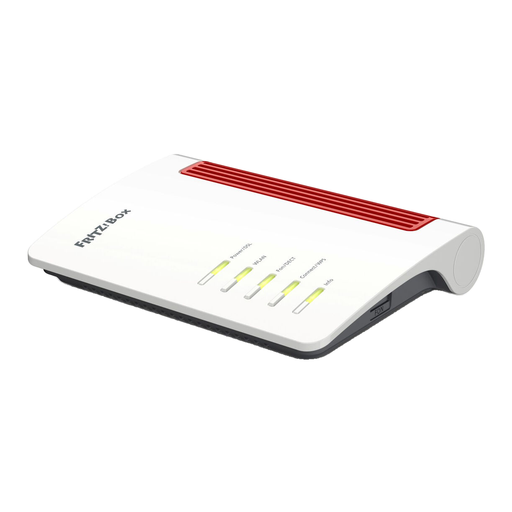
FRITZ!Box 7530 AX Wi-Fi 6 router
This DSL router with mesh compatibility is worth considering if you want to extend a FRITZ! home network. It’s listed as a router, not a mesh kit.
Specifications include VDSL Supervectoring 35b up to 300 Mbps, Wi-Fi 6, dual-band, up to 2400 Mbps and four Gigabit LAN ports.
View at Joybuy
 No product image available
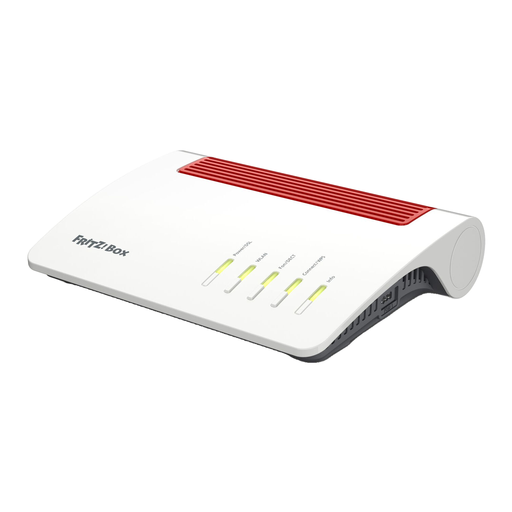
FRITZ!Box 7590 AX Wi-Fi 6 DSL router
This model is described as a FRITZ! mesh master with a DSL modem. It’s worth considering if you want to add more FRITZ! devices to your home network; FRITZ!Repeaters are designed for the mesh setup described.
The product name lists VDSL Supervectoring 35b, dual-band, a DECT base station, VoIP telephony and four Gigabit LAN ports.
View at Joybuy
Frequently asked questions
Will a faster mesh automatically speed up my portfolio uploads?
No. Mesh Wi-Fi can’t speed up a slow internet connection. Measure your connection using the German Federal Network Agency’s broadband measurement tool, then check the connection at your workstation.
Where should I place a mesh node connected wirelessly?
Place it where it can reach your workstation while maintaining a strong enough connection to the next node. The backhaul may remain weak if there are several signal-blocking walls in the way. Check the connection status once everything is set up.
How can I check whether Deco is using Ethernet or Powerline backhaul?
TP-Link explains how to check the connection route in the Deco app by looking at the network map and selected satellite. For Powerline, the nodes should also be suitable for the system you’re using and connected to the same electrical network.
Can I use 6 GHz mesh in Germany without an individual frequency allocation?
The German Federal Network Agency has allocated the 5945–6425 MHz frequency range for general use by the relevant Wi-Fi systems under decision 76/2025. Use is subject to the conditions set out in the decision; this doesn’t mean every device setting or location is automatically permitted.


