Choir video with external audio
If you’re combining one or a few video recordings with a separate recording from an audio recorder, you’ll need a suitable synchronisation workflow and enough space for both original files.


Choose your mini PC based on your editing software, recording format and number of cameras. It’s the software, not the computer, that synchronises video with separately recorded audio. For Premiere, Adobe recommends at least 32 GB RAM for 4K; with a Mac mini and Final Cut Pro, your choice of storage capacity and macOS software are among the factors to consider.
If you’re combining one or a few video recordings with a separate recording from an audio recorder, you’ll need a suitable synchronisation workflow and enough space for both original files.
If you’ll be switching between camera angles or editing 4K footage, make sure your editing software, RAM and media storage are up to the task.
If you regularly import footage from a camera and audio recorder, plan your storage and connections around the workflow you actually use.
A good fit if: You regularly want to edit 4K footage or work with multiple camera angles in Premiere.
Consider: Check the RAM and SSD actually included, as well as the supported recording formats. A model name alone doesn’t tell you how well a PC will handle editing.
A good fit if: You want to work with macOS and synchronise separate audio and video clips in Final Cut Pro.
Consider: Apple’s base M4 configuration has 16 GB of unified memory and a 256-GB SSD. Make sure you allow space for original footage and working files.
A good fit if: You mainly edit HD footage from a small number of sources and want a setup to match.
Consider: A lower-spec model gives you less headroom for future 4K or multi-camera projects.
First, check what synchronisation features your editing software offers. Then match the RAM, storage and connections to your recordings.
| What you need | What to check before buying | Who it matters most to |
|---|---|---|
| Synchronising separate audio | Does the editing software support your audio and video files and the synchronisation workflow you plan to use? | If I want to combine recorder audio and video into one clip, the right software feature matters. Around 33% of consumers put synchronisation first. |
| Resolution and number of cameras | Match the RAM and software requirements to the resolution and number of cameras you’ll be using at the same time. | If I want to edit 4K footage or work with multiple camera angles, I’ll choose a configuration to suit that workload. Around 27% of consumers prioritise editing at their actual resolution and with their actual number of cameras. |
| Storing and connecting files | Check SSD capacity, upgrade options and the connections you need for storage devices and a monitor. | If I regularly import video and recorder audio, I’ll need a suitable storage and connection plan. Around 20% of consumers put storage and connections first. |
| Total cost and specification | Consider what’s included with the specific model, the software you need and any additional storage devices. | If I want to put together a complete editing setup, I’ll consider all the components and software I need. Around 20% of consumers prioritise total cost and upgradeability. |
Adobe recommends 16 GB RAM for HD media and 32 GB or more for 4K and higher resolutions in Premiere. This recommendation is specific to Premiere and doesn’t replace checking your footage and the exact PC configuration.
A supported monitor resolution alone doesn’t tell you whether the RAM and storage drive are suitable for your editing software. Adobe recommends at least 32 GB RAM for 4K in Premiere.
Check the requirements for the exact software, recording format and configuration you’re planning to buy.
Video, recorder audio, project files and working files all take up storage space. Adobe recommends a fast internal SSD for Premiere, as well as an additional high-speed drive for media; the Mac mini’s base M4 configuration has a 256-GB SSD.
Plan your storage around your original files and projects, and check whether you’ll need an additional drive.
ASUS distinguishes between configured mini PCs and kits without pre-installed storage in its NUC 14 Pro range.
Check whether RAM, an SSD and an operating system are included for the exact model you’re considering.
A macOS option for editing with Final Cut Pro and separately recorded audio.
Windows mini PCs with a range of configurations; with the A8 Max, the exact specification matters.
The NUC 14 Pro range includes Windows mini PCs and kits, so you’ll need to choose the specification carefully.
The EVO-X2 is a higher-spec mini PC option for buyers considering a generous amount of RAM.
Joybuy mini PCs for a Windows editing setup with Premiere and separately recorded audio.
 No image available
The listed 32 GB RAM matches Adobe’s recommendation for 4K in Premiere; on its own, it doesn’t guarantee a particular editing speed.
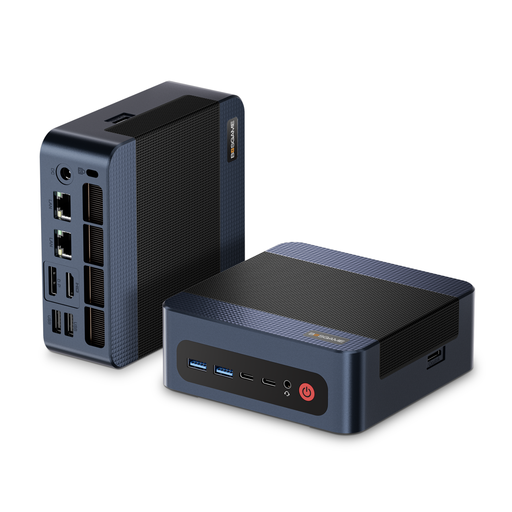
The product listing specifies Windows 11 Pro, 32 GB DDR5 RAM and a 1-TB PCIe 4.0 SSD.
No, synchronisation is a feature of the editing software. Adobe explains how to combine separate audio and video files in Premiere, while Final Cut Pro can analyse clips using suitable synchronisation points. Check the result carefully, especially if your recordings don’t share a reliable reference point.
If you want to edit between camera angles, look for a multi-camera feature. Adobe describes creating a multi-camera source sequence using different synchronisation methods. Check that your chosen software offers this feature.
Choose a clear storage location for your video, audio and project files, and allow extra space for working files. Adobe recommends a fast internal SSD for Premiere, as well as an additional high-speed drive for media.
No. The Verbraucherzentrale distinguishes statutory consumer rights from a voluntary guarantee and says the retailer is the point of contact for claims relating to faults. Check the terms of any specific guarantee too.
No, editing the video or buying a PC doesn’t automatically give you permission to publish it. Section 22 of the KunstUrhG generally requires consent to distribute or publicly display images of people; Section 23 sets out exceptions, subject to limitations. You’ll also need to check the relevant rights for musical works and recordings. Whether you can publish a particular video depends on the people involved, the music and the usage rights.