Choose your mini PC to suit your editing software, resolution and codec first. Then make sure you have enough fast storage for working files and backups, along with the right connections for your workstation. If you already use a Windows workflow, a suitably configured Windows mini PC could be a good fit; for macOS or Final Cut Pro, consider a Mac mini. A compact workstation is worth considering only if your specific project genuinely needs the extra features – having a shared computer alone won’t organise user accounts or project files for you.
Who is an editing workstation suitable for?
Team editing 4K footage
If you work with high-resolution or effects-heavy footage, make sure your editing software, codec, RAM and graphics are all suited to the specific configuration. For Premiere 26.x on Windows, Adobe recommends 32 GB of RAM or more for 4K and higher resolutions.
Collaborative project editing
If several club members use the same computer or a shared project folder, clear user accounts, responsibilities and agreed file paths can make things easier. Windows supports separate user accounts with their own settings and documents; you’ll also need to plan cache and storage locations for projects that are edited collaboratively.
Club with a limited technology budget
If you need to keep spending under control, plan enough space for original footage and backup copies without opting for a more powerful configuration just because it has a higher processor model number. Adobe recommends fast access to video files; a single internal SSD is no substitute for a separate backup.
What should you look for when buying?
Start by checking your footage and editing software, then decide how the computer will be shared and choose the right storage and overall specification.
| What matters |
What to check before buying |
Who should consider this? |
| Editing performance |
Check that the editing software and version, resolution, codec and effects you want to use are compatible with the exact RAM and graphics specification. |
If we edit 4K or effects-heavy footage, we want to check the specific combination of software, codec and hardware. Around 29 % of consumers put suitable editing performance first. |
| Shared use |
Decide whether members will take turns using one computer or edit at the same time on several workstations; plan accounts and project paths accordingly. |
Teams handing projects between members need clear access and processes, rather than constantly changing file paths. Around 29 % of consumers prioritise organised use by several people. |
| Project and backup storage |
Allow for fast storage for active media and cache, as well as a separate backup that is checked regularly. |
If we keep club footage and editing projects, we need enough working space and a separate way to restore them. Around 21 % of consumers prioritise file storage and data backups. |
| Total cost |
Factor in software, RAM and SSD options, existing monitors, and any additional drives and backup media. |
If you need to budget for the computer, editing software and extra storage together, decide on the complete set-up in advance. Around 21 % of consumers focus primarily on total cost. |
Avoiding common buying mistakes
-
Assuming 4K output means it can edit 4K footage
A display connection doesn’t prove that the specific footage can be edited smoothly with effects in your chosen software.
First, note down the software version, codec and footage, then check that they’re compatible with the exact device configuration.
Depending on the result, you may need a different RAM or graphics configuration.
-
Treating a large internal SSD as a backup
Working files and backup copies on the same device are exposed to the same risk if it fails.
Plan separate storage for active media and a separate backup that you check regularly.
Additional backup media will need to be set up and managed.
-
Saving cache and projects to a network share without a plan
When projects are edited collaboratively, inconsistent storage locations and paths can make it harder to work together.
Decide whether people will take turns using one device or work simultaneously on several devices, then set up the cache, project paths and network connection accordingly.
With several workstations, the set-up may include a local cache on each computer and a suitable network connection.
-
Confusing rights issues with the hardware purchase
Footage of people and protected music raise separate questions that choosing a computer won’t resolve.
Before editing and planning a release, check the footage you’re using, music rights and the club’s responsibilities. The Federal Commissioner for Data Protection and Freedom of Information explains that consent is one possible legal basis under Art. 6 GDPR, but not the only one. For protected music in a film production, GEMA says the film production rights need to be clarified.
A guide to suitable brands
Apple
For clubs whose workflow is built around macOS or Final Cut Pro, a Mac mini could be a good fit.
- Apple lists a Media Engine for H.264, HEVC and ProRes on the Mac mini, along with a choice of storage and SSD configurations.
- That doesn’t tell you how quickly a specific project will run; decide on storage capacity and software costs before buying.
GEEKOM
The A8 Max is a configurable Windows option if its ports and specific RAM specification suit your editing workstation.
- GEEKOM lists USB4 and an SD card reader, with options including 16 GB and 32 GB DDR5.
- Specifications vary by model. The manufacturer’s information about ports and storage doesn’t guarantee editing performance for every project.
Lenovo
The ThinkStation P3 Tiny Gen 2 is a compact Windows workstation, but you’ll need to match its exact configuration to your project.
- Model 30K50081GE is specified with 64 GB of RAM and a 1-TB SSD.
- This version doesn’t have a dedicated graphics card. Check how GPU-intensive effects perform on this exact configuration.
HP
The Z2 Mini G1a B76Q7ET#ABD is an option if you have a specific need for a well-equipped compact workstation.
- HP lists this version with Ryzen AI Max+ PRO 395, 128 GB of RAM and a 2-TB SSD.
- Its high specification doesn’t prove that a typical club film needs it, or that it will offer an advantage in the editing software you use.
ASUS
The NUC 15 Pro+ can be a compact Windows alternative if the complete specification of the model you choose is right for you.
- ASUS lists Intel Core Ultra options, Intel Arc graphics and support for M.2 NVMe storage.
- The product family doesn’t have one standard RAM and SSD specification across all configurations, so check the exact model.
Joybuy products for your editing workstation
These mini PCs could suit a compact club workstation. Match the RAM and storage capacity to your footage, editing software and backup plan.
 No image available
SOYO Y5Pro Mini PC, Intel Core i5 8250U/8350U, 8 GB DDR4, 256 GB SATA SSD
For a compact workstation where you’re planning to add extra drives or use several screens; check that the RAM meets the requirements of your editing software.
The title lists 8 GB DDR4 and a 256-GB SATA SSD. The description mentions two M.2 slots for additional SATA or NVMe drives, as well as HDMI and DisplayPort connections.
View at Joybuy
 No image available
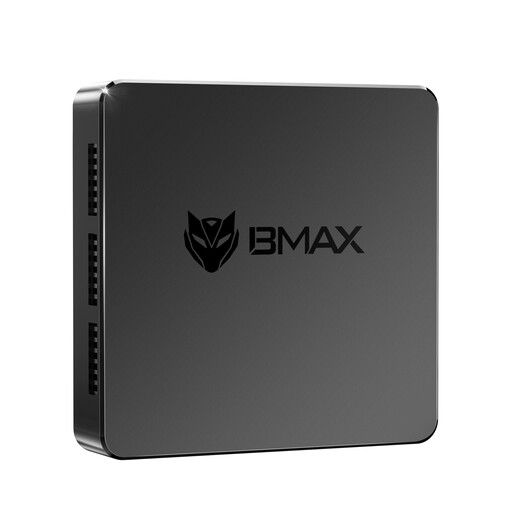
MaxMini B3 Mini PC, Intel N4100, 8 GB LPDDR4, 256 GB SSD
This compact specification is worth considering for a basic workstation. For video editing, carefully check the requirements of the specific software and footage you’ll be using.
The title lists 8 GB LPDDR4 and a 256-GB SSD, as well as two HDMI outputs and Gigabit LAN. The product description says the device is for indoor use only; use the original power supply and keep the ventilation openings clear.
View at Joybuy
 No image available
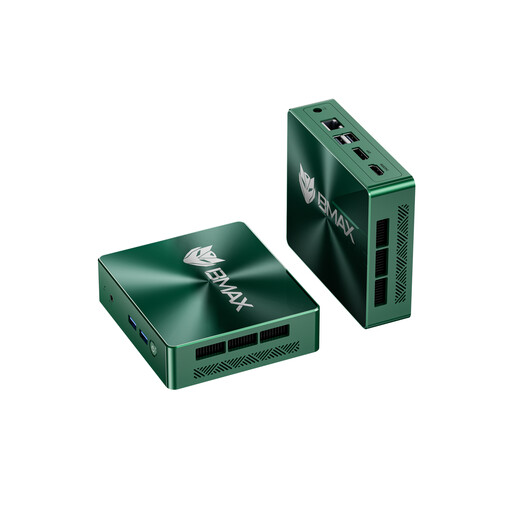
BMAX B6 Mini PC, Intel Core i3-8109U, 12 GB RAM, 256 GB SSD
If you’re looking for a compact computer with connections for two screens and the option to expand its storage, first check whether the existing RAM and SSD capacity are enough for your editing project.
The title lists 12 GB of RAM and a 256-GB SSD. The description mentions two M.2 slots for additional SATA or NVMe drives, as well as HDMI and DisplayPort.
View at Joybuy
 No image available
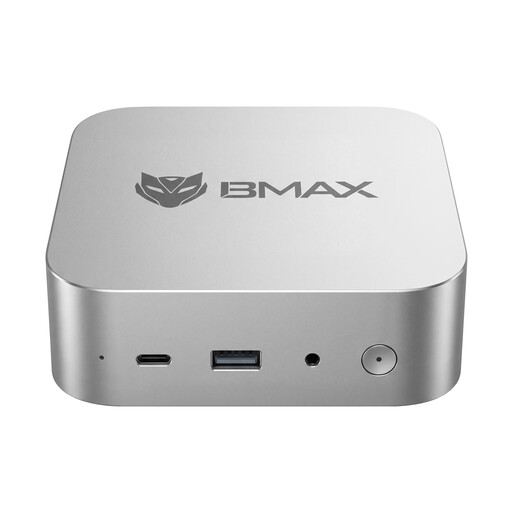
BMAX B7A Plus, AMD Ryzen 5 6600H, 12 GB LPDDR5, 512 GB NVMe SSD
The listed NVMe SSD could be useful for active projects; match its storage capacity and the RAM to your footage and software requirements.
The title lists 12 GB LPDDR5 and a 512-GB NVMe SSD. The description mentions two M.2 expansion slots and recommends using the original power supply and ensuring adequate ventilation.
View at Joybuy
 No image available
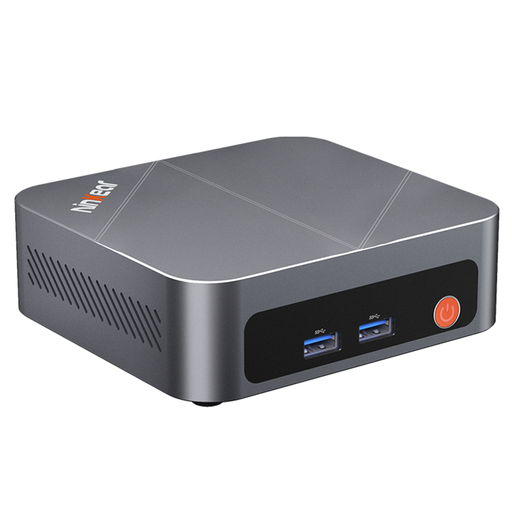
Ninkear M7 Mini PC, Intel Core i7-1185G7, 16 GB DDR4, 512 GB SSD
If club members take turns using the same Windows computer, separate user accounts can keep their personal settings and documents apart. Check at the same time that the storage specification suits your projects.
The title lists 16 GB DDR4 and a 512-GB SSD, as well as support for three displays, Windows 10/11, Wi-Fi 6 and Bluetooth 5.2.
View at Joybuy
Frequently asked questions
Is 16 GB of RAM enough for our anniversary film?
It depends on your footage and editing software. For Adobe Premiere 26.x on Windows, Adobe recommends 16 GB for HD and 32 GB or more for 4K and higher resolutions. This isn’t a general recommendation for every piece of software or for macOS.
How should we organise shared use?
If several members take turns using the same Windows PC, separate user accounts can keep their settings and documents apart. For Premiere Productions across several workstations, Adobe recommends consistent shared paths and a local media cache on each workstation. For projects larger than HD or several users working at the same time, Adobe recommends shared storage with a connection of 10 Gbit/s or faster.
What ongoing costs and maintenance should we budget for?
As well as the computer, factor in editing software and separate backup media. Adobe says that cache files needed later are recreated when required after they’re deleted. Apple also offers Final Cut Pro for Mac as a one-off purchase.
What rights should we check for footage and music in Germany?
When processing footage that includes personal data, the club needs an appropriate legal basis under Art. 6 GDPR. Consent is one possible basis, but not the only one, as the Federal Commissioner for Data Protection and Freedom of Information explains. For protected third-party music in a film production, GEMA says you need to clarify the film production rights with the rights holders. Any further rights needed for a screening or online release depend on how the material is used.


