Choose a mini PC based on the format and resolution of your footage, the editing software you use and the size of your archive – not just the processor name. Allow space for original files and working files, as well as a separate backup. Proxies can make previews easier to work with for suitable footage, but they take extra time and storage space.
Who is a mini PC suitable for?
Family archive keepers
If you want to keep plenty of long original recordings available for editing and protect them from data loss, make sure you allow for storage space and separate backups. The Verbraucherzentrale explains the different ways to back up your data.
Enthusiastic hobbyist editors
If you often review long clips and want a preview that’s easy to work with, consider resolution, file format and proxy support. Adobe describes proxies as lower-resolution copies used for editing.
Switching from older recordings
If you want to transfer footage from older storage media or existing drives, check before buying whether the recordings are already digital and which ports you’ll need. The Verbraucherzentrale offers guidance on backing up analogue and digital collections.
What should you look for when buying?
First, check your editing software’s requirements and the size of your source files. Then plan for storage, ports and a separate backup. For Adobe Premiere on Windows, Adobe recommends 16 GB RAM for HD footage and at least 32 GB for 4K and higher resolutions – these recommendations don’t apply universally to every programme.
| What to consider |
What to check before buying |
Who will find this most important? |
| Archive space and backups |
Estimate the size of your source files and check the SSD capacity, upgrade options and available ports on the specific configuration. |
If I want to keep long original recordings and editing files available locally, I need enough storage and a separate backup. This is the top priority for around 34% of consumers. |
| Preview and editing |
Check that the operating system, memory and graphics meet the requirements of your editing software and the resolution of your footage. Adobe recommends 16 GB RAM for HD and at least 32 GB for 4K and higher resolutions in Premiere on Windows. |
If I want to review and edit long clips regularly, I look at my software’s requirements and make sure the preview will be suitable. Around 33% of consumers put smooth editing first. |
| Transferring older recordings |
Check whether your source footage is already stored as files. Then check the ports for your existing drives and devices, as well as the software’s import options. |
If you want to use older recordings or existing devices, first check whether you’ll also need to digitise anything. Around 20% of consumers put transferring existing footage first. |
| Complete specification |
Check the memory, SSD, operating system and what’s included with the specific configuration. Also consider whether you’ll need extra storage for working files and backups. |
If I want to understand everything I need before buying, I compare what’s included and factor in any necessary extras. Around 13% of consumers place the greatest importance on the complete specification and its ongoing costs. |
Avoid common misconceptions
-
Assuming SSD capacity is a complete archive and backup plan
Originals, editing files and, where applicable, proxies all take up space. A copy on the same drive isn’t a separate backup and won’t protect your archive if that drive fails.
Plan for separate working and backup storage, and check which storage upgrades are supported by the specific configuration.
Remember to factor in extra storage and a separate data backup.
-
Assuming a general mini PC review score proves it can handle 4K editing
Requirements depend on your editing software and the resolution you’re working with. For Adobe Premiere on Windows, Adobe recommends at least 32 GB RAM for 4K and higher resolutions. A general review score doesn’t automatically prove a mini PC is suitable for long video projects.
Compare the full model name and the actual specification of the configuration you’re considering with your software’s requirements.
-
Assuming older recordings are already stored as files
Analogue film and tapes must be digitised before you can edit them. This may require additional equipment or services.
Make an inventory of your source material and check how it needs to be digitised before choosing ports and computer specifications.
Brands to consider
Apple
The Mac mini could be a good fit if your editing software runs on macOS and its media workflow suits your source files.
- According to Apple’s technical specifications, current models support formats including H.264, HEVC and ProRes.
- Since September 2026, Apple has listed Mac mini models with M6 and M5 Pro in Germany. Memory and SSD configurations vary, so check the specific specification against your software’s requirements.
GEEKOM
The AS6 is a documented example of a Windows mini PC with upgradeable storage.
- Depending on the configuration, GEEKOM lists 32 GB DDR5 RAM, a 1-TB SSD, two M.2 slots and a 2.5-inch SATA bay.
- These specifications apply to the AS6 and don’t prove the performance of every configuration or the specification of other models.
Lenovo
The ThinkCentre Tiny range may appeal to buyers who want to check how easy storage components are to maintain.
- Lenovo describes the ThinkCentre M75q Gen 5 as offering tool-free access to the SSD and memory modules.
- Lenovo lists 24 GB RAM for one configuration in Germany. Before buying, check the SSD specification of the exact configuration and make sure the memory meets your software’s requirements.
GMKtec
The NucBox M6 Ultra is a model that can be compared with other compact mini PCs based on its specific specification.
- Check the configuration of the specific offer. The model name and product range alone don’t tell you how much storage is available.
Joybuy products for family videos
These mini PCs come with different stated storage capacities and port options. Compare them with your editing software’s requirements and make sure you allow enough space for originals, working files and backups.
 No image available
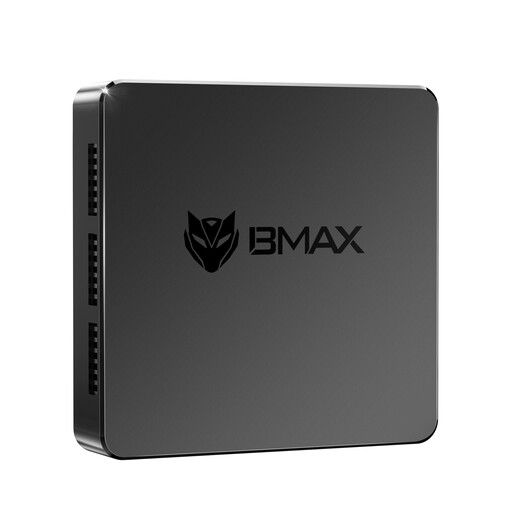
MaxMini B3 Mini PC
For projects stored locally, the stated SSD capacity is 256 GB. Check whether that’s enough for your archive and working files.
Intel N4100, 8 GB LPDDR4, 256 GB SSD, two HDMI ports.
For Adobe Premiere on Windows, Adobe recommends 16 GB RAM for HD. Compare the stated specification with your editing software’s requirements.
View at Joybuy
 No image available
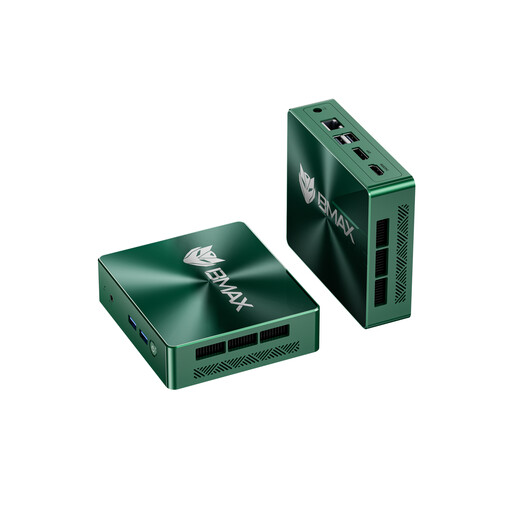
BMAX B6 Mini PC
If you’re planning to add internal storage, check the stated M.2 slots and which type of drive is compatible.
Intel Core i3-8109U, 12 GB RAM, 256 GB SSD; HDMI and DisplayPort. The product description lists two M.2 slots.
For Premiere on Windows, Adobe recommends 16 GB RAM for HD and at least 32 GB for 4K and higher resolutions.
View at Joybuy
 No image available
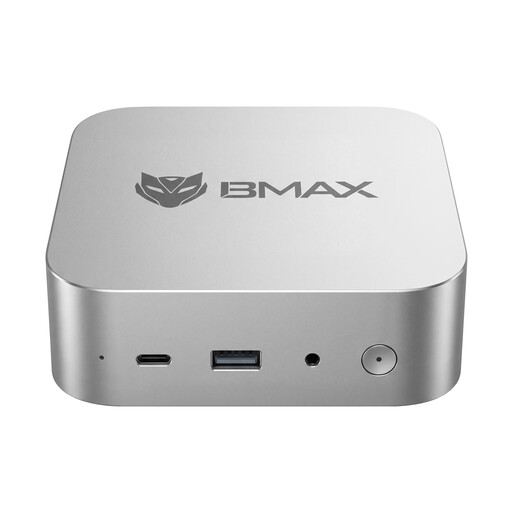
BMAX B7A Plus Mini PC
The stated 512 GB NVMe SSD provides local storage. Check whether it’s enough for your originals, working files and projects.
AMD Ryzen 5 6600H, 12 GB LPDDR5, 512 GB NVMe SSD. The product description lists two M.2 slots.
For Adobe Premiere on Windows, Adobe recommends at least 32 GB RAM for 4K and higher resolutions. Check that the specific configuration meets your project’s requirements.
View at Joybuy
 No image available
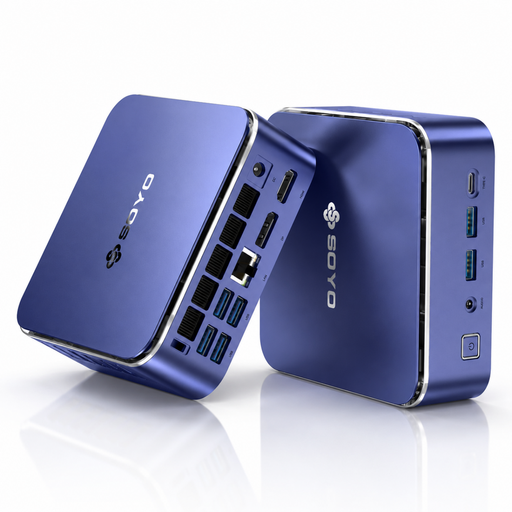
SOYO S5Air Mini PC
The stated specification includes 16 GB RAM and a 512 GB NVMe SSD. Compare both with your editing software and the storage space your archive needs.
AMD Ryzen 5 7535HS, Radeon 660M, 16 GB RAM, 512 GB NVMe SSD. Video outputs listed include HDMI, DisplayPort and USB-C.
For Adobe Premiere on Windows, Adobe recommends at least 32 GB RAM for 4K and higher resolutions.
View at Joybuy
 No image available
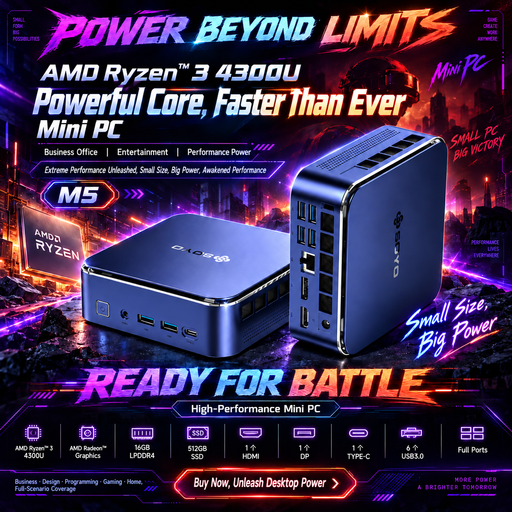
SOYO M5 Mini PC
The stated specification includes 16 GB RAM and a 512 GB SSD for locally stored recordings and projects. Check your software’s requirements.
AMD Ryzen 4300U, 16 GB LPDDR4, 512 GB SSD. Video outputs listed include HDMI, DisplayPort and USB-C.
For Adobe Premiere on Windows, Adobe recommends at least 32 GB RAM for 4K and higher resolutions.
View at Joybuy
Frequently asked questions
Do I always need a particularly powerful mini PC for long recordings?
Not necessarily. Factors such as resolution, file types and editing software all play a part. Adobe describes proxies as lower-resolution editing copies that can help with resource-intensive footage. Check whether your software supports a proxy workflow, and keep the original files for the final export.
How should I back up my family archive?
Keep your original files and editing project organised, and make sure you have a separate backup. The Verbraucherzentrale explains the 3-2-1 backup strategy. An extra working SSD on its own doesn’t count as a backup.
What should I know about warranties and returns when buying a mini PC online?
In Germany, your statutory rights against the seller and a voluntary guarantee are two different things. According to the Verbraucherzentrale, online orders generally come with a 14-day withdrawal period from the date you receive the goods. Also check the warranty terms and returns information for the specific offer.
Can I put an old mini PC in the household bin?
No. Section 10 of the ElektroG requires old electrical equipment to be collected separately from unsorted household waste. The Umweltbundesamt lists local recycling centres as a return option. Back up and remove any personal archive data before handing in the device.


