For a shared editing station, your mini PC should match the resolution of your footage and the editing software you use. The specific configuration matters more than a 4K display output alone. For Premiere on Windows, Adobe recommends 16 GB RAM for HD and at least 32 GB for 4K. You’ll also need enough storage, the right ports and an organised filing system with regular backups.
Who the editing station is for
Families with 4K footage
If you want to edit a large amount of footage or high-resolution material, compare the requirements of your specific editing software with the specifications of the device you’re considering. For Premiere on Windows, Adobe recommends at least 32 GB RAM for 4K footage.
Families sharing an editing station
If several people take turns using the same computer, separate user accounts and a clear system for storing projects can make things easier. Microsoft Support explains that different Windows accounts have their own files and settings, while the BSI recommends regular data backups.
Families with lots of camera files
If you’re transferring media from your existing devices and editing on your current screens, check that the specific device has the ports you need for your memory cards, drives and monitors. ASUS, Apple and GEEKOM list different connection options across their product ranges.
What to consider when buying
Start by checking your footage and editing software. You can then assess your storage needs, available ports and how well the computer will work for several family members.
| Buying priority |
What to check before buying |
Who it matters most to |
| Editing performance for your planned resolution |
Compare your footage’s resolution and codec, along with the RAM and graphics specifications of the exact configuration, against your software’s requirements. |
If we edit HD and 4K footage, the computer needs to suit the software we use, not just output a 4K image. Around 33% of consumers put editing performance first. |
| Shared storage and backups |
Plan for separate user accounts, a clear place to store projects and regular backups kept independently of your working drive. |
If several family members need to find their projects on the same computer and protect their originals, storage and backups are essential. Around 27% of consumers prioritise this. |
| Ports for media and monitors |
Check the ports on the specific model, as well as the connectors and inputs on your existing card readers, drives and screens. |
If you want to connect camera files, external drives and existing monitors, you’ll need the right ports rather than unnecessary adapters. Around 20% of consumers pay particular attention to transferring media and connectivity. |
| Upgrades and overall cost |
Check the RAM and SSD configuration of the version you’re choosing, any documented upgrade options and whether you’ll need external drives. |
If I want to match the specifications to the size of my projects and avoid storage or installation issues later, the exact configuration matters. Around 20% of consumers prioritise upgrade options and overall cost. |
Common buying decisions and their consequences
-
Assuming a 4K output means the PC can edit 4K footage well
A display output doesn’t tell you whether the RAM and graphics meet your editing software’s requirements.
First, identify your footage and software. Then compare their requirements with the specifications of the exact device configuration.
-
Keeping projects only on the internal SSD
A drive failure or accidental deletion could put family footage at risk too.
Back up your originals and projects regularly to a separate drive, and check that you can restore the files.
-
Confusing a product range’s specifications with those of the version on sale
RAM, SSD, processor and ports can vary within a product range.
Before ordering, check that the specifications of the version you’ve chosen meet your software, storage and peripheral requirements.
Key brands to consider
Apple
The Mac mini is a compact platform for an editing station running macOS.
- Apple lists a media engine for H.264, HEVC and ProRes in the M6 range, along with Thunderbolt and HDMI.
- RAM and SSD specifications depend on the configuration you order. The manufacturer’s specifications don’t provide a comparative editing speed test.
ASUS
The NUC 15 Pro is a Windows-focused mini PC platform, with ports and upgrade options to consider when choosing a configuration.
- ASUS lists two HDMI outputs, Thunderbolt 4 and options for DDR5 and NVMe storage.
- Possible specifications and upgrade options aren’t automatically included with every pre-configured device.
GEEKOM
The A8 Max is a Windows mini PC available in different configurations for projects of varying sizes.
- The German manufacturer’s shop lists versions with a Ryzen 7 and 16 GB, or a Ryzen 9 and 32 GB. It also lists non-soldered RAM and an SD card reader.
- The actual specifications depend on the version you choose. The manufacturer’s claims about quiet operation over long periods aren’t an independent editing test.
Lenovo
The ThinkCentre M75q Gen 5 Tiny is for buyers looking for a compact Windows computer with a choice of business specifications.
- Lenovo’s German product page shows different processor, RAM, SSD and service configurations.
- Some of the versions shown have 16 GB RAM. Specifications for a product range don’t confirm that every version meets the requirements of a particular editing programme.
Joybuy products
This selection features compact Windows mini PCs for a shared editing station. Check the RAM and storage specifications of each version against your footage and editing software.
 No image available
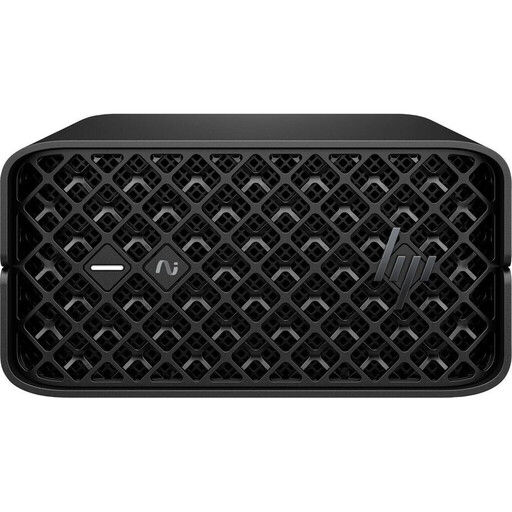
HP Z2 Mini G1a, Ryzen AI Max+ Pro 395, 128 GB RAM, 2 TB SSD
For larger projects, the listed RAM and SSD specifications may help you narrow down your options. Suitability still depends on your editing software and footage.
Specifications include 128 GB RAM, a 2 TB SSD, Thunderbolt 4, Mini DisplayPort and Windows 11 Pro.
View at Joybuy
 No image available
SOYO Y5Pro, Intel Core i5 8250U/8350U, 8 GB DDR4, 256 GB SSD
Compare the listed specifications with the requirements of the software you plan to use. For larger editing projects, pay particular attention to the RAM.
Specifications include 8 GB DDR4, a 256 GB SSD, HDMI outputs, Type-C and Windows 11. For Premiere on Windows, Adobe recommends 16 GB RAM for HD and at least 32 GB for 4K.
View at Joybuy
 No image available
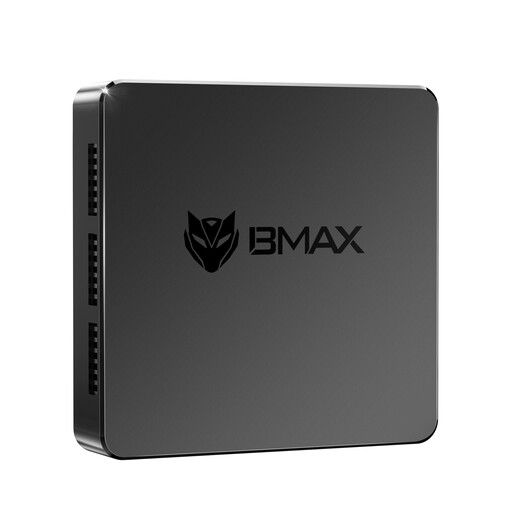
MaxMini B3, Intel N4100, 8 GB LPDDR4, 256 GB SSD
If two HDMI ports suit your existing setup, they may be useful when choosing a PC for multiple screens. Also check that it meets the requirements of your editing software.
Specifications include 8 GB LPDDR4, a 256 GB SSD and two HDMI ports. For Premiere on Windows, Adobe recommends 16 GB RAM for HD and at least 32 GB for 4K.
View at Joybuy
 No image available
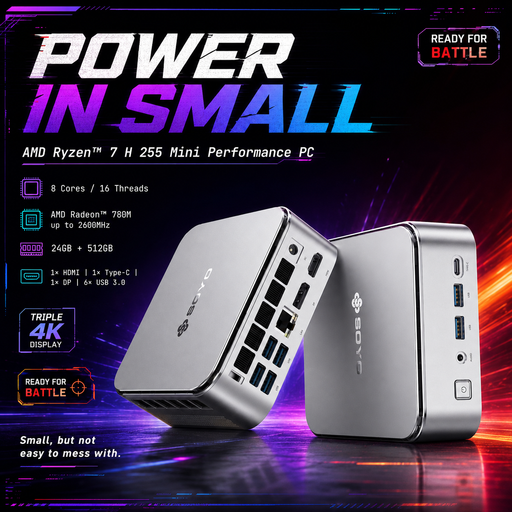
SOYO S4PLUS, Ryzen 7 H 255, 24 GB LPDDR5, 512 GB SSD
The selection of ports may suit a workstation with multiple screens. Check that the exact specifications and RAM meet your software’s requirements.
Specifications include 24 GB LPDDR5, a 512 GB SSD, HDMI, DisplayPort, Type-C and Windows 11. For Premiere on Windows, Adobe recommends at least 32 GB RAM for 4K.
View at Joybuy
 No image available
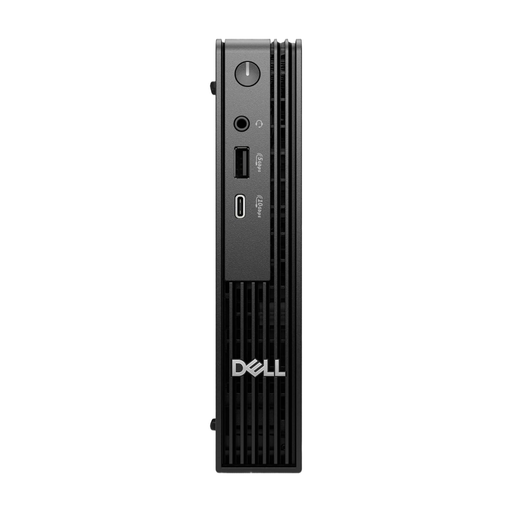
Dell Pro Micro QCM1250 MJ5TK TPM, i7-14700T, 16 GB DDR5, 512 GB NVMe SSD
The listed specifications may be worth considering for HD projects. For 4K, be sure to compare them with your software’s requirements.
Specifications include 16 GB DDR5, a 512 GB NVMe SSD, Intel UHD 770 and Windows 11 Pro. For Premiere on Windows, Adobe recommends at least 32 GB RAM for 4K.
View at Joybuy
Frequently asked questions
How much RAM does a mini PC need for Premiere and family videos?
For Premiere on Windows, Adobe recommends 16 GB RAM for HD and at least 32 GB for 4K and higher resolutions. Also check the requirements for the specific version of the software you use and the specifications of the device you’re considering.
How can you organise a Windows editing station for several people?
Set up separate Windows user accounts so different people can have their own files and settings. Decide where shared projects will be saved and how you’ll coordinate changes too. Separate accounts alone won’t manage simultaneous editing.
Does a large internal SSD count as a backup?
No. An internal working SSD isn’t a substitute for an independent backup. The German Federal Office for Information Security recommends regular backups. Set up a separate backup method and check that you can restore your files.
Which ports should I check for camera files and monitors?
Compare the ports on the exact device configuration with the connectors on your memory cards, drives and screens. Manufacturers list different ports depending on the model, so the product range alone doesn’t confirm that a particular version will work with your existing equipment.


