Start by choosing a mini PC that’s compatible with your editing software and the resolution and codecs of your footage. You’ll also need separate storage for backups. A Mac mini may suit workflows using compatible macOS software and supported codecs, while a Windows mini PC may be a better fit for Windows software and, depending on the model, offer different ports or configuration options. For Premiere, Adobe recommends 16 GB of RAM for HD media and 32 GB or more for 4K. A 4K output alone doesn’t mean a PC is suitably configured for editing.
Which approach is right for you?
Local history team with a large film archive
If you need to review, find and preserve lots of original footage over the long term, make room for both working files and backups in your buying decision. The Federal Office for Information Security recommends backing up your data regularly.
Editing team committed to particular software
If you already use a specific editing application, its operating system, RAM and file codecs must all suit your workflow. Check the software requirements and the device manufacturer’s information on supported codecs.
Team working on demanding 4K films
With high-resolution footage or complex timelines, it’s the exact configuration that matters, not just the advertised display output. Adobe recommends at least 32 GB of RAM for 4K and higher resolutions in Premiere.
What should you look for when buying?
First, confirm your editing software, file codecs and target resolution. Then plan for working and backup storage, along with the ports you’ll need for your film project.
| What matters |
What to check before buying |
Who should pay particular attention? |
| Archive and backup storage |
Check the size of your project, the space available on the internal SSD, and the connections for media drives and separate backups. |
If I need to keep long original recordings, I’ll plan for working storage and separate backups from the outset; around 36% of consumers also prioritise archive and storage space. |
| Software and codecs |
Check that the operating system and software version are compatible with the codecs in your actual source files. |
If you rely on specific editing software, make sure the operating system and source files are compatible with it; around 29% of consumers also prioritise this software and codec compatibility. |
| 4K and complex timelines |
Confirm your target resolution and software requirements, then check the RAM and the exact processor and graphics configuration of the model. |
If I edit 4K footage or complex timelines, I want to assess the specification, not just the display output; around 21% of consumers also focus on extra performance headroom for these projects. |
| Ports and setup |
Check the ports you need, the operating system, and the RAM and SSD actually included in the version on offer. |
If you want to get started without a complicated upgrade, look for the right ports and included components; around 14% of consumers also prioritise a mini PC that’s ready to use at their workstation. |
Common buying mistakes
-
Treating a large working SSD as both an archive and your only backup
If a drive fails, irreplaceable original footage could be lost. Keeping a separate backup helps protect you if your working drive fails.
Plan your working storage and separate backup together, and make regular copies that you can test restoring.
Remember to factor in an additional backup drive and the time needed to make and check regular copies.
-
Assuming “4K-ready” means it’s configured for 4K editing
4K display output doesn’t tell you how well a PC will handle editing or exporting a timeline. Adobe recommends 32 GB of RAM or more for 4K and higher resolutions in Premiere.
Choose your software and target resolution, then check the exact RAM and SSD configuration. For large or demanding files, Adobe also describes a proxy workflow that uses lower-resolution editing copies.
Depending on your footage, extra components and proxy files may take up more storage. Creating them also takes time.
-
Assuming specifications for a model range apply to every listing
Memory technology and potential specifications vary by processor version of the ASUS NUC 16 Pro. Lenovo notes that certain ports are available only on selected models.
Check the operating system, RAM, SSD and ports you need for the exact model on offer.
A kit may need additional components or adapters before it’s ready to use.
A guide to the key brands
Apple
Mac mini with M6 or M5 Pro for macOS workflows and compatible editing software.
- Apple lists a media engine for H.264, HEVC, ProRes and ProRes RAW. Check that it supports the formats of your source files.
- RAM and SSD options vary by configuration, so these specifications alone don’t tell you how quickly it will edit your particular project.
GEEKOM
The IT13 Max is a preconfigured Windows mini PC with a card reader and ports for external media.
- GEEKOM lists a 512 GB SSD, two USB4 ports and Windows 11 Pro for the 24 GB version.
- The RAM in this version is soldered and falls short of Adobe’s recommendation of 32 GB or more for 4K in Premiere.
ASUS
The NUC 16 Pro comes in different configurations and may appeal to buyers considering a kit or a mini PC with varying specifications.
- ASUS lists different memory technologies and potential capacities depending on the processor version.
- Specifications for a model range don’t automatically confirm what’s included or upgradeable in a particular listing.
Lenovo
The ThinkCentre M90q Gen 6 is a compact Windows option where the exact business configuration matters.
- Lenovo’s product specifications detail the processor family and available ports.
- According to Lenovo, some ports are available only on selected models. Check the exact version rather than assuming the specifications are the same across the range.
Joybuy products for Windows workflows
The Joybuy products below include Windows mini PCs and compact Windows systems. Match the exact specifications to your editing software, source files and planned storage needs.
 No image available
SOYO Y5Pro, Intel Core i5-8250U/8350U, 8 GB DDR4, 256 GB SATA SSD
If your editing workflow requires Windows, check the software requirements and available storage before buying.
The product details list Windows 11, 8 GB DDR4 and a 256 GB SATA SSD, along with HDMI, USB-C and four USB ports. Adobe recommends 16 GB of RAM for HD media and 32 GB or more for 4K in Premiere; the right configuration depends on your software and resolution.
View at Joybuy
 No image available
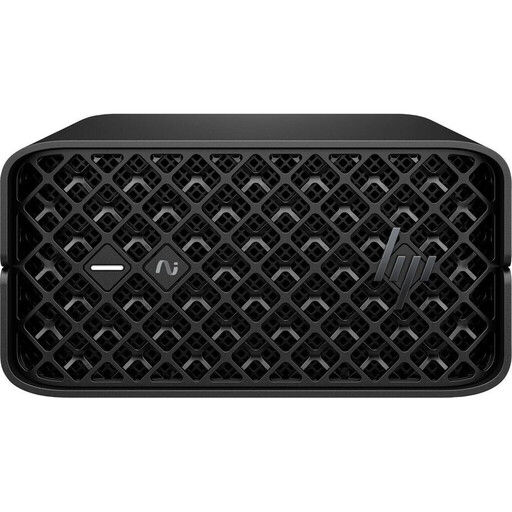
HP Z2 Mini G1a, Ryzen AI Max+ Pro 395, 128 GB RAM, 2 TB SSD
If you want to store project files locally, check that the listed SSD capacity will suit your archive and workflow.
The product description lists Windows 11 Pro, 128 GB RAM and a 2 TB SSD. Check that the exact configuration meets the requirements of your editing software.
View at Joybuy
 No image available
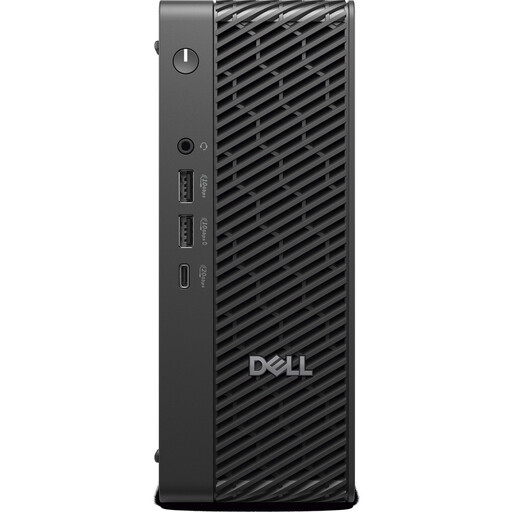
Dell Pro Max Micro FCM2250 TPM, Core Ultra 7, 16 GB DDR5, 512 GB SSD
For a Windows workflow, check the RAM and SSD specifications against your software, footage and project files.
The product description lists Windows 11 Pro, 16 GB DDR5 at 6400 MHz and a 512 GB M.2 PCIe SSD. Ports include Gigabit LAN, HDMI and DisplayPort.
View at Joybuy
 No image available
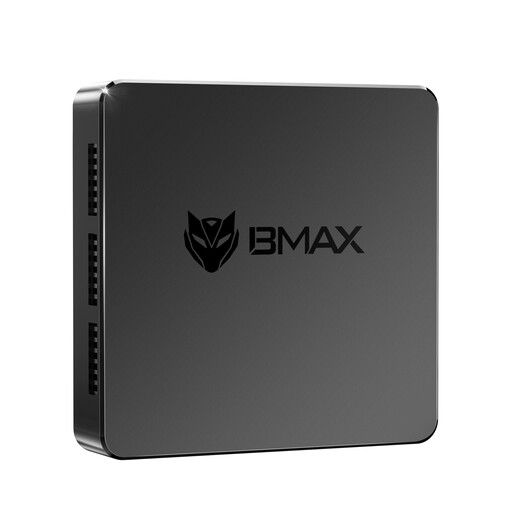
MaxMini B3, Intel N4100, 256 GB SSD
If you’re working with lots of source files, check the exact storage specifications and compatibility with your editing software before buying.
The product details list a 256 GB SSD, HDMI, DisplayPort, 1000M LAN, 2.4 and 5 GHz Wi-Fi, and Bluetooth 5.0. The RAM specifications vary, so check the exact version on offer before choosing.
View at Joybuy
 No image available
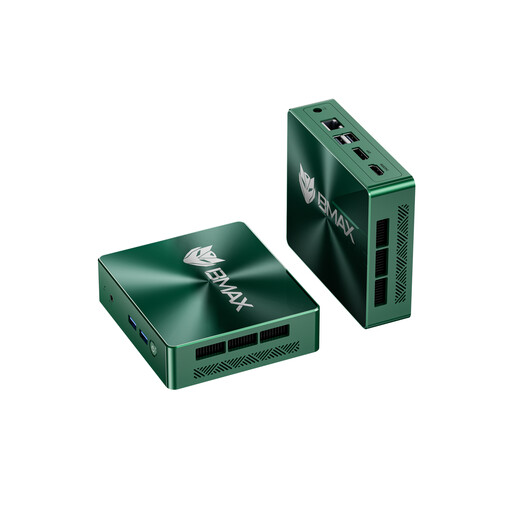
BMAX B6, Intel Core i3-8109U, 12 GB RAM, 256 GB SSD
For long film projects, check that the stated internal storage is sufficient and consider which external drives you’ll want to connect.
The product details list speeds of up to 3.6 GHz, 12 GB RAM and a 256 GB SSD, along with two M.2 slots, HDMI and DisplayPort. Check the operating system and exact configuration of the model on offer before assuming it’s compatible with your software.
View at Joybuy
Frequently asked questions
Do I definitely need 32 GB of RAM for long recordings?
Not simply because the recordings are long. Adobe recommends 16 GB of RAM for HD media and 32 GB or more for 4K and higher resolutions in Premiere. Also check the requirements of your editing software and footage.
What can I do if large original files are difficult to edit?
If you use Premiere, proxy files may help: they’re lower-resolution copies used for editing. Adobe describes this workflow for large or demanding files. Keep your originals and allow extra storage space for the copies.
How can I back up unique historical footage?
Make regular backup copies on storage separate from your working drive. The Federal Office for Information Security lists external hard drives as one option. Also check that you can restore the files. Your working SSD alone isn’t a backup.
What are my rights if a mini PC bought online is faulty?
Your statutory rights against the seller for faulty goods are separate from any voluntary guarantee. The Verbraucherzentrale (German Consumer Advice Centre) explains that new goods are generally covered by a two-year statutory warranty. Online purchases are also generally subject to a separate 14-day right of withdrawal. Check the conditions and when the relevant time limits start for your purchase.
Can I simply publish historical film footage and images of identifiable people?
Not necessarily. Before publishing, check the source and usage rights for the footage, as well as the rights of any identifiable people shown. The German Federal Archives makes use of its audiovisual material subject to the purpose approved in each case. Under § 22 KunstUrhG, images may generally be distributed or displayed publicly only with the subject’s consent; § 23 sets out exceptions and limits. Buying a PC doesn’t grant you any usage rights.


