Multi-track 4K editors
If you’re combining several high-resolution camera angles, match the specifications to your editing software and project requirements. Adobe recommends 32 GB of RAM or more for Premiere at 4K or higher.


Choose your mini PC based on your editing software, source format and project resolution – the number of video tracks alone tells you very little about how much RAM you’ll need. For Premiere, Adobe recommends 16 GB of RAM for HD and 32 GB or more for 4K or higher, but this doesn’t guarantee smooth playback for every timeline. An upgradeable Windows PC and a Mac mini differ in how their RAM and storage can be configured.
If you’re combining several high-resolution camera angles, match the specifications to your editing software and project requirements. Adobe recommends 32 GB of RAM or more for Premiere at 4K or higher.
If you mainly edit HD footage, compare your software’s requirements with the specifications and check whether a proxy workflow would suit your footage. Adobe recommends 16 GB of RAM for Premiere at HD.
If you’re planning to add more RAM or storage for larger projects later, compare the upgrade options for the exact model variant. GEEKOM says the A8 Max has non-soldered RAM, while Lenovo describes tool-free access to the SSD and memory modules in the ThinkCentre M75q Gen 5.
Start by checking your editing software, source footage and project resolution. Then you can compare RAM, media handling and storage more effectively. Adobe recommends 16 GB of RAM for Premiere at HD and 32 GB or more at 4K or higher.
| Consideration | What to check before buying | Who should pay particular attention? |
|---|---|---|
| Preview playback and RAM | Check the editing software, project resolution and RAM of the exact model variant; for Premiere, distinguish between HD and 4K or higher. | If I’m editing several high-resolution model railway angles at once, I pay particular attention to RAM and preview playback. Around 36% of consumers prioritise multi-track preview playback and RAM. |
| Effects and video formats | Check the codecs used for your footage, the effects you use and your software requirements; don’t treat media acceleration as a performance test of your own timeline. | If I use certain effects or demanding source formats, I want to check that my PC and editing software are a good match. Around 29% of consumers focus on effects and video formats. |
| Project and working files | Allow for storage space for originals and working copies, as well as connections for drives, card readers and monitors. | If I need to keep original footage, projects and additional working files, I factor in storage and suitable connections. Around 21% of consumers prioritise file storage and connections. |
| Upgrade options and complete setup | Check whether RAM, an SSD and an operating system are included in the specific offer, and what can be upgraded. | If I want to upgrade my editing setup later, I compare the actual specifications and the effort involved in adding components. Around 14% of consumers focus mainly on upgrade options and the total cost of a complete setup. |
A display connection doesn’t tell you how a particular combination of editing software, codec and multiple tracks will play back. Adobe’s Premiere recommendations distinguish between HD and 4K or higher.
Compare the exact specifications with your software requirements and the format of your footage.
According to ASUS, the ASUS NUC 14 Pro+ is available as a kit without a pre-installed operating system or included storage.
Check exactly what’s included in the specific version on offer and what you’ll need to add.
Depending on the kit, you may also need to budget for RAM, an SSD and an operating system.
Premiere creates its own proxy files for compatible video clips. These take up additional storage space, and proxy creation isn’t suitable for every file type or video clip.
Plan for your original footage, working copies and projects together before choosing an SSD capacity and external drives.
The NUC 14 Pro+ could suit buyers looking to choose a Windows system or kit based on its exact specifications.
The Mac mini could be a good fit if your editing software and existing devices are compatible with macOS, and its supported media formats meet your needs.
The A8 Max is one Windows option for buyers who want to choose a specific RAM configuration and compare upgrade options.
The ThinkCentre M75q Gen 5 Tiny could be a good choice if easy access to memory components and the service terms for the specific configuration matter to you.
This selection features Windows mini PCs with 24 GB of RAM. That’s above Adobe’s 16 GB recommendation for Premiere at HD, but below its recommendation of 32 GB or more at 4K or higher.
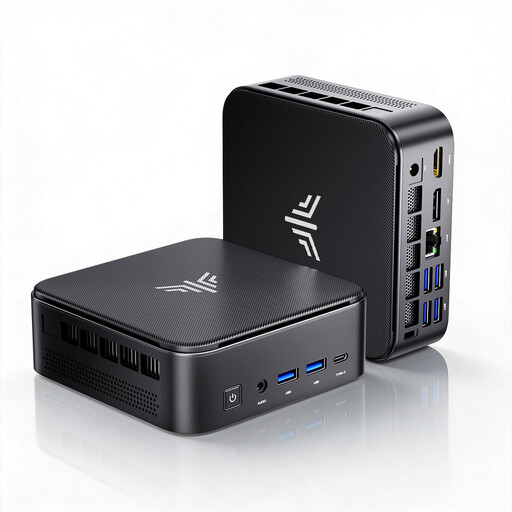 No image available
For a Premiere HD project, 24 GB of RAM is above Adobe’s recommendation; for 4K or higher, it’s below.
Listed specifications include 24 GB of LPDDR5, a 512 GB NVMe SSD and two M.2-2280 slots. The SSD is stated to be upgradeable to 4 TB.
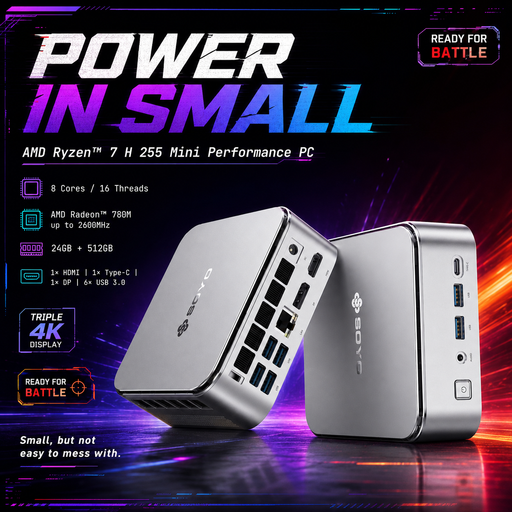 No image available
For Premiere HD projects, 24 GB of RAM is above Adobe’s recommendation; for 4K or higher, it’s below.
The product name lists 24 GB of LPDDR5 RAM, a 512 GB PCIe 3.0 SSD and Radeon 780M graphics. HDMI, DisplayPort and USB-C are listed as video outputs.
 No image available
For Premiere HD projects, 24 GB of RAM is above Adobe’s recommendation; for 4K or higher, it’s below.
Listed specifications include 24 GB of LPDDR5 RAM, a 512 GB PCIe 4.0 SSD and Radeon 760M graphics. HDMI and USB 4.0 are listed as ports.
No. The number of tracks alone isn’t a reliable guide to how much RAM you need. Adobe recommends 16 GB for Premiere at HD and 32 GB or more at 4K or higher; your software and project also matter.
In Premiere, you can create lower-resolution proxies for compatible video clips and choose where to store them. Allow for the extra space and check that your file types are compatible; Adobe says proxy creation doesn’t work with every clip.
Not necessarily: ASUS lists a kit without a pre-installed operating system or included storage. Check the exact version and which components you’ll need to add before comparing the complete specifications.
According to consumer information from the European Union, when you buy as a consumer in the EU, you have at least two years of statutory protection from the date you receive the goods, with the seller responsible. This is separate from any additional manufacturer’s guarantee.