When reviewing and editing long model railway recordings, start by allowing space for the originals, projects and, where appropriate, proxies. Then choose memory and graphics to suit your resolution, software and effects. For Premiere, Adobe recommends 32 GB of RAM or more for 4K and higher, while other resolutions and programmes may have different requirements. Also check the actual specification and ports of the specific Mini PC configuration.
Which approach is right for you?
If you review long original clips
If you import and search through lots of long source files, allow storage for media and cache, and make sure you have suitable connections for your drives. Adobe recommends planning separate storage for the application, cache and media in Premiere.
If you edit model railway videos in 4K
Match the memory and graphics to your resolution and editing software. For Premiere at 4K and higher, Adobe recommends 32 GB of RAM or more; a proxy workflow may also be an option for demanding footage.
If you want a ready-to-use computer
Compare the operating system, the RAM and SSD actually fitted, and what’s included in the box. A kit may need additional components or set-up.
What should you look for when buying?
Upgradeable Windows Mini PC
A good fit if: you use Windows editing software and want to upgrade storage or memory later.
Consider: A kit or upgradeable model doesn’t tell you which components are already installed.
Mac mini with macOS
A good fit if: your editing software and existing devices are compatible with macOS, and you prefer a compact platform.
Consider: Check the RAM and SSD configuration you’ve chosen, along with the ports. Apple unveiled Mac mini models with M6 and M5 Pro on 25 August 2026.
Compact workstation
A good fit if: you regularly tackle demanding graphics or rendering tasks as well as video editing.
Consider: The workstation label alone doesn’t guarantee a particular speed advantage for your model railway recordings.
| Buying priority |
What to check |
Who is it important to? |
| Storage for long recordings |
Check the fitted SSD capacity and allow space for originals, projects and cache. Make sure the drive connections are compatible with your existing storage devices. |
If I search through lots of long original clips locally, I want to allow space for media and cache. Storage is the main buying priority for around 36% of consumers. |
| Smooth reviewing and editing |
Check your codec, resolution and editing software. See whether your software supports a proxy workflow and how much storage it needs. |
If a responsive timeline is a priority when reviewing and editing, consider your footage and workflow together. This is the main priority for around 29% of consumers. |
| 4K, effects and exporting |
For Premiere at 4K and higher, Adobe recommends 32 GB of RAM or more. Also check the graphics recommendations for your operating system and projects. |
If I edit in 4K or use demanding effects, I check the specification against my software rather than focusing on the processor name alone. Around 21% of consumers prioritise this extra headroom. |
| System and what’s included |
Check the operating system, fitted RAM, SSD and ports of the specific model. Make sure you know whether you’re buying a fully configured computer or a kit. |
If you want to get started without extra set-up, check the operating system and the components actually included. Easy set-up is the main priority for around 14% of consumers. |
Common buying misconceptions
-
Confusing maximum RAM with the fitted specification
A figure for maximum upgrade capacity doesn’t tell you how much memory the specific model already has. GEEKOM’s German website lists different memory configurations for the R7-8745HS and R9-8945HS versions of the A8 Max.
Check the exact model and fitted RAM. If you use Premiere for 4K, compare it with Adobe’s recommendation of 32 GB or more.
-
Allowing space only for the system SSD
Long original files, projects, cache and, where needed, proxy files also take up space. Adobe recommends an additional fast media drive for Premiere.
Before buying, decide which files you’ll keep internally and which will go on an additional drive, then check that you have the connections you need.
-
Assuming an older Mac mini model list is up to date
A COMPUTER BILD test list dated 23 August 2026 doesn’t automatically cover the models Apple unveiled two days later with M6 and M5 Pro.
Compare the model generation, RAM, SSD and ports of the specific configuration you’re considering.
Key brands at a glance
GEEKOM
The A8 Max is a range of Windows Mini PCs with different AMD processors and memory configurations.
- GEEKOM’s German website lists 16 GB of RAM and a 1 TB SSD for the R7-8745HS version, and 32 GB of RAM and a 1 TB SSD for the R9-8945HS version.
- Check the specification of the exact model. Advertised upgradeability doesn’t tell you what’s already fitted or how quickly it will edit your footage.
ASUS
The NUC 14 Pro is aimed at buyers who want to distinguish between a pre-configured computer and a kit to configure themselves.
- ASUS offers NUC 14 Pro versions with different processors and memory configurations.
- The operating system and storage included can vary by model. Check the exact configuration on offer.
Apple
The current Mac mini is an option if your editing software and connected devices are compatible with macOS.
- Apple lists hardware-accelerated media formats and a range of RAM and SSD capacities for different configurations.
- Check that the supported formats and storage options suit your source files and workflow. Apple unveiled models with M6 and M5 Pro on 25 August 2026.
HP
The Z2 Mini G1a is a compact workstation range for workflows that may extend beyond video editing.
- HP’s German product page lists Windows 11 Pro, 32 GB of RAM and a 1 TB SSD for the A40MXET#ABD version.
- The manufacturer’s workstation specification doesn’t prove an independently measured speed advantage for model railway videos.
GMKtec
The EVO-X2 is a Mini PC option with a configuration designed for high specifications.
- PC-WELT describes the EVO-X2 as having a Ryzen AI Max+ 395 and 128 GB of RAM.
- PC-WELT notes that upgrading can be difficult. This specification alone doesn’t tell you how the computer will handle your particular source files.
Mini PCs at Joybuy
The compact Windows PCs below offer different RAM and SSD configurations for video editing. What matters is whether the specification suits your resolution, editing software and storage needs.
 No image available
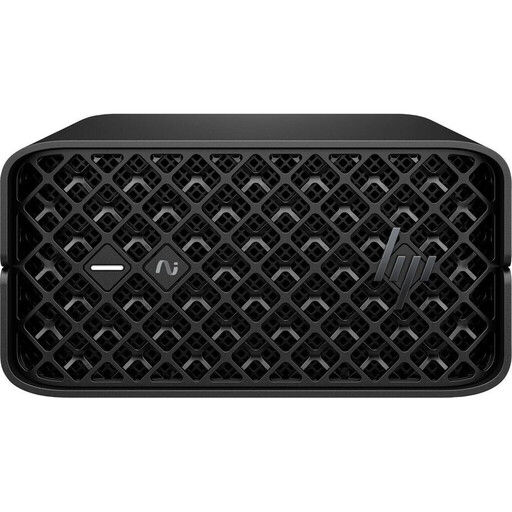
HP Z2 Mini G1a, Ryzen AI Max+ PRO 395, 128 GB RAM, 2 TB SSD
This specification may suit projects where you want to keep a lot of footage stored locally. Capacity alone doesn’t guarantee a particular editing or export speed.
128 GB RAM; 2 TB SSD.
View at Joybuy
 No image available
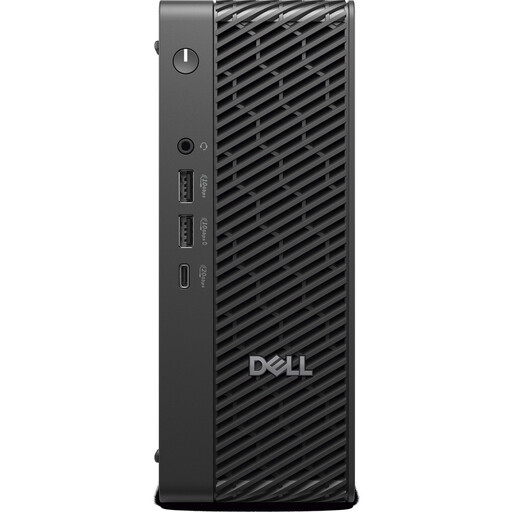
Dell Pro Max MFF Ultra 7, 32 GB RAM, 1 TB SSD
If you use Premiere for 4K and higher, you can compare the listed 32 GB of RAM with Adobe’s recommendation of 32 GB or more.
32 GB RAM; 1 TB SSD.
View at Joybuy
No image available
Dell Pro Max Micro FCM2250 TPM, Core Ultra 7, 16 GB DDR5, 512 GB SSD
The listed 16 GB of RAM matches Adobe’s recommendation for Premiere with HD footage. For Premiere at 4K and higher, Adobe recommends 32 GB or more.
16 GB DDR5 at 6400 MHz; 512 GB M.2 PCIe SSD; Intel Graphics; Windows 11 Pro.
View at Joybuy
 No image available
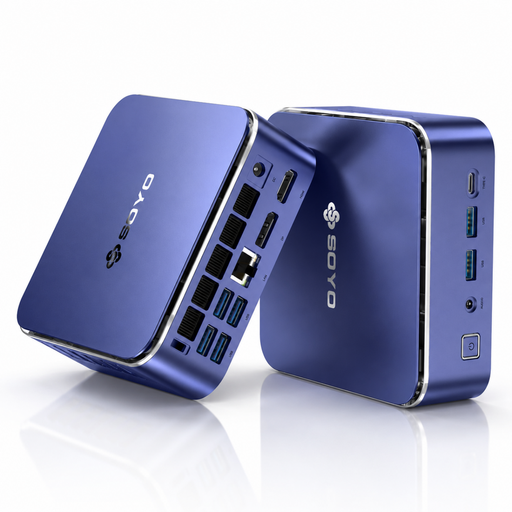
SOYO S5Air, Ryzen 5 7535HS, 16 GB RAM, 512 GB SSD
This model may be worth considering for Premiere with HD footage. For 4K and higher, its 16 GB of RAM is below Adobe’s recommendation of 32 GB or more.
Ryzen 5 7535HS; 16 GB LPDDR5; 512 GB NVMe SSD; Windows 11 Pro.
View at Joybuy
 No image available
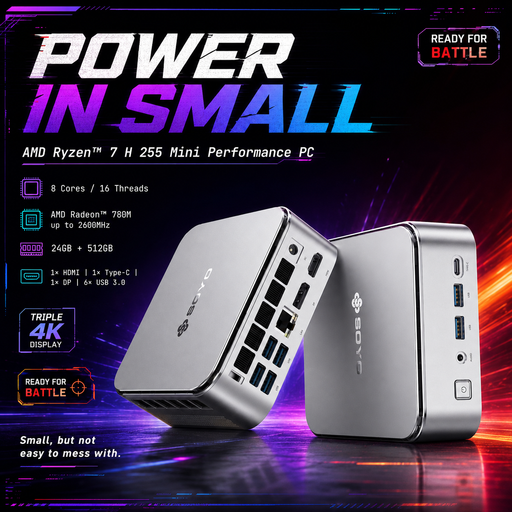
SOYO S4PLUS, Ryzen 7 H255, 24 GB RAM, 512 GB SSD
For Premiere with HD footage, the listed 24 GB of RAM is above Adobe’s recommendation for HD. For 4K and higher, Adobe recommends 32 GB or more.
Ryzen 7 H255; 24 GB LPDDR5; 512 GB PCIe 3.0 SSD; Radeon 780M; Windows 11.
View at Joybuy
Frequently asked questions
Do I need a powerful 4K PC for long model railway recordings?
No, not just because the recordings are long. The key factors are resolution, codec, editing software and effects. Adobe gives different recommendations for HD and 4K in Premiere, and describes a proxy workflow for demanding footage.
How does a proxy workflow work in Premiere?
Premiere can create lighter editing copies of suitable video clips, which you use instead of the high-resolution originals while editing. You’ll still need access to the original media. Adobe says this feature doesn’t support clips with subtitles or growing files, among others.
What else might I need after buying a Mini PC kit?
It depends on what’s included. ASUS offers NUC 14 Pro kits without a pre-installed operating system or storage. Also allow space for originals and, if needed, proxy files, and make sure you have a suitable media drive.
What should I check when buying an electrical Mini PC in Germany?
The German Federal Network Agency lists the CE marking, manufacturer details, required German-language instructions and safety warnings, and the declaration of conformity among the points checked during market surveillance. This is not a blanket confirmation that a particular device complies with the requirements.
How should I dispose of an old Mini PC?
According to the German Environment Agency, discarded electrical and electronic equipment must be disposed of separately from household waste.


