Multicam editing team
For teams editing an event from several angles, with synchronisation and simultaneous playback in their editing programme in mind. Adobe explains how footage from multiple cameras can be synchronised for multicamera sequences.


Start by choosing a mini PC based on your editing software, source format and the number of camera angles you need to use at the same time. Then check the RAM and storage actually included, along with the connections you need. For Premiere on Windows, Adobe recommends 16 GB of RAM for HD media and at least 32 GB for 4K or higher. This isn’t a blanket recommendation for other programmes or every multitrack project.
For teams editing an event from several angles, with synchronisation and simultaneous playback in their editing programme in mind. Adobe explains how footage from multiple cameras can be synchronised for multicamera sequences.
For teams keeping original footage and needing extra space for projects and proxies. Adobe describes proxies as smaller editing copies, while the Federal Office for Information Security recommends keeping backups separate.
For volunteers taking turns who want to keep using the monitors and peripherals already available. Check that the connections and items included match the version you order.
A good fit if: your editing software runs on Windows and you may need more RAM or storage later.
Consider: available slots don’t guarantee smooth playback of your specific project. Barebone models need extra components and setup.
A good fit if: your editing software runs on macOS and the documented media support covers the formats you use.
Consider: storage and SSD configurations vary by model. The specifications don’t guarantee performance for a particular multitrack timeline.
A good fit if: your software and planned effects require a suitably equipped GPU.
Consider: a GPU recommendation for Premiere on Windows isn’t a general minimum requirement for all film editing.
| What you need | What to check before buying | Who is it important to? |
|---|---|---|
| Multitrack playback | Test a representative project in your chosen programme, using your own tracks, resolution and codec. Check the RAM and GPU in the exact version you’re considering. | If we’re synchronising several angles and editing them at the same time, playback in the programme matters. Around 36% of consumers say multitrack editing is their top priority when buying. |
| Storage and backups | Plan for space for originals and proxies, potential storage expansion, and connections for a separate backup drive. | If we’re keeping original footage, projects and proxies, we need space for them and a separate backup. Around 29% of consumers put preserving films and planning storage first. |
| Software and source footage | Check that the full device configuration is compatible with your programme and version, operating system, and the codecs and resolution of your original files. | If you use a specific editing programme and source formats, you’ll want to check compatibility first. This is the top selection criterion for around 21% of consumers. |
| Shared workstation | Check the monitor and peripheral connections, as well as the RAM, SSD, operating system and input devices included in the exact version. | If several volunteers share the same workstation, you’ll want to connect the equipment already available and make sure the computer can be fully set up. For around 14% of consumers, this workstation requirement comes first. |
Having several monitor connections doesn’t tell you whether your editing programme can play multiple video files smoothly at the same time.
Check the requirements of the software you use and test a representative multicam project. If your programme supports it, a proxy workflow may be an alternative.
The GMKtec NucBox M6 Ultra is also available in a version without RAM, an SSD or an operating system. You may need to buy additional components and set it up yourself.
Compare what’s included with the specific version you’re buying, rather than going by the model name alone.
If a device fails or goes missing, original footage stored only on that device could be lost too.
Make original footage, working files and a separate backup distinct parts of your workflow.
Allow for a separate backup drive and time to make regular copies.
The Mac mini M6 and M5 Pro are worth considering as compact macOS editing workstations, provided your software and source formats are compatible.
The A5 Pro 2026 is a compact Windows option for lighter projects or if you’re planning to upgrade the RAM later.
According to the manufacturer, the NucBox M6 Ultra range includes both equipped versions and barebone models for different setup plans.
The Cubi NUC 1M is an option for a compact Windows workstation if storage bays and connections are important to you.
The Pro Mini 400 G9 range is a family of compact business PCs for Windows workstations.
The NUC 15 Pro+ is another compact Windows option if upgradeability and monitor connections matter to you.
These product options are compact computers for a volunteer-run editing workstation. Check that each one’s specification suits your software, source footage and project requirements.
 No image available
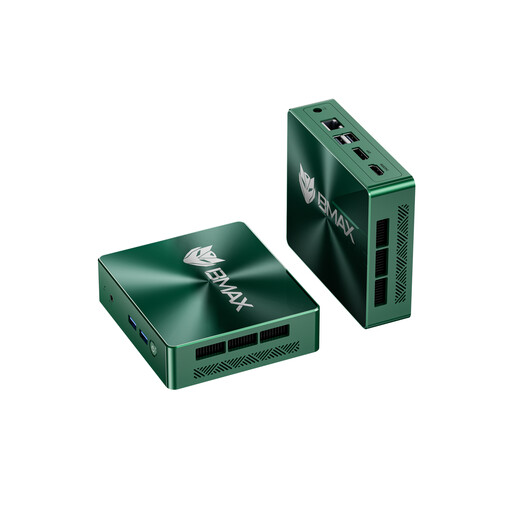
May suit a compact editing workstation if the exact specification meets your software and project needs.
12 GB of RAM, 256 GB SSD, HDMI and DisplayPort.
 No image available
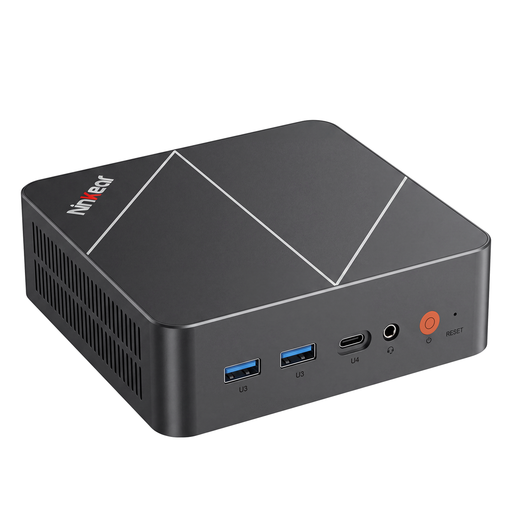
A compact option if its operating system and full configuration suit the editing software you use.
The product title lists 16 GB of RAM, a 512 GB or 1 TB SSD, and Windows 11. Check which storage option is available.
 No image available
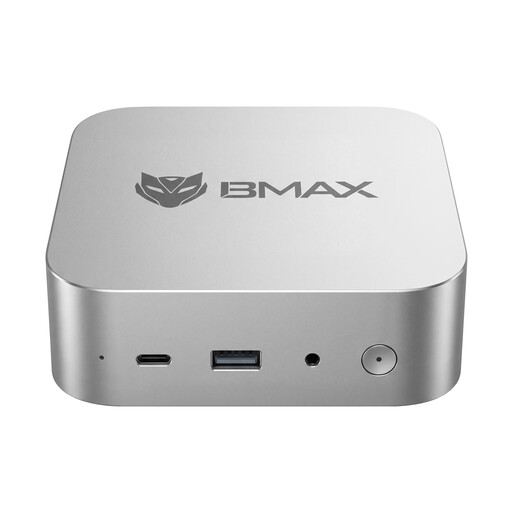
May suit a compact editing workstation if the editing software and footage are compatible with the specific version.
12 GB LPDDR5 RAM and a 512 GB NVMe SSD.
 No image available
Worth considering as a compact workstation if the exact processor version and specification suit your editing software.
The product title lists 8 GB of DDR4 RAM, a 256 GB SATA SSD, Windows 11 and a choice of two processors. Confirm the exact version before buying.
 No image available
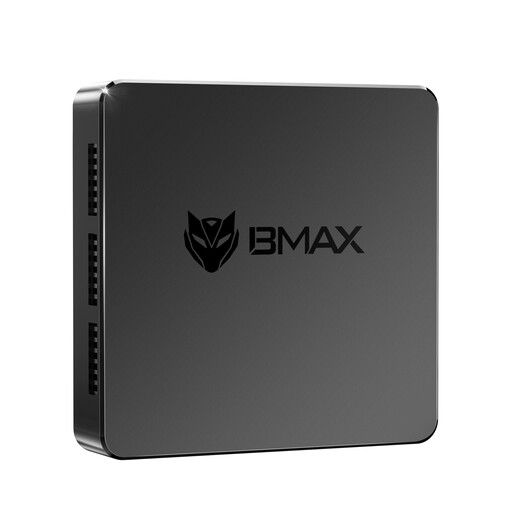
May be worth considering as a compact editing computer if the actual project requirements match the stated configuration.
8 GB LPDDR4 RAM, 256 GB SSD and two HDMI outputs.
You can’t tell from the number of tracks alone. For Premiere on Windows, Adobe recommends 16 GB for HD media and at least 32 GB for 4K or higher. Test playback using your own footage, resolution and codec.
If your programme supports it, you can create smaller editing copies and use the originals again for the final export. Adobe describes this proxy workflow for Premiere. You’ll need extra storage for it.
Check which RAM, SSD and operating system components are included in the specific version. Also plan to back up your original footage to a separate drive. The Federal Office for Information Security gives an external hard drive as one example.
No. Your statutory rights apply to claims against the seller if a product is faulty. A warranty is a voluntary offer with its own terms. If you’re buying equipment for a museum, check the specific contract terms and warranty conditions too.
For products covered by relevant EU harmonisation rules and placed on the EU market, the Federal Network Agency explains that CE marking is required. Check the documentation for the specific device. Footage of identifiable people may constitute personal data. Check the legal basis and information requirements for your planned filming and publication on a case-by-case basis. This doesn’t mean that consent is required for every scene, or that publication is automatically permitted.