For a photo archive on a shared desk, your mini PC should mainly suit the devices you already own, the storage space you need and the photo software you use. If you regularly import and export photos in Lightroom Classic, it’s worth checking the installed RAM and upgrade options. For basic sorting, suitable ports and a clear file structure are often more important. Adobe points out that a Lightroom Classic catalogue backup does not also back up your original photos; the Federal Office for Information Security also recommends regular data backups.
Who organises a photo archive at a shared desk?
Photo archive organisers
You import pictures from several sources and want to keep them neatly organised in one fixed, shared location. Ports and a clear file structure are your priorities. Adobe describes the Lightroom Classic catalogue as a database that manages where your photos are stored and information about them.
Archive protectors
You want to avoid losing your original photos if your PC breaks, so you’re planning your backups separately from your computer purchase. Adobe distinguishes between backing up the catalogue file and backing up photo files; the Federal Office for Information Security recommends regular backup copies to protect against data loss.
Heavy catalogue users
You often import and export large numbers of photos using catalogue software, so you pay particular attention to RAM and upgrade options. Adobe recommends at least 12 GB of RAM for better performance with Lightroom Classic.
What should you look for when buying?
First decide how you’ll back up your files. Then check the ports and the actual specification, and only then work out how much performance your photo software needs.
| Priority |
What to check before buying |
Who is this important to? |
| Store and back up photos |
Check the SSD actually fitted and whether there’s a port for a separate backup drive. Backing up the catalogue does not replace backing up your original photos. |
If I want to keep my originals even if my PC fails, I plan backups separately from my working drive. Around 37% of consumers put independent backups first. |
| Connect import devices and a monitor |
Check the type, number and position of the ports against your camera, card reader, drives and existing monitor. |
If I want my camera, card reader and monitor to stay connected at the shared desk, I check their connectors in advance. Around 27% of consumers prioritise ports that suit their existing devices. |
| Work with larger catalogues |
Check the RAM installed and the upgrade options for the specific configuration. Adobe recommends at least 12 GB of RAM for better Lightroom Classic performance. |
If I often import or export large numbers of images, I pay attention to the installed RAM and the software I actually use. Around 18% of consumers put performance for large catalogues first. |
| Use a shared desk |
Consider the space available, how easy the ports are to reach and whether separate user accounts are available. |
If several people use the same desk, I want the computer to be easy to reach and my user account to remain separate. Around 18% of consumers prioritise footprint and shared use. |
Common buying misconceptions
-
Assuming the internal SSD or catalogue backup is a complete photo backup
According to Adobe, the backup made in Lightroom Classic covers only the catalogue file. Your original photos need their own backup plan.
Plan to back up your photo files separately from your mini PC’s storage, and make sure you back up the catalogue too.
You may need a separate backup drive or another suitable backup location.
-
Assuming the top specification is what comes in the box
Manufacturers offer different configurations and upgrade limits. ASUS also sells both mini PCs and kits, which may come with different specifications.
Check the full model number, installed RAM, SSD capacity and included operating system in the specific listing.
If you need to add RAM or storage, you’ll have to factor in the cost of extra components and the time needed to set them up.
-
Assuming an earlier review means the product is currently available
In its comparison dated 28 September 2026, F.A.Z. Kaufkompass named the GEEKOM A6 its editorial favourite. GEEKOM now marks the A6 as sold out on its German product page; this does not tell you whether other retailers have it in stock.
Keep editorial reviews separate from availability, and check the exact model variant before buying.
Key brands at a glance
GEEKOM
The A6 has featured in a German comparison, while the IT13 range is aimed at shoppers comparing ports and upgrade options.
- F.A.Z. Kaufkompass listed the A6’s range of ports as a plus.
- F.A.Z. Kaufkompass listed rear USB-C as a drawback. GEEKOM marks the A6 as sold out on its German product page.
- For the IT13 2026 Edition, GEEKOM lists features including upgradable RAM and storage, plus two USB4 and two HDMI 2.0 ports. Make sure the specific listing matches this specification.
Lenovo
The ThinkCentre M75q Gen 5 Tiny is worth considering if you want a small Windows PC with maintenance and service options.
- Lenovo documents 16 GB of RAM, a 512 GB SSD and three years of on-site service for configuration 12RQ003QEZ.
- Lenovo describes the SSD and memory modules in this range as accessible.
- The specifications and service details apply to the documented 12RQ003QEZ configuration and not automatically to every M75q variant.
ASUS
The NUC-15-Pro range includes ready-to-use mini PCs and kits, which may differ in specification and what’s included.
- ASUS lists different model numbers and form factors across the range.
- Check the full model number and whether the specific listing includes an operating system, RAM and SSD.
Apple
The Mac mini may suit an existing macOS photo workflow and a permanent workspace.
- Apple’s technical specifications document different M4 and M4 Pro configurations, as well as several SSD options, for the 2024 Mac mini.
- The specifications for the 2024 model do not automatically apply to other years or variants on sale. Check the chip, SSD capacity and ports you need.
Joybuy products for storing and sorting photos
These compact mini PCs are options for storing and sorting photos at a shared desk. Compare each one’s storage and ports with your archive, devices and backup plan.
 No image available
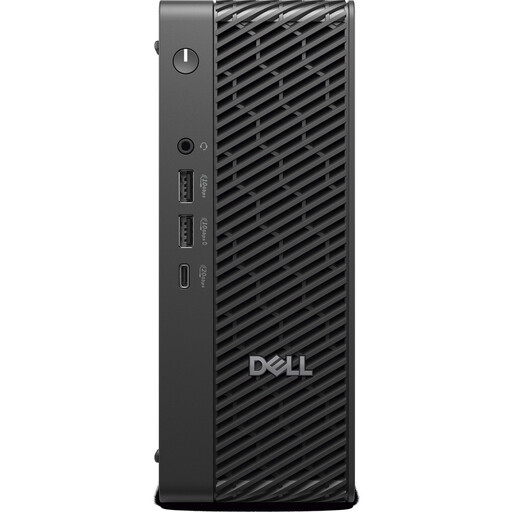
Dell Pro Max Micro FCM2250 TPM, Core Ultra 7, 16 GB DDR5, 512 GB SSD
A compact Windows 11 Pro configuration for a permanent workspace.
Listed with 16 GB DDR5 at 6400 MHz and a 512 GB M.2 PCIe SSD.
View at Joybuy
 No image available
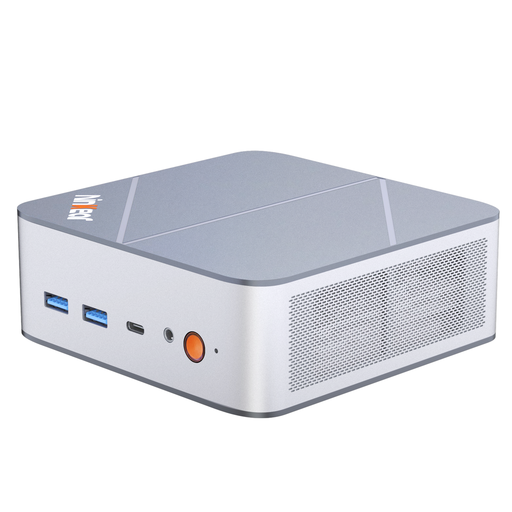
Ninkear M8 mini PC, Ryzen 7 8745HS, 16 GB DDR5, 1 TB SSD
The listed 1 TB SSD gives you a starting point for local storage. Check that its capacity suits your archive, and plan your backup separately.
The title also lists dimensions of 130 × 127,5 × 52 mm and Wi-Fi 6. Windows 10/11 is listed as an option.
View at Joybuy
 No image available
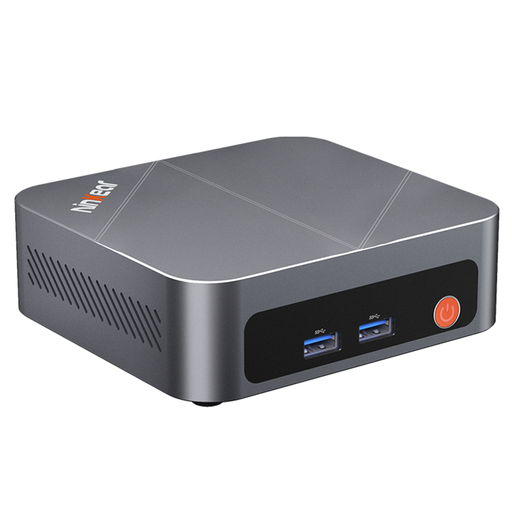
Ninkear M7 mini PC, Core i7-1185G7, 16 GB DDR4, 512 GB SSD
This configuration has a stated SSD capacity for local files and catalogue work; you’ll need to plan your backup separately.
The title also lists Windows 10/11 and support for up to three displays.
View at Joybuy
 No image available
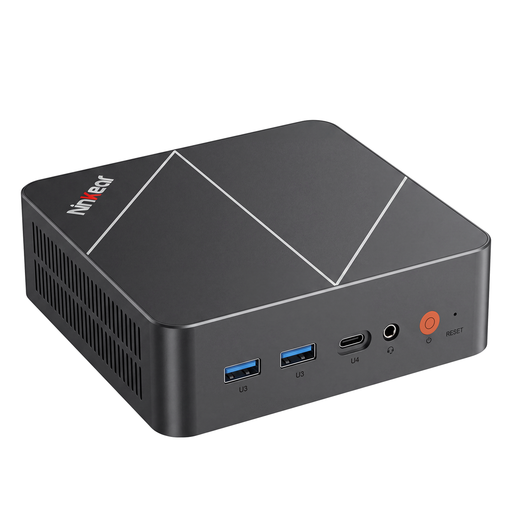
Ninkear L20 mini PC, Core Ultra 5 226V, 16 GB RAM, 512 GB or 1 TB SSD
With a listed case volume of 0,66 l, this is a useful point of comparison for a small workspace.
The title lists 16 GB of RAM, Windows 11 and a choice of 512 GB or 1 TB SSD. Check which capacity is included in the specific listing before buying.
View at Joybuy
 No image available
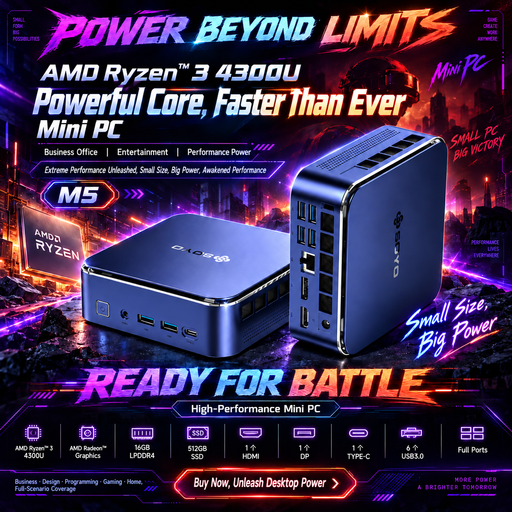
SOYO M5 mini PC, Ryzen 4300U, 16 GB LPDDR4, 512 GB SSD
If you plan to connect several import and storage devices, the listed USB ports are a useful point of comparison.
The description lists six USB 3.0 ports and one USB-C data port. It also specifies 16 GB of RAM, a 512 GB SSD and dimensions of 128 × 128 × 47,6 mm.
View at Joybuy
Frequently asked questions
Is a Lightroom Classic catalogue backup enough to back up my photo archive?
No. According to Adobe, the backup made in Lightroom Classic covers only the catalogue file; you need to back up edited and exported photos separately. The Federal Office for Information Security recommends regular backup copies to protect against data loss.
What should I consider when setting up a shared desk?
Before buying, check that the ports on the specific mini PC match your monitor and import devices, and allow for an easy-to-reach spot for external drives. If you share the computer, having your own user account can help keep your personal files separate; backup drives should be stored separately from your working drive.
What should I check about servicing and extra storage?
Check whether the specific configuration includes an operating system, RAM and SSD, and whether you’ll also need a card reader or backup drive. Your statutory rights against the seller are separate from a voluntary manufacturer’s warranty or a separate service package.
Which compliance details matter for a mini PC with Wi-Fi in Germany?
For market surveillance of electronic devices, the Federal Network Agency lists points to check including CE marking, product identification, manufacturer details, German-language instructions and safety warnings, and the declaration of conformity. A CE mark alone does not mean that a device was made in the European Economic Area; check the details in the specific listing.


