A mini desktop is a good fit for a shared desk when space is limited and its monitor and ports are compatible with your existing setup. If you’re planning internal upgrades, an SFF or tower PC may be a better option. To assess print colours, a calibrated monitor and a suitable colour workflow matter more than the computer’s case alone. Adobe recommends 16 GB RAM or more for Photoshop—not as a general buying requirement, but as a guideline for using that software.
Who is this desktop for?
Anyone checking print colours
If you assess images before printing, you should consider your monitor profile and intended print process together. Adobe recommends working with a calibrated monitor and an accurate monitor profile. EIZO notes that soft proofing depends on the printer, print process, paper or other material, and ink.
Anyone editing RAW files or using Photoshop
When you’re working with large image files or several at once, you’ll need enough memory and free SSD space. Adobe recommends 16 GB RAM or more for Photoshop; temporary working files can also take up storage space.
Anyone using a shared desk
If you share a workspace or computer, you’ll need a suitable amount of desk space and should set up separate user accounts. Microsoft explains that Windows user accounts have their own settings and files.
What should you look for when buying?
For print preparation, it’s worth deciding what matters most to you first: colour assessment, image editing, desk space, or storage and upgrade options.
Mini desktop with an existing monitor
A good fit if: Desk space is limited and you can continue using your existing monitor and input devices.
The trade-off: Its small case saves space, but internal upgrade options depend on the specific model.
SFF or tower PC
A good fit if: Internal expansion slots or future upgrades matter more than having the smallest possible footprint.
The trade-off: One documented HP SFF model offers PCIe slots, but takes up more space than a mini PC.
| Priority |
What to check when buying |
Who is it important to? |
| Assessing print colours |
A calibrated monitor with a suitable profile; an ICC profile for the printer and paper, or the intended driver workflow. |
If I want to assess colours on screen before printing, my monitor and output process need to work together. Around 33% of consumers put colour assessment first. |
| Editing image files |
Check the RAM, GPU and free SSD space against the requirements of the software you use. Adobe recommends 16 GB RAM or more for Photoshop. |
Anyone editing large RAW files or several images will want smooth performance and enough space for temporary files. Around 27% of consumers prioritise editing performance. |
| Space and separate user accounts |
Check the case dimensions, monitor ports and shared peripherals; set up a separate Windows user account for each person. |
If I share a desk with others, I want the computer to take up little space and each person to have their own settings and files. Around 20% of consumers put a shared workspace first. |
| Archiving and future upgrades |
Check the SSD capacity in the specific configuration, available space on the working drive, expansion slots and separate data backups. |
Anyone archiving lots of photos or planning internal upgrades should consider storage and expansion options together. Around 20% of consumers prioritise storage and future customisation. |
Common buying and planning mistakes
-
Assuming the computer is all you need for print preparation
A powerful desktop alone won’t ensure that the colours on screen match the print. For assessing images on screen, Adobe recommends a calibrated monitor with an accurate profile. EIZO notes that soft proofing also depends on the specific print process and material.
First, decide which printer and material you’ll use, and whether your existing monitor can be set up to suit them.
-
Comparing only the stated SSD capacity
You’ll need enough free space for applications, image files and temporary working files. Adobe explains that SSDs or hard drives can be used as scratch disks for temporary Photoshop data.
As well as the stated total capacity, allow space for working files and a separate backup.
-
Assuming a mini PC or SFF is always the better choice
A mini case saves desk space, while one documented HP SFF example offers PCIe slots. These features don’t automatically apply to every model in either form factor.
Measure the space you have and check the ports and specific expansion options you need on the model you’re considering.
Key brands to consider
Apple
Mac mini: a compact macOS desktop if you’re choosing a monitor separately or already have one you can use.
- Apple Germany lists different M6 configurations with varying memory and SSD specifications, as well as HDMI and Thunderbolt.
- Check the specifications and ports for the specific configuration; the monitor and print profiles also need to be considered separately.
HP
Pro Mini for a compact setup, or Pro 400 G9 SFF if internal expansion slots matter more.
- HP lists the Pro Mini 400 G9 937U0EA#ABD with 16 GB RAM and a 512 GB SSD. PCIe slots are documented for the Pro 400 G9 SFF CP9J4EA#ABD.
- These specifications apply to these model numbers and shouldn’t be assumed to apply to every HP desktop.
Lenovo
ThinkCentre M75q Gen 5 Tiny: a compact Windows alternative with specifications that vary by configuration.
- Lenovo describes the product range as offering tool-free access to SSD and memory modules.
- Check the RAM, SSD and ports on the specific configuration before deciding whether it’s right for your image-editing needs.
Dell
Dell Pro Micro QCM1250: a compact business desktop with configurable options.
- Dell Germany shows a choice of processor and RAM options for this model.
- Dell notes that changes to the configuration can affect other specifications; the model name alone doesn’t determine what’s included.
Joybuy products for a shared desk
This selection features compact desktop PCs for a space-saving setup, with a monitor chosen separately or one you already own.
 No image available
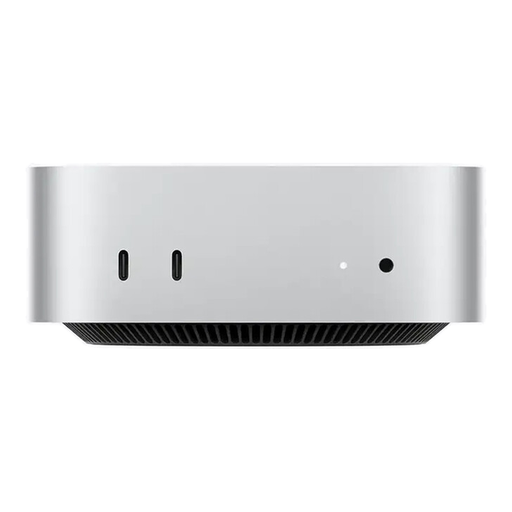
Apple Mac mini M6, 12-core CPU, 12-core GPU, 16 GB unified memory, 512 GB SSD
Its compact design is ideal if space is limited on your shared desk.
- 16 GB unified memory
- 512 GB SSD
- HDMI and Thunderbolt 4
View at Joybuy
 No image available
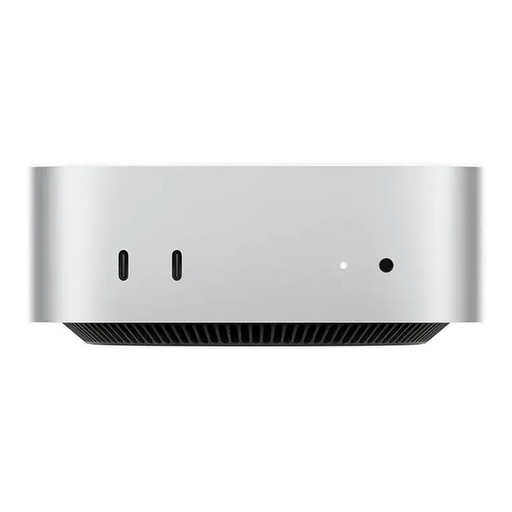
Apple Mac mini M6, 12-core CPU, 12-core GPU, 24 GB unified memory, 512 GB SSD
This compact configuration is worth considering if space is limited and 24 GB unified memory suits the software you use.
- 24 GB unified memory
- 512 GB SSD
- HDMI and Thunderbolt 4
View at Joybuy
 No image available
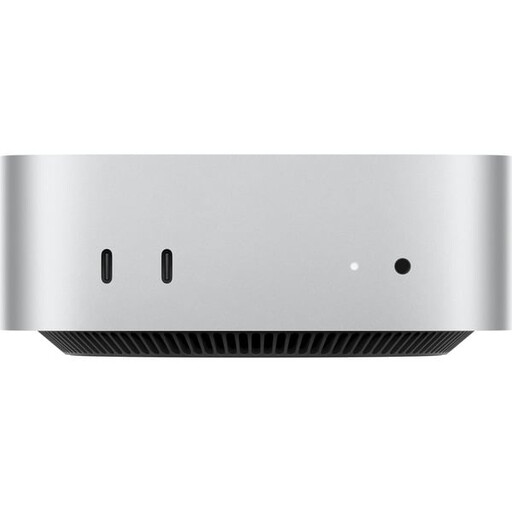
Apple Mac mini MHQL4_CTO_8 A3534, M6, 12-core CPU, 12-core GPU
Its compact design is an option if your existing monitor suits the workspace and you’re looking for more SSD capacity.
- 24 GB unified memory
- 1 TB SSD
View at Joybuy
 No image available
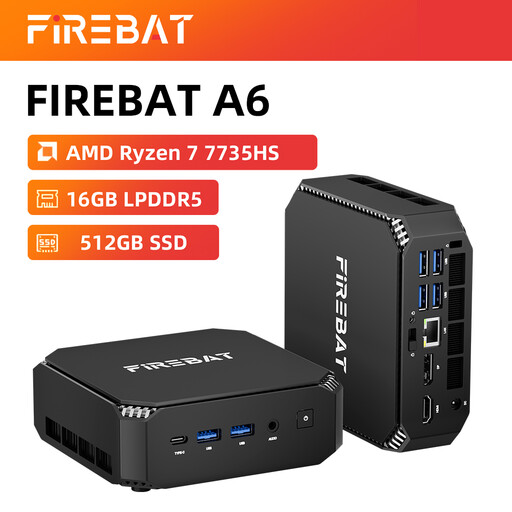
FIREBAT mini PC, AMD Ryzen 7 7735HS, Radeon 680M
This mini PC could suit you if you’re looking for a compact computer with the monitor ports you need.
- 16 GB RAM and 512 GB SSD
- HDMI and DisplayPort
- Dual M.2 slots
View at Joybuy
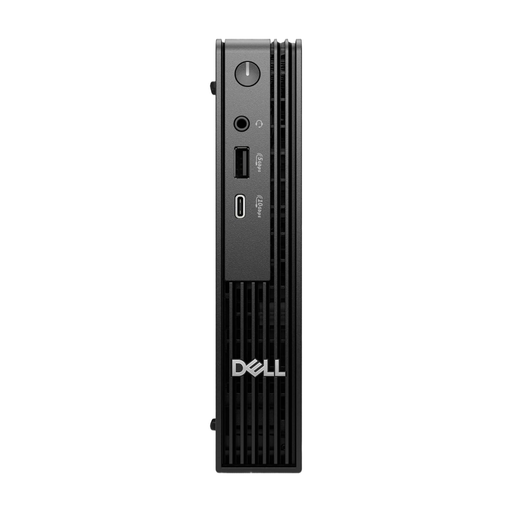 No image available
Dell Pro Micro QCM1250 MJ5TK TPM, i7-14700T
This Micro model is an option if its compact design and stated Windows configuration suit your workspace.
- 16 GB DDR5
- 512 GB NVMe SSD
- Intel UHD 770, HDMI and DisplayPort
- Windows 11 Pro
View at Joybuy
Frequently asked questions
Is a fast desktop all you need for accurate print colours?
No. If you want to assess the print on screen, Adobe recommends using a calibrated monitor with an accurate monitor profile. If Photoshop is managing the print workflow, you’ll also need a profile for the specific printer and paper combination. Alternatively, the printer driver can manage the colours.
How much memory should a desktop have for Photoshop?
Adobe recommends 16 GB RAM or more for Photoshop. This is a recommendation for that software, not a general buying requirement. Also check the requirements of the programmes you actually use and how much SSD space is available.
How do I set up a shared Windows PC?
Set up a separate Windows user account for each person. Microsoft explains that this gives each user their own settings and files. You should also agree where shared photos will be stored and who will back them up.
Are a manufacturer’s guarantee and statutory rights the same thing?
No. The Verbraucherzentrale explains that your statutory rights are a legal claim against the seller, while a guarantee is a voluntary offer with its own terms and conditions. Before buying, check who the seller is and what additional service terms apply.


