People with an existing screen
If you create slides at a fixed workstation, you can keep using your existing monitor and input devices, provided the connections on the specific PC model are compatible.


Start by choosing a mini PC that matches your existing screen connections, the software you need and how many people will use it. A fully configured Windows PC can make getting started easier, while a barebone model requires additional components and setup. Whichever option you choose, check the operating system, connections and what’s included before comparing the processor, memory and case size.
If you create slides at a fixed workstation, you can keep using your existing monitor and input devices, provided the connections on the specific PC model are compatible.
If several people will use the same device, consider user accounts, access rules and the software you need, as well as the case size. Microsoft Support explains how Windows lets you set up multiple accounts, each with its own settings and documents.
A compact computer can work well in a space-saving setup. Remember to allow for the power supply, cables and input devices, and check compatibility if you’re considering mounting it on your monitor.
First, check that the connections and items included suit your existing setup. Then make sure the operating system and installed components are right for your slide work and any other applications you use.
| What matters | What to check before buying | Who is this important to? |
|---|---|---|
| Connecting a screen | Check that the video outputs on the specific model match your monitor’s inputs, and allow for any cables or adapters you need. | If I want to use existing screens for slides and presentations, the connections and cables need to match. Around 28% of consumers prioritise having the right screen and presentation equipment. |
| Separate user access | Check the operating system and how user accounts and software access are handled. | For a shared device, I want to be able to set up individual accounts and agreed access rules. Around 22% of consumers put separate access first. |
| Desk space | Check the case dimensions and footprint. If you plan to mount it on a monitor, make sure the specific model is compatible. | If there’s little room on a shared desk, I also need space for the power supply and cables. Around 22% of consumers prioritise the space a device takes up. |
| Running several programmes | Compare the memory, SSD and operating system installed on the exact model with the requirements of the programmes you use. | If I keep other programmes open alongside presentation slides, the components actually installed matter. Around 17% of consumers prioritise using several applications at once. |
| A complete workstation | Check what’s included against the devices you already have, taking the operating system, storage, screen and input devices into account. | If I’m setting up a new workstation, I want to know what’s included and what else I’ll need. Around 11% of consumers prioritise having a complete setup. |
A stated maximum memory capacity doesn’t tell you how much RAM is already installed in the specific product on offer.
For your chosen model, check the installed RAM and SSD separately from the upgrade limits.
Depending on the model, storage, an operating system or peripherals may not be included. COMPUTER BILD notes that its tested Intel NUC 13 also requires additional RAM, storage and an operating system. Lenovo’s documentation for the ThinkCentre Neo configuration states that the screen and input devices are sold separately.
Compare what’s included with the devices and components you already own.
Microsoft ended mainstream support for Windows 10 on 14 October 2025. Microsoft also explains the separate options available for extended security updates.
If a product comes with Windows 10, check which update or upgrade option is available for the way you plan to use it.
The A5 Pro 2026 Edition is a specifically configured Windows option for compact office work. The specifications refer to the Ryzen-5-7530U model.
The Cubi NUC 1M series may suit a workstation where screen connections and space-saving mounting are important.
The ThinkCentre Neo 50q Gen 5 Tiny is a business-focused option for a compact, permanent workstation.
The Pro Mini 400 G9 series is worth considering as a compact business PC when you’re comparing specific configurations.
The Dell Pro Micro QCM1250 is a micro desktop option for a permanent workstation with limited space.
These mini PCs offer different connection and operating system configurations for working on slides at a shared desk.
 No image available
An option if you’re looking for a Windows mini PC to use with existing screens and the listed specification suits your slide work.
The product description lists two HDMI outputs and four USB ports. The title also mentions Bluetooth 5.2.
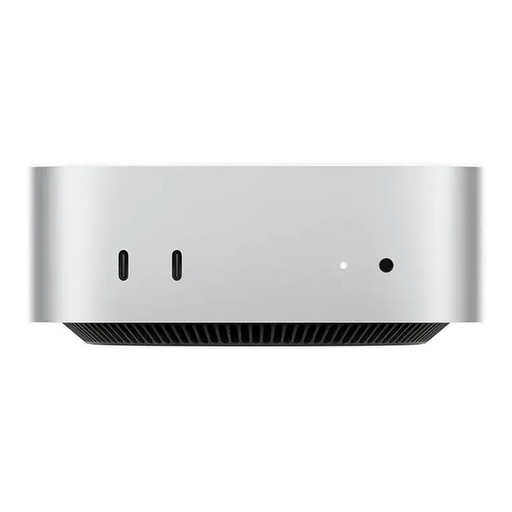 No image available
An option if your working environment uses macOS and the listed connections are compatible with your screen.
The title lists HDMI, Thunderbolt 4, 2.5GbE, Wi-Fi 7, Bluetooth 6 and macOS.
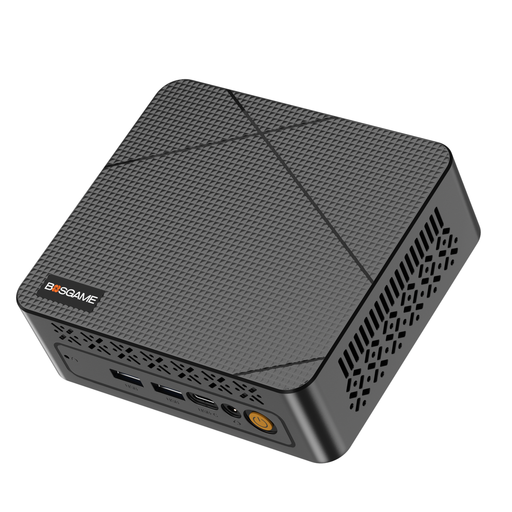 No image available
An option for a slide workstation where you plan to connect your existing screens via HDMI.
The title lists an N95 running at 3.4 GHz and two 4K HDMI outputs. The product description also lists a USB-C display output.
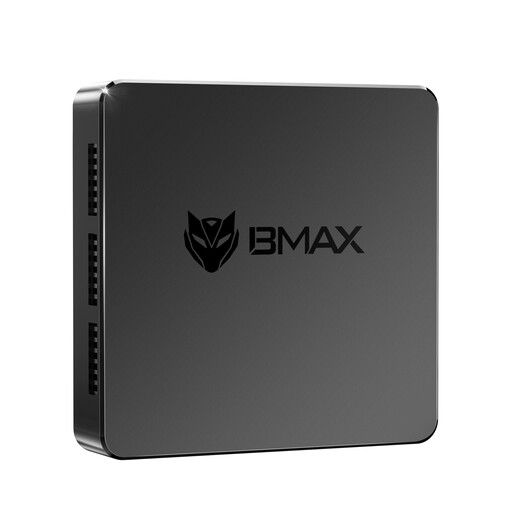 No image available
A compact option for slide work if the listed specification and HDMI connections suit your workstation.
The title lists a clock speed of up to 2.4 GHz and two HDMI outputs. The product description also mentions LAN and Wi-Fi.
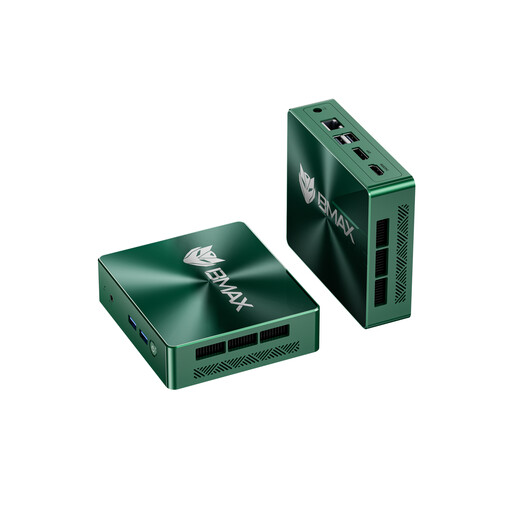 No image available
An option if your existing screen uses HDMI or DisplayPort and the listed specification suits the programmes you use.
The title lists a clock speed of up to 3.6 GHz, HDMI and DisplayPort.
Check whether your organisation uses presentation software as a desktop app or in a browser, and what licence is available. Microsoft lists Windows 11 and 4 GB RAM as the system requirements for Microsoft 365 Apps for Business. This doesn’t mean that these minimum specifications will be enough for every programme you use at the same time.
Windows lets you set up multiple user accounts, each with its own settings and documents. Agree on accounts and file access in line with your workplace rules before saving presentations on the shared device.
Check the screen, keyboard, mouse, cables and presentation software, as well as whether RAM, an SSD and an operating system are included. For its documented Tiny configuration, Lenovo lists the screen and input devices as sold separately. COMPUTER BILD also notes that a tested barebone requires additional storage and an operating system.
The Verbraucherzentrale explains the seller’s statutory liability for defects, which is separate from a voluntary manufacturer’s warranty. Electrical waste should be taken to a separate collection point, such as a local authority recycling centre. Different contract terms may apply to business purchases.
As part of its market surveillance, the Bundesnetzagentur checks points such as correct CE marking and identifiable manufacturer details. Check the information on the specific device and in the product listing.