Choose a mini PC for teaching videos by first considering your editing software, resolution, codec and the number of tracks you play back simultaneously. Then compare the exact specification, including RAM, graphics, SSD and what’s included. For Premiere on Windows, Adobe recommends 16 GB RAM for HD footage and at least 32 GB for 4K and above. A proxy workflow can be an alternative for demanding footage, but it requires extra storage and setup.
Which approach is right for you?
Teaching video editors working with multiple camera tracks
If you switch between multiple video tracks, your computer and editing software need to suit your source footage. Adobe gives separate RAM recommendations for HD and 4K when using Premiere on Windows; the number of tracks alone doesn’t determine a universal RAM requirement.
Editors working with 4K footage or complex effects
Pay close attention to memory and graphics. Adobe recommends at least 32 GB RAM for Premiere on Windows with 4K and above.
Teachers with large project archives
Allow for storage space for source files, working files and, where needed, proxies, as well as the connections you need for external drives. For Premiere, Adobe recommends a fast drive for media in addition to the system drive.
What should you look for when buying?
Don’t just compare the name of a mini PC range. Check the full specification against your editing software and the files you actually use. Adobe’s RAM recommendations are specifically for Premiere on Windows.
| What matters when buying |
What to check |
Who it matters most to |
| Preview and multiple tracks |
Check your editing software’s requirements, along with the processor, installed RAM and graphics in the exact model. Multiple monitor outputs don’t guarantee a particular level of performance with several video tracks. |
If I need a responsive preview when switching between camera tracks, my editing software and source footage come first. Around 33% of consumers would prioritise preview and multi-track editing as their main buying consideration. |
| 4K and effects |
Check the resolution, codec and effects against your software’s requirements. For Premiere on Windows with 4K and above, Adobe recommends at least 32 GB RAM. |
If my teaching footage is in 4K or I use effects, I want to choose a specification that suits my actual project. Around 27% of consumers would prioritise headroom for 4K and effects. |
| Project and working files |
Compare SSD capacity, options for adding drives and available connections. Plan for archiving and backups separately from the storage you need for your current edit. |
If I manage large source files and working copies, I need enough space and the right connections for my media workflow. Around 20% of consumers would make project and working-file storage their main consideration. |
| What’s included and setup |
For the exact model, check whether RAM, an SSD and an operating system are included, and whether it has the monitor and drive connections you need. |
If I want to get started without assembling my own PC, a clearly listed package is essential. Around 20% of consumers would prioritise a complete package with as little setup as possible. |
Common buying mistakes
-
Confusing screen resolution with editing performance
A supported monitor output doesn’t tell you how smoothly your combination of codec, video tracks and effects will run in the timeline.
Check your editing software’s requirements and the full specification. Treat video outputs as information about connections, not proof of performance.
-
Comparing a barebone directly with a complete PC
An ASUS NUC 14 Pro Kit may be supplied without a pre-installed operating system. The Slim Barebone tested by Notebookcheck also didn’t include RAM or an SSD.
Check what’s included with the exact product variant and factor in any components and setup you’ll need to provide yourself.
-
Relying on the internal SSD for all your media
For Premiere, Adobe recommends a fast drive for media in addition to the system drive. Proxies also take up extra space.
Estimate how much space your projects will need and check the SSD specification and available connections before choosing a model.
Key brands at a glance
Apple
An option if your editing software and devices suit a macOS workflow.
- For the Mac mini (2024) with M4 and M4 Pro, Apple lists hardware features for H.264, HEVC and ProRes.
- These format details don’t prove a particular level of performance in a multi-track timeline. The M4 and M4 Pro versions differ in memory and SSD capacity.
ASUS
According to ASUS, the NUC 14 Pro range includes different processors and package options, including kits.
- You can choose the exact model depending on whether you want a fully equipped mini PC or a kit.
- Before buying, check whether RAM, an SSD and an operating system are included. The tested Slim Barebone required extra components and setup; this doesn’t necessarily apply to every model.
Lenovo
The ThinkCentre M75q Gen 5 Tiny is a Windows option with a documented German configuration.
- For model 12RQ003QEZ, Lenovo lists 16 GB RAM, a 512 GB SSD and integrated Radeon 780M graphics. According to Lenovo, the SSD and memory modules can be accessed without tools.
- The 16 GB RAM falls short of Adobe’s recommendation for Premiere on Windows with 4K and above. Other configurations in the range may differ.
MINISFORUM
The UM890 Pro range is aimed at buyers who want to compare the specification and upgrade options of each model.
- MINISFORUM lists two M.2 SSD slots and OCuLink for the UM890 Pro.
- Official product pages list different processors. Check the CPU and installed RAM and SSD against the full details of the specific model on offer.
GMKtec
According to the manufacturer, the NucBox K12 is available as either a barebone or a pre-equipped model.
- GMKtec lists three M.2-2280 slots and, among other options, a model with 32 GB RAM and a 1 TB SSD.
- The barebone doesn’t include RAM, an SSD or an operating system. The manufacturer’s specifications aren’t an independent video-editing test.
HP
The Z2 Mini G1i is a compact workstation option for Windows workflows that need a dedicated GPU.
- HP lists a German configuration with 32 GB RAM, a 1 TB SSD and an RTX A1000 with 8 GB graphics memory.
- This specification doesn’t guarantee a particular preview or export speed for teaching videos. Compare the configuration and total cost with simpler mini PCs.
Joybuy products for video editing
The products below cover Windows mini PCs and a Mac mini workflow. For each model, check that the operating system, specification and storage suit your editing software and project.
 No image available
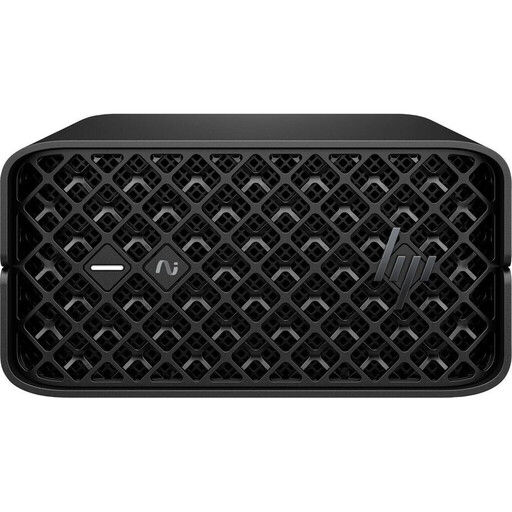
HP Z2 Mini G1a, Ryzen AI Max+ Pro 395, 128 GB RAM, 2 TB SSD
A compact Windows workstation option for projects where you’re planning for plenty of memory and SSD capacity.
The product title lists 128 GB RAM and a 2 TB SSD.
View at Joybuy
 No image available
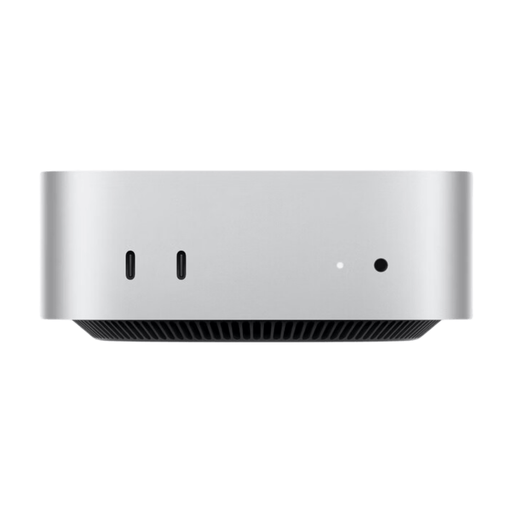
Apple Mac mini MHQM4 CTO 2, M6, 24 GB unified memory, 1 TB SSD
An option if your editing software and peripherals are compatible with macOS.
The product title lists a 12-core CPU, a 12-core GPU, Thunderbolt 4 and HDMI.
View at Joybuy
 No image available
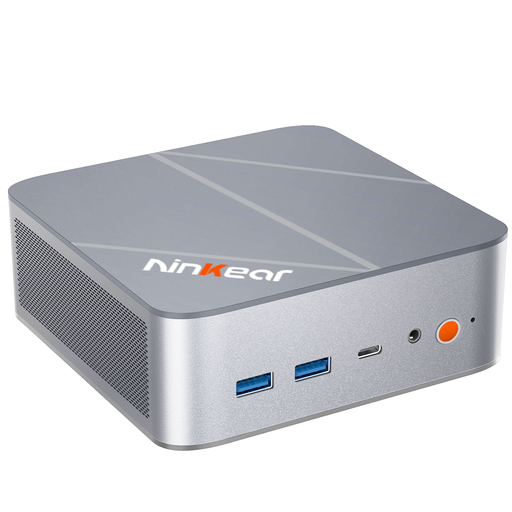
Ninkear L12 Pro, Intel i9-12900HK, 16 GB RAM, 1 TB SSD
For a Windows workflow, make sure the specification suits your resolution and editing software.
The product title lists 16 GB RAM, a 1 TB SSD and Windows 10/11. For Premiere on Windows, Adobe recommends 16 GB for HD and at least 32 GB for 4K and above.
View at Joybuy
 No image available
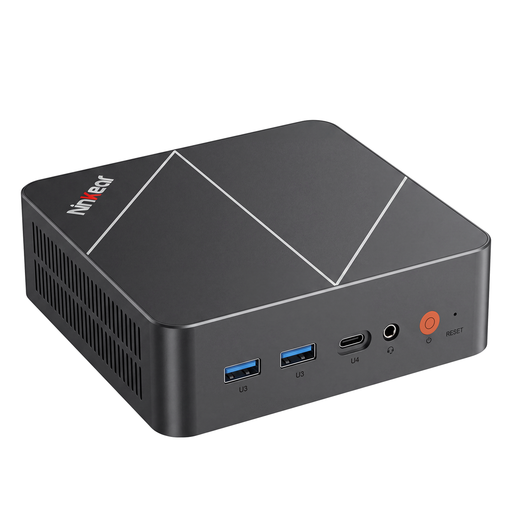
Ninkear L20, Intel Core Ultra 5 226V, 16 GB RAM
If you want to connect multiple screens, also check that the display options suit your workspace.
The product title lists 16 GB RAM, Windows 11 and either a 512 GB or 1 TB SSD, depending on the model. For Premiere on Windows with 4K and above, Adobe recommends at least 32 GB RAM.
View at Joybuy
 No image available
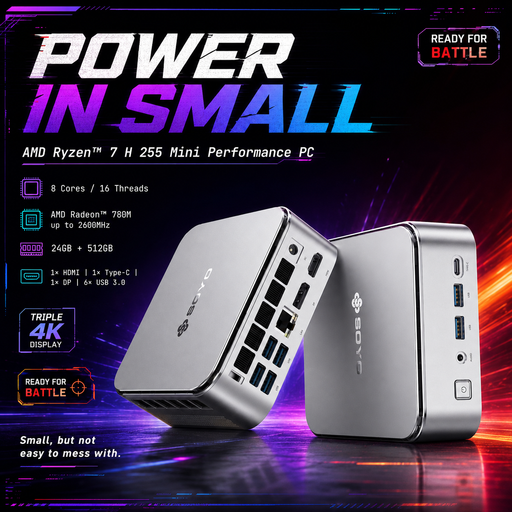
SOYO S4PLUS, Ryzen 7 H 255, 24 GB RAM, 512 GB SSD
A Windows mini PC option whose memory and storage you should compare with the needs of your specific editing project.
The product title lists Radeon 780M graphics and six USB 3.2 ports. The 24 GB RAM falls short of Adobe’s recommendation for Premiere on Windows with 4K and above.
View at Joybuy
Frequently asked questions
Is 16 GB RAM enough for multiple video tracks?
You can’t decide based on the number of tracks alone. For Premiere on Windows, Adobe recommends 16 GB RAM for HD footage and at least 32 GB for 4K and above. You should also check the resolution, codec and editing software you use.
How can you edit demanding footage on a mini PC?
If your Premiere workflow allows it, you can create proxies as lower-resolution working copies. They require extra storage and setup; the method Adobe describes for creating them applies to video clips without captions.
What do I need before setting up a barebone?
Check what’s included with the exact model. ASUS offers the NUC 14 Pro as both fully equipped mini PCs and kits. The Slim Barebone tested by Notebookcheck needed RAM and an SSD to be added, and didn’t include an operating system.
What rights apply when buying online as a private customer in Germany?
When you buy from a business seller as a consumer, statutory rights covering faulty goods generally apply for at least two years; a voluntary manufacturer’s warranty doesn’t replace them. Online purchases usually come with a 14-day right to cancel, although exceptions may apply. Your Europe and the Verbraucherzentrale explain these consumer rights. If you’re buying for professional or business use, don’t assume these rules apply without checking.
What does the CE marking on a mini PC mean?
For products covered by relevant EU harmonisation rules and placed on the EU market, the Bundesnetzagentur describes CE marking as a requirement. The mark isn’t an independent performance test and doesn’t prove how well a particular mini PC performs.


