What should you look for when buying?
Mac with Media Engine
A good fit if: You edit on macOS and support for H.264, HEVC or ProRes suits your source footage.
The trade-off: The RAM in the Mac mini models mentioned can’t be upgraded after purchase, so choose your configuration with the future in mind.
Windows mini PC with configurable storage
A good fit if: You need Windows and want to configure the RAM or drives on a specific model variant.
The trade-off: Components, ports and the pre-installed operating system can vary between versions in the same product range.
Compact Windows PC with discrete graphics
A good fit if: Your editing software or effects benefit from a discrete GPU and you’re happy with a larger case.
The trade-off: Compare the exact GPU variant and its graphics memory with your software requirements. Manufacturer specifications don’t guarantee a particular render time.
For long rehearsal recordings, it’s worth considering four separate needs: storage access, previews, graphics for effects and a proxy workflow.
| Buying priority |
What to check |
Who needs it? |
| Storage for original files |
Estimate the space you’ll need from typical file sizes, and plan media and backup storage separately. |
If I need to manage long original takes, I need enough space and direct access to the media files. Around 36% of consumers prioritise storage and archiving first. |
| 4K previews |
Check the resolution, codec and editing software. For Premiere on Windows, Adobe recommends at least 32 GB of RAM for 4K and higher. |
If I want to edit high-resolution takes smoothly, I’ll match the specific configuration to my software. Around 29% of consumers say 4K previews are their top priority. |
| Graphics for effects |
Compare the exact GPU variant and its memory with the requirements of your editing and effects software. |
If my effects put heavy demands on the graphics, I want to know whether the GPU in the version I’ve chosen is up to the job. Around 21% of consumers prioritise graphics performance for effects. |
| Proxy workflow |
Check whether your footage is suitable for proxies and whether you can make room for both original files and working copies. |
If I want to edit using smaller working copies, the proxy workflow needs to suit my footage and I mustn’t overlook the storage it requires. Around 14% of consumers say a proxy workflow is their top priority. |
Joybuy products for long recordings
These compact systems can be compared for an editing setup with long recordings, taking RAM, internal storage and your software requirements into account.
 No image available
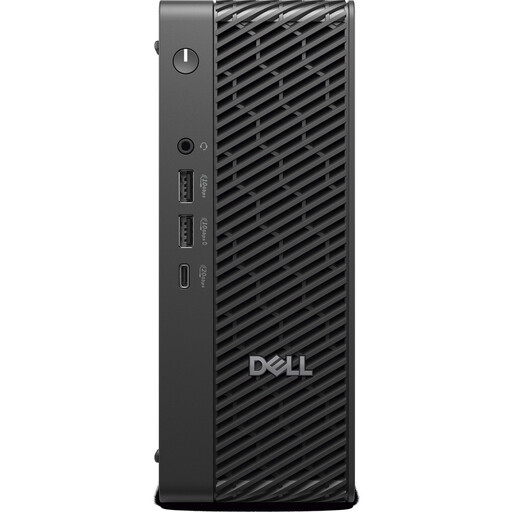
Dell Pro Max MFF Ultra 7, 32 GB RAM, 1 TB SSD
A compact configuration whose RAM and SSD capacity you can compare with your project’s needs.
Intel Core Ultra 7 265, integrated Intel graphics, Windows 11 Pro, 32 GB RAM and 1 TB SSD.
View product
 No image available
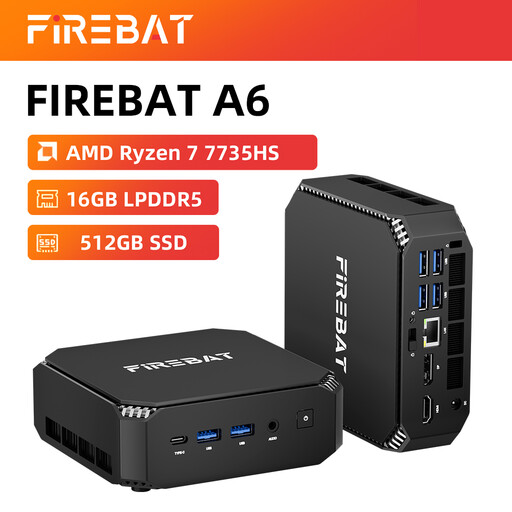
FIREBAT mini PC, Ryzen 7 7735HS, 16 GB RAM, 512 GB SSD
If you’re estimating how much internal storage a project needs, this configuration gives you a specific starting point. Check whether there’s enough room for your original files.
AMD Ryzen 7 7735HS, Radeon 680M, 16 GB RAM, 512 GB SSD and two M.2 slots according to the product specifications.
View product
 No image available
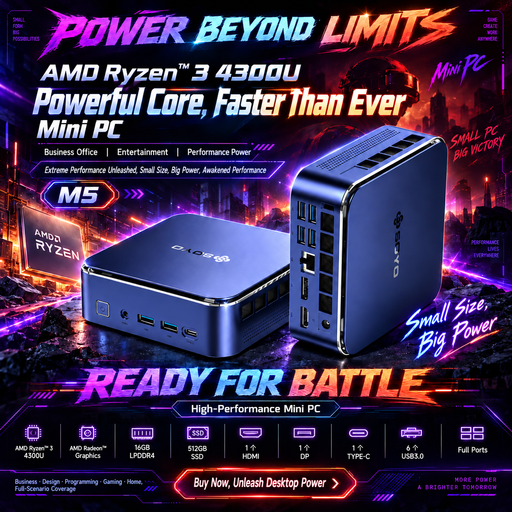
SOYO M5 mini PC, Ryzen 3 4300U, 16 GB RAM, 512 GB SSD
The listed SSD capacity helps you compare the internal storage with the amount of data from a typical rehearsal day.
AMD Ryzen 3 4300U, Radeon graphics, 16 GB LPDDR4, 512 GB SSD and pre-installed Windows 11.
View product
 No image available
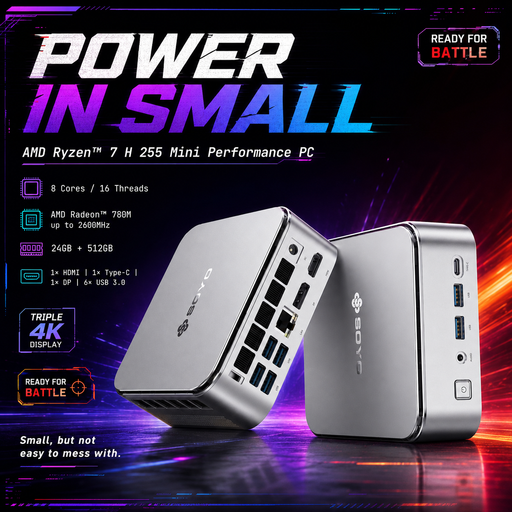
SOYO S4PLUS mini PC, Ryzen 7 H255, 24 GB RAM, 512 GB SSD
Compare the listed memory configuration with your project, and check whether you’ll need extra storage for media.
AMD Ryzen 7 H255, Radeon 780M, 24 GB LPDDR5, 512 GB PCIe 3.0 SSD and Windows 11.
View product
 No image available
FIREBAT F1 mini PC, Ryzen 5 7640HS, 24 GB RAM, 512 GB SSD
Check that the listed RAM and SSD configuration suits your editing software and the storage needs of your original recordings.
AMD Ryzen 5 7640HS, Radeon 760M, 24 GB LPDDR5, 512 GB PCIe 4.0 SSD and USB 4.0.
View product
Frequently asked questions
How much RAM do I need for 4K editing in Premiere?
For Premiere on Windows, Adobe recommends at least 32 GB of RAM for 4K and higher. Also check your operating system, source footage and the requirements of other programmes, rather than treating this as a general minimum requirement.
Can I edit long theatre recordings using proxies?
Premiere can create smaller working copies for compatible video clips. Adobe excludes some footage from proxy creation, including clips with captions and growing files, so check your footage before committing to this workflow.
How should I plan storage for long recordings?
Allow space for your system, cache and media, and make sure the original files are backed up separately. Adobe recommends fast SSDs or NVMe drives for Premiere, and separate drives where possible. If you only have two drives, cache and media can share one.
Can I upgrade the RAM in a Mac mini later?
In the Mac mini models mentioned, the RAM is integrated into the chip package and can’t be upgraded. Choose your configuration before buying, based on the software and projects you have planned.
What should I check with a barebone version?
Check what’s included with the specific version before you decide. With a barebone version, don’t assume that RAM, an SSD or an operating system is included.


