Which mini PC is right for you?

Editing with a large archive of raw footage

If you collect long recordings, your project media and cache need enough room, so your drives aren’t constantly full. Adobe recommends fast drives for Premiere and provides advice on organising media and cache.

Regular 4K editing

Consider RAM, graphics and editing software as a complete setup, rather than assuming that a 4K display specification means smooth 4K editing. Adobe recommends 32 GB of RAM or more for 4K and higher in Premiere.

Editing with lots of effects

For complex timelines, it’s worth weighing up your processing needs against cost, noise levels and upgrade options. Suitability depends on the specific project and configuration.

What should you look for when buying?

Upgradeable Windows mini PC

A good fit if: you want to keep project media locally and upgrade the RAM or SSD later.

Consider: Check the specification of the exact kit; some NUC variants are sold without pre-installed components.

Mac mini with the right configuration

A good fit if: your editing software and plugins run on macOS and you prefer this media workflow.

Consider: RAM and SSD specifications vary by model and configuration. Large projects may need additional fast media storage.

Compact workstation

A good fit if: you regularly work with complex timelines or demanding workloads running in parallel.

Consider: Compare the specific RAM and SSD specifications; according to the manufacturer, the GMKtec EVO-X2 has soldered RAM.

Priority What to check when buying Who should prioritise this?
Room for large project files Check SSD capacity, additional drive bays and connections for external media. Adobe recommends fast drives for Premiere and explains how to distribute media and cache across drives. If I want to edit long Rhine recordings locally, along with the cache, I need room for active media and don’t want to keep moving files around. Around 36% of consumers put project storage first.
Suitable performance for 4K Compare the resolution, codec and software version with the requirements of the specific configuration. Adobe recommends 32 GB of RAM or more for 4K and higher in Premiere. If I regularly edit 4K footage, I want to choose RAM and graphics to suit my editing software, not just see a 4K output specification. Around 29% of consumers prioritise suitability for 4K timelines.
Headroom for effects Compare tests of the exact configuration and check whether the RAM can be upgraded. Notebookcheck reported that the cooling on a tested ASUS NUC 15 Pro+ with Core Ultra 9 285H was clearly audible under load; this does not apply to all variants. If my timelines contain lots of effects, I want to weigh up extra performance headroom against noise levels and upgrade options. Around 21% of consumers put effects performance first.
Connections and software Compare the connections and what’s included with the exact variant against your drives, monitors and software. Also check that your plugins are compatible. If I want to keep using my existing devices and software, my first priority is whether I can connect everything without unnecessary extra equipment. Around 14% of consumers prioritise connections and software compatibility.

Avoid common buying mistakes

  • Relying on the system SSD for the entire project

    The operating system, raw footage and cache all use storage. A small system SSD may not have enough room for a large archive of local projects.

    Plan for working media and cache before choosing the internal SSD and drive connections. Adobe recommends fast drives for Premiere.

    Large projects may also need a fast media or cache drive. Make sure you account for suitable connections and how you’ll organise your files.

  • Assuming a kit is a complete mini PC

    ASUS also offers versions of the NUC 15 Pro+ without pre-installed RAM or storage.

    Check exactly what’s included and whether RAM, an SSD and an operating system are part of the package.

    You’ll need to set up or add any missing components before the computer is fully equipped for your editing workspace.

  • Taking 4K output or AI specifications as proof of editing performance

    Support for a particular video output or a stated level of AI performance doesn’t show how a specific timeline or video export will run. Adobe lists its own requirements for RAM and other components in Premiere.

    Check the requirements for your editing software and compare tests of the configuration you’re considering, rather than relying on a single specification.

  • Assuming you can upgrade the RAM later

    Upgrade options vary by model. According to the manufacturer, the GMKtec EVO-X2 has soldered RAM.

    Check the upgrade options for the exact variant. If the RAM is fixed, choose the configuration you need before buying.

Key brands to consider

Apple

Mac mini with M6 or M5 Pro configurations for a macOS editing setup.

  • Apple lists acceleration for H.264, HEVC and ProRes, as well as connections for external drives.
  • RAM and SSD specifications vary by configuration; the video engines don’t guarantee a particular speed for your project.

ASUS

NUC 15 Pro+ for anyone considering a compact Windows computer with customisable specifications.

  • ASUS offers a range of specifications, including kits without pre-installed storage.
  • Notebookcheck reported that cooling was clearly audible under load on the tested Core Ultra 9 285H configuration; this finding doesn’t apply to every variant.

MINISFORUM

AI X1 Pro, a Windows mini PC available with several RAM and SSD configurations.

  • MINISFORUM lists configurations including 32 GB of RAM and a 1 TB SSD, as well as USB4.
  • The stated USB4 interface rate of up to 40 Gbit/s doesn’t guarantee a particular drive speed.

HP

Z2 Mini G1a, a compact Windows workstation. HP lists model A40MXET#ABD among its options.

  • HP lists 32 GB of RAM and a 1 TB SSD for the A40MXET#ABD.
  • Manufacturer claims about workstation performance aren’t independent Premiere benchmarks.

GMKtec

EVO-X2 for buyers comparing variants with generous RAM specifications.

  • GMKtec offers variants with 64 or 128 GB of RAM and different SSD capacities.
  • According to the manufacturer, the RAM is soldered, so choose the configuration you need before buying.

Joybuy products for video editing

The compact Windows computers below have a range of specifications for local project media and video editing. Compare each model’s RAM and SSD configuration with your editing software and actual storage needs.
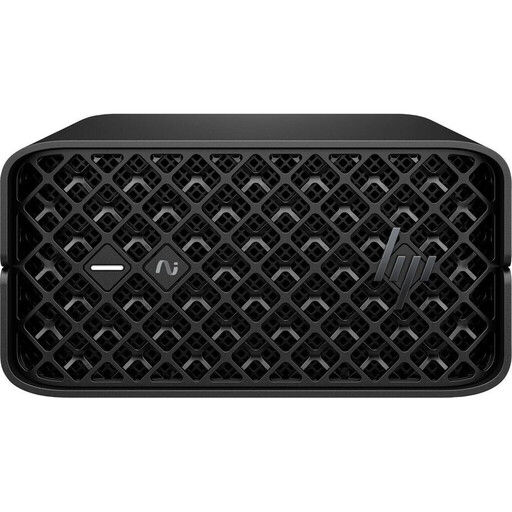
HP Z2 Mini G1a with Ryzen AI Max+ PRO 395, 128 GB RAM and 2 TB SSD

HP Z2 Mini G1a, Ryzen AI Max+ PRO 395, 128 GB RAM, 2 TB SSD

The listed storage specification could be worth considering for large projects stored locally.

Specifications include 128 GB of RAM, a 2 TB M.2 SSD, Radeon 8060S, Thunderbolt 4, 2.5 GbE LAN and Windows 11 Pro. These figures aren’t measured video-editing performance results.

View at Joybuy
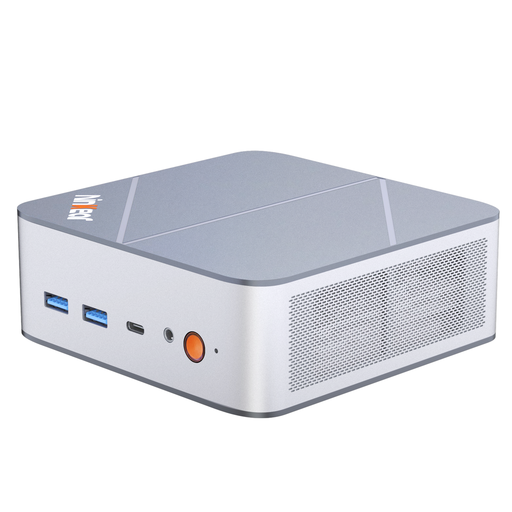
Ninkear M8 with Ryzen 7 8745HS, 16 GB DDR5 and 1 TB SSD

Ninkear M8, Ryzen 7 8745HS, 16 GB DDR5, 1 TB SSD

The 1 TB SSD provides local storage for project media. Check that its capacity is enough for your footage.

The product specifications also list Windows 10/11, Wi-Fi 6 and dual 2.5 Gigabit Ethernet. Adobe recommends 32 GB of RAM or more for 4K and higher in Premiere; check the requirements for your software version.

View at Joybuy
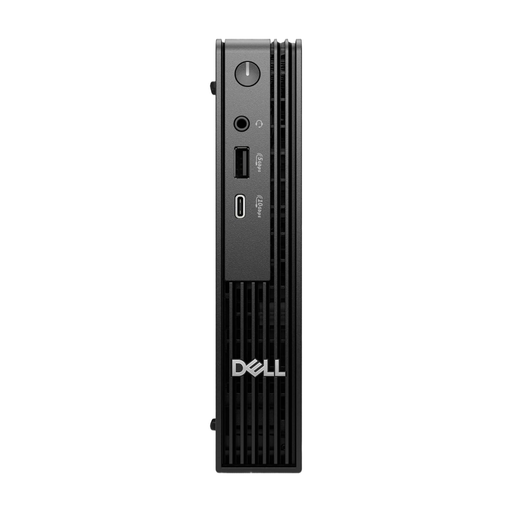
Dell Pro Micro QCM1250 MJ5TK TPM with i7-14700T, 16 GB DDR5 and 512 GB NVMe SSD

Dell Pro Micro QCM1250 MJ5TK TPM, i7-14700T, 16 GB DDR5, 512 GB NVMe SSD

This compact computer could suit an editing setup if the stated storage capacity is enough for your active media.

Specifications include a 512 GB NVMe SSD, Intel UHD 770 and Windows 11 Pro. The SSD offers less capacity for a large local media archive, so factor in any extra storage you need and the right connections.

View at Joybuy

Frequently asked questions

Is a ‘4K support’ specification enough to help me choose?

No. On its own, it doesn’t prove that 4K timelines will play smoothly. Check the requirements of your editing software and footage: Adobe lists specific component requirements for Premiere and recommends 32 GB of RAM or more for 4K and higher.

How should I organise media and cache for large projects?

For Premiere, Adobe recommends fast SSD or NVMe drives and describes using separate drives for the system, cache and media. If you only have two drives, Adobe says you can keep media and cache on the same additional drive.

What should I check before setting up a barebone PC?

Check what’s included with the exact variant, particularly RAM, SSD and operating system. ASUS also sells versions of the NUC 15 Pro+ without pre-installed storage; make sure the specifications meet your editing software’s requirements.

What are my rights if a product is faulty in Germany, and is a manufacturer’s warranty the same thing?

Your statutory consumer rights are with the seller; a manufacturer’s warranty is an additional voluntary service with its own terms. The German consumer advice centre explains that new goods are generally covered by a two-year statutory warranty, with repair or replacement offered first.

What should I look for in terms of product compliance?

For a mini PC sold in Germany, the relevant EU conformity requirements for the specific electrical or electronic device apply, including the required CE marking. The European Commission explains the requirements for CE marking, while the Federal Network Agency lists checks on marking and conformity as part of its market surveillance. The CE mark is not independent proof of video-editing performance.