What should you look for when buying?
Windows mini PC with integrated graphics
Suitable if: your editing software runs on Windows and the specifications suit your footage and effects.
Bear in mind: Barebone versions may be supplied without RAM, an SSD or an operating system, so check the configuration you’ve selected.
Mac mini with Apple M6
Suitable if: the software you need runs on macOS and Apple’s stated Media Engine supports your video formats.
Bear in mind: Check software licences, project files and the accessories you need before switching platforms.
Mini PC with dedicated graphics
Suitable if: your editing software and planned effects require a suitably equipped graphics processor.
Bear in mind: A dedicated GPU alone doesn’t guarantee faster results for your projects; compare the full specifications.
For Premiere on Windows, Adobe recommends 16 GB of RAM for HD footage and at least 32 GB for 4K and higher resolutions. These recommendations aren’t universal requirements for other editing software.
| What you need |
What to check when buying |
Who is this important to? |
| Performance to suit your editing footage |
Check the editing software and version, whether your footage is HD or 4K, the codec and the amount of RAM actually installed. |
If I regularly edit videos in specific formats and with particular effects, I want to choose a configuration that suits my project. Around 33% of consumers prioritise editing performance. |
| Secure shared use |
Plan for separate password-protected accounts, access rights and regular backups stored separately. |
If several people use the same computer, I want to organise access and changes to project files so they can be tracked. Around 27% of consumers prioritise shared use. |
| Storage and connections |
Check the installed SSD capacity and available expansion slots. Make sure there are suitable connections for displays, audio, drives and, where needed, network storage. |
With large original files and extra peripherals, I want to plan for enough storage and the right connections. Around 20% of consumers prioritise storage and connections. |
| Total cost of a ready-to-use configuration |
To compare like with like, check whether RAM, an SSD and an operating system are included, and what software or additional devices you’ll need. |
If I want to set up an editing workstation that’s ready to use, I look at what’s included rather than just the variant name. Around 20% of consumers keep the total cost in mind. |
Joybuy products for video editing
This selection includes Windows mini PCs and a Mac mini for different editing software, project sizes and connection needs. Check each product’s stated specifications against your workflow.
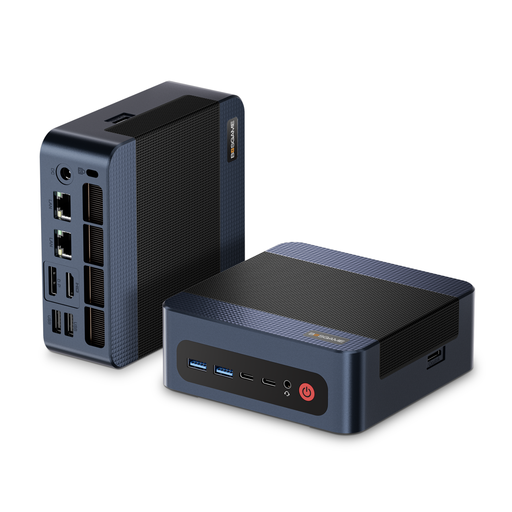 Image unavailable
BOSGAME M4 Plus – Ryzen 9 7940HS, 32 GB RAM, 1 TB SSD
Compare the stated Windows specifications with your editing software and project size.
Windows 11 Pro, 32 GB DDR5 RAM and a 1 TB PCIe 4.0 SSD; the product description lists integrated Radeon 780M graphics, a second PCIe SSD slot and 2.5-gigabit Ethernet.
View at Joybuy
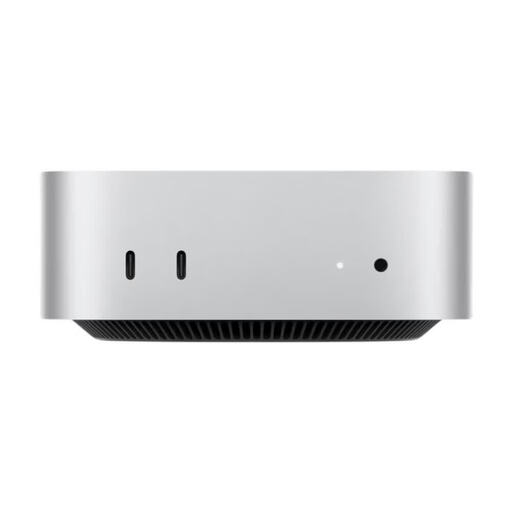 Image unavailable
Apple Mac mini M6 – 12-core CPU, 12-core GPU, 32 GB, 1 TB SSD
An option for a macOS editing workstation if the software and video formats are compatible with your workflow.
32 GB unified memory and a 1 TB SSD; the product description lists a Media Engine for H.264, HEVC, ProRes and ProRes RAW, as well as Thunderbolt 4, HDMI and 2.5-gigabit Ethernet.
View at Joybuy
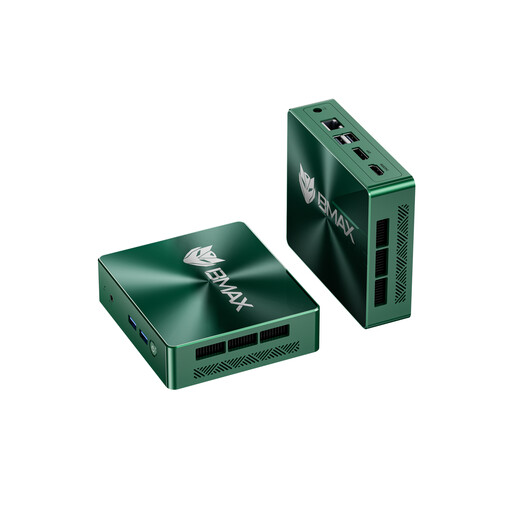 Image unavailable
BMAX B6 – Intel Core i3-8109U, 12 GB RAM, 256 GB SSD
Check the stated specifications against your editing software’s requirements and the size of your projects.
12 GB of RAM and a 256 GB SSD; the product description lists Intel Iris Plus Graphics 655 and two M.2 slots. HDMI, DisplayPort, Wi-Fi and Ethernet are also listed.
View at Joybuy
 Image unavailable
BMAX B7A Plus – Ryzen 5 6600H, 12 GB RAM, 512 GB SSD
Compare the stated memory and connections with what your editing workstation needs.
12 GB LPDDR5 RAM and a 512 GB NVMe SSD; the product description lists integrated Radeon 660M graphics, two M.2 slots, two HDMI outputs and USB ports.
According to the product description, use the original power supply and keep the vents clear.
View at Joybuy
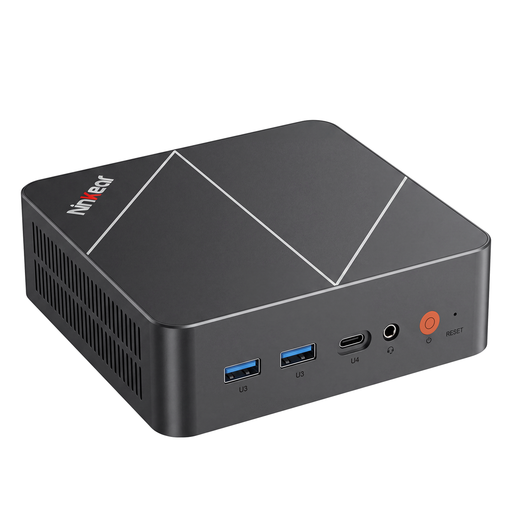 Image unavailable
Ninkear L20 – Intel Core Ultra 5 226V, 16 GB RAM, 512 GB/1 TB SSD
For a Windows editing workstation, compare the stated RAM and the SSD option you choose with your project needs.
Windows 11 and 16 GB of RAM; the product title lists SSD options of 512 GB and 1 TB. The product description says it supports three 4K displays.
View at Joybuy
Frequently asked questions
Do I always need 32 GB of RAM for lesson videos?
No, that isn’t a universal rule. For Premiere on Windows, Adobe recommends 16 GB of RAM for HD footage and at least 32 GB for 4K and higher resolutions. Check the requirements for your software, version and projects.
How should we set up a shared editing PC?
For multiple users, the German Federal Office for Information Security recommends giving each person their own password-protected account with appropriate permissions. You should also arrange regular backups of project files; an additional SSD in the same device isn’t a substitute for a separate backup.
What additional components should I budget for?
Check what’s included with the exact variant. GMKtec also offers the M6 Ultra as a barebone without RAM, an SSD or an operating system. Depending on how you work, you may also need editing software, peripherals or storage for backups.
Can we edit and publish footage of learners on a shared computer?
The hardware alone can’t answer this question. For schools in Rhineland-Palatinate, the relevant data protection authority explains the requirements for digital teaching resources and addresses publishing photos or videos separately. If identifiable people appear in your footage, check the rules that apply to your organisation, federal state, purpose and method of publication.


