Reviewing long footage
If you review a lot of footage, you’ll need space for the original files, working files and exports. Proxy workflows create additional working copies; Adobe explains this workflow for Premiere.


For long carnival videos, your mini PC should suit your editing software and the format you actually record in. You’ll also need to allow for storage space for your original files, working files and exports. If you use macOS, a suitably configured Mac mini could be a good fit, while a Windows mini PC with upgradeable RAM or an additional SSD slot may give you more flexibility over the specification. A dedicated GPU is worth considering if your software and effects require one, but it does not, by itself, guarantee a particular editing speed.
If you review a lot of footage, you’ll need space for the original files, working files and exports. Proxy workflows create additional working copies; Adobe explains this workflow for Premiere.
If you edit high-resolution footage on the timeline, match your memory and workflow to the resolution and editing software you use. Adobe’s Premiere recommendations distinguish between HD and 4K or higher resolutions.
If you’re planning to use several effects or more complex colour grading, check your editing software’s requirements and the exact GPU specification of the model you choose.
First, confirm which software you’ll use and the format you record in. Then work out how much storage you’ll need, and check whether your planned effects work calls for a particular graphics or RAM specification.
| What matters | What to check before buying | Who it matters most to |
|---|---|---|
| Storage space | Check the available SSD storage, additional SSD slots and connections for any drives you already own. Estimate what you need based on your own file sizes. | If you review long recordings and want to keep your originals, working files and exports together, storage is your top priority. Around 33% of consumers rank it first. |
| Timeline editing and playback | Check that the resolution, codec and software version for your footage meet the editing programme’s requirements. For the Premiere versions listed, Adobe recommends 16 GB of RAM for HD on Windows and at least 32 GB for 4K and higher resolutions. | If you want to move smoothly through your footage as you edit, your RAM and workflow should suit your software and resolution. Around 27% of consumers prioritise playback and timeline editing. |
| Effects and graphics | Check your software’s GPU requirements and the full model code. ASUS lists different RTX laptop GPUs and RAM configurations for the ROG NUC (2025). | If you’re planning to use several effects or more demanding colour grading, first check whether your software benefits from a dedicated GPU. Around 20% of consumers put this need first. |
| System and what’s included | Check software compatibility, the operating system, included RAM and SSD, and the connections you need. According to Apple, Final Cut Pro is available for Mac; the GMKtec NucBox M6 Ultra is also available as a barebone without RAM, an SSD or an operating system. | If you use specific editing software or want to get started as soon as you unbox your PC, check the operating system and the full specification. Around 20% of consumers prioritise the system and what’s included. |
A display connection tells you about video output. For editing in Premiere, Adobe has its own recommendations, including guidance on RAM, GPU and storage.
Compare the exact specification with your software’s requirements and the format you record in.
With a proxy workflow, you’ll have editing copies as well as the original files.
Estimate your storage needs based on your files, and check for internal expansion options and connections for any drives you already own.
You may need additional storage for originals, proxies and exports.
The GMKtec NucBox M6 Ultra is also available as a barebone without RAM, an SSD or an operating system.
Before ordering, check what’s included with the specific version and allow for setting up any missing components.
With the barebone version, you’ll need to buy and set up the missing components separately.
Mac mini for a macOS workflow; the models listed differ in their memory and SSD configurations.
The NucBox M6 Ultra is a range of Windows mini PCs with two M.2 slots and various RAM and SSD configurations.
The NUC 15 Pro+ and ROG NUC (2025) are different ranges; ASUS lists dedicated RTX laptop GPUs for the ROG NUC.
The A8 is documented with replaceable memory and a base configuration of 16 GB RAM and a 1 TB SSD.
The Pro Mini 400 G9 range is designed for compact Windows workstations; HP lists 16 GB of RAM and a 512 GB SSD for the 937U0EA#ABD version.
This Joybuy selection includes compact computers with a range of RAM, SSD and graphics configurations for video-editing setups. Check each specification against your software, footage and the space you need for project files.
 No image available
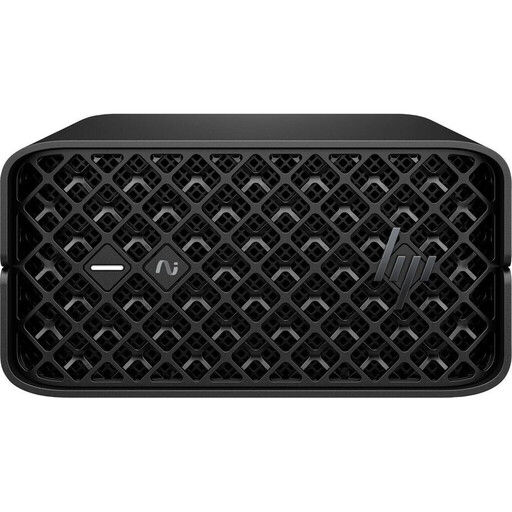
The listed specification offers plenty of internal storage for projects, but make sure the components still suit your actual workflow.
Ryzen AI Max+ PRO 395 with 16 CPU cores, Radeon 8060S, 128 GB RAM and a 2 TB M.2 SSD. Supplied with Windows 11 Professional pre-installed.
 No image available
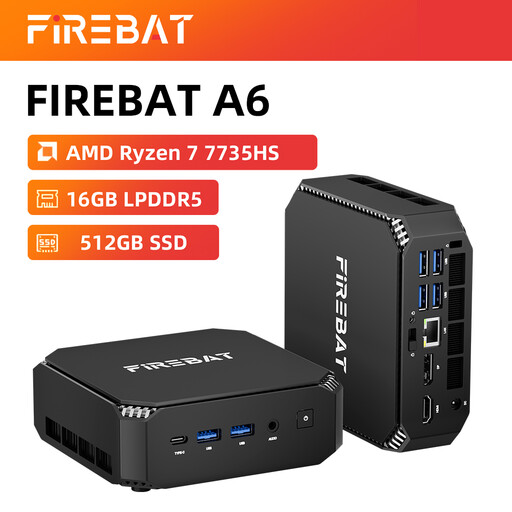
If you’re planning to add internal storage later, check the two listed M.2 slots and the exact configuration supplied.
Ryzen 7 7735HS, Radeon 680M, 16 GB RAM, 512 GB NVMe SSD and two M.2 slots.
 No image available
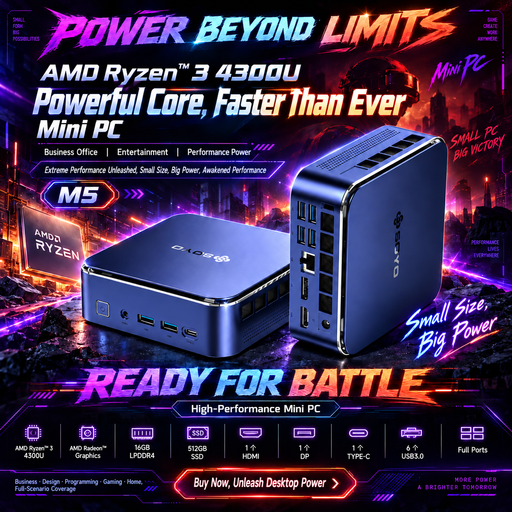
Listed as a compact Windows system; check that the specification suits your resolution and editing software requirements.
Ryzen 3 4300U, Radeon graphics, 16 GB LPDDR4 and a 512 GB SSD. The listed display outputs are HDMI 2.0, DisplayPort 1.4 and USB-C.
 No image available
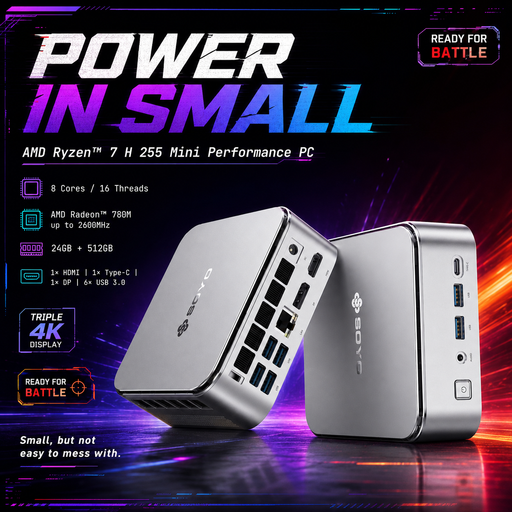
If you want to connect multiple displays, check the listed video outputs and make sure the storage suits your project needs.
Ryzen 7 H255, Radeon 780M, 24 GB LPDDR5 and a 512 GB PCIe 3.0 SSD. The listed video outputs are HDMI, DisplayPort and USB-C.
 No image available
Check whether the listed RAM and SSD specification suits your footage and the space available for project files.
Ryzen 5 7640HS, Radeon 760M, 24 GB LPDDR5 and a 512 GB PCIe 4.0 SSD.
Video length alone doesn’t determine this: check the resolution, codec, effects and editing software. For the Premiere versions listed, Adobe recommends 16 GB of RAM for HD media on Windows, but at least 32 GB for 4K and higher resolutions. This recommendation doesn’t apply to every editing programme.
In Premiere, you can create lower-resolution proxy copies for compatible video clips and edit using these, then switch back to the original media for the final export. Allow storage space for the extra copies and check Adobe’s guidance on limitations, such as clips with captions or growing files.
Check whether RAM, an SSD and an operating system are included. The GMKtec NucBox M6 Ultra is also available as a barebone without these components; whether you need additional drives or editing software depends on your existing setup.
If you buy from a business seller, contact the seller about your statutory guarantee rights. According to consumer information from the European Union, these rights apply for at least two years from the date you receive the goods; an additional manufacturer’s warranty does not replace them.
Check the details for the specific device and power supply. European Union consumer information lists electrical and electronic equipment among the product groups that may be subject to relevant CE requirements. The CE marking is the manufacturer’s declaration that the applicable requirements have been met; it is not an independent performance or quality seal.