What should you look for when buying?
Start by considering your editing software, footage and workflow. Then compare the exact RAM, SSD and port specifications of the model you’re interested in.
Windows mini PC
A good fit if: You use Windows editing software and want to configure the RAM or project drive to suit your needs.
Consider: Specifications and ports vary by model; a kit may need some extra setup.
Mac mini
A good fit if: Your editing software and existing projects run on macOS, and you’re planning a compact workspace.
Consider: Choose your storage and SSD configuration carefully. Documented codec features don’t predict how your multi-track timeline will run.
| What you need |
What to check before buying |
Who is it important to? |
| Multi-track editing |
Check that your editing software, resolution and codec are suited to the installed RAM. For Premiere on Windows, Adobe recommends at least 32 GB of RAM for 4K. |
If I’m editing interviews and several film tracks at once, I want to assess playback with my own footage. Around 36% of consumers are likely to prioritise this level of performance. |
| Film files and storage |
Check the SSD capacity and available ports for working media, and make room for a separate backup. |
For long recordings, I want to keep originals and working files accessible without relying on the same storage for backups. Around 29% of consumers are likely to prioritise storage and archiving. |
| Software and video formats |
Check that the operating system is compatible with your editing software and that the codecs support your original footage’s formats. |
If my projects and editing software are built around a particular operating system or video format, I want to keep my existing workflow. Around 21% of consumers are likely to prioritise this. |
| Configuration and setup |
Check the exact model code, RAM, SSD and pre-installed operating system, as well as the warranty and seller’s terms. |
If I want a complete setup that’s straightforward to get started with, I want to know exactly which components are included before ordering. Around 14% of consumers are likely to prioritise this. |
Joybuy picks for compact editing setups
This selection includes a compact HP Z2 Mini configuration and several Mac mini models. Compare the exact memory specifications with your project files, and check that the editing software and media formats suit your setup.
 No image available
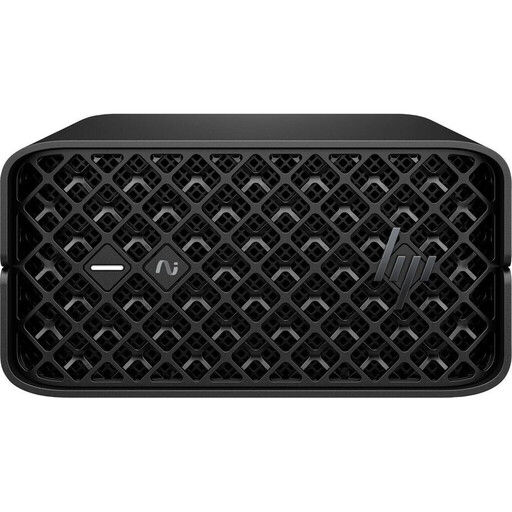
HP Z2 Mini G1a Ryzen AI Max+ Pro 395, 128 GB RAM, 2 TB SSD
The listed 128 GB of RAM and 2 TB SSD are worth considering if you want to plan specifically for memory and project file storage; they don’t prove a particular timeline performance.
Processor: Ryzen AI Max+ Pro 395.
Memory: 128 GB RAM.
SSD: 2 TB.
Joybuy
 No image available
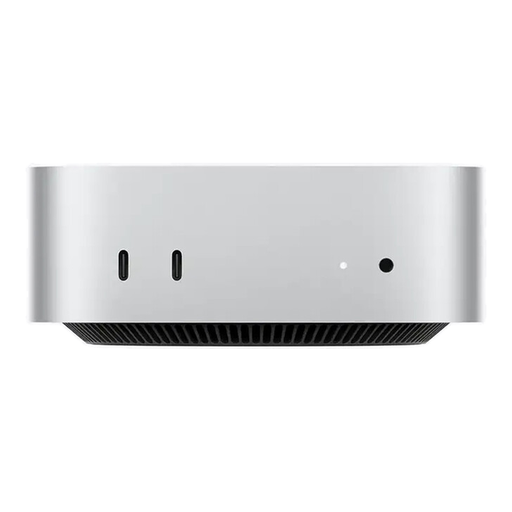
Apple Mac mini M6, 16 GB unified memory, 256 GB SSD
An option if your editing software runs on macOS. Check whether a 256 GB SSD will suit your working files, and consider where you’ll store your originals and backups.
Chip: M6 with 12-core CPU and 12-core GPU.
Memory: 16 GB unified memory.
SSD: 256 GB.
Ports: Thunderbolt 4 and HDMI.
Joybuy
 No image available
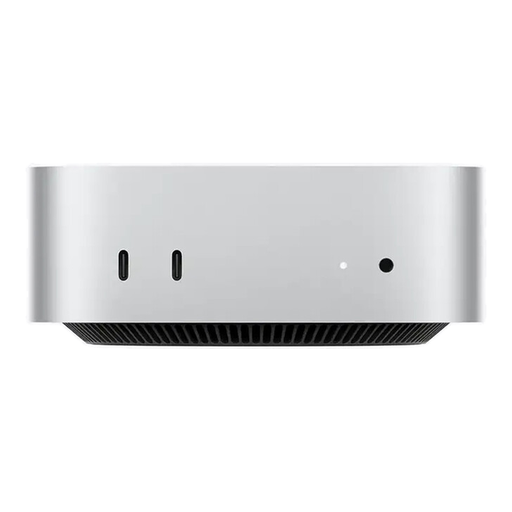
Apple Mac mini M6, 16 GB unified memory, 512 GB SSD
This macOS configuration offers more SSD capacity than the 256 GB model. Match your chosen capacity to your working files and the storage you’ll need for your originals.
Chip: M6 with 12-core CPU and 12-core GPU.
Memory: 16 GB unified memory.
SSD: 512 GB.
Ports: Thunderbolt 4 and HDMI.
Joybuy
 No image available
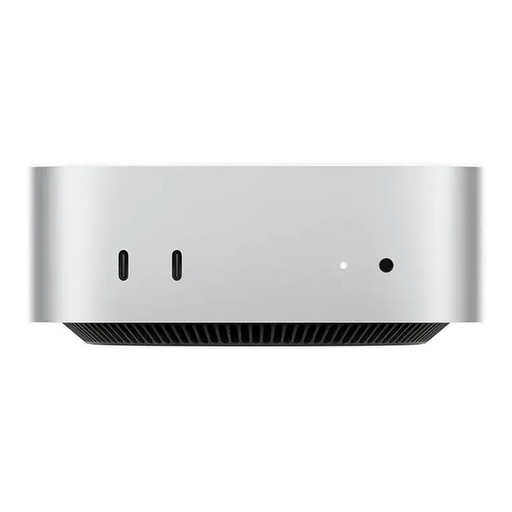
Apple Mac mini M6, 24 GB unified memory, 512 GB SSD
Consider this configuration if you’re looking for a macOS setup with 24 GB of unified memory and a 512 GB SSD. How well it suits your project also depends on your software and media formats.
Chip: M6 with 12-core CPU and 12-core GPU.
Memory: 24 GB unified memory.
SSD: 512 GB.
Ports: Thunderbolt 4 and HDMI.
Joybuy
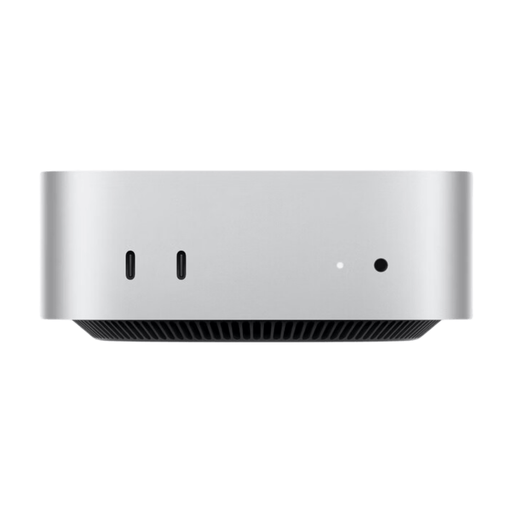 No image available
Apple Mac mini M6, 24 GB unified memory, 1 TB SSD
This model pairs 24 GB of unified memory with a 1 TB SSD. Check whether the capacity will suit your working files, and whether you’ll need extra storage for originals and backups.
Chip: M6 with 12-core CPU and 12-core GPU.
Memory: 24 GB unified memory.
SSD: 1 TB.
Ports: Thunderbolt 4 and HDMI.
Joybuy
Frequently asked questions
Can I edit high-resolution footage on a less powerful mini PC?
If your editing software supports proxy workflows, you can work with lighter copies and switch back to the original media for the final export. Adobe describes this approach for Premiere, particularly with 4K footage and less powerful hardware. It doesn’t guarantee smooth playback with every combination of clips and effects.
What should I check before setting up an ASUS NUC 15 Pro?
Check the full model code and what’s included, as ASUS sells both mini PCs and kits without a pre-installed operating system. For the exact model on offer, confirm which operating system, RAM and SSD are included.
Is 16 GB of RAM enough to edit my village history films?
It depends on factors including your editing software and resolution. For Premiere on Windows, Adobe recommends 16 GB of RAM for HD footage and at least 32 GB for 4K or higher. Check these recommendations against your particular software and project.
Can I simply use archive footage I find online in a film I publish?
No. The fact that something is available online doesn’t automatically give you the right to reuse it. The German Federal Archives points out that protected works may require legal permission or a licence, and that its own rights to use material don’t automatically pass to others. Check the rights for the specific film, images and audio before publishing.
Who should I contact if a mini PC bought in Germany develops a fault?
For a consumer purchase, contact the seller about your statutory rights. The German Consumer Advice Centre states that, as a general rule, you can make a claim under the statutory warranty for new goods for two years from receipt. This is separate from any voluntary guarantee.


