Teams editing 4K footage
Taking the resolution, codec and effects used in your existing footage into account helps you match the computer’s specifications to your editing software. Adobe recommends 32 GB of RAM or more for 4K footage in Premiere.


Choose a mini PC based first on your editing software and the resolution and codec of your existing footage. Then plan user access, project storage and backups. For 4K footage in Adobe Premiere, Adobe recommends 32 GB of RAM or more. For certain shared Premiere workflows using footage above HD resolution, Adobe recommends 10 Gbit/s or faster. These recommendations do not apply universally to every piece of software or every club.
Taking the resolution, codec and effects used in your existing footage into account helps you match the computer’s specifications to your editing software. Adobe recommends 32 GB of RAM or more for 4K footage in Premiere.
When people take turns editing, it’s important to have separate user accounts and a clear place to store projects and media. Microsoft explains that Windows allows multiple user accounts, each with its own settings, documents and applications.
If you’re working with footage that would be difficult to replace, plan for working files and backups as separate tasks. Germany’s Federal Office of Civil Protection and Disaster Assistance recommends protecting important documents with backups.
Start by checking the requirements of your editing software and footage. You can then plan shared access, archiving and the connections needed at your existing workstation.
| Priority | What to check before buying | Who it matters most to |
|---|---|---|
| Editing performance | Check that the editing software, resolution, codec and effects are a good match for the RAM and graphics in the specific configuration. | If my main priority is editing the footage I already have reliably, I’ll check my software requirements first. Around 31% of consumers put editing performance first. |
| Shared access | Sort out user accounts, project storage and access permissions. If you’re sharing Premiere Productions, check the network and storage too. | If several club members use the same workstation, I need clear user accounts and a designated place for projects. Around 25% of consumers prioritise shared access. |
| Archive and backups | Plan for the SSD capacity supplied, possible upgrades and a separate backup of your footage. | If footage can’t easily be replaced, I don’t want to mistake my working files for my only backup. Around 25% of consumers put archive preservation first. |
| Connections and setup | Check your existing drives and screens, the connections you need, the operating system and network speed. | If I want to keep using my existing equipment, I’ll check in advance what can be connected directly and what else is needed for setup. Just under 19% of consumers prioritise connections and setup. |
Model ranges may be available with different memory configurations. Adobe recommends 32 GB of RAM or more for 4K footage in Premiere.
Check the full model number and the RAM actually included against your editing software and footage.
Any later upgrade depends on whether the specific configuration supports it.
Extra space on the same working SSD isn’t a separate backup of your footage.
Plan for working storage and separately stored copies as two distinct tasks.
For Premiere Productions involving footage above HD resolution, larger productions or several people working at the same time, Adobe recommends 10 Gbit/s or more. The speed quoted for a single connection doesn’t prove that the entire network and storage system is just as fast.
If you plan to use this Premiere workflow, check the connection from the computer, through the network, to the shared storage.
Depending on your existing setup, you may need additional network or storage equipment.
Mac mini for teams looking to set up a macOS editing workstation.
The Z2 Mini G1a is a compact workstation option. One configuration available in Germany comes with Windows 11 Pro, 32 GB of RAM and a 1 TB SSD.
The NUC 15 Pro range includes kits and pre-configured mini PCs. What matters is the specification actually included.
The ThinkCentre M75q Gen 5 is an option for teams comparing configurable memory and connections.
The A9 Max 2026 Edition is available, among other options, in a manufacturer-listed configuration with 32 GB of RAM and a 2 TB SSD.
This selection features compact mini PCs for a shared editing workstation. Check each model’s specifications against your software and footage.
 No image available
This could work as a compact editing workstation only if its specific configuration suits your software and footage.
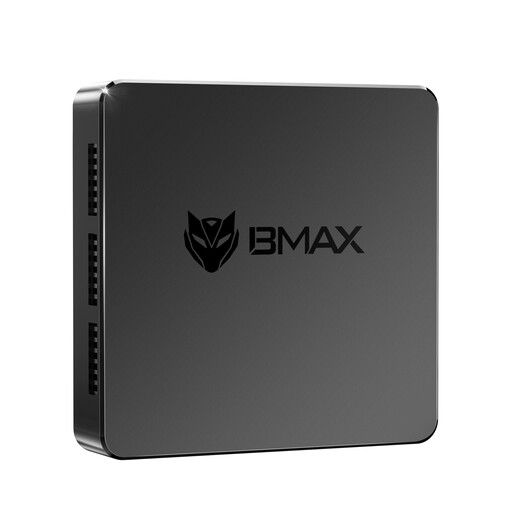
The product title lists Windows 11, 8 GB DDR4 and a 256 GB SATA SSD. Adobe recommends 16 GB of RAM for HD footage and 32 GB or more for 4K in Premiere, so the stated memory falls short.
 No image available
The two HDMI outputs listed in the title may be useful when planning a compact workstation. Check your editing software’s requirements separately.
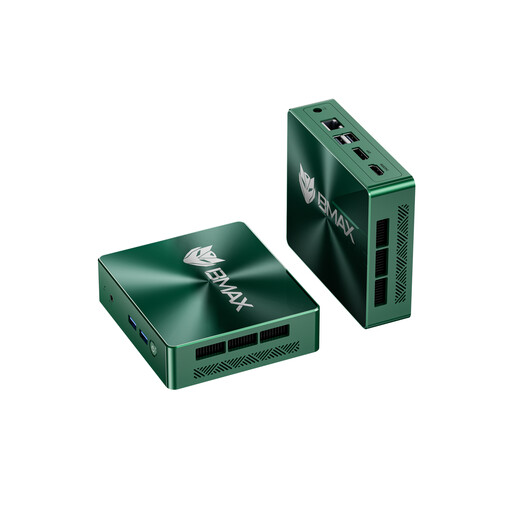
The title lists 8 GB LPDDR4, a 256 GB SSD and 1000M LAN. Adobe recommends 16 GB of RAM for HD footage and 32 GB or more for 4K in Premiere, so the stated memory falls short.
 No image available
The HDMI and DisplayPort connections listed in the product title are worth checking if you’re planning a workstation with multiple screens. Suitability for editing also depends on your software and footage.
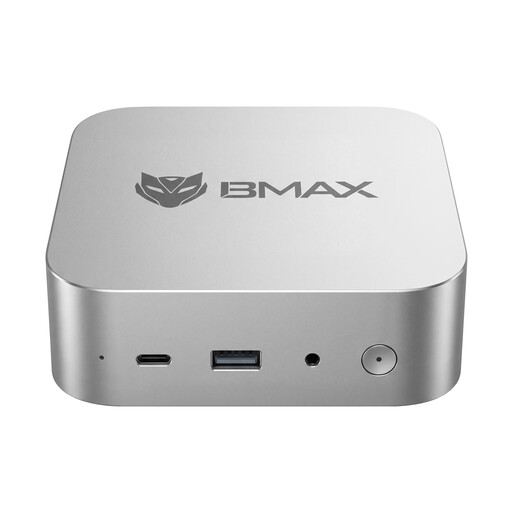
The title lists 12 GB of RAM, a 256 GB SSD and 1000M LAN. Adobe recommends 16 GB of RAM for HD footage and 32 GB or more for 4K in Premiere, so the stated memory is below both figures.
 No image available
The SSD capacity listed in the title may be useful when planning local working files. It doesn’t replace a separate archive backup.
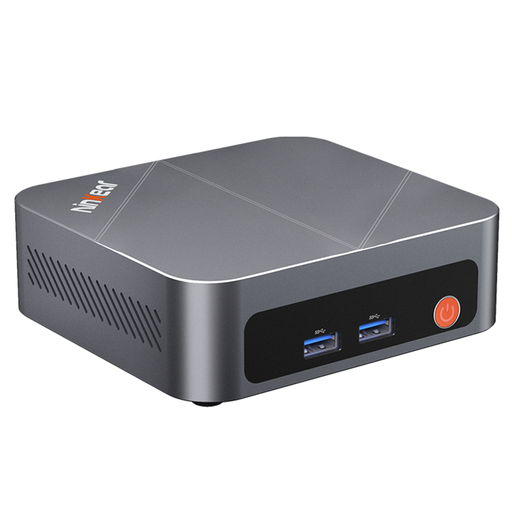
The product title lists 12 GB LPDDR5 and a 512 GB NVMe SSD. Adobe recommends 16 GB of RAM for HD footage and 32 GB or more for 4K in Premiere, so the stated memory falls short.
 No image available
The support for three displays listed in the product title may be useful when planning a shared workstation, but doesn’t by itself indicate a particular editing speed.
The title lists 16 GB DDR4, a 512 GB SSD and Windows 10/11. Adobe recommends 16 GB of RAM for HD footage and 32 GB or more for 4K in Premiere, so the stated memory is below the recommendation for 4K editing.
Not just because several people take turns editing: Windows supports separate user accounts on the same device. If people need to work at the same time using shared storage, you’ll need to plan the software workflow, access and network separately.
Adobe recommends storing the media cache on the system drive or a fast SSD connected directly to each workstation, rather than on shared storage. This recommendation applies to Premiere Productions.
No. Germany’s Verbraucherzentrale (consumer advice centre) distinguishes between the seller’s statutory liability for defects and a voluntary warranty. The consumer rights that apply to a specific club purchase also depend on who enters into the contract, so check the contract and warranty terms.
There’s no one-size-fits-all answer. According to Germany’s Federal Commissioner for Data Protection and Freedom of Information, processing personal data requires a legal basis. Consent is one possible basis, but it isn’t the only one. Whether consent is necessary or sufficient for particular archive footage and a planned publication must be assessed on a case-by-case basis.