What should you look for when buying?
Windows PC with Hyper-V
A good fit if: you want to use the mini PC directly at your desk with Windows and run your VMs under Hyper-V.
Keep in mind: check the Windows edition, SLAT and whether hardware virtualisation is enabled. The host’s resources are needed in addition to those required by the guests.
Standalone Proxmox VE host
A good fit if: the computer will mainly run virtual machines and managing it through the Proxmox interface fits your workflow.
Keep in mind: plan for memory for both the host and guests, as well as networking and drives. Evaluation minimums aren’t a guide to sizing a system for production use.
The right configuration depends on what you plan to run on the host and in the guests at the same time. Proxmox Server Solutions specifies at least 2 GB for the operating system and services, in addition to the memory allocated to guests; Microsoft Learn sets out its own Hyper-V requirements.
| Consideration |
What to check when buying |
Who it matters most to |
| RAM and VMs running at the same time |
Add together the memory needed by the host and all guests running at once, then check the RAM actually installed and how many slots are free. MSI lists two SO-DIMM slots and support for up to 64 GB DDR5 in the Cubi NUC 1M series; the amount installed depends on the configuration. |
If I’m running several test VMs at once, the memory I can actually use matters more than a stated upgrade limit. Around 33% of consumers rank RAM as their top buying consideration. |
| Hypervisor, CPU and firmware |
Choose your hypervisor first. For Hyper-V, check that you have a supported Windows edition, SLAT and hardware virtualisation enabled; for Proxmox on x86, check for Intel VT or AMD-V. IOMMU is relevant if you need PCI(e) passthrough. |
If the mini PC needs to run specific host software and support the features I need, I want to check the edition, CPU and firmware before buying. Around 27% of consumers prioritise this compatibility. |
| Space, ports and noise |
Count the monitor and USB ports you need, and check where you’ll put the PC, whether it has enough room for cooling and, if necessary, whether it supports the right VESA mount. Manufacturer noise figures aren’t an independent measurement of how loud your particular setup will be. |
At a shared desk, I need the right ports and a place for the PC that allows for both space and ventilation. Around 20% of consumers say desk use is their main buying consideration. |
| VM storage and networking |
Compare the SSD capacity with the space your VM images will need, and check that you have the LAN ports you need, as well as the drive bays available and what’s included with the exact model. |
If I need to store VM images locally or plan networking and maintenance carefully, I check the drive bays and LAN ports on the exact model. For around 20% of consumers, storage and networking are their main considerations. |
Joybuy products for VMs and desk use
The Joybuy products below include compact computers for a range of VM and desk setups. Check that the specifications, hypervisor and planned workload running at the same time suit your particular needs.
 No image available
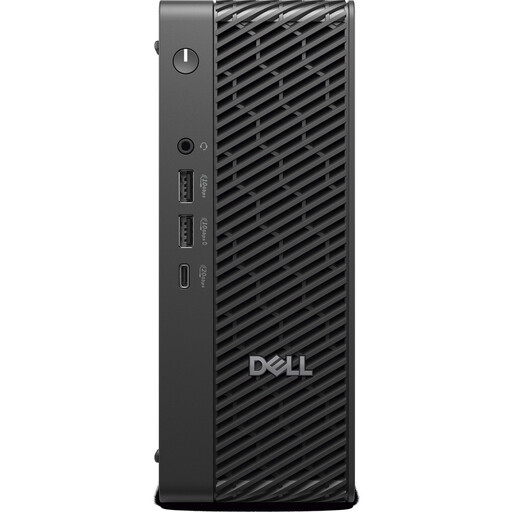
Dell Pro Max MFF Ultra 7, 32 GB, 1 TB
Could suit you if you want a Windows PC for your desk and its stated memory and SSD specifications meet your VM needs.
Windows 11 Pro; Intel Core Ultra 7 265 with 20 cores; 32 GB DDR5; 1 TB SSD. For Hyper-V, also check the edition, SLAT and whether hardware virtualisation is enabled.
View at Joybuy
 No image available
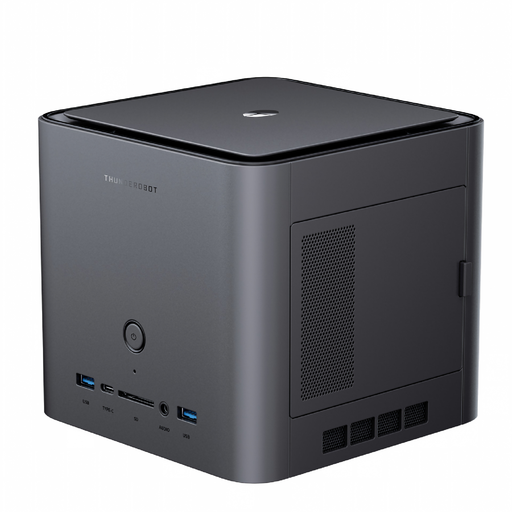
Thunderobot AI Max+ 395 Mini PC Workstation, 128 GB LPDDR5X, 1 TB SSD
The stated memory specifications may be relevant to your resource planning; check that the exact model meets your hypervisor’s requirements.
128 GB LPDDR5X; 1 TB SSD; side-mounted SSD interface; hot-swappable network card interface; Wi-Fi 7.
View at Joybuy
 No image available
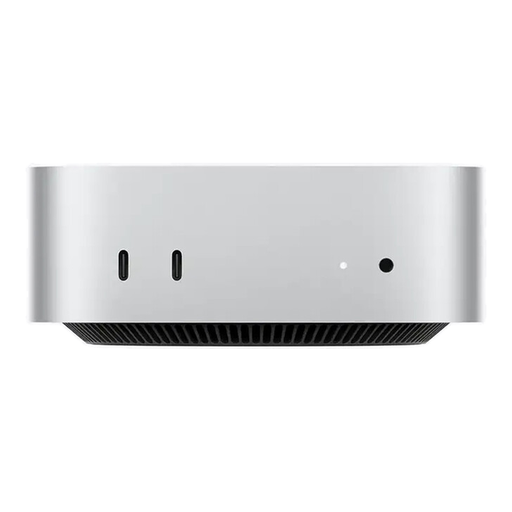
Apple Mac mini M6, 12-Core CPU, 16 GB Unified Memory, 256 GB SSD
Could work in a compact workspace if its operating system and available specifications suit your virtualisation plans.
12-Core CPU; 16 GB Unified Memory; 256 GB SSD; three Thunderbolt 4 ports; HDMI; 2.5 GbE; macOS.
View at Joybuy
 No image available
ACEMAGIC AK1PLUS, Intel Celeron N5095, 16 GB RAM, 256 GB SSD
Could suit you if you’re looking for a Windows PC for a shared desk and 16 GB RAM and a 256 GB SSD meet your VM needs.
Windows 11 Pro; Intel Celeron N5095 with 4 cores and 4 threads; 16 GB LPDDR4X; 256 GB M.2 2280 SATA SSD; two HDMI 2.0 outputs; Gigabit LAN.
View at Joybuy
 No image available
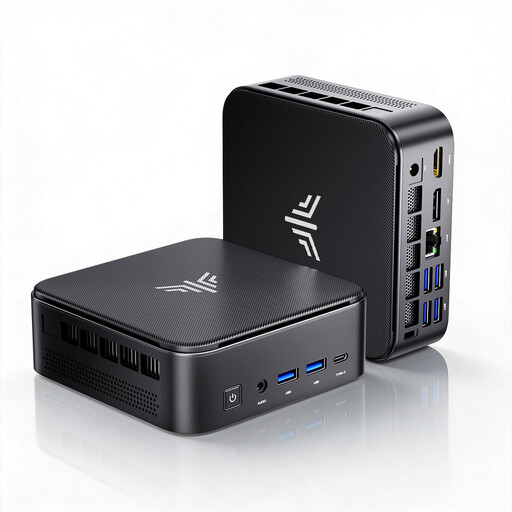
ACEMAGIC E3B, AMD Ryzen 7 7735HS, 24 GB LPDDR5, 512 GB NVMe SSD
Could be a good option for a Windows desktop with local VM storage if the stated configuration suits your hypervisor and the guests you plan to run at the same time.
Windows 11 Pro; AMD Ryzen 7 7735HS; 24 GB LPDDR5; 512 GB NVMe SSD; two M.2 2280 slots; 2.5 Gb LAN; triple-display output.
View at Joybuy
Frequently asked questions
Is 16 GB RAM enough for my virtual machines?
It depends on the host, how many guests are running at the same time and how much memory each is allocated. Proxmox Server Solutions specifies at least 2 GB for the operating system and services, in addition to guest memory; Microsoft Learn also takes into account the memory needed by the host and VMs running at the same time. Check the amount you’ll actually allocate rather than relying on the total RAM alone.
Can I use Hyper-V with any pre-installed edition of Windows 11?
No. Microsoft Learn lists the supported host editions and requirements such as SLAT and hardware virtualisation being enabled. Check the Windows edition, processor and BIOS or UEFI settings on the specific configuration.
What should I plan for with a small Proxmox host?
Allow memory for the host as well as the guests, and choose networking and drives to suit how you’ll use the system. According to Proxmox Server Solutions, PCI(e) passthrough requires suitable IOMMU support, which usually needs to be enabled in the BIOS or UEFI.
What should I check before buying a barebone kit?
Check what’s included with the exact SKU, as a kit may not include RAM, storage or an operating system. Also plan which components you’ll need and how you’ll set everything up before comparing the model with fully equipped PCs.
Does a product listing alone prove that a mini PC is compliant?
No. A product listing alone doesn’t prove that a specific device meets all applicable product requirements. In its area of responsibility, the Bundesnetzagentur lists correct CE marking and product information among the relevant requirements; which EU rules apply depends on the equipment. CE marking is only required for products covered by the relevant EU rules.


