If you’ll be running several VMs at once, allow for the memory needed by both the host and guest systems, and check that the monitors’ inputs match the outputs on the specific device configuration. If you plan to use Hyper-V on Windows, also check which Windows edition is supported and review the hardware requirements. With a barebone kit, you may need to supply the RAM, SSD and operating system, and set aside time for setup.
Who is a mini PC for VMs and two monitors suitable for?
Developers running VMs in parallel
If you run several test systems alongside the host, choose your RAM and SSD based on the guest systems you’ll actually be running at the same time. ASUS and GMKtec document upgradeable memory configurations, but that alone doesn’t tell you how well a particular device will perform with VMs.
Students with a dual-monitor setup
If you want host applications on one screen and VM windows on the other, check that the inputs on both monitors match the video outputs on the specific device configuration. ASUS Germany lists two HDMI outputs for the NUC 14 Pro+, while Lenovo’s specifications for the ThinkCentre M75q Gen 5 include HDMI and DisplayPort.
Anyone setting up a Windows test lab
If you plan to use a particular hypervisor, check its requirements and the Windows edition actually supplied with the device. Microsoft Learn specifies the Pro or Enterprise editions for Hyper-V on Windows 11, along with additional hardware requirements.
Which buying criteria matter most for VMs and two monitors?
First, decide how many VMs you’ll run at once and which hypervisor you plan to use. Then check that the inputs on both monitors match the video outputs on the specific device configuration.
| What matters |
What to check before buying |
Who should pay particular attention? |
| RAM for VMs running simultaneously |
Check how much RAM is installed, which slots are free and the maximum capacity supported by the specific configuration. |
If I’m running several guest systems in parallel, I’ll plan memory for both the host and VMs rather than relying on a maximum capacity figure alone. Around 36% of consumers prioritise RAM for VMs running simultaneously. |
| Connections for two monitors |
Check the inputs, resolution and refresh rate required by each monitor against the documented video outputs. |
If I already have two monitors, I’ll make sure I can connect both using suitable outputs rather than assume the ports are there. Around 29% of consumers put monitor connections first. |
| Hypervisor compatibility |
Choose your hypervisor and, if you’re using Hyper-V on Windows, check the edition as well as the CPU and firmware requirements. |
If my test lab depends on a particular hypervisor, I’ll check its system requirements before buying. Around 21% of consumers prioritise compatibility with their hypervisor. |
| SSD and what’s included |
Check the installed SSD storage, any free drive bays and whether components such as the operating system and power supply are included. |
If I’m storing VM images, I’ll want to know which drives are included and whether I can add more. Around 14% of consumers prioritise upgradeability and a complete package. |
Which common assumptions should you avoid when buying?
-
Confusing maximum RAM with installed RAM
A stated upgrade limit isn’t the same as the amount of memory already installed in the device on offer.
For the exact configuration you’re buying, check the installed RAM, the slots in use and the maximum supported capacity.
-
Assuming every USB-C port can output video
Lenovo’s PSREF lists the front USB-C port on the ThinkCentre M75q Gen 5 as a data-transfer port. That doesn’t guarantee an additional monitor connection.
Before choosing monitors or adapters, check whether each port you plan to use can output a video signal.
-
Expecting a kit to work like a ready-to-use mini PC
ASUS offers the NUC 14 Pro+ as both a fully equipped mini PC and as a kit, which may not include an operating system or memory. The power cable can also vary by SKU.
Check what’s included with the specific configuration you’re buying, and allow for any missing components and setup time.
-
Assuming Windows 11 alone is enough for Hyper-V
Microsoft Learn specifies the Pro or Enterprise editions for Hyper-V on Windows 11, along with other hardware requirements. The name Windows 11 doesn’t tell you which edition is installed.
If you plan to use Hyper-V, check the Windows edition supplied and the processor and firmware requirements.
Which brands and product ranges are worth considering?
ASUS
The NUC 14 Pro+ is available as a fully equipped mini PC or as a kit if you’d rather choose the components yourself.
- ASUS Germany lists two HDMI 2.1 outputs, two Thunderbolt 4 ports with DisplayPort and two SO-DIMM slots.
- The kit may not include an operating system or memory, and the specifications and power cable vary by configuration. These are manufacturer specifications, not the results of a VM performance test.
Lenovo
The ThinkCentre M75q Gen 5 Tiny offers a configurable desktop solution with HDMI and DisplayPort.
- Lenovo’s PSREF lists HDMI, DisplayPort and two memory slots. For configuration 12RQ003QEZ, Lenovo Germany specifies Windows 11 Pro and 16 GB of RAM.
- According to the PSREF, the front USB-C port is for data transfer only. Check the specifications and operating system separately for other configurations.
MSI
The Cubi NUC 1M range has two HDMI outputs and options for memory and networking.
- MSI lists two HDMI outputs, two SO-DIMM slots and support for up to 64 GB of RAM.
- According to MSI, the range includes configurations with Windows Home and Pro. The edition supplied matters if you plan to use Hyper-V on Windows.
GEEKOM
The A5 Pro 2026 Edition with Ryzen 5 7530U is listed as a fully equipped configuration with Windows Pro.
- For the selected configuration, GEEKOM Germany lists 16 GB of RAM, a 1 TB SSD and Windows 11 Pro, as well as support for multiple displays.
- The stated upgrade capacity of 64 GB isn’t the same as the amount of RAM installed, and doesn’t tell you how many VMs you can run at once.
GMKtec
According to the manufacturer, the NucBox M6 Ultra combines several memory options with HDMI, DisplayPort and USB4.
- GMKtec lists two SO-DIMM slots, two M.2 SSD slots and two 2.5 Gbit/s LAN ports.
- The manufacturer’s website shows different configurations and power plugs. Check the operating system, what’s included and the power plug for the specific configuration you’re buying.
Joybuy products for VMs and two monitors
The fully equipped mini PCs below offer different RAM and SSD configurations to compare with your VM setup. Check the video connections and specifications of each configuration against your two monitors.
 No image available
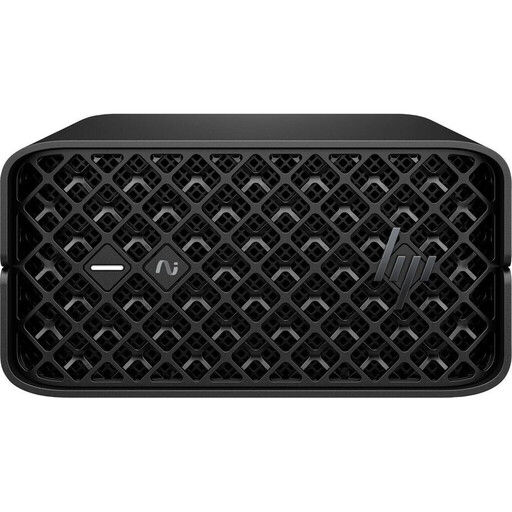
HP Z2 Mini G1a Ryzen AI Max+ Pro 395, 128 GB, 2 TB
An option to consider if you want to compare the listed memory configuration with the needs of your host and VMs running at the same time.
128 GB DDR5 and a 2 TB SSD; two rear mini DisplayPort outputs. Your monitors or cables will need to match these connections.
View at Joybuy
 No image available
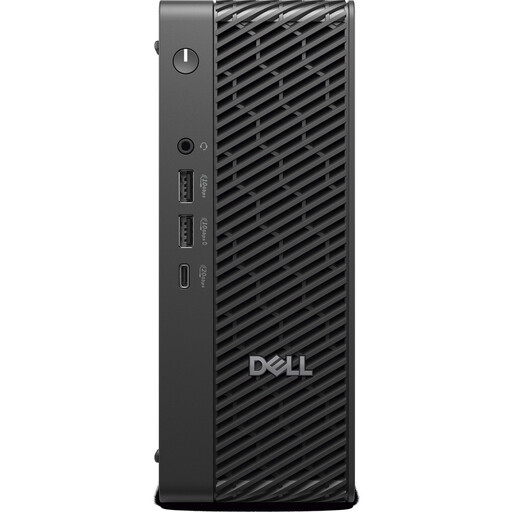
Dell Pro Max Micro FCM2250 TPM, Core Ultra 7 14-Core NPU
Check the exact memory configuration and Windows edition against your VM requirements before planning how to connect your monitors.
16 GB DDR5 at 6400 MHz, a 512 GB M.2 PCIe SSD and Windows 11 Pro; graphics are listed as Intel Graphics.
View at Joybuy
 No image available
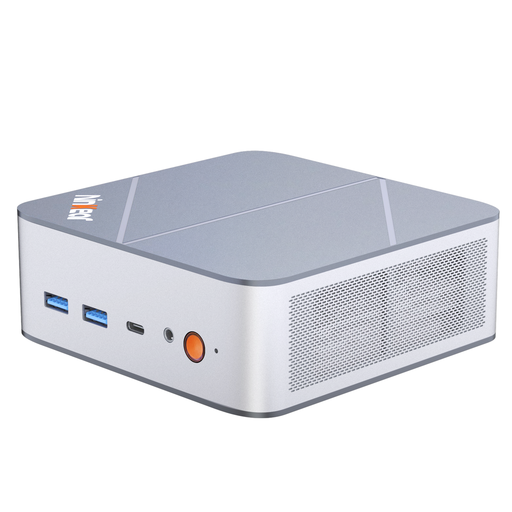
Ninkear M8 Mini PC, Ryzen 7 8745HS
Compare the listed RAM and SSD configuration with your VM plans, and check that the display connections on the specific configuration match your monitors.
16 GB DDR5, a 1 TB SSD, Windows 10/11, dual 2.5 G connections and Wi-Fi 6; dimensions are also listed as 130 × 127.5 × 52 mm.
View at Joybuy
 No image available
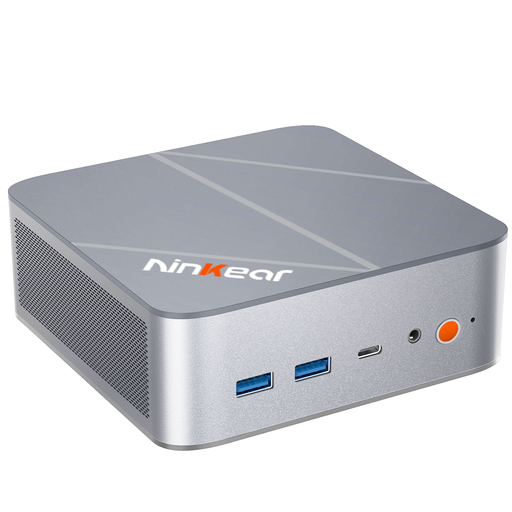
Ninkear L12 Pro Mini PC, Intel i9-12900HK
An option to consider if you want to compare the stated dual 4K display support with the connections and requirements of your two monitors.
16 GB DDR4, a 1 TB SSD and USB 4.0; described as compatible with Windows and Ubuntu. Display support alone doesn’t tell you which connections your monitors need.
View at Joybuy
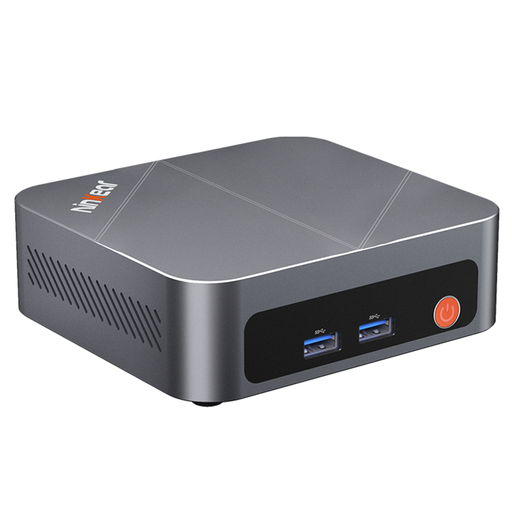 No image available
Ninkear M7 Mini PC, Intel Core i7-1185G7
Check that the available SSD storage will fit your VM images, and review the video connections for each monitor separately.
16 GB DDR4, a 512 GB SSD and pre-installed Windows; the product specifications list support for up to three displays.
View at Joybuy
Frequently asked questions about mini PCs for VMs and two monitors
Can I use Hyper-V with any PC that comes with Windows 11 pre-installed?
No. Microsoft Learn specifies the Professional or Enterprise editions for Hyper-V on Windows 11 and requires, among other things, a 64-bit processor with SLAT. Check the edition actually supplied and the specific device’s other hardware requirements.
How do I connect two monitors?
First, check the inputs on both monitors and connect each one to a suitable, documented video output. Don’t mistake a USB-C port that only transfers data for a video output: Lenovo’s PSREF specifically identifies the front USB-C port on the ThinkCentre M75q Gen 5 as a data port.
What should I bear in mind when using and maintaining my VMs?
Keep the host operating system and applications up to date. The German Federal Office for Information Security recommends regular updates and explains automatic updates; make separate backups of important VM data too.
Are the manufacturer’s warranty and statutory rights the same thing?
No. The Verbraucherzentrale distinguishes your statutory rights against the seller from a voluntary guarantee with its own terms. When buying, compare the service actually offered and the relevant guarantee terms.
How should I dispose of an old mini PC in Germany?
The German Environment Agency advises against putting electrical equipment in household waste. Contact your local collection point or an appropriate take-back facility to find out how to dispose of your old device.


